AlienReRecomp
AlienReRecomp is a native port of Alien Resurrection for Windows, Linux, and macOS that runs the game at 60fps with widescreen and mouse support.
- Type: PC port
- Game: Alien Resurrection
- Runs on Windows, Linux and macOS
- By DiegoDeDios
- Latest release v0.1.5, 2026-10-19
- Source: https://github.com/DiegoDeDios/AlienReRecomp
README
Alien Resurrection (PS1) — native port
A native macOS, Windows and Linux port of Alien Resurrection (PlayStation, USA release SLUS-00633), built by statically recompiling the original game code from MIPS to C. It is not an emulator: the game runs as a native program on a small runtime that stands in for the PlayStation's BIOS and hardware, drawn by a modern GPU renderer at high resolution, in widescreen, at a steady 60 fps, with mouse and keyboard controls and optional gameplay tweaks.
This repository and the release downloads contain no part of the game, neither data nor code. You need your own copy of the game (the USA disc image) to play: the downloadable apps for macOS and Windows read the game's code from your disc image and run it in their interpreter. The screenshots and animations below are captured from the game for illustration.
| PlayStation (240p, 4:3) | This port (16:9, 3x resolution, precision geometry) |
|---|---|
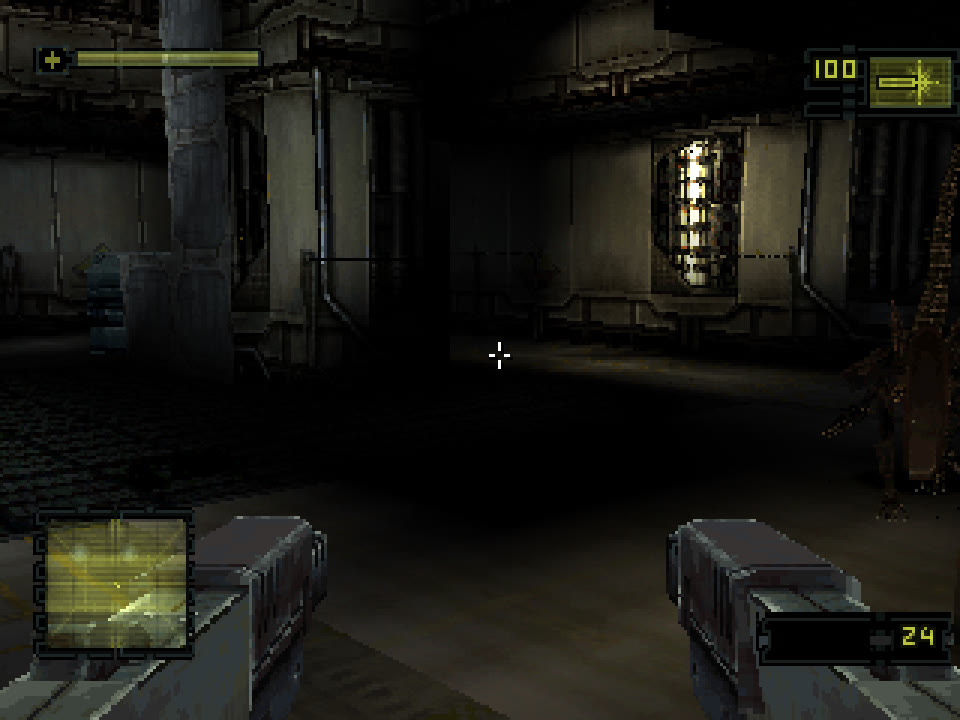 | 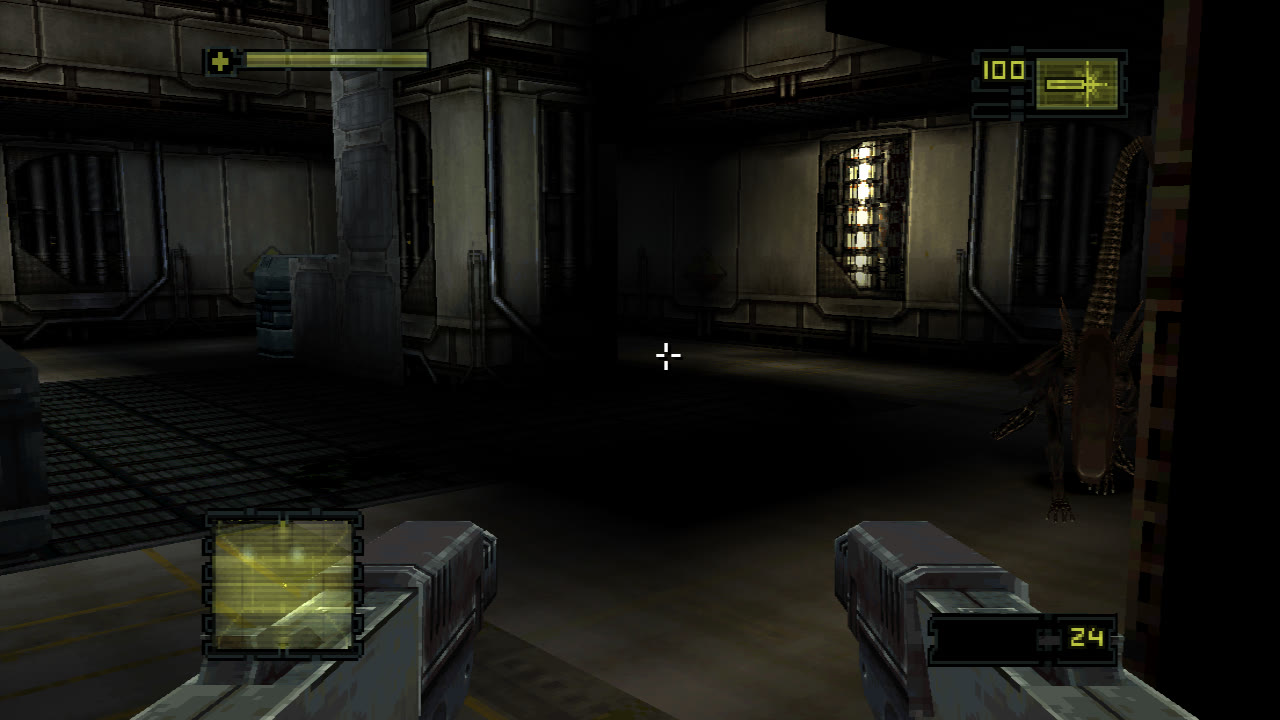 |
The same frame of the first attract demo. The alien at the right edge is only fully visible in widescreen.
Contents
Features
Plug and play
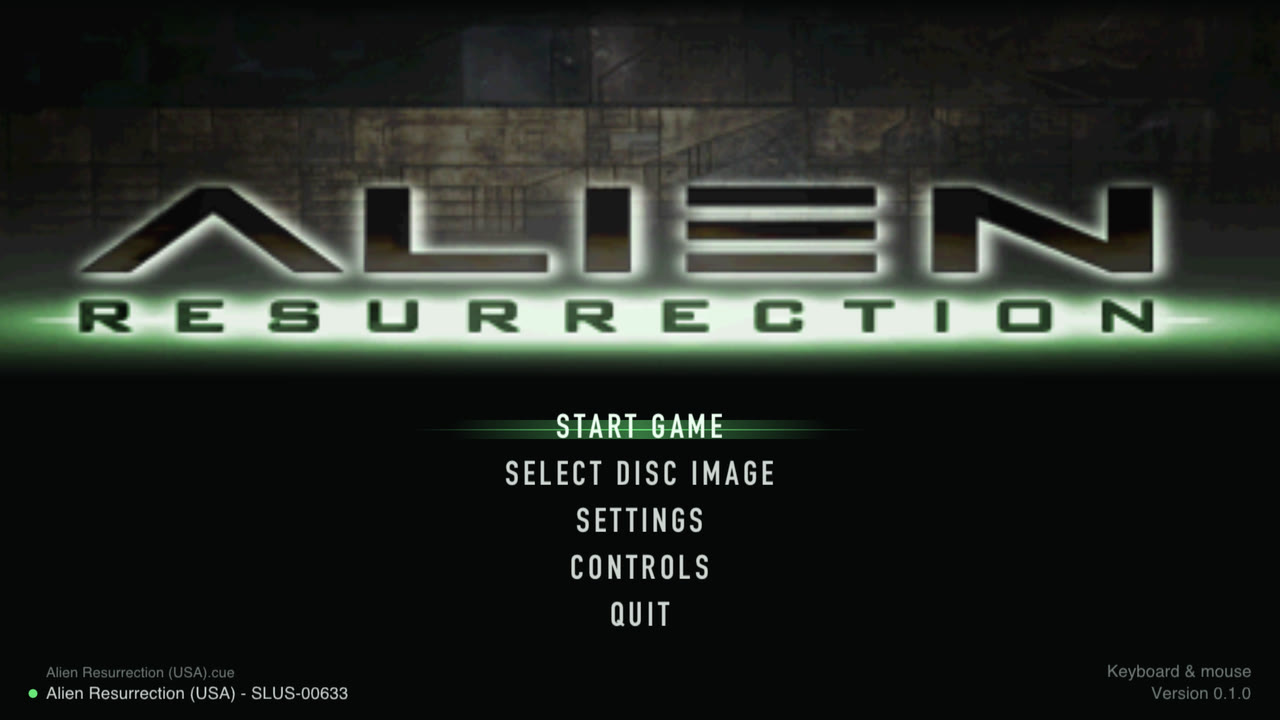
Start the port, choose your disc image (.cue, one of its .bin tracks or
the folder) and press Start game. The launcher checks that it is the USA
release and shows the title art, read from your own disc. Settings and
controls can be changed here or later in game, with the mouse, the keyboard
or a controller.
Widescreen and high resolution
- Widescreen at 16:9, 16:10, 21:9 or 32:9 widens the field of view in 3D instead of stretching the picture. The HUD, menus, loading screens and movies keep their original 4:3 shapes.
- Internal resolution from the original 240p up to 8x (1920p); 4x by default.
- Smooth or sharp scaling to the window, fullscreen, and vsync without tearing.
No more wobbly polygons
The PlayStation rounds every vertex to a whole pixel and maps textures without perspective correction, which makes polygons jitter and textures warp as the camera moves. Precision geometry (in the spirit of PGXP) keeps the full precision of every projected vertex and its depth, so geometry stays still and textures stay straight. It can be switched off for the original look.
Steady 60 fps
On the original hardware busy scenes drop to 20–30 fps. The port runs the game's code at three times the original CPU speed by default, which keeps 60 fps; the game measures elapsed time itself, so it plays at the same speed as on the console.
Mouse and keyboard
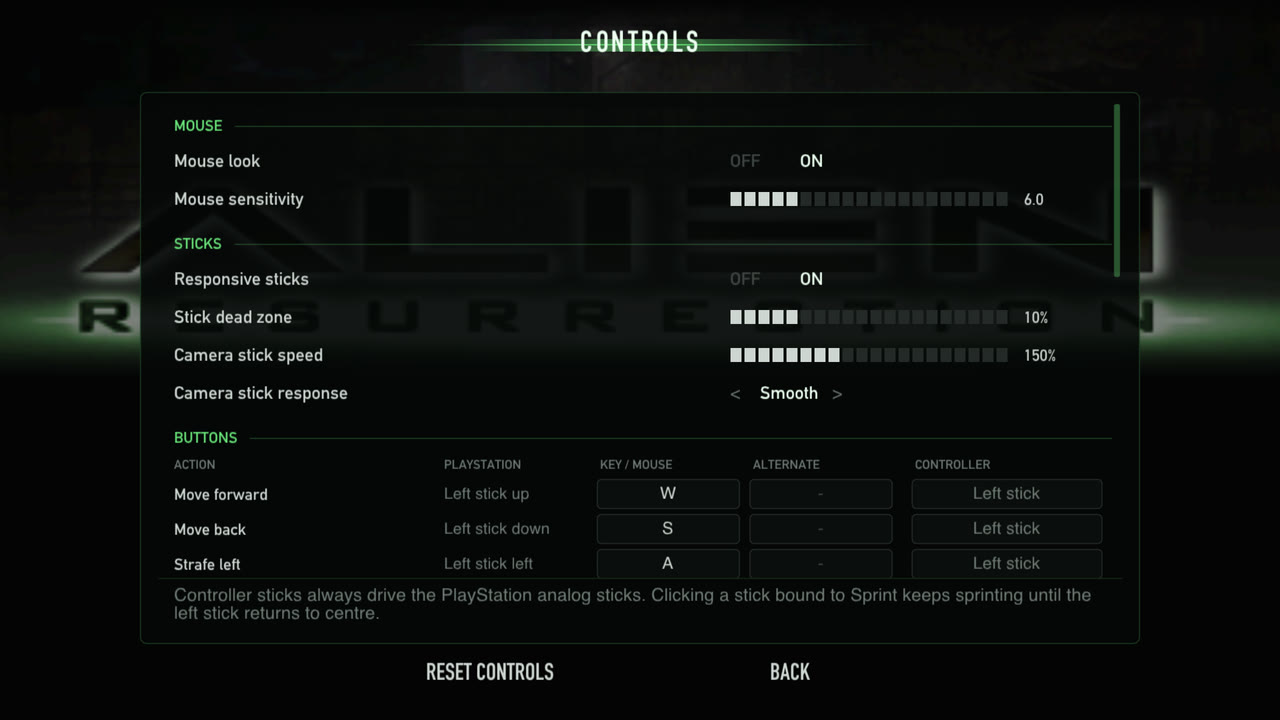
Look and turn with the mouse (adjustable sensitivity), move with WASD, fire with the left button. Every PlayStation button can be bound to two keys or mouse buttons and to a controller button on the Controls page. Controllers are detected automatically and start with the PlayStation layout. F1 releases the mouse; clicking the window captures it again.
Responsive controls
In the original the sticks reach the game two frames late and are ignored until pushed 38% of the way; the camera stick only sets a turning speed. The port reads the controls right when the game needs them:
- Mouse look turns the camera directly: every mouse movement turns the view by exactly that much, immediately, with no dead zone and no speed limit.
- Responsive sticks (on by default): both sticks, and the move and look keys, take effect on the next frame, with a 10% dead zone instead of 38%. Half a push on the left stick walks at half speed; the camera stick has a choice of response curves (Linear, Smooth, Precise) and an adjustable speed (150% of the original by default). Turn it off for the original handling.
| Sticks, Turn speed 4 | Original | This port (defaults) |
|---|---|---|
| Frames until the camera or Ripley moves | 3 | 1 |
| Stick travel ignored | 38% | 10% |
| Movement with the left stick half pushed | 18% | 45% |
| Full-speed turn | 137°/s | 206°/s |
Sprint
Hold Shift (or click the left stick on a controller) to move faster. Added by this port: the game's own running speed is scaled, so collisions, doors and slopes behave as usual and the speed ramps up and down smoothly. 190% by default, adjustable from 110 to 250%.

The same four seconds from the start of level 1: running (left) and sprinting at 190% (right).
Enemy damage sliders
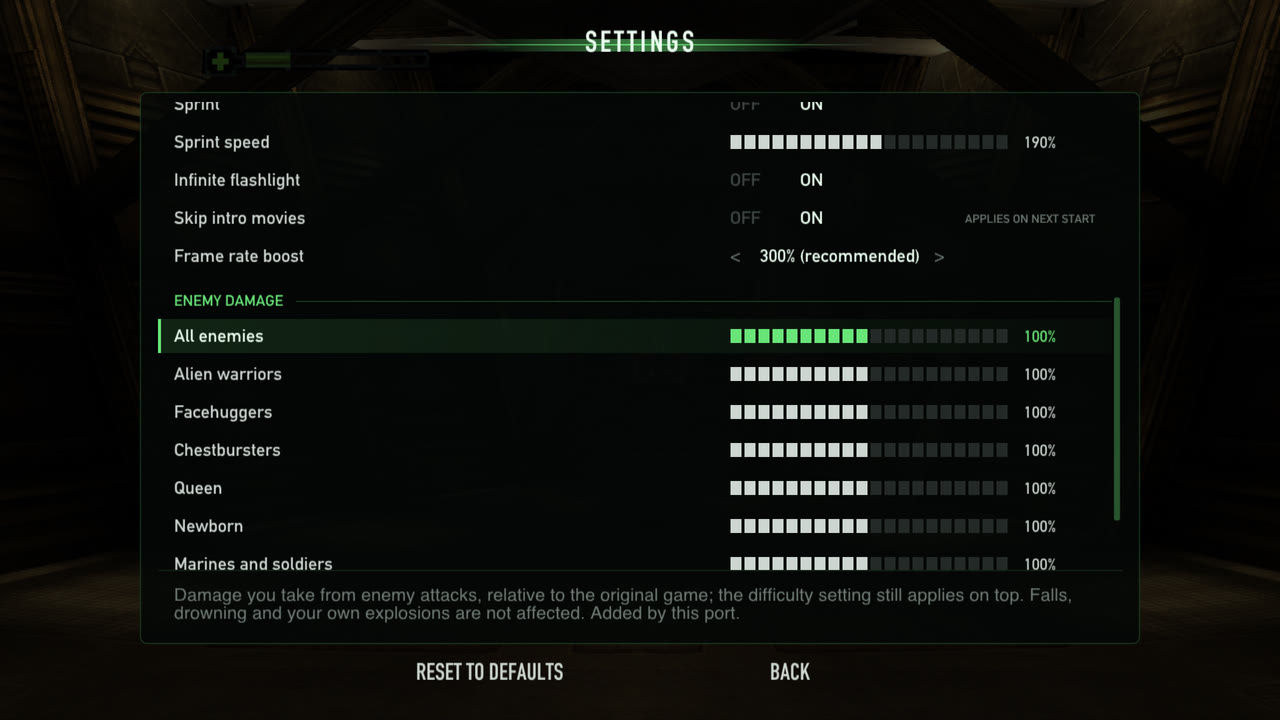
Make the game easier or harder: Settings › Enemy damage has an "All enemies" percentage and one for each kind of enemy (alien warriors, facehuggers, chestbursters, the queen, the Newborn, marines and soldiers, the sentry tank, and acid blood), from 0 to 200%. The game's own difficulty setting still applies on top. Falls, drowning and your own explosions are not affected.

The same alien attack. Left: original damage, Ripley goes down after five hits. Right: enemy damage at 50%, she is still standing.
| Alien warrior hit, Normal difficulty | Health lost | Hits to go down |
|---|---|---|
| 100% (original) | 24% | 5 |
| 50% | 12% | 9 |
| 200% | 48% | 3 |
Infinite flashlight
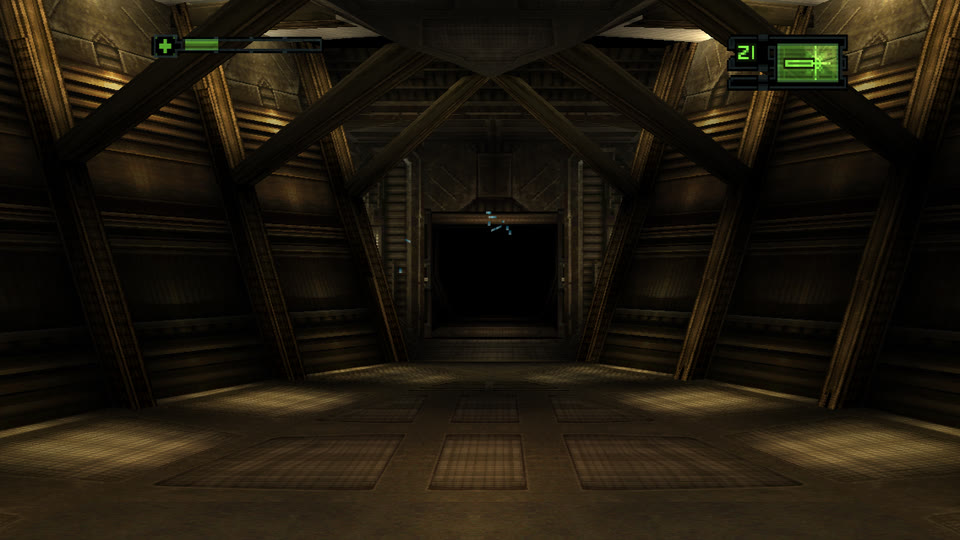
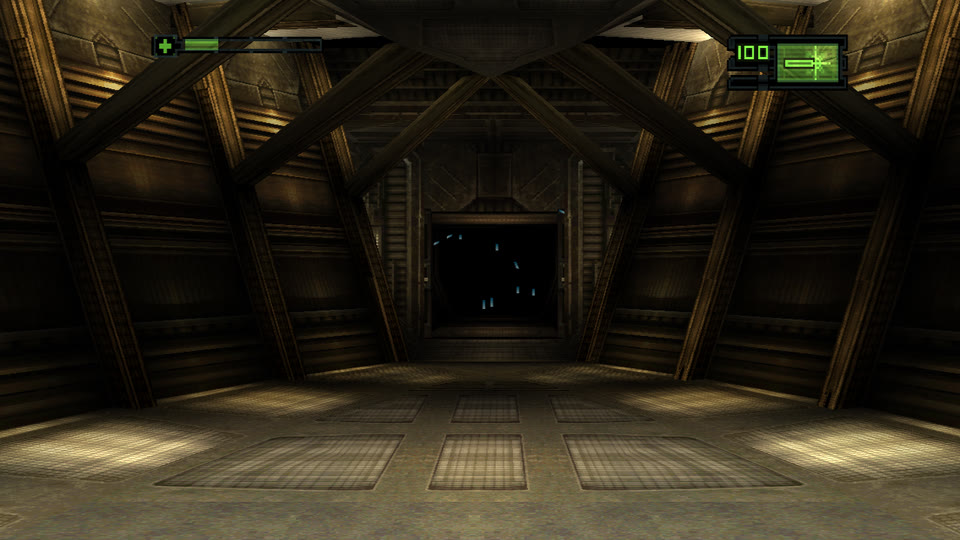
The flashlight (from the second level on) normally lasts about 20 seconds and then has to recharge while switched off. With Infinite flashlight (on by default) the battery never runs down.
| Original, 20 seconds after switching it on | Infinite flashlight |
|---|---|
 |  |
Quick save
The original only saves at the save stations, and loading one puts you back in front of that station. Quick save (on by default) adds one slot that keeps the exact moment: press F5 anywhere to save and F9 to return to it, with enemies, doors, items and sounds exactly as they were. It works in the title menu too, so a session can pick up where it left off right after starting the game. The keys can be changed in Controls (also for a controller), and the pause menu (F2) has Quick save and Quick load entries. Memory card saves are not touched.
The quick save is a snapshot of the whole emulated PlayStation (about
4 MB), stored as quicksave.state next to the memory cards and
config.ini:
| System | Quick save |
|---|---|
| macOS | ~/Library/Application Support/AlienResurrectionPort/AlienResurrection/quicksave.state |
| Windows | %APPDATA%\AlienResurrectionPort\AlienResurrection\quicksave.state |
| Linux | ~/.local/share/AlienResurrectionPort/AlienResurrection/quicksave.state (or under $XDG_DATA_HOME when set) |
With --save-dir DIR it goes to DIR/quicksave.state instead. Delete the
file to start without a quick save; copy it to keep one aside. A quick save
belongs to the version of the port that made it: after an update, save at a
station first.
Settings without leaving the game
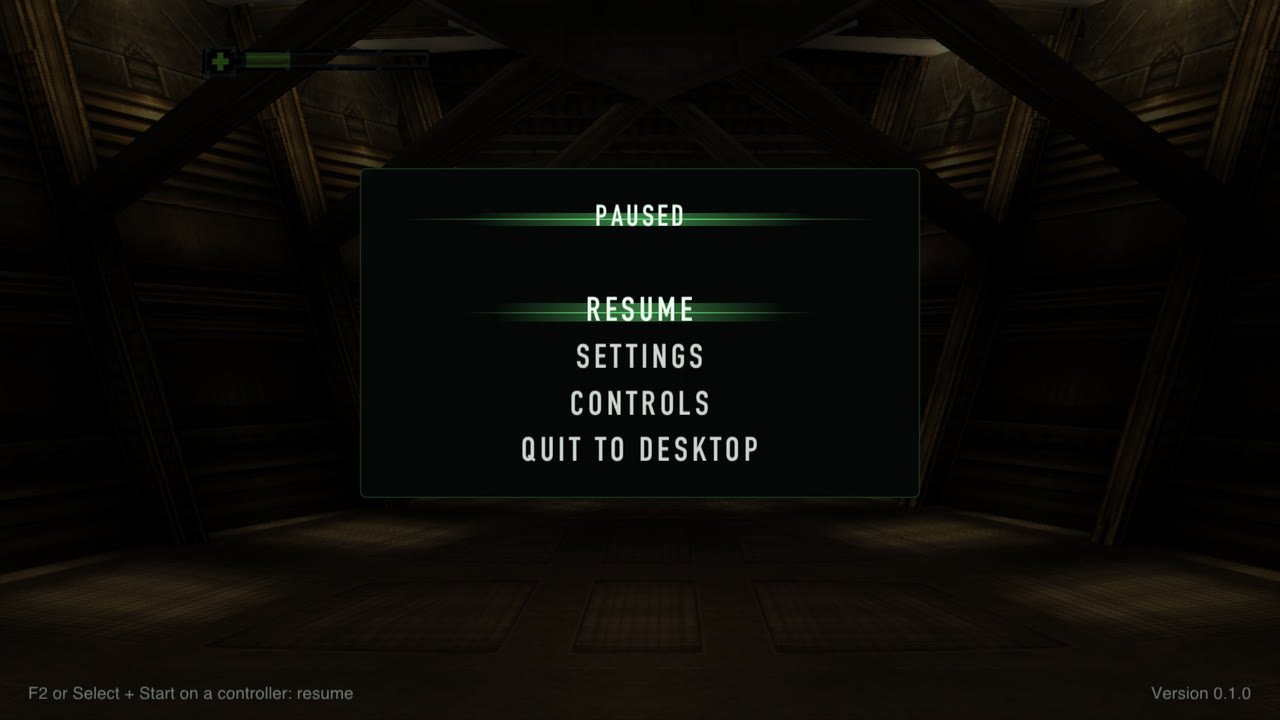
Press F2 (or hold Select + Start on a controller) to pause and open the settings and controls over the game. Changes apply immediately, except internal resolution, VSync and skipping the intro, which are marked as applying on the next start. Quit to desktop is there too.
Smaller changes
- Memory card saves work (save, load, overwrite) and are kept as standard memory card images.
- Skip intro movies starts straight at the title menu.
- Fast forward: hold the backtick key.
- Invert Y is off by default (the original defaulted to on); the game's own option still changes it.
- Screenshots with F12.
Status
| Area | State |
|---|---|
Boot loader (SLUS_006.33): legal screen, FMV intro, LoadExec | working |
Main executable (ALIEN.BIN): menus, options, level 1 gameplay | working (playtesting) |
| Hardware renderer (Metal on macOS; Vulkan / Direct3D 12 on Windows; Vulkan on Linux), upscaled | working |
| Windows build (cross-compiled with MinGW-w64) | working (Wine; Parallels VM via Direct3D 12) |
| Linux build (x86_64, glibc 2.35+) | working (Ubuntu 22.04 container, Vulkan via Mesa) |
| Release packages without game code (interpreter): macOS .app (universal), Windows .exe, Linux .tar.gz | working |
| Widescreen (16:9 / 16:10 / 21:9 / 32:9) | working (hardware renderer) |
| Steady 60 fps (CPU headroom), vsync without tearing | working |
| Precision geometry (no vertex wobble, perspective-correct textures) | working (hardware renderer) |
| Sprint (hold Shift) | working |
| Infinite flashlight (optional) | working |
| Enemy damage settings (overall and per kind of enemy) | working |
| Responsive controls: direct mouse look, sticks without delay | working |
| Launcher: disc selection, settings, control rebinding | working |
| In-game overlay (F2 / Select+Start): settings, controls, quit | working |
| Quick save / quick load (F5 / F9, save states) | working |
| Software renderer (reference) | working |
| FMV (STR/MDEC), XA audio, CD-DA | working (audio needs listening tests) |
Memory card saves (bu00:): save, load, overwrite | working |
| DualShock analog + rumble protocol | implemented (no rumble output yet) |
Known limitations: the Windows build has been verified under Wine and in a Parallels VM, but not yet on a native Windows PC; the Linux build has been verified in containers, not yet on a Linux desktop; levels after the first have not been fully played through; no rumble output; the PlayStation Mouse is not emulated.
TODO
-
High-resolution texture replacement. The game's art can't simply be swapped for bigger images: textures are small 4-bit tiles packed into 256×256 VRAM pages, each drawn with its own 16-colour palette (see Textures and images). Plan, as in emulators such as DuckStation:
- Dump every texture the game draws (a page region plus its palette) to PNG, named by a hash of its pixels and palette.
- Upscale or repaint the dumped images.
- Have the hardware renderer (
src/render/gpu_hw.c) load replacements with the same names and draw them instead of the originals.
Full-screen images (loading screens, title art) can be replaced whole.
-
Testing on native Windows and Linux machines (so far: Wine, a Parallels VM and containers).
-
Linux: an AppImage or Flatpak for desktop integration; the release is a plain archive for now. arm64 Linux builds work with
ARCH=arm64 tools/build_linux_docker.shbut are not part of the release yet.
Build
macOS
Requirements: macOS, Xcode command line tools, CMake, Ninja, Python 3, SDL3
(brew install sdl3 cmake ninja).
tools/regen.sh
cmake -S . -B build -G Ninja && ninja -C build
tools/regen.sh extracts the disc filesystem into disc/, identifies the
Sony PsyQ library functions, and regenerates the recompiled C code in
src/gen/. It reads your disc image from AlienResurrectionBinary/ and
needs reference/psx_psyq_signatures
(https://github.com/lab313ru/psx_psyq_signatures).
Game code: recompiled or interpreted
The CMake option GAME_CODE decides how the game's code runs:
recompiled(the default whensrc/genexists): the C thattools/regen.shtranslated from your disc is compiled in. Fastest, and what development uses. Such a binary contains the game's code, so it is for your own use only.interpreted(the default otherwise): no game code in the binary. The game's executables are read from the player's disc image when they play and run by the port's MIPS interpreter, with the same enhancements (native hooks, precision geometry). This is what the releases use; it needs no disc image to build and runs the game at 2.5× real time or more on an Apple M1.
--interpret runs a recompiled build through the interpreter, for
comparison.
Release packages
Both release scripts build GAME_CODE=interpreted packages; no disc image
is needed, so the GitHub Actions workflow
(.github/workflows/release.yml) builds them too: for every pull request
into main, every push to main and on demand. A pull request can only be
merged once Build (macOS), Build (Windows) and Build (Linux)
have passed (required checks of main, with Version bump below); the
packages of each run are kept as workflow artifacts for 14 days, handy for
trying a pull request before merging it.
Every merged pull request is a release. The version lives in one place,
PORT_VERSION in src/platform/launcher.h, and each pull request into
main must raise it (the Version bump check,
.github/workflows/version-check.yml, which runs
tools/check_version_bump.sh; it can be run locally the same way). When
the merge reaches main, the release workflow tags the commit
v<version> and creates a draft GitHub release, ARR v,
with the macOS, Windows
and Linux packages, packaging/RELEASE_NOTES.md and the list of pull
requests since the last release. Review the draft and publish it by hand.
Pushing a v* tag by hand still works too (it must match PORT_VERSION).
tools/build_macos_app.sh
builds build-mac/release/AlienResurrection-<version>-macos.zip: a
universal (Apple Silicon and Intel, macOS 11+) AlienResurrection.app with
SDL3's official framework inside, ad-hoc signed (not notarized), plus a
README and the licenses. The app icon is original artwork
(tools/make_icons.sh).
Windows
The Windows release is cross-compiled from macOS (or Linux) with MinGW-w64:
brew install mingw-w64
tools/build_windows.sh
The script downloads SDL3's official MinGW development package (pinned
version, checksum verified), builds into build-win/ (interpreted; use
GAME_CODE=recompiled for a local recompiled build), and packages
build-win/release/AlienResurrection-<version>-windows-x64.zip: the
executable, SDL3.dll, a short README and the licenses. The executable
needs no other DLLs (Windows 10/11 ship the C runtime). Building natively on
Windows works the same way from an MSYS2 MinGW shell; MSVC is not supported
(the generated code uses GNU C extensions).
On Windows the renderer uses Vulkan and falls back to Direct3D 12 (Settings
→ Graphics API, or --gpu-driver); saves and config.ini live in
%APPDATA%\AlienResurrectionPort\AlienResurrection\, along with alien.log
when the game is not started from a terminal.
Linux
tools/build_linux.sh
builds build-linux-x86_64/release/AlienResurrection-<version>-linux-x86_64.tar.gz
on a Linux machine (Ubuntu/Debian build dependencies:
sudo tools/linux/install_deps_ubuntu.sh). It compiles SDL3 from the
official source release (pinned, checksum verified) and ships it in lib/
next to the program, which finds it through its $ORIGIN run path; the C++
runtime is linked statically. Build on an old distribution so the result
runs on newer ones: the release is built on Ubuntu 22.04 (glibc 2.35).
On macOS (or anywhere with Docker, e.g. brew install colima docker),
tools/build_linux_docker.sh runs the same build in an Ubuntu 22.04
container (ARCH=arm64 for arm64).
The renderer uses Vulkan; settings and saves live in
~/.local/share/AlienResurrectionPort/AlienResurrection/.
Shaders
The renderer's shaders are written once in GLSL (src/render/shaders/)
and compiled for every backend into src/render/shaders_gen.h (SPIR-V for
Vulkan, HLSL for Direct3D 12 compiled to DXBC at start-up, MSL for Metal).
The generated header is committed; after editing a shader run
python3 tools/compile_shaders.py (needs glslang and spirv-cross).
Run
./build/alien
The launcher opens first:
- Select disc image: pick your own
Alien Resurrection (USA).cue(or one of its.bintracks, or the folder). The launcher checks that it is the USA release (SLUS-00633) and then shows the game's title art, read from your disc. No game data ships with the port. - Settings: widescreen and aspect ratio, internal resolution, precision geometry (PGXP), smooth scaling, vsync, fullscreen, frame rate display, sprint and sprint speed, infinite flashlight, quick save, skip intro movies, frame rate boost (emulated CPU speed), and enemy damage (overall and per kind of enemy: alien warriors, facehuggers, chestbursters, queen, newborn, marines, sentry tank, acid blood).
- Controls: rebind every PlayStation button, the keyboard stick directions, sprint, fast forward, quick save and quick load, for keyboard/mouse (two keys per action) and controller. The mouse and stick settings are there too: mouse look and sensitivity, responsive sticks, stick dead zone, camera stick speed and response curve.
- Start game.
Everything is navigable with the mouse, the keyboard (arrows, Enter, Esc)
or a controller (D-pad, A, B). Settings are saved to config.ini next to
the memory cards (see below).
While playing, F2 (or holding Select + Start on a controller for a moment) pauses the game and opens the same Settings and Controls pages over it, plus Quick save, Quick load and Quit to desktop. Changes apply immediately, except internal resolution, VSync and skip intro movies, which are marked "applies on next start". F2, Esc, Start or Circle/B resumes.
Command-line options override config.ini for one run (useful for
testing):
| Option | Meaning |
|---|---|
--play | start the game directly, without the launcher |
--disc PATH | disc image: the .cue file or its folder (default AlienResurrectionBinary/ in the current folder) |
--skip-intro | skip the boot loader and intro movies (same as --exe ALIEN.BIN) |
--aspect W:H | display aspect: 16:9 (default), 16:10, 21:9, or 4:3 for the original look |
--scale N | internal resolution multiplier for the GPU renderer (default 4) |
--cpu-speed PCT | emulated CPU speed (default 300 = steady 60 fps; 100 = original hardware) |
--no-vsync | present without vsync (lowest latency, may tear) |
--no-pgxp | original PS1 geometry: integer vertices and affine (warping) textures |
--sprint-speed PCT | player speed while sprinting (default 190; 100 turns sprint off) |
--no-infinite-flashlight | the flashlight battery runs down and recharges as in the original |
--enemy-damage PCT, --enemy-damage GROUP=PCT | damage taken from all enemies / one kind (alien_warriors, facehuggers, chestbursters, queen, newborn, marines, sentry_tank, acid_blood), 0–200, default 100; repeatable |
--fullscreen, --show-fps, --sharp, --mouse-sens N | as in the launcher |
--original-stick | both sticks through the game's own input handling (delay, 38% dead zone) |
--save-dir DIR | folder for memory cards, config.ini and the quick save (default below) |
--renderer sw | use the software rasterizer (pixel-accurate reference) |
--headless --frames N --shot F:file.png |