Buffy Chaos Bleeds PC
Buffy Chaos Bleeds PC is a native Windows port of Buffy the Vampire Slayer Chaos Bleeds for Xbox, featuring sharp resolutions, high frame rates, and a launcher.
- Type: PC port
- Game: Buffy the Vampire Slayer: Chaos Bleeds
- Runs on Windows and Android
- By Kaiko Clanworth
- Latest release v1.0.2, 2026-10-02
- Source: https://github.com/KaikoClanworth1/buffy-chaos-bleeds-pc
README

Buffy the Vampire Slayer: Chaos Bleeds — PC Port
This is a native Windows port of the 2003 Xbox game Buffy the Vampire Slayer: Chaos Bleeds. It isn't an emulator. The game's code is translated to C with xboxrecomp and built into an ordinary Windows program. It uses Vulkan (or Direct3D 11) for graphics, DirectSound for audio and XInput for controllers.
It also adds:
- Sharp resolutions: 720p, 1080p, 1440p and 4K, plus the original 4:3 sizes.
- High frame rates: a steady 60 fps by default, or up to 360 with the game still at its own speed, from a native renderer with plenty of headroom. It draws through Vulkan by default, or Direct3D 11. See Graphics.
- A launcher that installs, configures and starts the game.
- Mods: switch them on and off with a checkbox. The mods don't change the game files on disk.
- Story co-op: a second player can join the campaign, in two windows or on a split screen.
- Texture packs: dump the game's textures and load HD replacements, as in Dolphin and PCSX2.
- Android: the same port on phones and tablets, with touch controls, controller support and its own launcher. See Android.
[!IMPORTANT] This repository has no game in it. It holds no disc image, XBE, game data, movies or game code. You need your own copy of the Xbox game. Make a disc image of it (
.isoor.xiso), then point the launcher at that image.
[!NOTE] This port was made with Claude Code, Anthropic's AI coding assistant. Claude Code wrote most of the port's code, tools and docs, working with the project's human author, who directed, tested and played it. See Contributors.
Screenshots
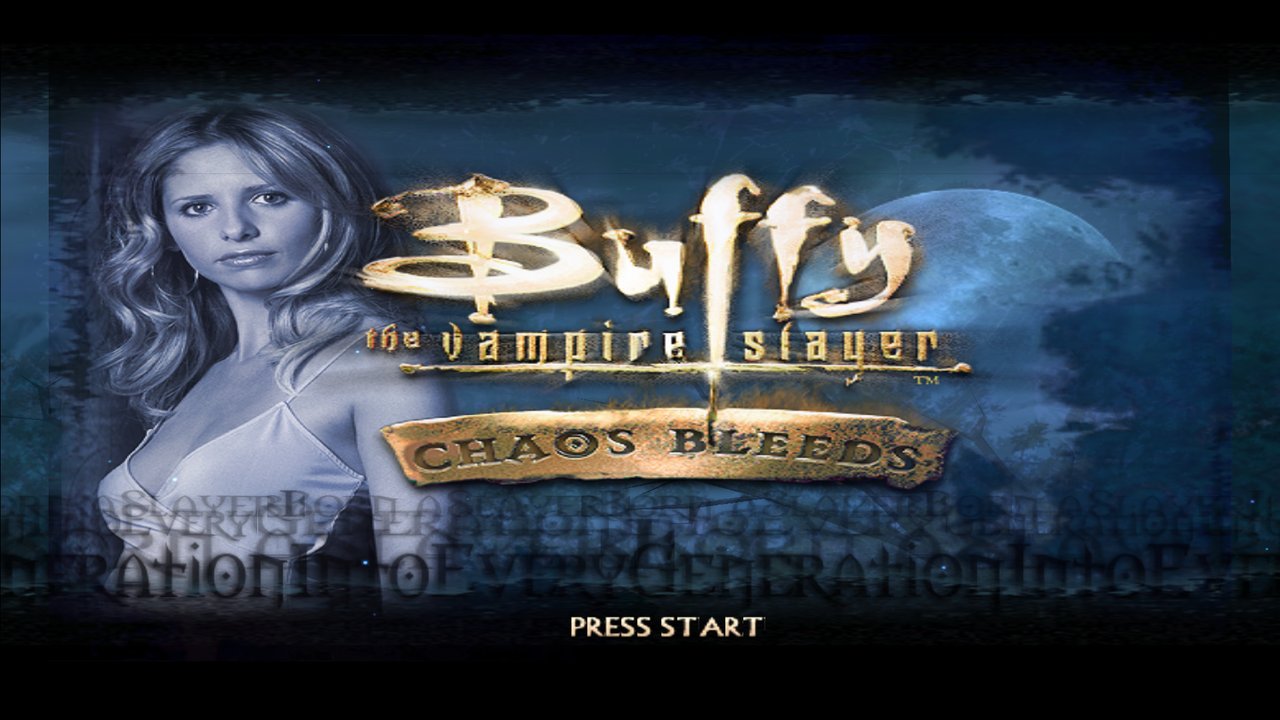 Title screen, at 1080p | 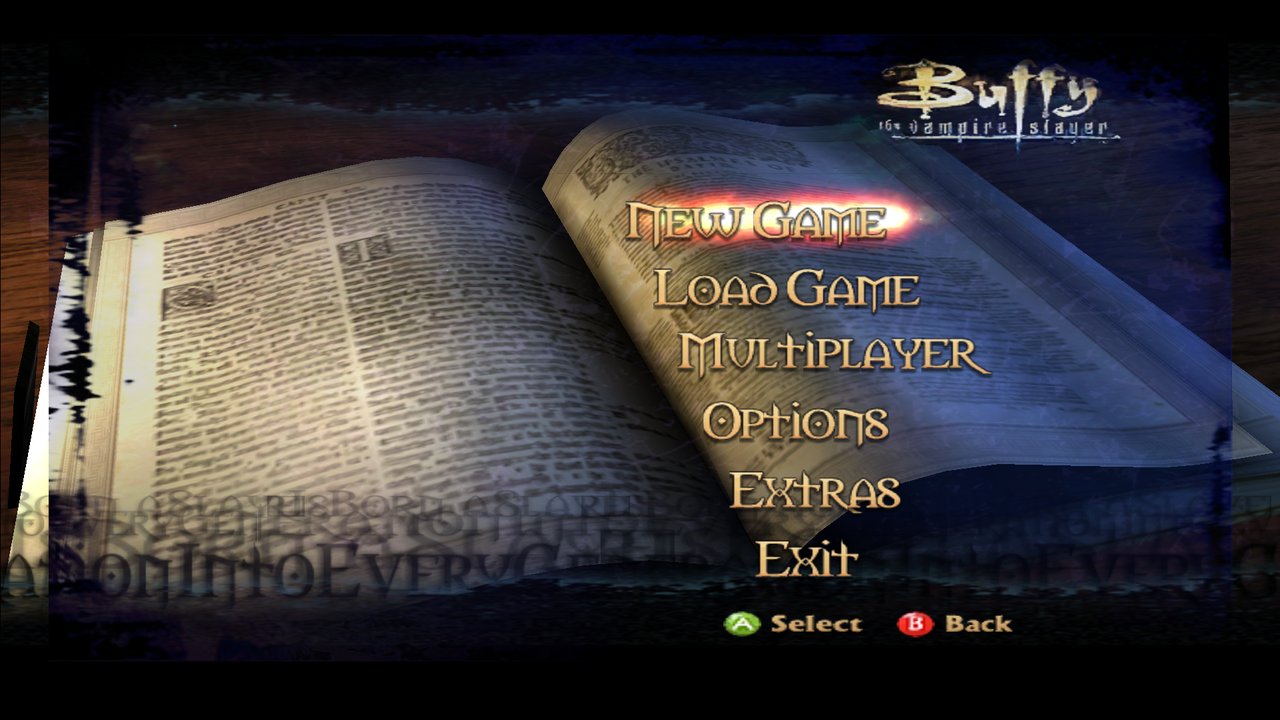 Main menu, the game's own spell-book menu |
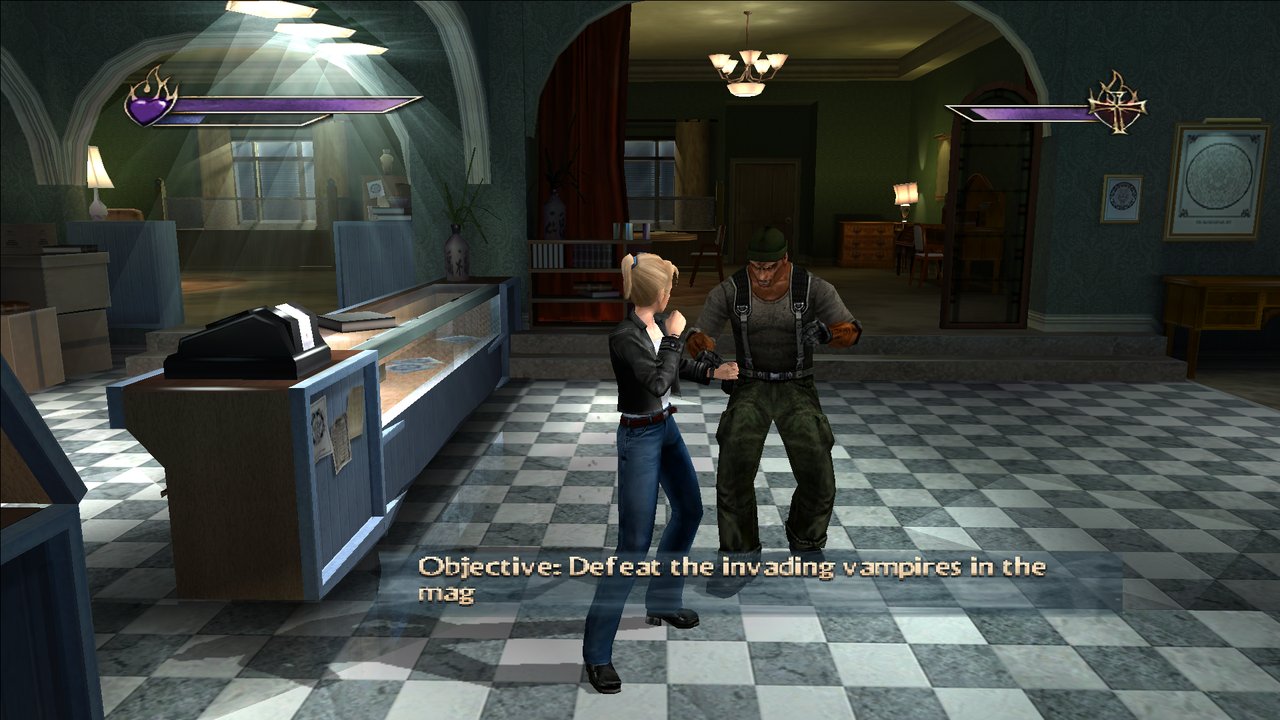 The Magic Box, in widescreen at 1080p and 60 fps | 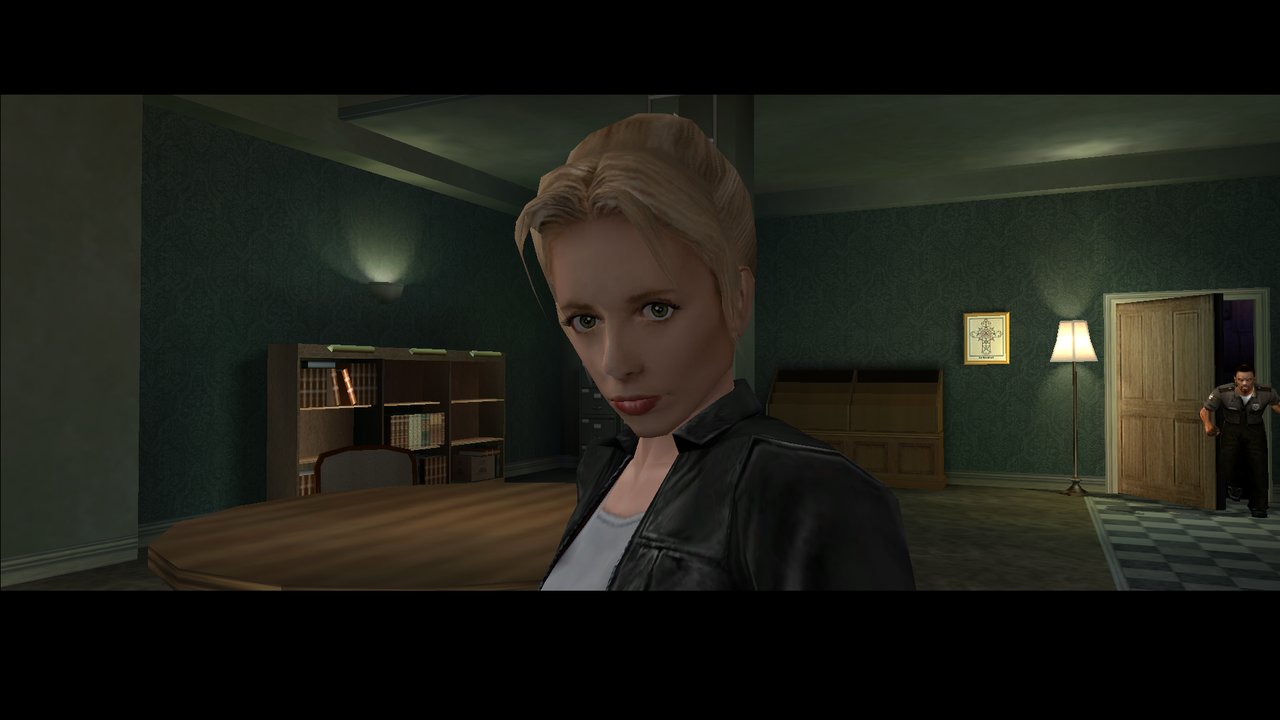 In-engine cutscene |
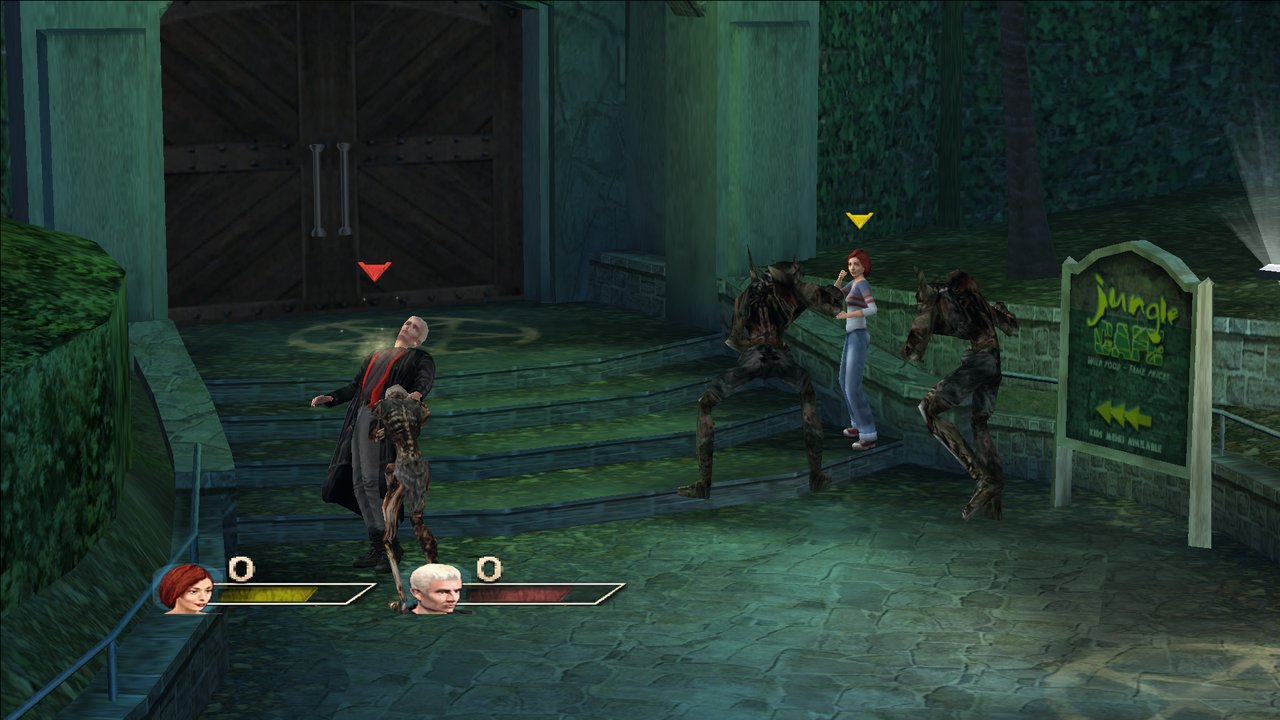 Multiplayer, with up to four controllers | 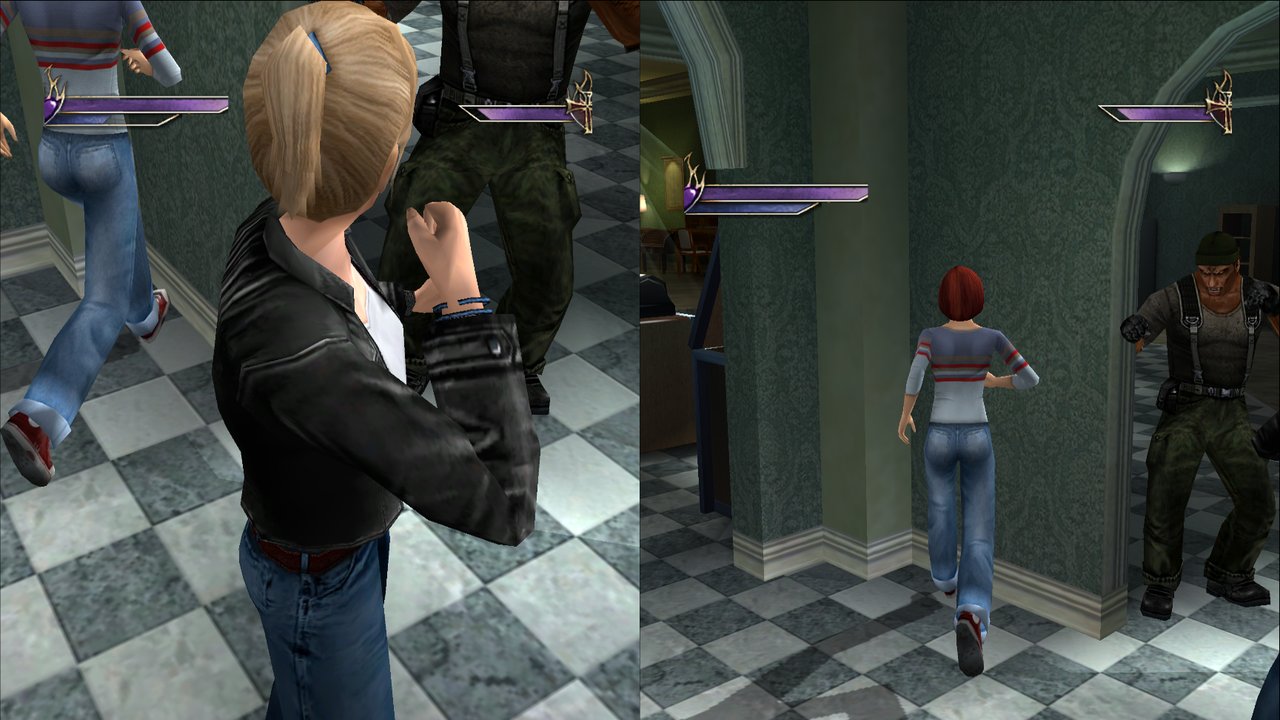 Story co-op, on a split screen |
Contents
- Screenshots
- What you need
- Install and play
- Updates
- Steam Deck and Linux (Proton)
- Android
- Controls
- Settings
- Graphics: Vulkan and Direct3D 11
- Mods: what each one does
- Texture packs
- Story co-op guide
- Building from source
- Troubleshooting
- Contributors
- Legal and credits
What you need
| 💿 The game | A disc image of your own Chaos Bleeds Xbox disc, as an .iso or .xiso: the European (PAL) or the North American (NTSC) release. The port has each one's code, translated, and starts the right one for the disc you installed; the launcher tells you if your disc is another release. The PS2 and GameCube versions won't work. |
| 🖥️ PC | Windows 10 or 11 (64-bit), with a graphics card that supports Vulkan 1.3 or Direct3D 11. Most cards from about 2016 on have Vulkan 1.3 with an up-to-date driver. Older ones use Direct3D 11 automatically. A Steam Deck or Linux PC through Proton should work too, but it's experimental: see Steam Deck and Linux. |
| 💾 Disk space | About 4 GB for the installed game. |
| 🎮 Controller | Optional. Any XInput (Xbox-style) pad works, and so does the keyboard. Co-op needs a second controller. |
| 🎬 FFmpeg | Optional. It's only used once, during install, to convert the game's movies for PC. The launcher can download it for you. |
Install and play
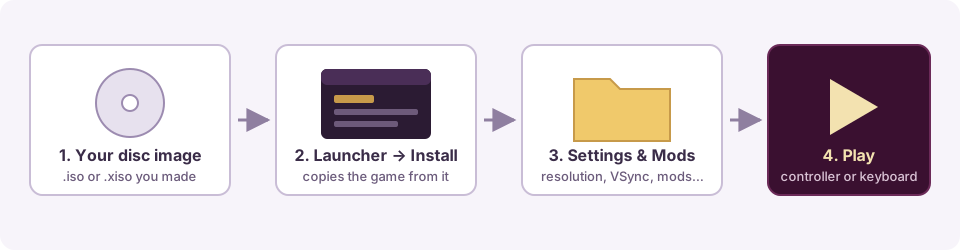
- Download the latest zip from Releases and unzip it anywhere. It holds the launcher and the game program, with no game data.
- Make a disc image of your Xbox game disc, as an
.isoor.xiso. - Open
Buffy Launcher.exeand go to the Install tab:- Under Disc image, choose your
.isoor.xiso. - Under Install to, choose an empty folder.
- Leave Convert the game's movies ticked to keep the cutscene movies. If FFmpeg isn't found, click Download FFmpeg.
- Click Install. The launcher only reads the image and never changes it. It copies the game out (about 4 minutes) and sets up the PC version beside it.
- Under Disc image, choose your
- Settings tab: pick windowed, borderless or fullscreen, the resolution, VSync and so on.
- Mods tab: tick any mods you want. See the mods table.
- Play tab: press Play.
Saves are plain files, one per save, in the game folder's SaveData\ folder (BUFFY A.sav, BUFFY B.sav, BUFFY C.sav). Copy them to back them up or to move them to another PC. The launcher's Saves tab backs them up and restores them. Saves from versions before 0.4 used the Xbox layout (UDATA\). They're converted the first time you start the game or open the Saves tab, and the originals are kept in SaveBackups\. Nothing else is written: versions before 0.5 also kept an XboxData\ folder of Xbox system files, which is no longer used and can be deleted.
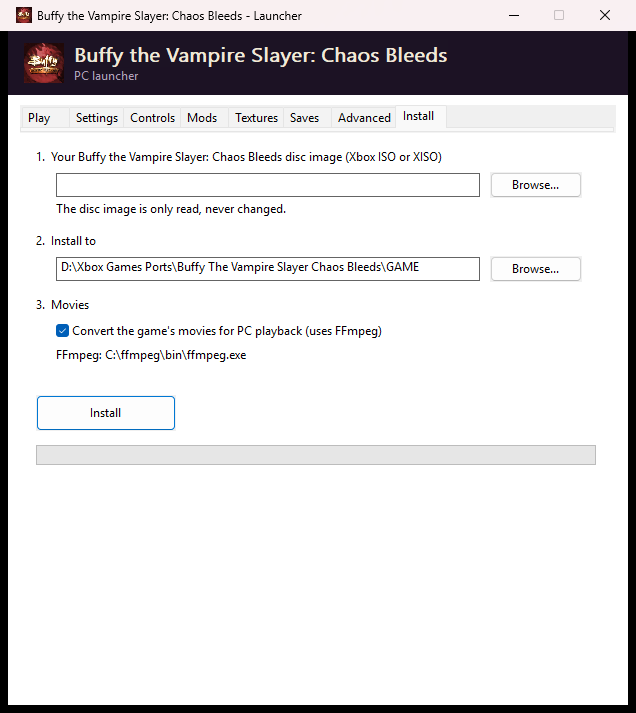 Install: choose your disc image and a folder | 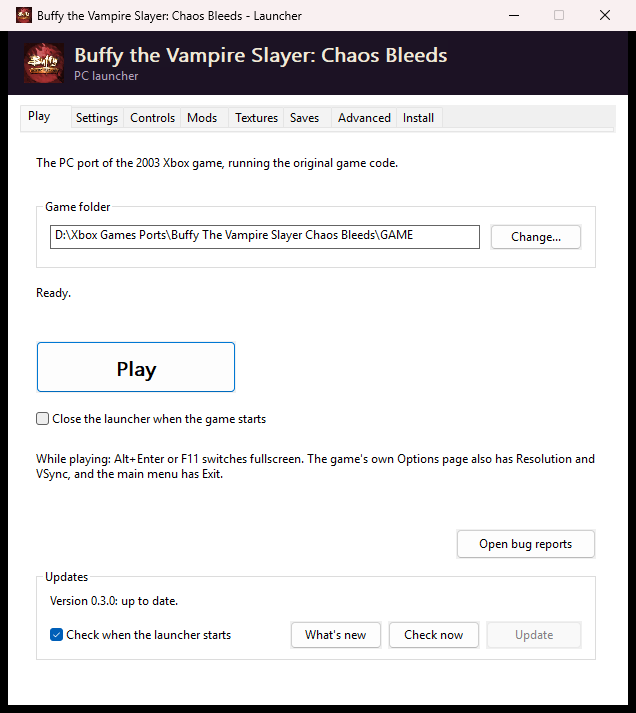 Play: start the game, check for updates |
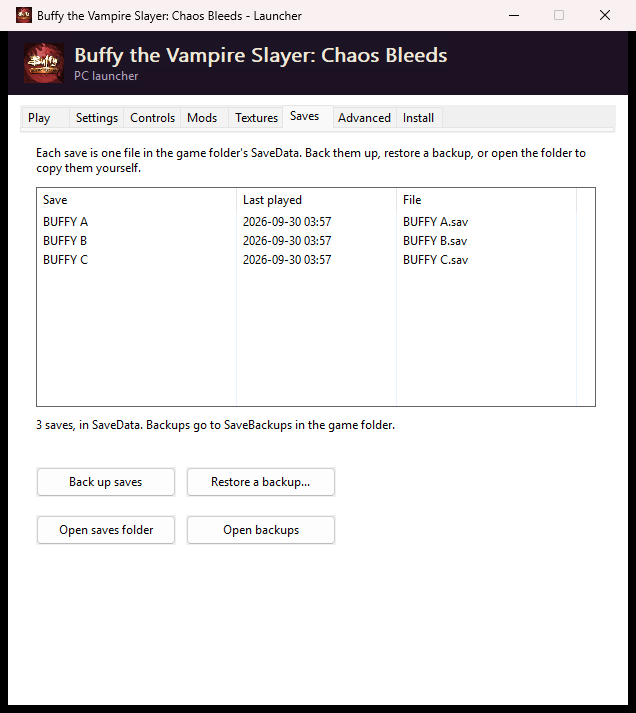 Saves: back up and restore your saves | 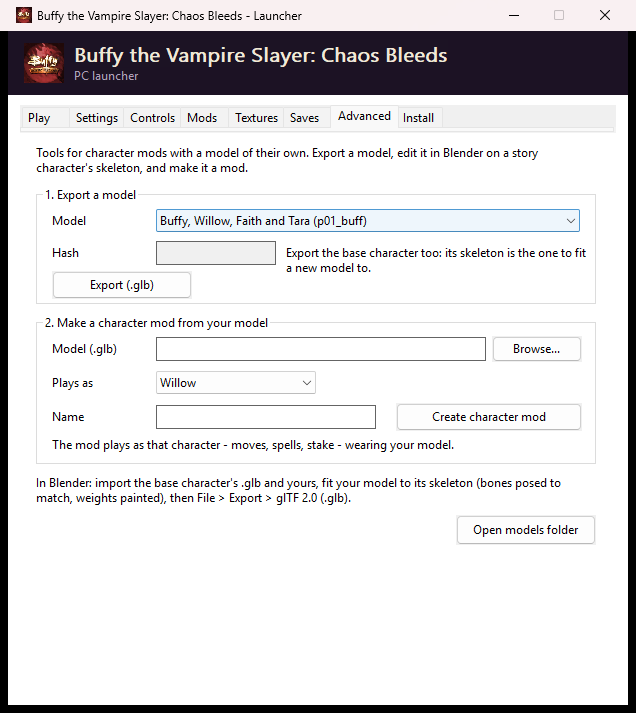 Advanced: export a model, edit it in Blender, make it a character mod |
flowchart LR
    A[Your Xbox disc] -->|you rip it| B[game.iso / .xiso]
    B -->|Launcher: Install| C[Game folder]
    C --> D[buffy_chaos_bleeds.exe]
    E[mods\\ folder] -->|Launcher: Mods| D
    F[buffy_settings.ini] -->|Launcher: Settings| D
Updates
From v0.3.0 the launcher updates itself. When it starts, it checks Releases and offers any newer version. You can also press Check now in the Updates box on the Play tab. An update replaces the programs, shaders and the mods that come with the release. Your saves, settings and your own mods are kept. The download is checked against the SHA-256 that GitHub lists before anything is replaced. To stop the check at startup, untick Check when the launcher starts.
Coming from v0.1.0 or v0.2.0: those versions have no updater. Download the latest zip once and unzip it over your launcher's folder.
Steam Deck and Linux (Proton)
[!NOTE] Experimental and untested so far. The port is a Windows program. On a Steam Deck or a Linux PC it runs through Proton, Steam's compatibility layer. The launcher and game are made to work there, but nobody has tried them on Linux yet. If something goes wrong, please report it, with
buffy_log.txtfrom the game folder. Its first lines say what the game ran on.
Set up (Desktop Mode):
- Download the latest zip from Releases and unzip it, for example into
~/Games/Buffy-PC. Copy your.isoonto the Deck or its SD card. - In Steam: Games → Add a Non-Steam Game to My Library → Browse. Set the file type to All Files and choose
Buffy Launcher.exe. - In that entry's Properties → Compatibility, tick Force the use of a specific Steam Play compatibility tool and pick Proton Experimental (or the newest Proton).
- Start it from Steam and use the Install tab as on Windows. In the file dialogs your Linux files are on drive Z:, for example
Z:\home\deck\Games. Download FFmpeg works there too, and fetches the Windows build, which runs under Proton.
Play in Game Mode: add the game folder's buffy_chaos_bleeds.exe as another non-Steam game and force Proton on it the same way. It starts straight into the game. On a Deck, the first run is fullscreen at 1280 × 720. You can also keep using the launcher entry and press Play (use the trackpad or touchscreen).
Tips:
- Controls: the Deck's controls act as an Xbox controller. The launcher's Controls tab sets the keyboard and mouse.
- Renderer: the default, Vulkan, goes straight to the Linux graphics driver through Proton. Direct3D 11 goes through Proton's translation to Vulkan (DXVK). If one misbehaves, try the other in the launcher's Settings.
- No movies: the cutscene movies play through Windows Media Foundation, which depends on the Proton version. If they're skipped, try Proton Experimental.
- Updates work under Proton: the launcher unpacks them itself, without Windows'
tar.exe, which Proton doesn't have.
Android
[!NOTE] New in v1.0.0. Tested on a Samsung Galaxy Z Fold7 (Snapdragon 8 Elite, Adreno 830), on both screens, at 60 fps. Other phones should work if they meet the list below. Please report how yours does.
You need: a 64-bit ARM phone or tablet with Android 13 or later and Vulkan 1.3, about 2 GB free, and a disc image of the European (PAL) Xbox release. The North American release isn't supported on Android yet. The installer tells you if your image is a release it can't play.
Set up:
- Download Buffy-Chaos-Bleeds-Android-v1.0.2.apk from Releases and install it. Android asks you to allow installing apps from your browser or file manager first.
- Copy your
.isoor.xisoto the phone. - Open the app and allow All files access when it asks. The game lives in
games/Buffy Chaos Bleedson the phone's storage, laid out like the PC game folder, so you can copy saves and mods between the two. - On the Install tab, pick your disc image and wait for it to unpack. Then press Play.
The app's launcher mirrors the PC one: Play, Settings (resolution, VSync, widescreen view, language, story co-op, graphics driver), Controls, Mods, Textures, Saves (back up, restore, share) and Install. It can also put a home-screen shortcut with the game's logo.
Controls:
- Touch: an on-screen controller drawn over the game. The move stick starts where your thumb lands on the left, with the d-pad above it. A, B, X and Y sit on the right, and dragging anywhere else on the right half moves the camera. EDIT at the top of the screen (or Edit the layout on the Controls tab) lets you drag and resize each group of buttons over the running game. There are also settings for size, opacity, camera speed and vibration, and you can turn the touch controls off.
- Controllers: Bluetooth and USB controllers work as an Xbox controller and hide the touch controls while you use them.
- Back gesture: opens the game's pause menu (Start).
Graphics drivers: under Settings → Graphics driver you can load a custom Vulkan driver package (a .zip with a meta.json, the kind other emulators use), such as Qualcomm's own or Mesa Turnip. If a driver can't start the game, the game uses the phone's own driver instead and the launcher says why. This release was tested with the phone's own driver. The Turnip builds tried on the Fold7 didn't work.
Movies: the phone plays the same converted movies as the PC (H.264 .mp4, decoded by the phone's hardware), but it can't convert the disc's own. Copy the Movies folder from a PC install into games/Buffy Chaos Bleeds on the phone. Without it, the game skips the movies and the story goes on. The Install tab says how many it found.
Texture packs work as on the PC: the Textures tab switches loading and dumping, and the packs live in games/Buffy Chaos Bleeds/textures_replacement. A pack made on the PC copies straight over, since the names and pixels match.
Not on Android yet: the North American release and the FPS counter.
Controls
Up to four XInput controllers work, in any USB or wireless slot. The first controller is player 1, and so is the keyboard. The next controller is player 2, and so on. Each player's pad gets its own rumble.
The keys below are the defaults. You can change any of them, give an action a second key, and set mouse look and its speed on the launcher's Controls tab.
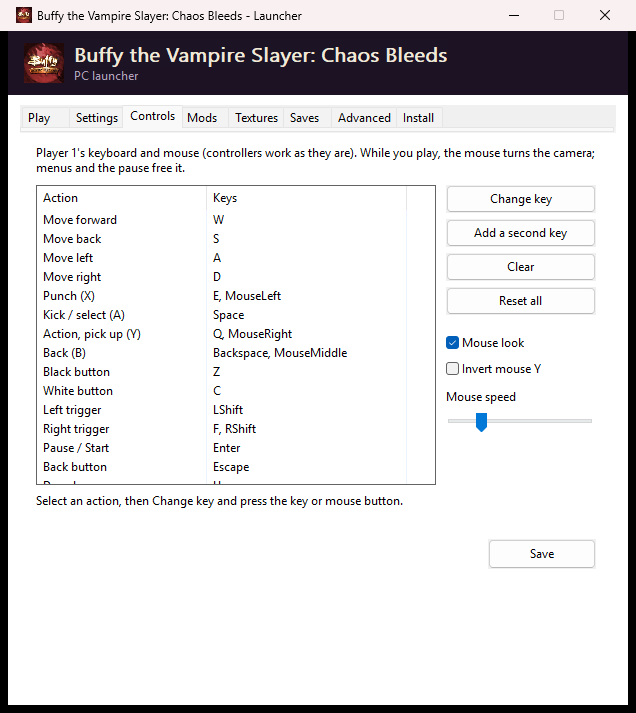
| Xbox button | Controller | Keyboard |
|---|---|---|
| Start | Start | Enter |
| Back | Back | Esc |
| A / B / X / Y | A / B / X / Y | Space / Backspace / E / Q |
| Black / White | LB / RB | Z / C |
| Left / right trigger | LT / RT | Left Shift / F |
| Left stick (move) | Left stick | W A S D |
| Right stick (camera) | Right stick | I J K L |
| D-pad | D-pad | Arrow keys |
While playing:
F11orAlt+Enterswitches between windowed and fullscreen (borderless or fullscreen, whichever you last picked).- Closing the window quits the game.
- The window title shows the frame rate.
Bug reports: click the left stick or press F12 to save a bug report. The game creates a folder in bug_reports\ holding:
- a screenshot of the screen
- a text report of what the game is doing: the level, the players, your settings, your mods, and exactly where the game's code is
- the log
It works even if the game has frozen. Attach the folder when you report a problem. You can open the folder from the launcher's Play tab, and switch the button off in Settings.
Settings
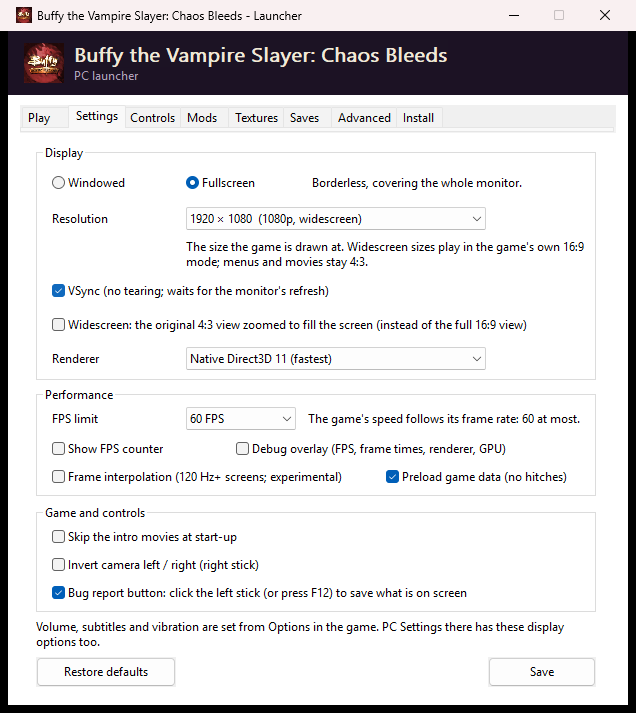
You can change these in the launcher's Settings tab. In the game, Options → PC Settings has Resolution, VSync, Display, FPS Limit, Overlay (off, FPS or debug) and Language (used from the next start). Everything is saved in buffy_settings.ini beside the exe.
| Setting | What it does |
|---|---|
| Windowed / Borderless / Fullscreen | Borderless is a window covering the monitor. Fullscreen switches the monitor to the game's resolution at the best refresh rate it has for it, and puts the desktop back when you Alt+Tab away. |
| Resolution | 1920×1080 is the default. 1280×720, 2560×1440 and 3840×2160 are also 16:9. The original 4:3 sizes are 640×480, 1280×960, 1920×1440 and 2560×1920. Menus and movies stay 4:3, with bars at the sides. |
| VSync | Waits for the monitor's refresh, so the picture doesn't tear. |
| Renderer | Vulkan (recommended) or Direct3D 11. See Graphics. |
| FPS limit | 30, 60 (the default), 90, 120, 144, 165, 240 or 360. The game keeps its own speed at any of them: the engine scales each frame's step to the frame rate, the way the console's 50 Hz PAL version ran at the right speed. With VSync on, the frame rate also stops at your monitor's refresh rate. |
| Show FPS counter | A small frame-rate counter in the top-left corner. |
| Debug overlay | A panel in the top-left corner with the frame rate, average and worst frame time, a graph of recent frame times, the renderer in use, the resolution and VSync, and your graphics card. |
| Widescreen: keep the original side-to-side view | On by default. It shows the original view with the top and bottom trimmed, which avoids pop-in and clipping at the edges of the screen. Untick it for the game's own wider view. |
| Skip the intro movies | Goes straight to the title screen. |
| Language | English, French, German or Spanish: the game's text, menus and logo, all from the European release's own translations. Takes effect the next time the game starts. The North American release has English only, so the setting is greyed out for it. |
| Invert camera left / right | Flips the right stick's horizontal direction. |
Graphics: Vulkan and Direct3D 11
The game was written for the Xbox's Direct3D 8. The port's native renderer takes each of the game's draw calls and draws it on your graphics card, at your resolution. It can do that through two graphics APIs, and you choose which under Settings → Renderer:
| Renderer | When to use it |
|---|---|
| Vulkan (the default) | Recommended. In testing it matched Direct3D 11's speed (a steady 60 fps, about 120 fps uncapped). Under Proton it talks to the Linux graphics driver directly, and it's what a future Android version will use. |
| Direct3D 11 | If Vulkan doesn't start, looks wrong or runs badly on your PC. The game also switches to it on its own when the graphics driver has no Vulkan 1.3. |
flowchart LR
    G[The game's Direct3D 8 calls] --> N[Native renderer]
    N --> L[GPU layer]
    L -->|default| V[Vulkan 1.3]
    L --> D[Direct3D 11]
    V --> C[Your graphics card]
    D --> C
- Which one is running: turn on Debug overlay in Settings. Its RENDERER line says Vulkan or Direct3D 11.
buffy_log.txtsays so too, and says why if Vulkan wasn't available. - Shaders: the game's shaders are compiled for each API the first time they're needed and kept in
ShaderCache\. The release ships the common ones, so a new install doesn't stutter. Deleting the folder is safe; it fills again as you play. - Everything works on both: frame interpolation, split screen and two-window co-op, texture packs, the FPS counter, the debug overlay, screenshots and bug reports.
- No Xbox GPU is emulated. Since 0.5 the game's Direct3D 8 runs in its own no-GPU mode, so the port doesn't emulate the Xbox graphics chip, its command buffer or its display timing at all. The old Emulated Xbox GPU renderer is gone; a setting that still names it starts Vulkan.
- Tested so far on NVIDIA. If you play on AMD, Intel or a Steam Deck, a report of how Vulkan runs is very welcome.
Mods: what each one does
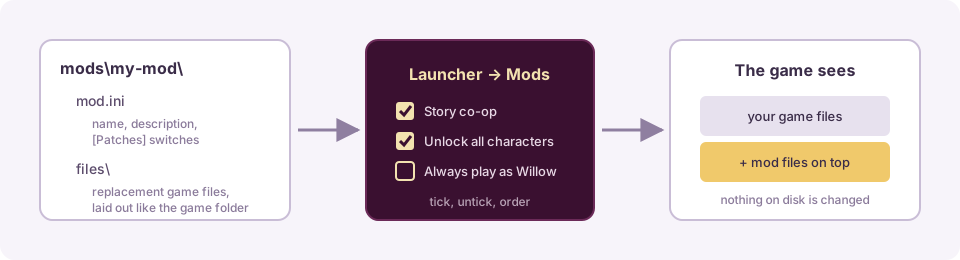
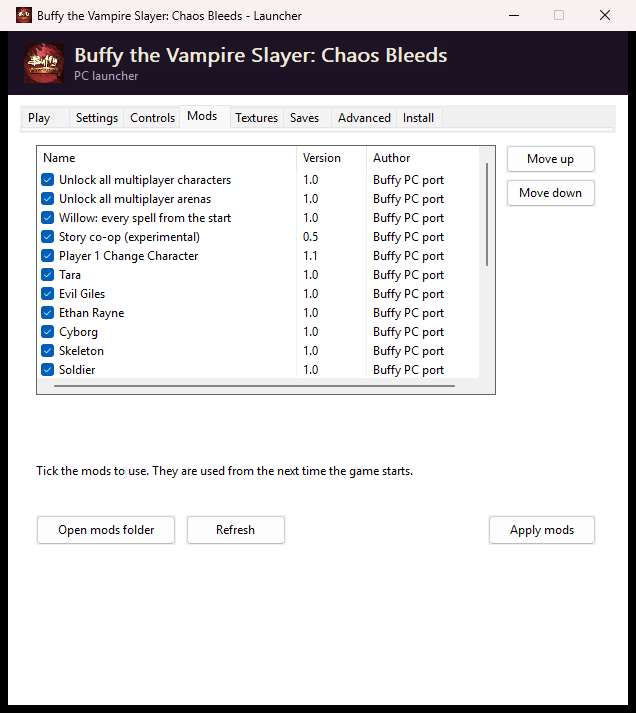
Mods live in the game folder's mods\ folder. Tick them in the launcher's Mods tab and click Apply mods. A mod is laid over the game files and never written into them, so unticking it removes it completely. None of these mods change your saves.
| Mod | What it does | Works in | |---|--