ReBuriki
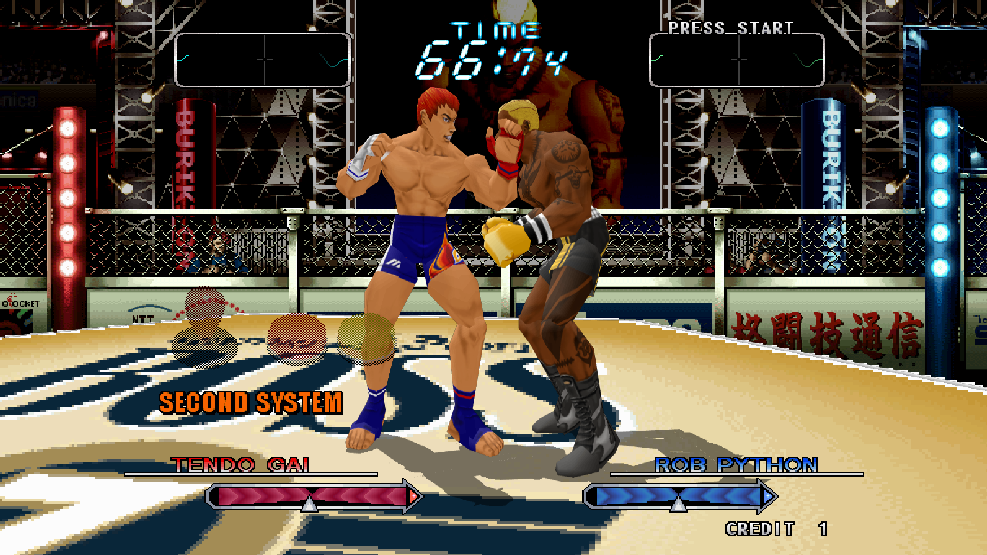
ReBuriki is a native PC port of the arcade fighting game Buriki One, rebuilt for Windows with enhanced graphics and widescreen support.
- Type: PC port
- Game: Buriki One
- Runs on Windows
- By QuietClubGames
- Latest release v0.1.0, 2026-11-11
- Source: https://github.com/QuietClubGames/ReBuriki
README
ReBuriki
Buriki One, rebuilt for Windows.
An unofficial PC version of SNK's 1999 Hyper Neo Geo 64 arcade fighter.




Download · Install · How to play · The menu · Controls · Playing online · Troubleshooting · FAQ
Important
ReBuriki does not include the game. You need your own legally obtained copies of two arcade ROM sets, as
MAME names them: buriki.zip (Buriki One, rev. B) and hng64.zip (the Hyper Neo Geo 64 system ROMs). Setup
builds the game from them on your PC. The download contains only ReBuriki's own code and the open-source
tools it uses.
Contents
- What ReBuriki adds
- The game
- What you need
- Install, update and uninstall
- How to play
- The menu
- Picture and graphics
- Controls
- Arcade settings, and Silber
- Playing online (experimental)
- Your files
- Troubleshooting
- FAQ
- Known gaps
- For developers
- About and credits
What ReBuriki adds
| Sharper 3D | The fighters are redrawn on your graphics card at your screen's resolution, with smooth edges and textures. Or keep the original picture (F9 switches). |
| Widescreen | Fights fill a 16:9 screen, up to 21:9, with more of the arena at the sides. The health bars can stay where the arcade put them or sit at the screen edges. |
| Your screen, your way | Window, borderless or exclusive full screen; 4:3, stretched or pixel-perfect scaling; sharp, smooth or scanline filter. |
| English or Japanese | Choose the board's region from the menu. |
| Controllers | Xbox-style controllers for two players, with control schemes made for this game (move on the left stick, attack on the right, a guard button, A selects), a fully custom scheme, keyboard, and remapping for both. |
| Arcade settings | Free play, difficulty, attack power, timer speed and more from an in-game menu, plus an option to have the hidden fighter Silber from the start. |
| Online play (experimental) | Two players over the internet or a home network, with rollback so it stays responsive on an ordinary connection. See Playing online. |
| Native | Not an emulator: the arcade code is recompiled into a Windows program. |
The game
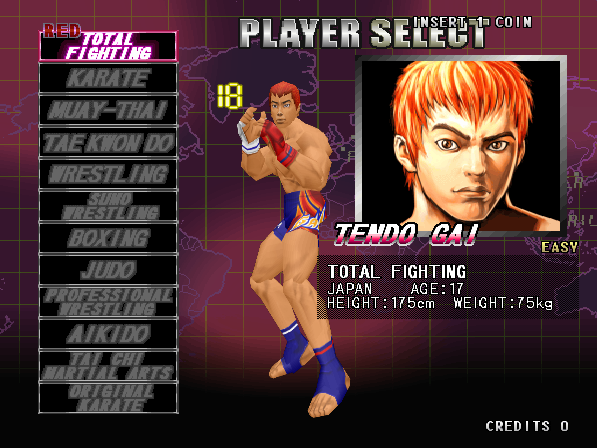
Buriki One: World Grapple Tournament '99 in Tokyo is a 3D fighting game SNK released in arcades in 1999 on its Hyper Neo Geo 64 board. Each fighter stands for one fighting style, and the select screen lists them by style: Total Fighting, Karate, Muay Thai, Tae Kwon Do, Wrestling, Sumo Wrestling, Boxing, Judo, Professional Wrestling, Aikido and Tai Chi. A twelfth, Silber ("Original Karate"), is hidden.
It also controls unlike other fighting games: two buttons move your fighter and the stick attacks.
What you need
- 64-bit Windows 10 or 11.
- A graphics card with Direct3D 11. Without one the game still runs, with the original picture and no pause menu.
- Your own
buriki.zipandhng64.zip(see the note at the top). - About 500 MB of free disk space while installing. The installed game takes about 180 MB.
- For a controller: an Xbox-style (XInput) one. The keyboard always works.
Install
- Download
ReBuriki-Setup.zipfrom the latest release and unzip the whole folder anywhere. - Run
Setup.exe. - Choose your
buriki.zipandhng64.zipand where to install, then press Install. If the two zips are next toSetup.exeor in your Downloads folder, Setup finds them itself.
Setup checks the ROMs, builds the game from them on your PC and adds desktop and Start menu shortcuts. It takes a minute or two on a recent PC. No administrator rights are needed and nothing is downloaded: everything Setup uses is in the folder you unzipped, which you can delete afterwards.
Any MAME version's sets work as long as they are complete: Setup finds the files it needs by checksum,
whatever they are named. hng64.zip must include the I/O board file tmp87ph40an.bin, which MAME sets have
had for some years.
Note
Setup isn't code-signed, so Windows may show "Windows protected your PC". Choose More info, then
Run anyway. If your antivirus blocks Setup.exe, that is an automatic guess about new, unsigned
programs: allow it in the antivirus's history list and run Setup again. Please don't turn your antivirus off.
Updating
Download the new ReBuriki-Setup.zip and install into the same folder as before. Your settings, controls
and the arcade's saved records are kept.
Uninstalling
Windows Settings → Apps → ReBuriki (Buriki One PC port) → Uninstall, or run Uninstall.exe in the
install folder. It asks whether to keep your settings, and removes only the game's own files.
How to play
- Start the game from its shortcut. It boots like the arcade machine, into the title and demo screens.
- Insert a coin, then press Start. With Free play on (menu, Game page), Start alone is enough.
- Choose your fighter with the stick and confirm with Select (A on a controller, Z on the keyboard).
- In a fight, step left and right to close in or back off, attack with the stick, and guard by holding both step buttons or the Guard button.
A second player can join at any time by putting in a coin and pressing their Start, as in the arcade.
To see the commands on screen while you play, turn on Move commands on screen (menu, Rules page). It is the arcade's own "COMMAND DISP." option.
The menu
Press Back + Start together on a controller (View + Menu on newer Xbox pads), or Tab / Esc on the keyboard. The game pauses while the menu is open. Its picture is one of the game's fighting-style portraits, a different one each time.
| Controller | Keyboard | |
|---|---|---|
| Move | D-pad or stick | Arrow keys |
| Choose | A | Enter |
| Back | B | Esc |
| Switch pages | LB / RB | Q / E |
| Close | Start | Tab |
| Page | What's there |
|---|---|
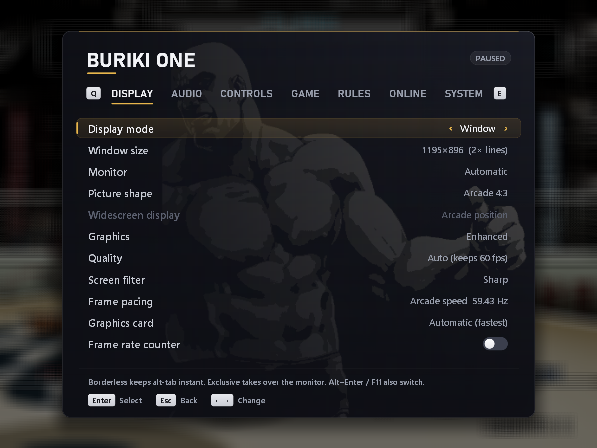
| Display | Window / borderless / exclusive full screen, window size, monitor, picture shape (4:3, stretch, whole-number, widescreen), where the health bars sit in widescreen, enhanced or original graphics, quality, screen filter, frame pacing, graphics card, frame-rate counter |
| Audio | Volume, mute |
| Controls | Control scheme (Modern, Classic, Buttons attack, Custom); then in three groups: change any key or controller button, up to three buttons per control, what each stick does, stick dead zone, restore defaults |
| Game | Unlock Silber, free play, language / region (applies after a restart) |
| Rules | The arcade operator's settings: difficulty, attack power and timer speed (1 player and versus), continue, replay, blood, move commands on screen, sound in the title demo |
| Online | Experimental. Host a game, join one by address, input delay, this PC's address, leave |
| System | Resume, the arcade's operator menu, restart, quit |
Picture and graphics
All of this is on the menu's Display page.
- Graphics: Enhanced or Original arcade. Enhanced redraws the 3D fighters on your graphics card at high resolution. Original is the arcade board's own 512×448 picture. F9 switches while you play.
- Quality. Auto picks the sharpest setting your PC holds at full speed and steps down if it ever can't. The fixed settings run from Performance (2×) to Extreme (8×).
- Picture shape. Arcade 4:3, stretch to fill, 4:3 at a whole-number scale, or Widescreen. Widescreen shows more of the arena at the sides in fights, up to 21:9; the title, the select screens and other flat screens stay 4:3. It needs Enhanced graphics.
- Widescreen display. Where the health bars and the boxes at the top sit in a widescreen fight: where the arcade put them, or out at the edges of the screen.
- Screen filter. Sharp pixels, smooth scaling, or arcade-monitor scanlines.
- Frame pacing. Arcade speed is the board's own 59.43 frames a second. Display vsync is smoother on a 60 Hz screen but about 1% fast.
- Display mode. Window, borderless full screen (alt-tab stays instant) or exclusive full screen. Alt+Enter or F11 also switch.
| Key | Does |
|---|---|
| Alt+Enter or F11 | Window / full screen |
| F9 | Enhanced graphics on / off |
| F2 | The arcade's Test button (operator menu) |
| 9 | The arcade's Service button |
Controls
The game calls its two buttons L and R. In a fight they step left and step right, and held together they raise your guard. On the arcade cabinet they also confirm on the game's own screens, such as choosing your fighter. ReBuriki treats stepping, guarding and confirming as separate controls, so a trigger doesn't pick a fighter and A doesn't step.
The first controller connected is player 1 and the second is player 2.
Controller schemes
A controller comes with three ready-made control schemes (menu, Controls page), and Custom, your own:
| Modern (default) | Classic | Buttons attack | |
|---|---|---|---|
| In a fight | |||
| Step left / right | Left stick, or LT / RT | LT, LB / RT, RB | Left stick, or LT / RT |
| Attack | Right stick, or D-pad | Either stick, or D-pad | Y, A, X, B (up, down, left, right), right stick or D-pad |
| Guard | LB, RB or X | X, or both triggers | LB or RB |
| On the game's screens | |||
| Move the cursor | Either stick, or D-pad | Either stick, or D-pad | Either stick, or D-pad |
| Select / other button | A / B | A / B | A / B |
| The cabinet | |||
| Start / insert coin | Start / Back | Start / Back | Start / Back |
| Menu | Back + Start | Back + Start | Back + Start |
- Modern plays like a modern game: move with the left stick, attack with the right.
- Classic keeps the stick for attacks, as on the cabinet.
- Buttons attack is for players who would rather press buttons than flick a stick.
- Custom is whatever you set. Change anything about the controller and the scheme becomes Custom, starting from the scheme you were on. Custom is remembered, so you can try another scheme and come back.
Each player has their own scheme.
Keyboard
The keyboard is the same in every scheme:
| Player 1 | Player 2 | |
|---|---|---|
| Stick (attacks, and the cursor) | Arrow keys | R F D G (up, down, left, right) |
| Step left / right (and select / other on screens) | Z / X | A / S |
| Guard | Space, or Z and X together | A and S together |
| Start / insert coin | 1 / 5 | 2 / 6 |
| Buttons 3 and 4 (spare) | C, V | Q, W |
| Menu | Tab or Esc |
Changing controls
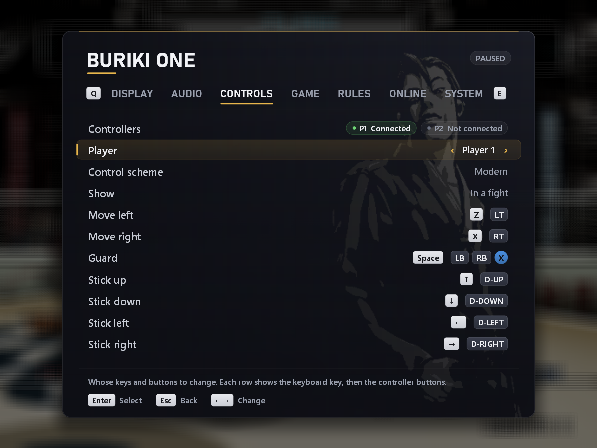
On the menu's Controls page, Show switches between three groups: in a fight; the game's screens and the cabinet; sticks. Choose a control and press Enter (A on a controller) to open its box:
- Press a controller button to add it, and again to take it off. A control can have up to three.
- Press a key to make it the keyboard key.
- The same key or button can be on several controls.
- Esc closes the box. With only a controller, it closes by itself after a few seconds.
In the sticks group, each stick can step left and right, attack, or be switched off, and you can set how far a stick must move before it counts. Restore defaults puts both players back on the Modern scheme and the original keys.
Arcade settings, and Silber
The arcade machine had an operator's menu for the owner of the cabinet. ReBuriki puts its settings in the pause menu, and keeps them in the arcade's own save memory, so they agree with the original menu.
- Free play (Game page). On: Start alone begins a game. Off: insert a coin first.
- Rules page. Difficulty; attack power and timer speed, separately for one player and versus; continue; the slow-motion replay; blood; move commands on screen; sound in the title demo. They apply from the next fight.
- Language / region (Game page). Japan (Japanese), USA or World (English). The board reads it at power on, so it applies after a restart.
- The arcade's operator menu itself is still there: System page, or F2. It has the input and sound tests and the bookkeeping.
Silber, the final boss, is the hidden twelfth fighter: "Original Karate", at the bottom of the style list. With Unlock Silber on (Game page, on by default) he can be picked from the start. Turn it off to earn him the arcade's way; what you have earned is kept either way.
Playing online (experimental)
This part is experimental. It has been tested thoroughly with two copies of the game on one PC,
through simulated slow and unreliable connections, and the two stayed in step every time. It has not
yet been played much between two real PCs over the internet. It connects the two players' PCs directly:
there is no server, lobby or matchmaking, so you arrange a game with someone yourselves. Nothing here
affects ordinary play. If something goes wrong, please report it with buriki.log from both players
(see Troubleshooting); the game writes a line there if the two sides ever disagree.
Two players, each on their own PC with their own copy of ReBuriki. One hosts and is player 1; the other joins and is player 2. Each of you plays with your own Player 1 keys or first controller.
- Host: open the menu, go to Online, choose Host a game. The game restarts and shows a waiting screen with your address.
- Joiner: on the Online page choose Address to join, type the host's address (Enter to start typing, Ctrl+V pastes), then Join a game.
- The game starts from power on for both of you, with the host's settings: free play, difficulty and the other rules, and whether Silber is unlocked. Put in a coin (unless free play is on), press Start, and the second player pressing Start is the arcade's "here comes a new challenger".
To stop, either player chooses Leave the online game (or closes the game). The other is told, and both go back to ordinary play.
Things to know:
- Same network (two PCs at home): the joiner types the address the host's waiting screen shows.
- Over the internet: the joiner needs the host's public address (the host can search the web for "what is my IP"), and the host's router must forward UDP port 7600 to the host's PC. A virtual-LAN tool such as Tailscale, ZeroTier or Radmin VPN avoids the router setup: both install it and the joiner types the host's address in that tool.
- Windows Firewall asks the first time you host. Choose Allow.
- Both players need the same Language / region (Game page) and the same game files and version of ReBuriki. If not, the joiner is told so and nothing starts.
- Pausing pauses both. While one player has the menu open, the other sees "Waiting for the other player".
- Input delay (Online page, the host's choice): the number of frames before the game sees a button press. 2 suits most connections. Raise it if the picture often jumps; lower it on a very good connection.
- With the frame-rate counter on (Display page), the ping is shown next to it.
- The joiner's own arcade save memory is not touched; the host's is used and kept.
How it works, briefly
Both copies run the whole game from power on with the same settings, and send each other only their button presses. Each plays your own presses a couple of frames late (the input delay), which is usually enough for the other player's to arrive in time. When they are late, the game carries on with a guess; if the guess was wrong, it goes back to its saved state from that moment and replays the frames since, in a few thousandths of a second. That is "rollback". Once a second the two copies compare a fingerprint of the game's memory, to be sure they are still playing the same game.
Your files
The game keeps everything in its install folder. It sends nothing over the internet except, in an online game, your button presses to the other player.
| File | What it is |
|---|---|
settings.ini | The pause menu's settings |
controls.ini | Keys, controller buttons and schemes. It can be edited by hand; the comments at its top explain it |
nvram.bin | The arcade's own save memory: operator settings, records, what you have unlocked |
buriki.log | What happened in the last run. buriki.old.log is the run before |
setup.log | What Setup did |
To start completely fresh, delete settings.ini, controls.ini and nvram.bin while the game is closed.
Troubleshooting
Setup says a ROM file is missing or wrong.
Setup names the file. buriki.zip must be the rev. B set, and hng64.zip must include the I/O board file
tmp87ph40an.bin: older MAME sets don't have it. Both must be complete; the names inside don't matter.
Windows or my antivirus stops Setup.
Setup isn't code-signed. On "Windows protected your PC" choose More info, then Run anyway. If an
antivirus removed Setup.exe or a file in the files folder, restore it from the antivirus's history and
allow it, then run Setup again. Unzipping the download again also brings the files back.
The picture looks wrong, or the 3D is missing.
Press F9 to switch between Enhanced and Original graphics. If Original looks right and Enhanced doesn't,
update your graphics driver, and please report it with buriki.log. On a PC with two graphics cards, try
the other one (Display page, Graphics card; it applies after Restart game).
The game runs slowly or stutters.
Set Quality to Auto or Performance (Display page). Turn on the frame-rate counter to see the speed: it should read about 59 or 60. If Frame pacing is on Display vsync and your screen is not close to 60 Hz, use Arcade speed.
The pause menu doesn't open.
The menu is drawn with Direct3D 11. On a PC without it the game falls back to a plain picture and the menu
can't be shown. settings.ini and controls.ini can still be edited by hand.
My controller doesn't work, or the buttons are odd.
ReBuriki recognises Xbox-style (XInput) controllers. PlayStation controllers work through Steam or a tool such as DS4Windows, and many arcade sticks have an XInput mode. The Controls page shows whether each player's controller is connected. If the buttons aren't what you expect, choose a Control scheme there, or Restore defaults.