Takedawn
Takedawn is a native port of Burnout 3 Takedown for Windows, Linux, macOS, and Android that offers higher resolutions, widescreen support, and custom soundtracks.
- Type: PC port
- Game: Burnout 3: Takedown
- Runs on Windows, Linux, macOS and Android
- By xenophobentx
- Latest release v0.2.0, 2026-10-17
- Source: https://github.com/xenophobentx/takedawn
README
Takedawn
An unofficial static recompilation of the original Xbox version of Burnout 3: Takedown:
a native program for Mac, Windows, Linux, the Steam Deck and Android handhelds.
You bring the game data from your own disc.
Download · Quick start · FAQ · Report a bug
[!IMPORTANT] Takedawn is an unofficial, non-commercial fan project. It is not affiliated with, endorsed by or sponsored by Electronic Arts, Criterion Games or Microsoft. All trademarks belong to their owners.
No game data is included or distributed: no disc images, no textures, models, sound, music or films, and no shader cache made from them. To play you need your own, legally obtained disc of the North America (NTSC-U) retail release for the original Xbox. Takedawn checks a copy of it and takes the game data from there. Please do not ask for game files or disc images, and do not share them. See the full legal notice.
TL;DR
- This is a port, not a remaster. It runs the original 2004 game with its own cars, tracks, textures and physics. The picture and sound extras are options on top.
- Takedawn runs the original Xbox Burnout 3: Takedown as a native program.
- Compared with the console: up to 4x resolution, widescreen and ultrawide, 60 fps crash cameras, and music and 60 fps in split screen. Custom soundtracks play from a folder of your own MP3 or FLAC files. Highlights has the rest.
- Download it for your device and start it. For full speed it needs about a Steam Deck's power.
- Point it at a disc image of your own Burnout 3 (USA). It installs the game data, then you play.
- To update, install the new version over the old one. Saves and settings stay.
- Settings: Back and Start, F1, or TAKEDAWN SETTINGS in the game's menu.
- Bugs: first check the known issues. Then switch on Advanced > Diagnostic logging, restart the game and make the problem happen again. Then Advanced > Create bug report, and attach the zip to the [issue form][issues].
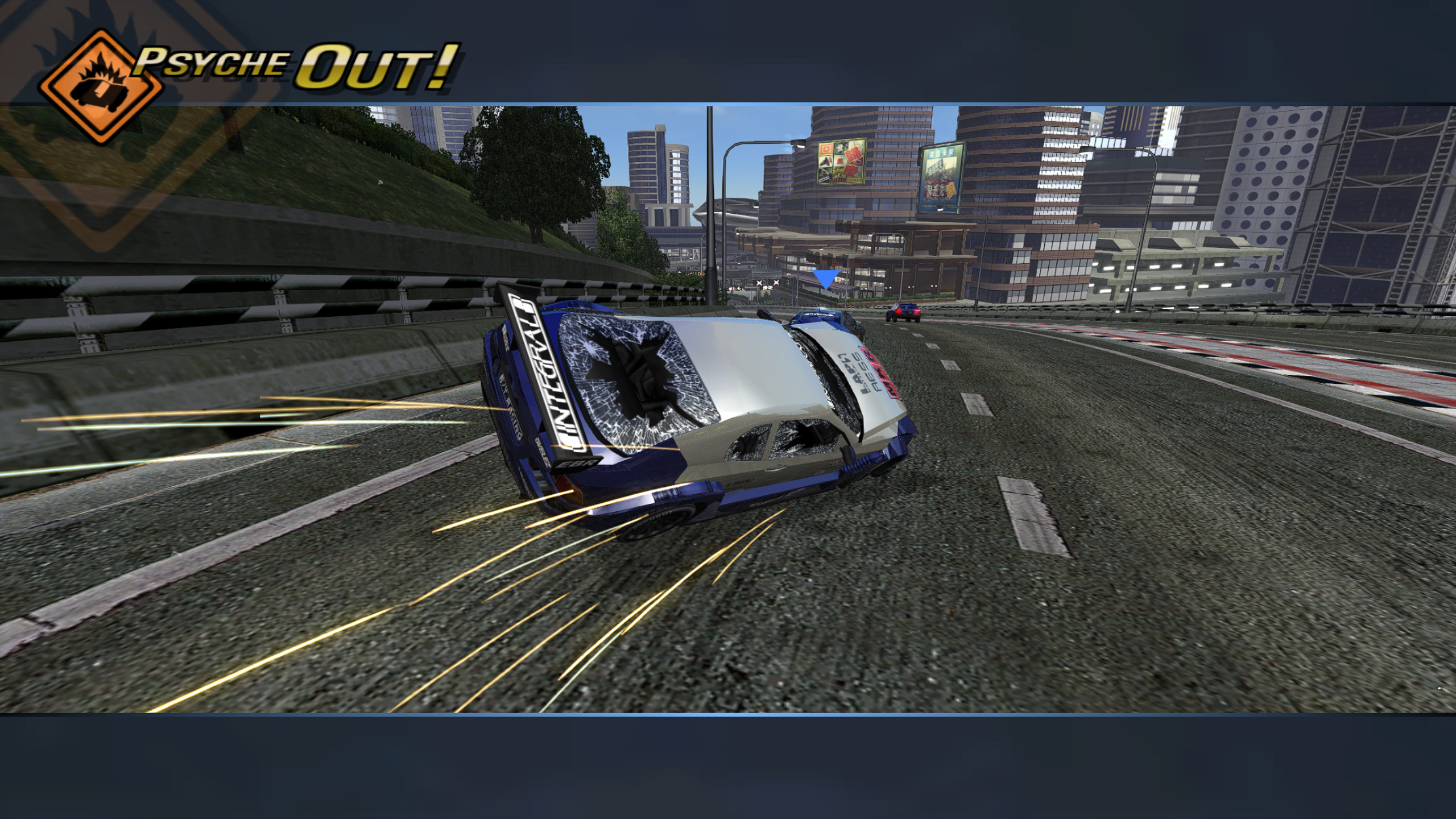
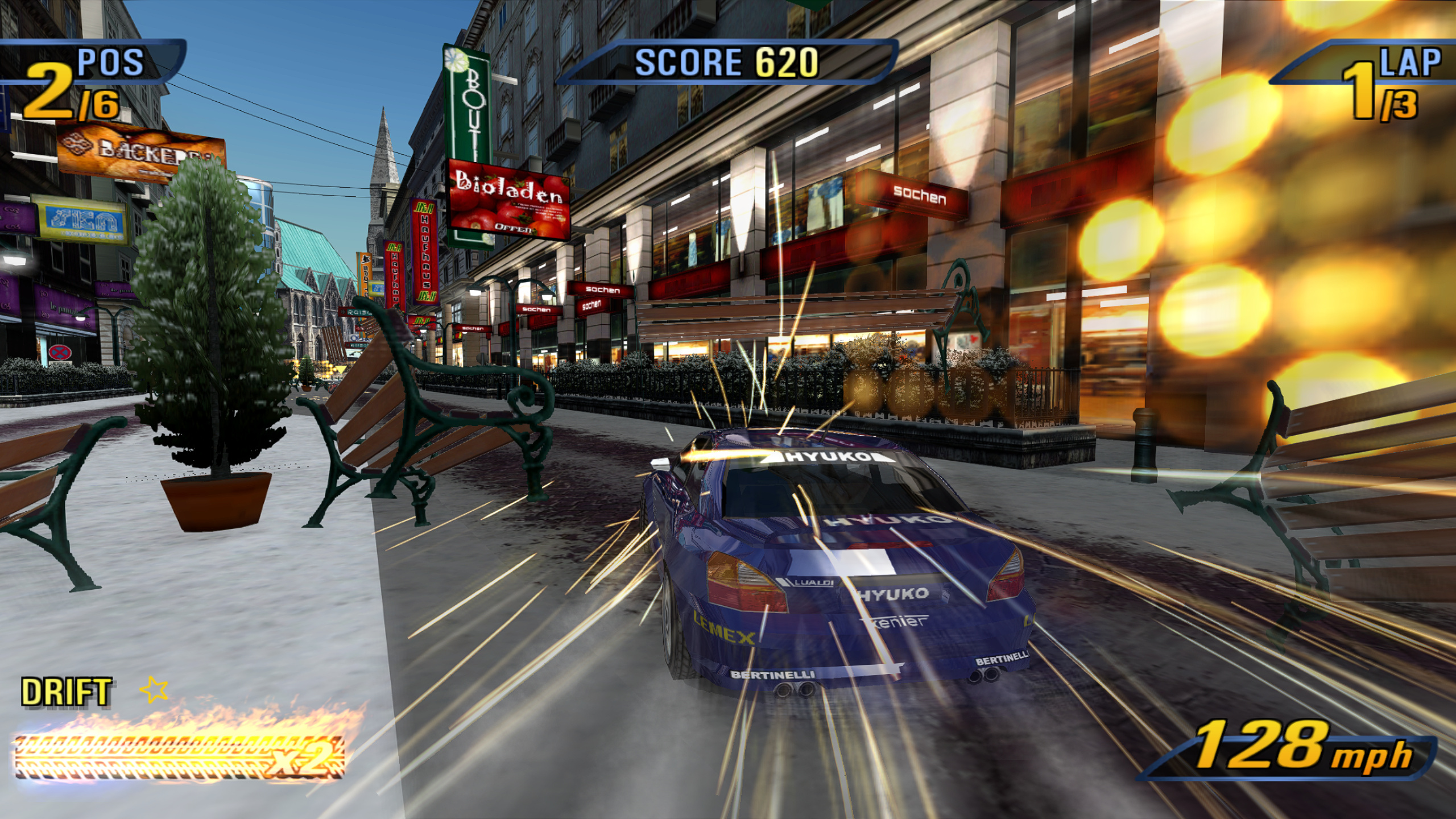 A winter city in Europe. | 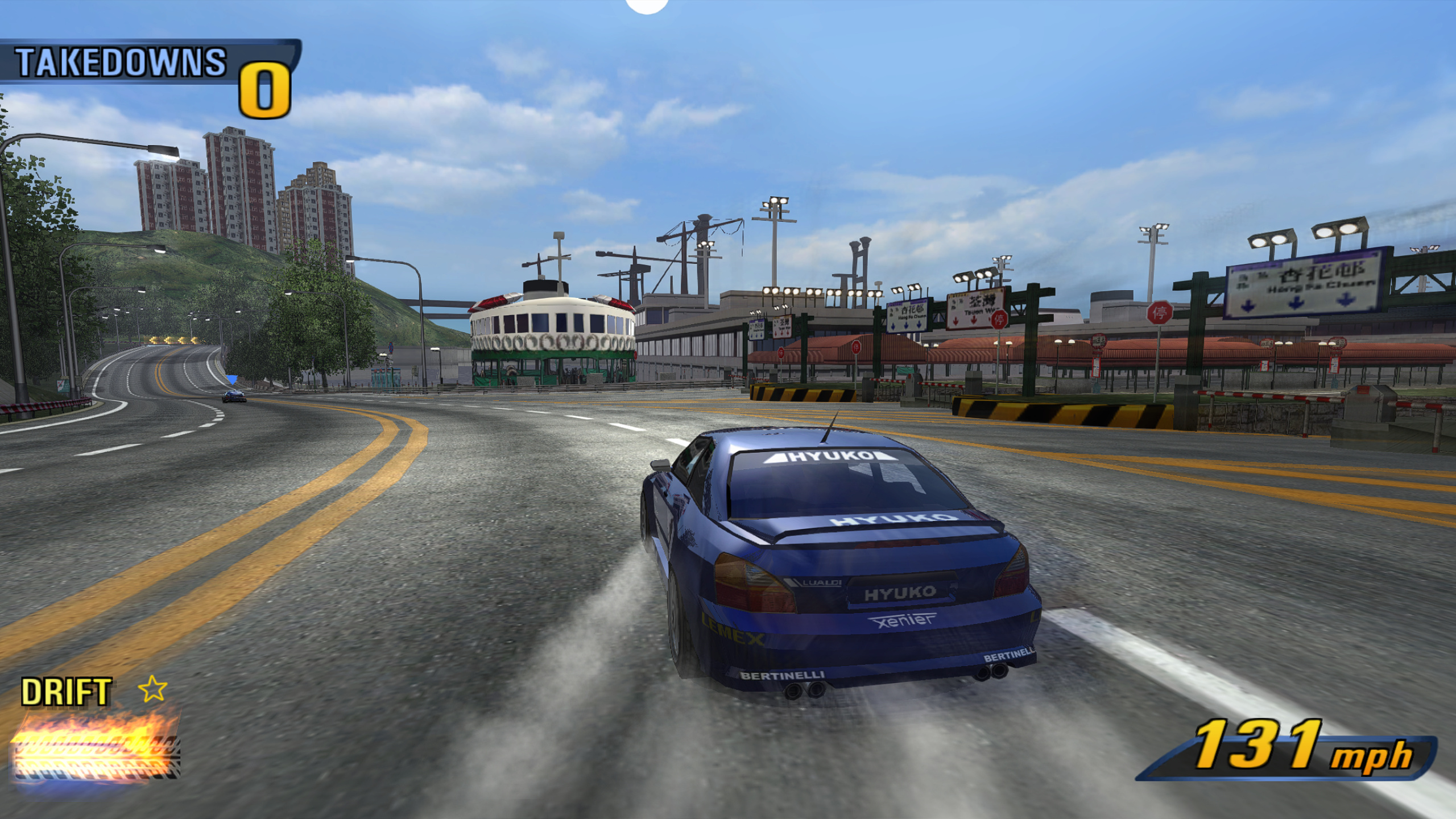 Road Rage at the Far East harbour. |
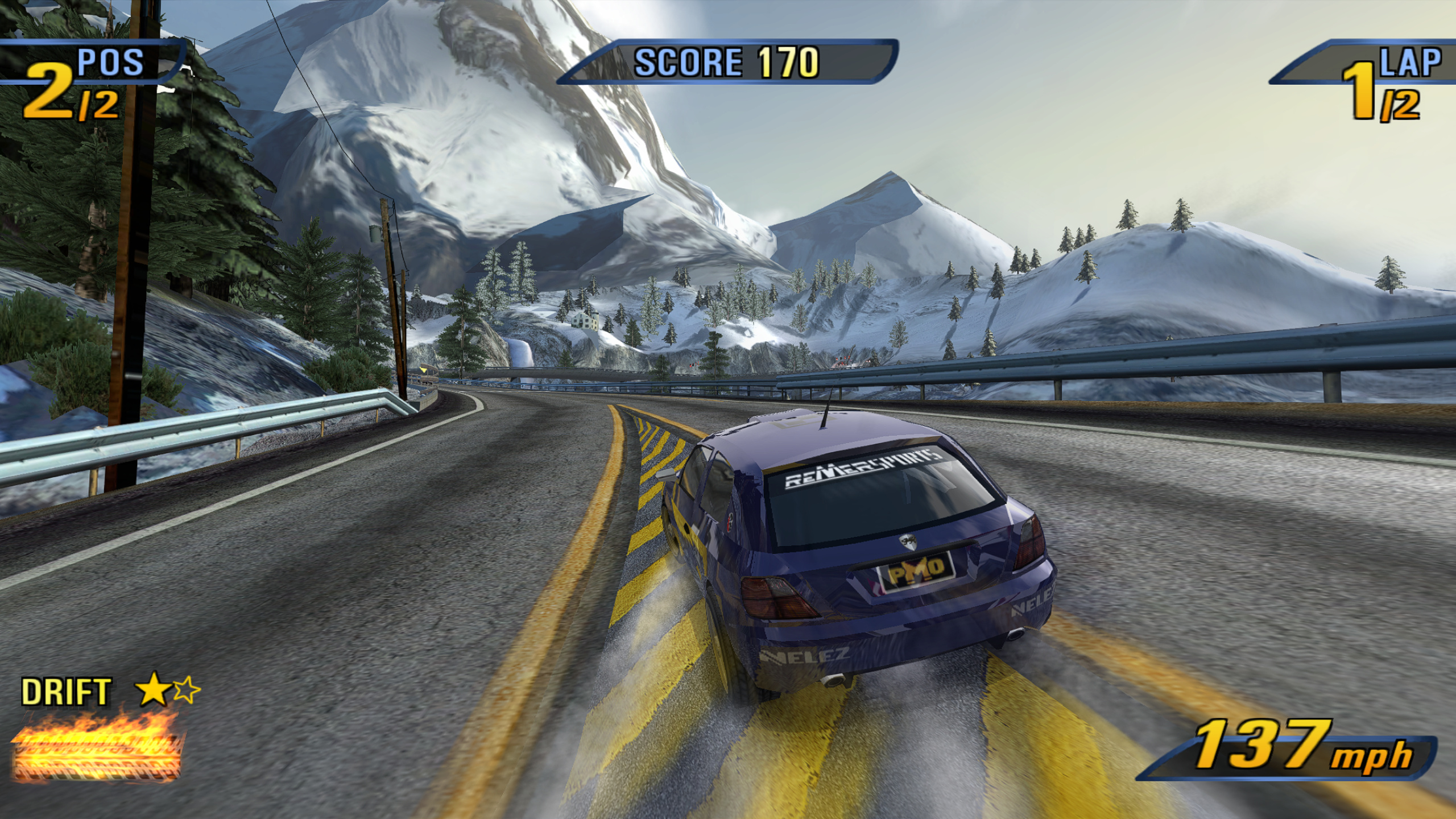 Alpine road in Europe. | 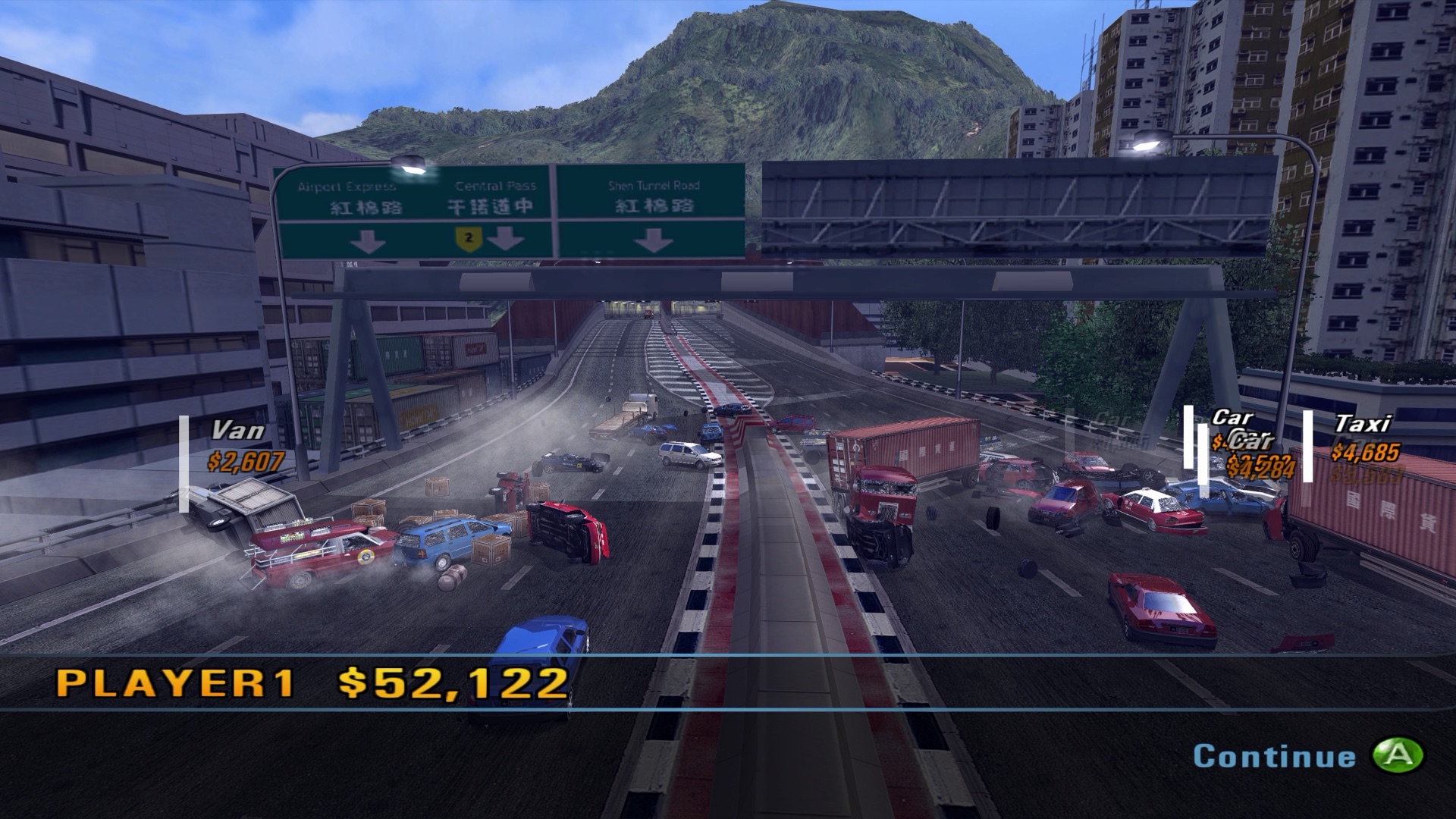 Crash mode at the Far East docks. |
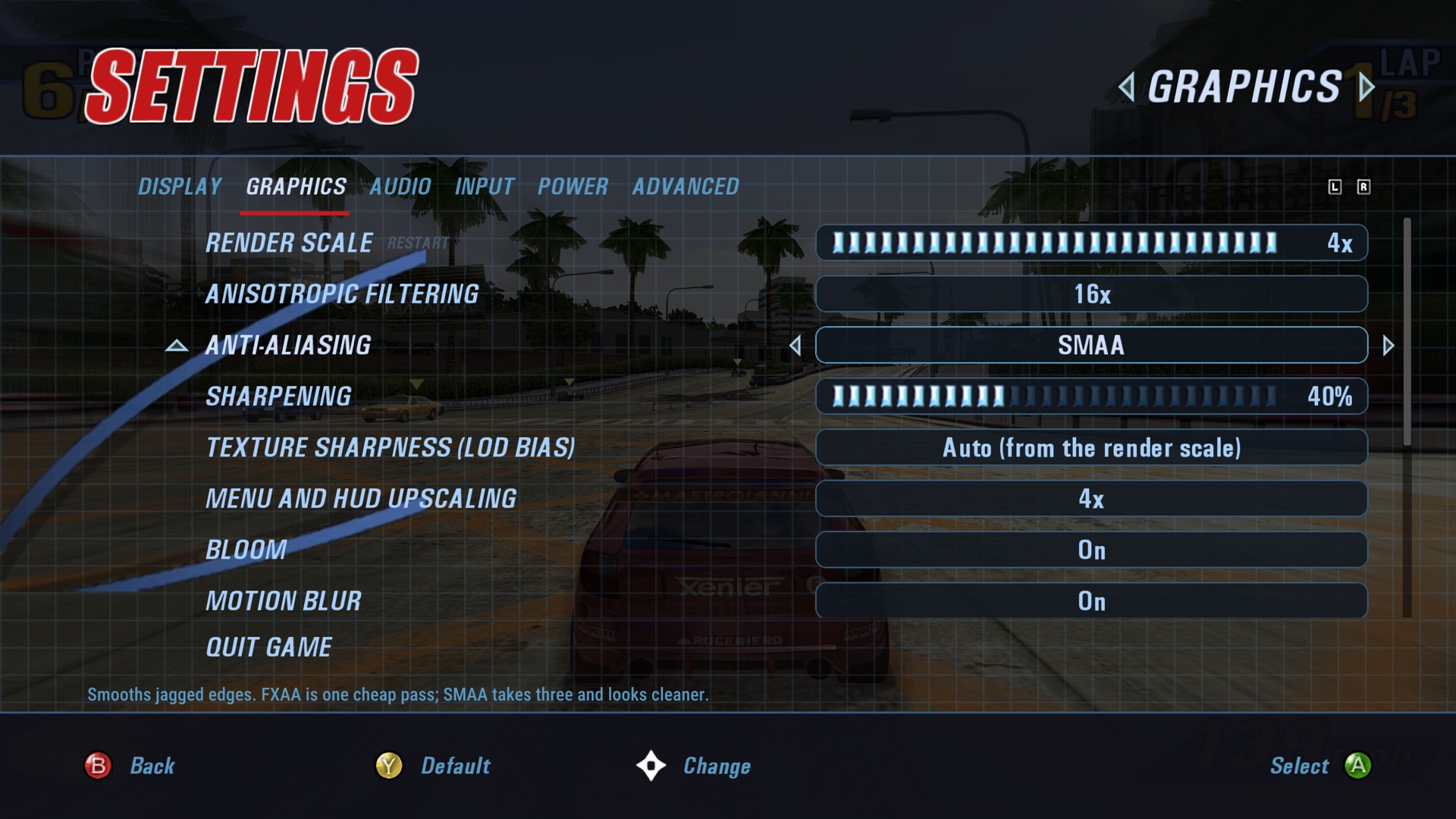 Settings, Graphics page. | 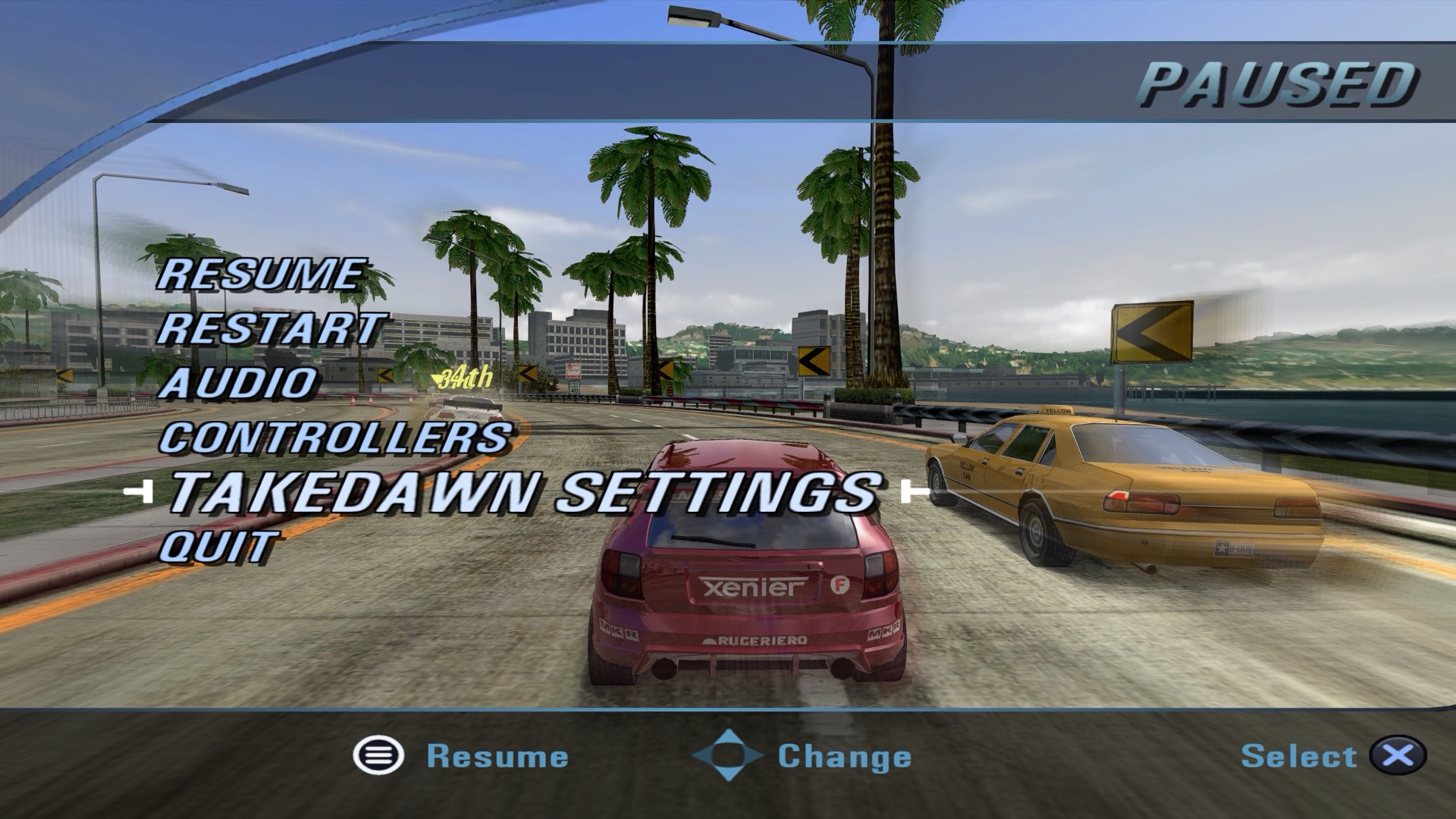 Pause menu with a PlayStation pad. |
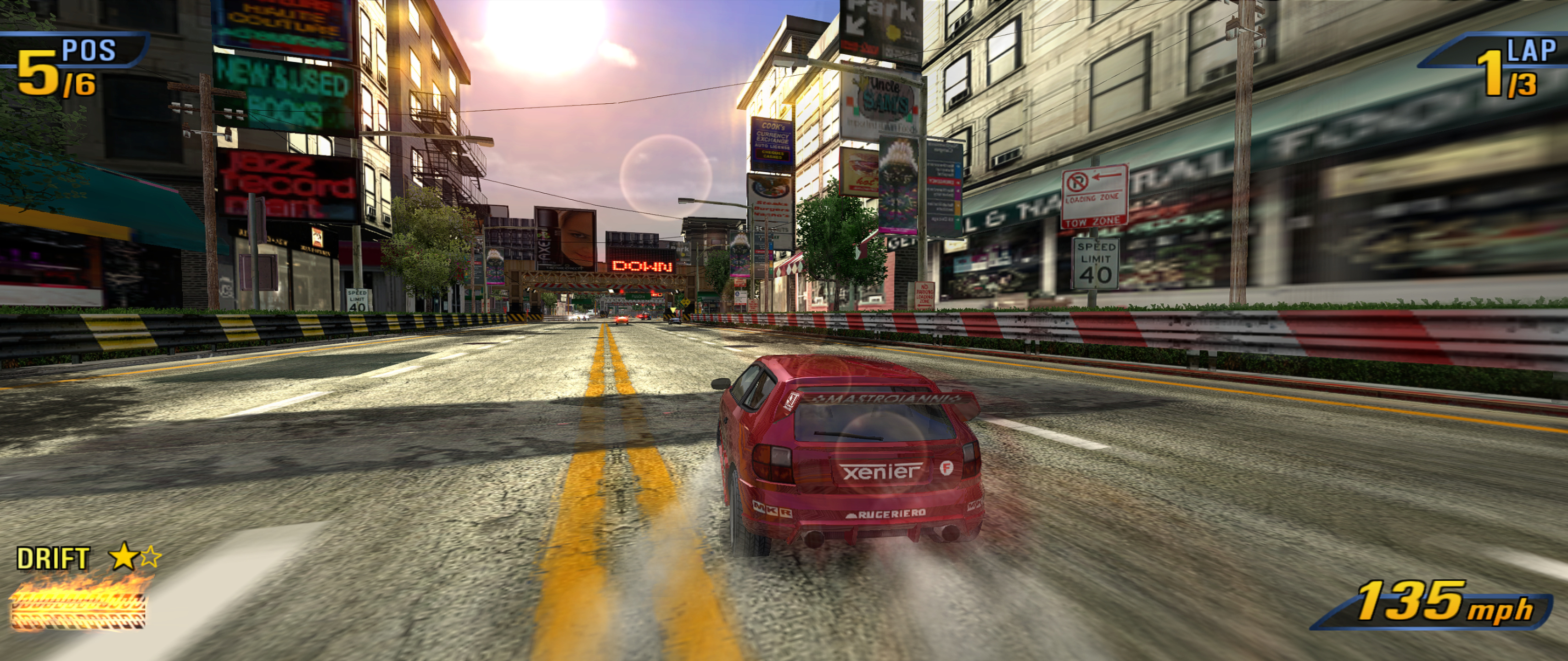
21:9 ultrawide.
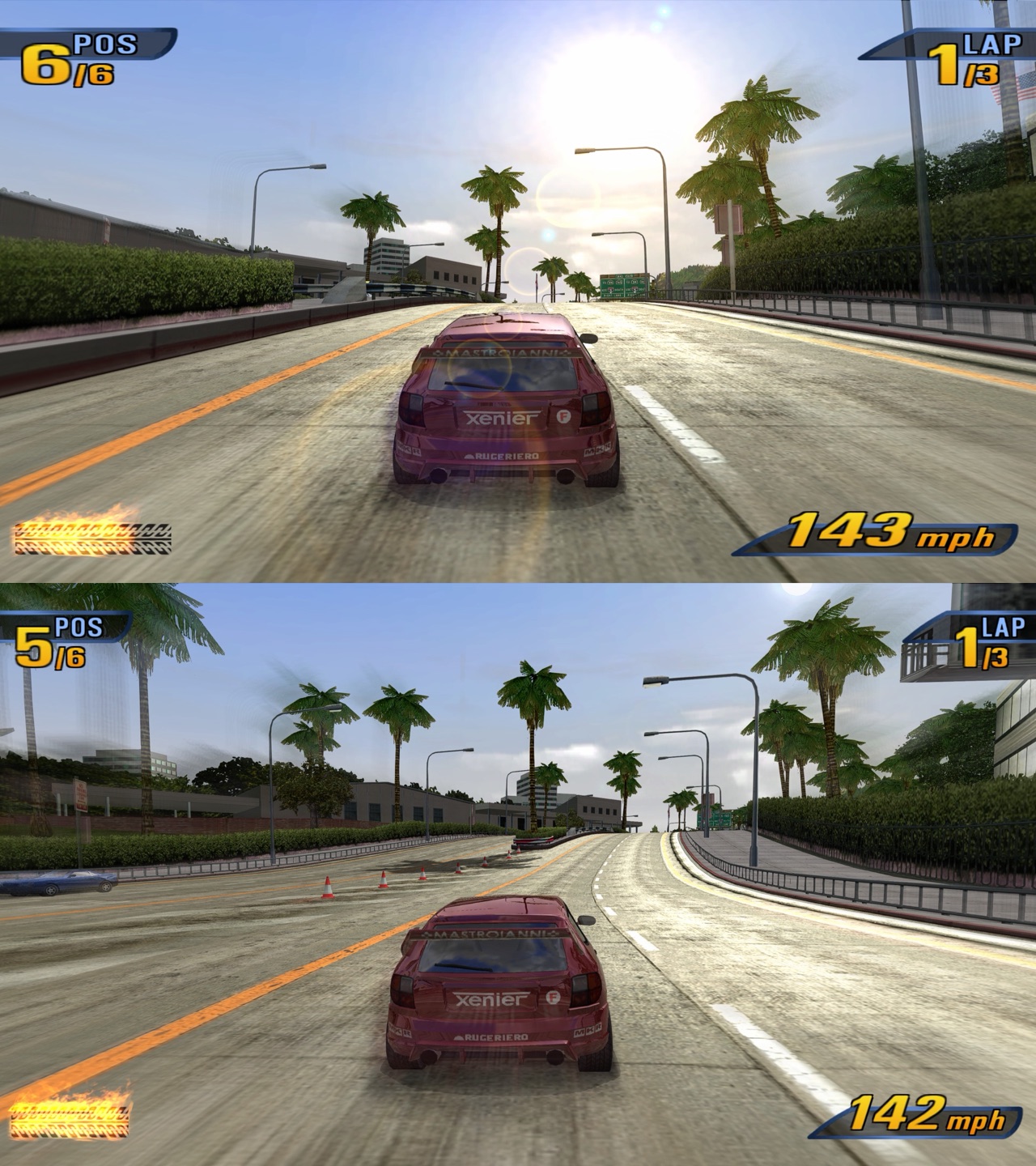
Widescreen HUD fix off on top, on below.
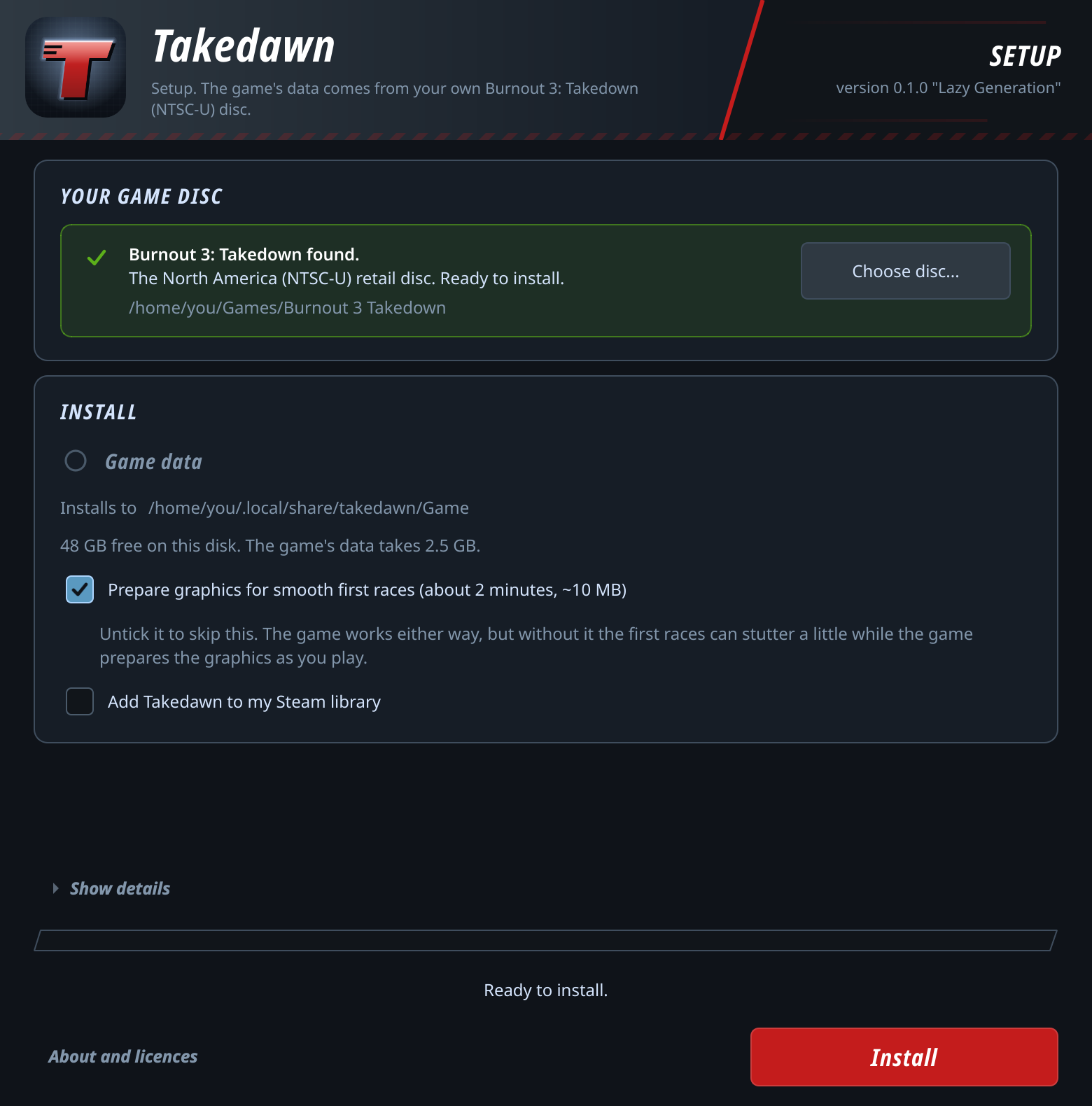
Setup window on first start, disc image accepted.
Unedited screenshots. The game content in them belongs to its owners.
Contents: What it is · Highlights · Download · Quick start · How to update · Setup by platform · Controls · Settings · Performance · Tips · FAQ · Known issues · What's next · For developers · Credits · How this was made · Greetings · Licence · Legal notice
What is Takedawn?
Takedawn runs the original Xbox release of Burnout 3: Takedown as an ordinary program on your device. The game's own code was translated ahead of time into a native program for x86-64 and arm64. The menus, the races and Crash mode all run that translated code (see how it works). It needs the North American Xbox version of the game.
The download is only the program. The game data (cars, tracks, sound, films) comes from your own disc: on first start Takedawn asks for a copy of it, checks every file and copies the data into place. Then you play, with a few things the console couldn't do: a higher internal resolution, widescreen with an undistorted HUD, ultrawide, and a settings menu you can open mid-race.
Highlights
- HDR on Windows, Linux and the Steam Deck: the game's own light above white, which the console's output clipped. Lamps, sparks, the boost and the sun go past white. HUD and menus stay at paper white.
- Frame pacing: Smooth keeps one finished frame queued, so a late frame doesn't show twice. Default on the Steam Deck.
- Potato mode: on a machine under 60 fps the race keeps real time from the start instead of running in slow motion until the first crash.
- Render scale from 1x (640x480, as on the console) to 4x (2560x1920). Android also has 1.5x.
- The game's own 16:9 mode stretches the HUD by a third. The widescreen HUD fix keeps it in its 4:3 shape, at the edges of the screen.
- Scenery detail: trees and other roadside objects keep their detailed models as far as they are drawn. On the console the pines turn into flat cut-outs at 250 m and pop back to full detail as you get close.
- Ultrawide at 21:9 and 32:9: races fill the whole width and show more at the sides. Menus and films stay 16:9 in the middle.
- 60 fps, locked to your display's refresh, also on 120 Hz screens.
- Touch controls on Android: steering, gas, brake, boost and the menus. They hide while a controller is in use.
- Crash cameras can run at 60 fps instead of the console's 30, in races and in Crash mode.
- Split screen can run at 60 fps and with music. The console runs it at 30 with no music.
- A or Start skips the training film before a mode's first event, which the console makes you sit through.
- Your own music: choose a folder of MP3, FLAC, Ogg or WAV files and pick it in the game's EA GAMES TRAX menu, like a custom soundtrack on the Xbox. Each folder is one soundtrack, and each song's volume is matched to the game's music. On Android the game asks for access to your music files the first time you open that menu row.
- 5.1 surround, with a per-speaker mix for each sound group (music, engines, crashes and more) and a recommended 5.1 preset.
- Menu and HUD upscaling redraws the game's 2D art at 2x or 4x with an edge-following scaler, so text and icons stay sharp at high render scales.
- Anti-aliasing (FXAA or SMAA), sharpening, up to 16x anisotropic filtering, sharper distant textures, and rival cars that keep their detail further away. Sliders turn the game's bloom and motion blur down or off.
- A settings menu in the game's own style, with its fonts and buttons. Open it with Back and Start, F1, or TAKEDAWN SETTINGS in the game's Settings and pause menus. The game pauses while it's open. It plays the game's own menu sounds.
- Button prompts for your controller: Xbox, PlayStation (DualShock and DualSense), Nintendo, Steam, or a neutral set that shows the button's position. They switch to whatever controller you're using.
- Optional PS2 driving controls: accelerate and brake on the face buttons, boost on the right shoulder. Also rumble strength, a Nintendo face-button layout, and km/h.
- Before each save the game keeps a copy of the old one, and you can restore an earlier save from the menu. Saves can be exported and imported, including between platforms. A save from an original Xbox can be imported too.
- A setup window that checks your disc image file by file. An interrupted install never leaves you with a half-installed game. The game data can go in a folder of your choice. The first start builds all shaders, so the first race doesn't hitch.
- Advanced > Create bug report puts the logs, settings and a system summary in one zip, with your user name and home folder removed.
- On desktop, Advanced > Check for updates tells you whether a newer version is out.
Download
| Platform | File | Size |
|---|---|---|
| Mac (Apple silicon, macOS 13 or newer) | Takedawn-0.2.0-macos-arm64.dmg | about 20 MB |
| Windows (64-bit) | Takedawn-0.2.0-windows-x64-setup.exe | about 18 MB |
| Linux and Steam Deck (x86-64) | Takedawn-0.2.0-linux-x86_64.AppImage | about 25 MB |
| Android (arm64, Snapdragon), experimental | Takedawn-0.2.0-android-arm64.apk | about 15 MB |
All files are on the [releases page][releases], with a SHA256SUMS file and a
BUILDINFO file that says what each was built from. To check a download, run
shasum -a 256 <file> on a Mac or sha256sum <file> on Linux and compare the
result with the line for that file. What changed in each release is in
CHANGELOG.md.
None of the desktop files is code signed, so each system asks once whether you trust it. The APK is signed with the project's own key, which Android needs for updates. The steps are under Setup by platform.
What was tested
I play it on these machines:
| Machine | CPU | RAM | Graphics | System |
|---|---|---|---|---|
| MacBook Air | Apple M5 | 24 GB | Apple M5 | macOS 26.7, own screen and an external 4K 120 Hz monitor |
| Steam Deck OLED | AMD Custom APU 0932 | 16 GB | AMD Van Gogh, Mesa RADV | SteamOS, Game Mode |
| Desktop PC | AMD Ryzen 7 7700X | 32 GB | AMD Radeon RX 9070 XT, Mesa RADV | Bazzite, 5.1 sound, 120 Hz TV |
| Desktop PC | AMD Ryzen 7 5800X | 32 GB | AMD Radeon RX 9060 XT, Adrenalin 26.8.1 | Windows 11 Pro |
| PC | AMD Ryzen 7 5825U | 28 GB usable | AMD Radeon Vega (Barcelo), Mesa RADV | Ubuntu 24.04 |
| Retroid Pocket 5 | Snapdragon 865 | 8 GB | Adreno 650, bundled Turnip driver | Android 13 |
| Laptop | Intel Core Ultra 5 228V | 32 GB | Intel Arc 130V | Windows 11, tried only |
That's as much as one person can test. If you play it on other hardware, or something breaks, please tell me through the [issue form][issues]. A bug report zip from Advanced > Create bug report helps a lot.
Devices
| Device | State |
|---|---|
| Mac with Apple silicon | Tested |
| Steam Deck OLED | Tested |
| Windows desktop with an AMD graphics card | Tested |
| Linux desktop with an AMD graphics card (Bazzite) | Tested |
| Ubuntu 24.04 with AMD integrated graphics (Ryzen 7 5825U) | Tested |
| Retroid Pocket 5 | Tested |
| Samsung Galaxy S20 FE (Snapdragon 865) | Runs. A one-hour session had no problems. Slower than the Retroid Pocket 5 once the phone warms up |
| Poco F4 (Snapdragon 870) | Runs, but doesn't hold 60 fps. Always slower than the Retroid Pocket 5 |
| Retroid Pocket Classic (Snapdragon G1 Gen 2) | Starts, but 30 fps at most, so the game runs slow |
| Retroid Pocket 6, AYN Odin 2 | Expected to work, not tested. The bundled graphics driver supports their GPU |
| AYN Odin 3 | Uncertain, not tested. Its GPU is new to the bundled driver and it ships Android 15, which may restrict how the driver is loaded |
| Steam Deck LCD, other Linux distributions | Not tested |
| Windows 11 laptop, Intel Core Ultra 5 228V (integrated graphics) | Runs. 40 to 60 fps even at render scale 1 |
| Windows desktop, AMD Ryzen 5 9600X, NVIDIA GeForce RTX 5060 Ti 16 GB | Runs. A friend's short test held a steady 60 fps at render scale 3 and 4 |
| Other PCs with NVIDIA graphics | Not tested |
| Linux PCs with Intel graphics | Not tested |
| Intel Macs | Not supported. There is no Intel build |
| Android devices without a Snapdragon chip (Mali, PowerVR, Xclipse graphics) | Not supported yet. If the device's own driver supports Vulkan 1.3, it might work |
| Samsung Galaxy S23 FE (Exynos 2200, Xclipse graphics) | Starts on the phone's own driver, but slow: about 30 fps even at render scale 1 |
| An Adreno device's own driver instead of the bundled one | Not supported yet. If it supports Vulkan 1.3, it might work; the bundled driver is the default |
System requirements
- All platforms: a copy of your own disc (see Quick start), about 3 GB of free space (the setup checks), and a game controller or a keyboard. On Android the touch controls work too. The game data takes 2.5 GB.
- Mac: Apple silicon and macOS 13 or newer. Only tested on macOS 26.
- Windows: 64-bit Windows 10 or newer and a graphics driver with Vulkan 1.3. With AMD graphics, use Adrenalin 26.8.1 or newer. Older AMD drivers leak memory, which adds up over a long session.
- Linux and Steam Deck: x86-64, glibc 2.29 or newer and a graphics driver with Vulkan 1.3. The AppImage needs no FUSE library.
- Android: Android 13 or newer, 64-bit, a Snapdragon chip with Adreno graphics, and a built-in or connected controller.
For full speed (60 fps)
The game advances one step per frame, as on the Xbox. Below 60 fps the whole game runs slower.
- PC and Linux: a CPU at least as fast as the Steam Deck's (4 cores, 8 threads, Ryzen 3000 or newer). Low-power laptop chips may fall short: a Core Ultra 5 228V laptop ran at 40 to 60 fps at render scale 1. A 2-core Celeron is too slow.
- Graphics: Steam Deck class at render scale 1 or 2. Higher scales need a desktop card.
- Mac: Apple silicon. Tested on M5 only.
- Android: Snapdragon 865 or newer. Phones that throttle when warm can drop below 60.
Quick start
- Make a copy of your own disc. Takedawn supports one version of the game:
the North America (NTSC-U) retail disc for the original Xbox. It accepts an
.isoin XISO layout, a full disc image with the video partition first, or a folder with the extracted files. Takedawn does not provide disc images and does not link to them. - Get Takedawn for your device from Download and follow the setup for your platform.
- Start it. While the game data is missing, Takedawn opens its setup window. Choose your disc image or folder, or drop it on the window. Takedawn says at once whether it is the right game and version. On Linux and the Steam Deck it also looks for the disc in the usual places and offers what it finds. Press Install. It copies the data into your user folder, or into another folder you pick with Change..., and checks every one of the 716 files against a list of known sizes and SHA-256 sums. This took 3 to 10 seconds on the tested computers and the Steam Deck. Afterwards you can delete the disc image.
- Press Play. If the "Prepare graphics" box is ticked (the default), the shader pre-build runs first. In the game, open the settings with Back and Start together on a controller, or F1 on a keyboard.
Saves and settings are stored apart from the program and the game data, so an update leaves them alone.
How to update
Updates are manual. On desktop, Settings > Advanced > Check for updates tells you whether a newer version is out, and the Advanced page shows which version you have. Download the new one from the [releases page][releases].
- Mac: quit Takedawn, drag the new one into Applications and choose Replace, then allow it once more with Open Anyway.
- Windows: run the new setup program. It updates in place and keeps one copy of the previous version.
- Linux and Steam Deck: replace the old AppImage file with the new one under the same file name, so the Steam shortcut keeps working.
- Android: install the new APK over the old one. Do not uninstall first.
On every platform an update keeps your saves, settings and installed game data, and you don't need the disc image again.
Setup by platform
Mac
-
Open the disk image and drag Takedawn to your Applications folder. The image also holds a short "Read me first" file with the next step.
-
Open Takedawn. The app has no Apple developer signature and is not notarised, so the first time macOS says it cannot be opened because Apple cannot check it. Click Done, not Move to Trash.
- On macOS 15 and newer: open System Settings > Privacy & Security, scroll down to the line about Takedawn, click Open Anyway, confirm, and enter your password if asked.
- On macOS 13 and 14: right-click the app (or Control-click it), choose Open, and click Open in the message.
You do this once per download.
-
In the setup window choose your disc image, or drop it on the window, and press Install, then Play.
The game data goes to ~/Library/Application Support/Takedawn/Game, or to
the folder you pick with Change... in the setup window. For a disc image in
Desktop, Documents or Downloads, macOS asks once whether Takedawn may read
that folder.
To open the settings: F1 or Cmd+comma, or Back and Start on a controller.
To remove it: delete the app, ~/Library/Application Support/Takedawn (this
deletes your saves too) and ~/Library/Caches/Takedawn.
Windows
- Run the setup program. It is not code signed, so Windows SmartScreen shows "Windows protected your PC" with an unknown publisher. Click More info, then Run anyway. Windows may ask the same once more for the program itself.
- The setup installs for your user account only and needs no administrator
rights. It puts the program in
%LOCALAPPDATA%\Programs\Takedawn, adds a Start menu entry, and offers a desktop icon, which is off unless you tick it. - Start Takedawn from the Start menu. In the setup window choose y