Colin McRae Rally 04 launcher (rea-colin-mcrae-4)
Colin McRae Rally 04 launcher is a tool for Windows and Linux that lets you play your PC copy of the game with widescreen support and gamepad configuration.
- Type: tool
- Runs on Windows and Linux
- By AkitaOnRails
- Latest release v0.4.1, 2026-11-04
- Source: https://github.com/akitaonrails/rea-colin-mcrae-4
README
Colin McRae Rally 04 Launcher
Play your own PC copy of Colin McRae Rally 04 on Windows 10/11, the Steam Deck and Linux (Proton, Wine or the AppImage). Point the launcher at your game folder, pick a look and press Play. The widescreen picture, the graphics wrappers and the gamepad are bundled and set up for you, with no mods, patchers, winetricks or registry edits by hand. Your game folder is only read, never changed: the launcher plays from a private copy.
This project contains no game files: you need your own copy of the game.
Played end to end on Linux under Wine, with gamescope and a gamepad, on 4K screens. Native Windows, the Steam Deck, Proton without the helper and protected retail discs have not been tested yet. Reports are welcome: open an issue.
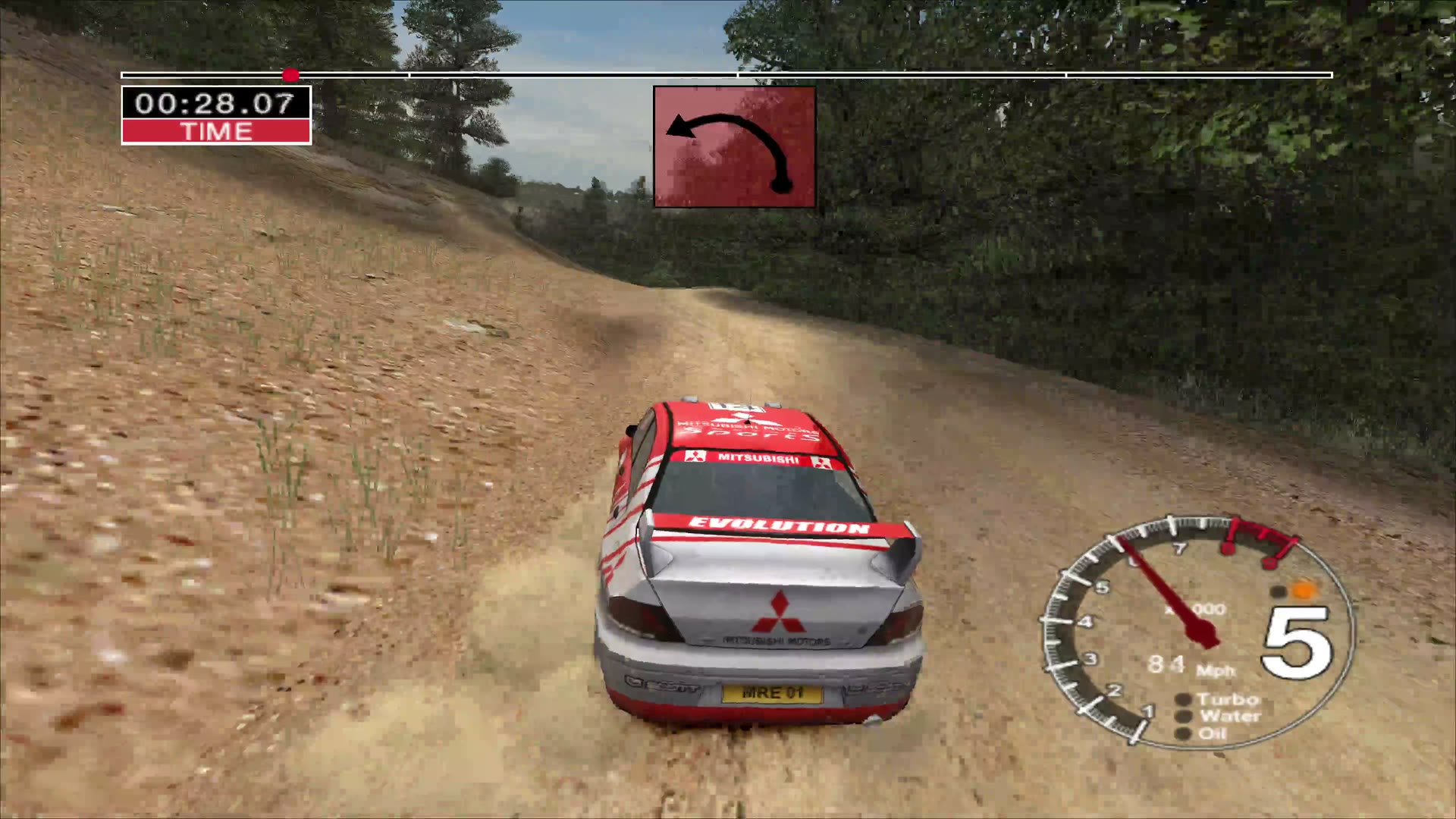
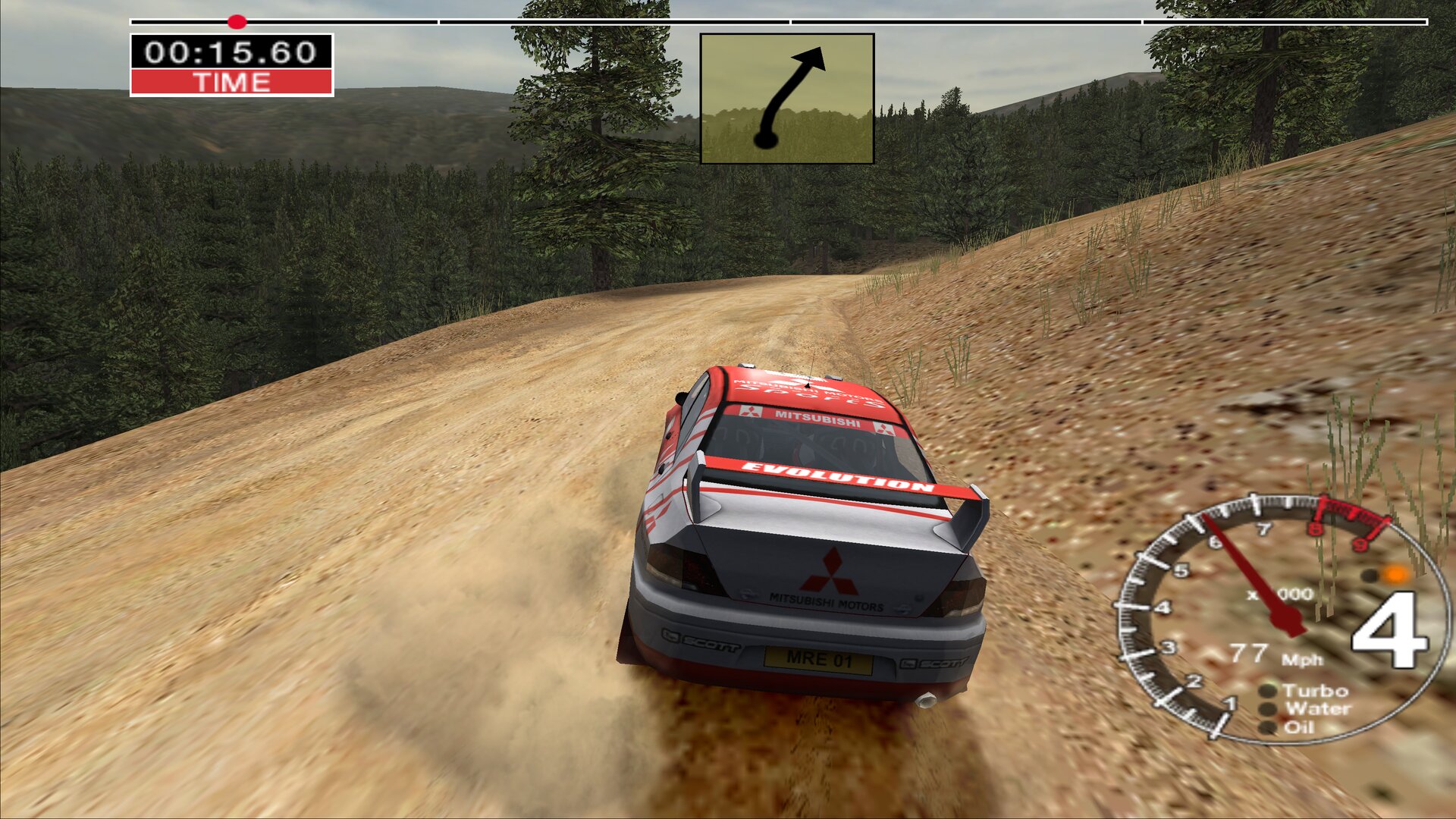
From the settings window to a full USA stage under Linux: correct 16:9 proportions on the landscape monitor, driven with a pad's stick and analogue triggers. Click to watch (2⅓ minutes, with sound).
Problems this launcher solves
| Problem | What the launcher does |
|---|---|
| The game crashes on a fresh install: it expects install paths and first-run graphics defaults in the registry. | Writes the paths on every launch and adds the defaults only when they are missing. |
| The old Direct3D 9 renderer struggles on modern systems. | Installs the tested dgVoodoo2 wrapper. Under Wine or Proton it also adds DXVK, so the game draws through Vulkan on your graphics card. |
| Alt+F4 and closing the window do nothing (Super+W in Hyprland too), so the game had to be killed. | A small hook ends the game when you press Alt+F4 or close its window. |
| The known 16:9 patch squeezes the cars: rendered directly at 16:9, cars and scenery come out 25% too narrow. | The community fix was made for a 4:3 picture stretched to 16:9, so the launcher has the game render 4:3 (2880x2160 for a 4K screen) and dgVoodoo stretches it. You get correct proportions and the wider view. |
| With a portrait monitor set as primary, the picture was fitted to that screen and stretched onto the landscape one: a thin, squashed strip. | Sends the game to your largest landscape monitor. |
| Picking resolution and view by hand. | Choose a look in one click: Original, Widescreen (the largest 16:9 size that fits your screen), Steam Deck or Custom. Any 16:9 size gets the widescreen view; other shapes keep the game's own. |
| The pad works in menus but not in a race: with Wine alone the buttons reached the game but the stick and triggers didn't. | Bundled Xidi presents a classic gamepad. The left stick steers, RT and LT are analogue pedals, and a thumb resting on the stick can't open the throttle. |
| Every new player had to set up the pad, and choosing it in the game's menu can freeze the game under Wine. | For a profile whose controls were never set up, the launcher selects your pad, analogue pedals and the game's axis tuning, so you can drive straight away. A profile you set up yourself is left alone. |
An unknown version of cmr4.exe could be patched by guesswork. | The launcher patches only the builds it knows. Any other version still plays, with the game's own view, and the window offers a button to report it. |
| Patches, wrappers and updates could damage your install or overwrite your saves. | The game folder is only read. A private copy holds the patched cmr4.exe, the wrappers, settings and saves; later launches update it without touching your saves, settings or DLL mods you added yourself. |
Screenshots
| Play | Picture | Controls |
|---|---|---|
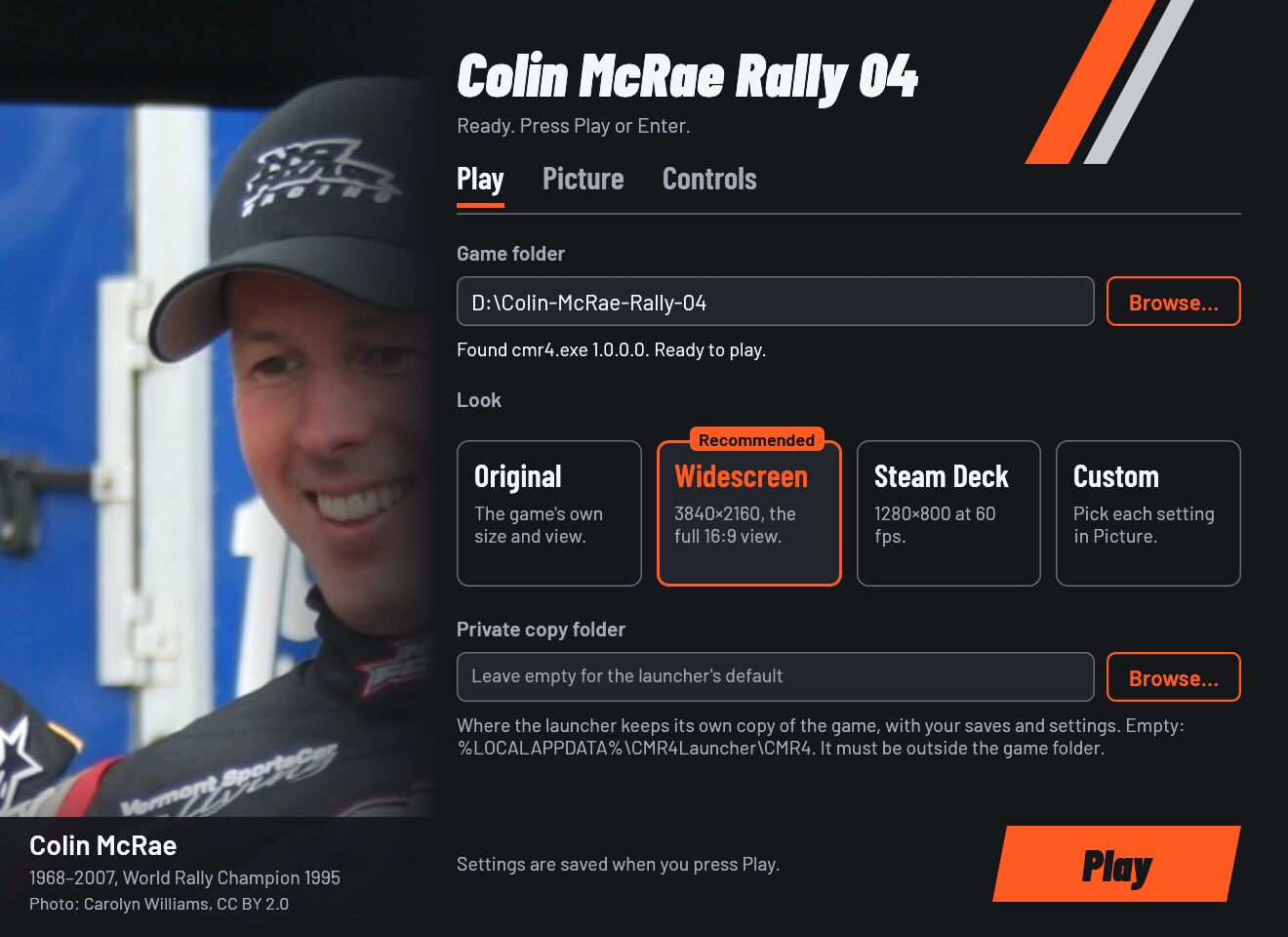 | 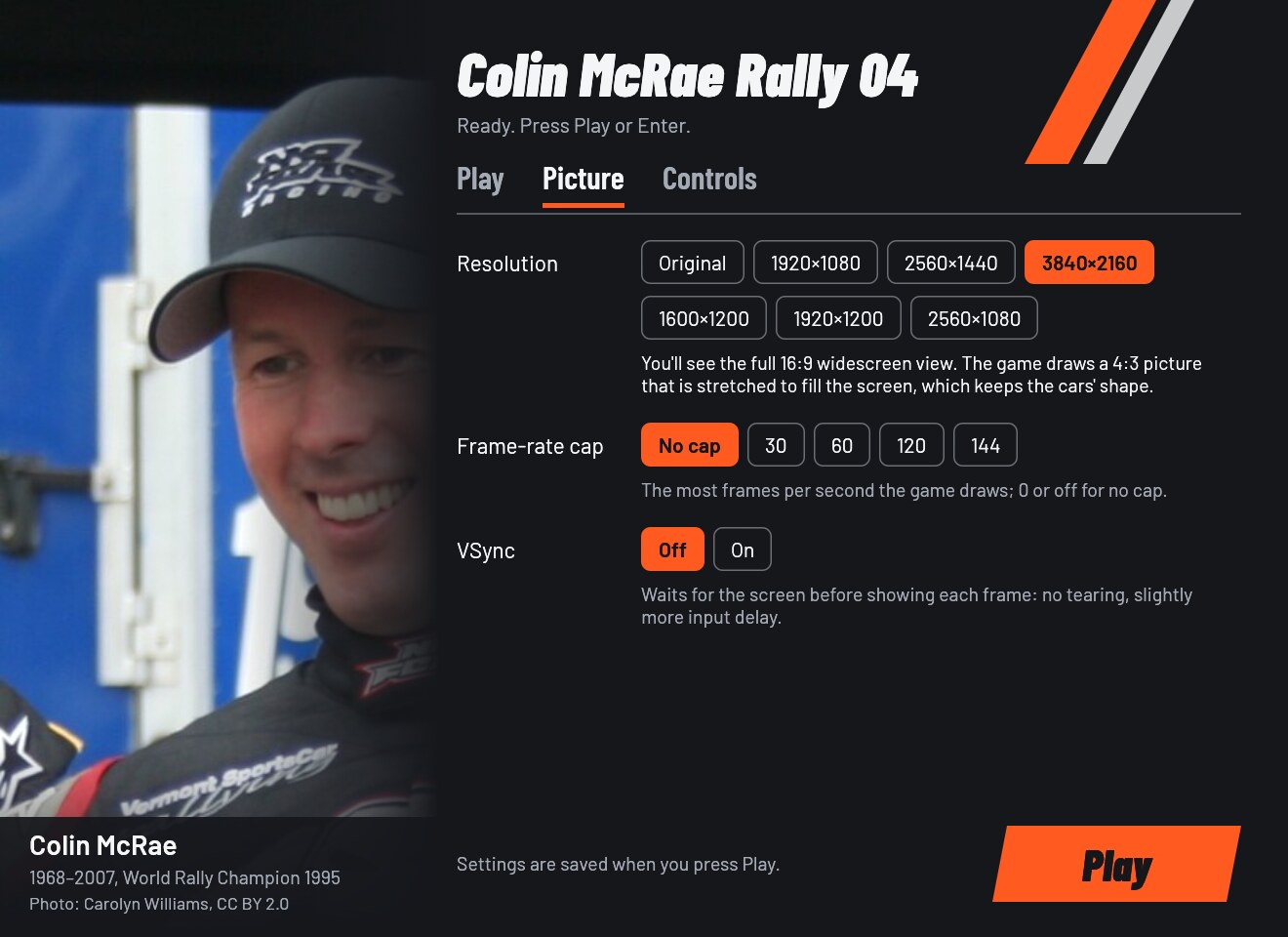 | 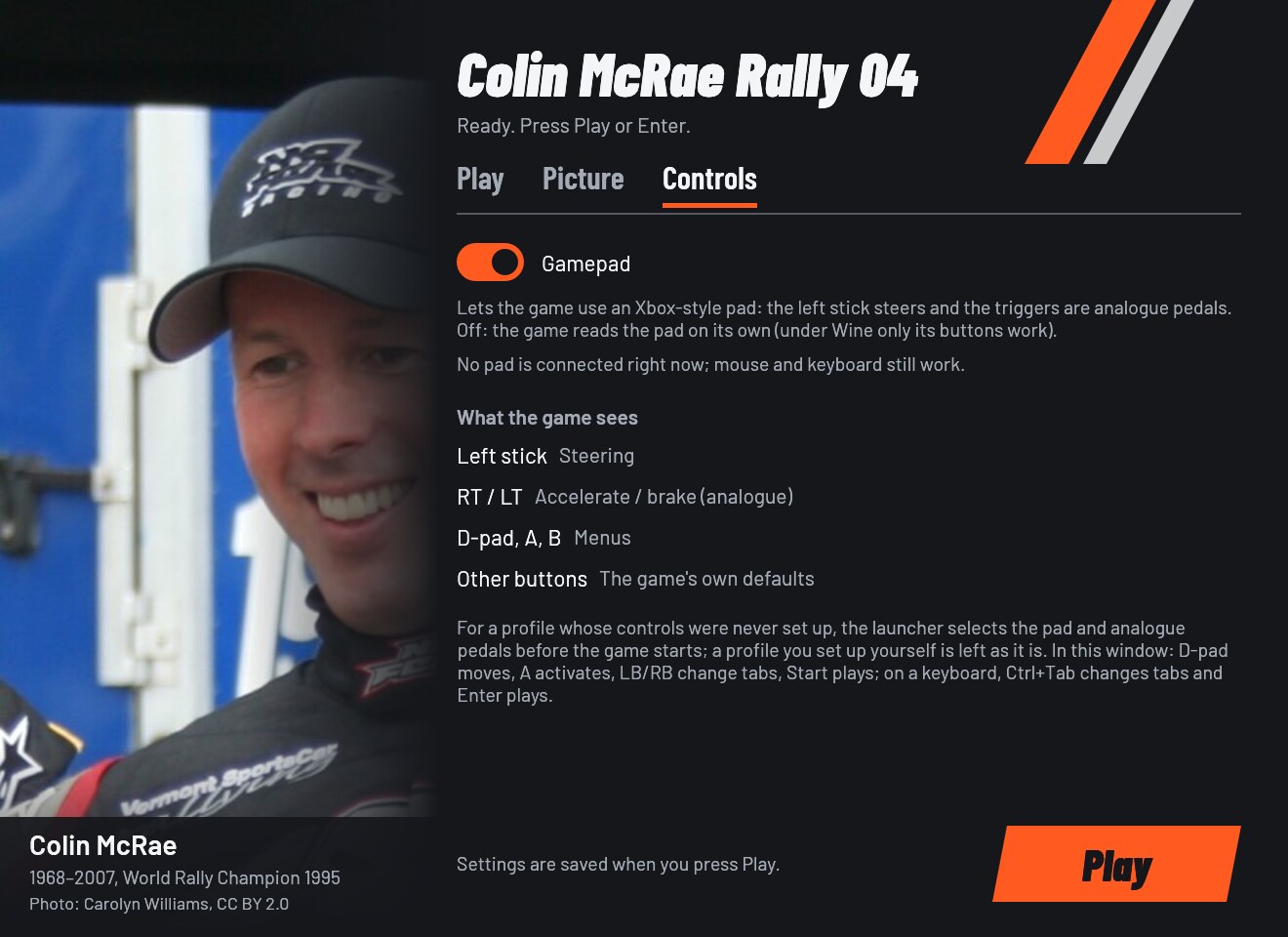 |
What you need
An installed Windows copy of Colin McRae Rally 04 with cmr4.exe in its
folder. No installer, disc, executable, media or game data is supplied here.
The launcher knows cmr4.exe version 1.0.0.0, also with the community 16:9
fix already applied, and applies the widescreen fix only to it. Any other
version plays without the fix, with the game's own view. The window and
launcher.log then show a code (the file's SHA-256) and a link to the
Unknown edition
form. Report the code, never the executable.
Original protected retail discs may not work under Wine (older reports say so; DRM-free and budget editions were reported working). This project has not checked either.
Download and install
Download from the latest release:
- Windows, Steam Deck and Proton:
CMR4Launcher-<version>.zip - Linux AppImage:
CMR4Launcher-<version>-x86_64.AppImage
Windows
- Unzip
CMR4Launcher-<version>.zipanywhere outside the game folder. - Keep
CMR4Launcher.exeand thecomponentsfolder together. - Run
CMR4Launcher.exe.
The launcher is unsigned, so the first start from a downloaded zip may show "Windows protected your PC": click More info, then Run anyway.
Steam Deck
- In Desktop Mode, unzip the Windows package, e.g. into
~/Games/cmr4-launcher. - In Steam: Games → Add a Non-Steam Game to My Library… and pick
CMR4Launcher.exe. - Properties → Compatibility: force GE-Proton or Proton Experimental.
On a 1280x800 screen the window recommends the Steam Deck look, and it can be driven with a controller. Nothing has been tested on a Deck yet.
Linux: AppImage
chmod +x CMR4Launcher-*-x86_64.AppImage
./CMR4Launcher-*-x86_64.AppImage
It brings its own portable Wine (11.20), so you don't need to install
Wine. It keeps its Wine prefix in ~/.local/share/cmr4-launcher/prefix
and uses gamescope when it is installed. When you browse for the game,
your Linux files are drive Z:.
Linux: Steam (Proton)
The same steps as on the Steam Deck, with the zip's CMR4Launcher.exe.
Proton brings its own DXVK and runs the launcher without the Linux helper.
This route hasn't been tested apart from the Deck.
Linux: your own Wine
The zip contains linux/cmr4-play, which runs the launcher with your Wine
(and gamescope, when installed):
linux/cmr4-play          # settings window, then the game
linux/cmr4-play --play   # saved settings, no window (alias: start)
linux/cmr4-play status   # is our session running?
linux/cmr4-play stop     # end our session
Variables, gamescope and the prefix are in linux/README.md.
First run
- On Play, press Browse… and pick the folder with
cmr4.exe. Under Wine your Linux files are driveZ:, e.g.Z:\home\you\Games\CMR04. - Pick a look. The window starts on the one recommended for your screen: Widescreen, or Steam Deck on a 1280x800 screen.
- Press Play (or Enter, or Start on a pad).
The first launch copies the game into the private copy (a few GB); later launches copy only what changed.
The settings window
Play holds the game folder, the look and the private copy folder. Picture sets the resolution, a frame-rate cap and VSync. Controls turns the Gamepad on or off and shows what the game sees. Settings are saved when you press Play.
| Look | Resolution | View | Frame-rate cap | When to pick it |
|---|---|---|---|---|
| Original | the game's own mode | the game's own | unchanged | to play the game as it shipped |
| Widescreen | the largest 16:9 size that fits your screen, up to 3840x2160 | widescreen | unchanged | recommended on most screens |
| Steam Deck | 1280x800, filling the 16:10 screen | the game's own | 60 | recommended on a 1280x800 screen |
| Custom | your choice in Picture | depends on the resolution | your choice | any change in Picture |
The look itself isn't stored: the window works it out from the saved
values. The first time it opens (no launcher.cfg yet) it picks the
recommended look for your screen.
Picture offers Original, your screen's own 16:9 fit when it isn't a
standard size, 1920x1080, 2560x1440 and 3840x2160 (16:9), 1600x1200 (4:3),
1920x1200 (16:10) and 2560x1080 (ultrawide); a frame-rate cap (no cap, 30,
60, 120, 144); and VSync. A 16:9 size gets the widescreen view (the game
draws a 4:3 picture that dgVoodoo stretches, which keeps the cars' shape);
other shapes keep the game's own view. A value from launcher.cfg or the
command line that isn't in the list shows as "(saved)" and is kept.
The window works with a pad (D-pad moves, A activates, LB/RB switch tabs, Start plays) and with the keyboard alone (Tab moves, arrows pick, Ctrl+Tab switches tabs, Enter plays). A greyed-out Play says why it can't start yet.
Gamepad
With Controls → Gamepad on (the default; it uses the bundled Xidi):
| On the pad | In menus | In a race |
|---|---|---|
| Left stick | Steering (analogue) | |
| RT / LT | Accelerate / brake (analogue) | |
| D-pad, A, B | Move, select, back | |
| X, Y, LB, RB … | Handbrake, camera, gears (the game's defaults) |
On launch, a profile that still has the factory controls (keyboard, digital pedals, untouched bindings) gets the connected pad, analogue pedals and the axis tuning the game itself writes, so you can drive without opening Options. The launcher picks the pad that is connected when you start, so wake a wireless pad before launching. If none is connected, the profile is left as it is and set up next time.
If you set the controls up yourself (or change pads), do it in Options → Controllers: pick the controller, set Accel/brake to Analogue, then select Accelerate and pull RT, Brake and pull LT, Turn left/right and move the stick. The game labels the trigger axis "Z axis"; that is expected. Choosing the controller in that menu can freeze the game under Wine. The choice is saved before the freeze, so restart and it is in effect.
With the Gamepad off, the game reads the pad through Windows or Wine directly. Buttons and the D-pad work, but under Wine the pad's axes did not drive the car in our tests, so keep it on unless your setup needs otherwise.
Options
Every option has the same name in the window, in launcher.cfg (with
underscores) and as a flag (with hyphens). The first run writes a
launcher.cfg with every key and its description, unset; where the file
lives is under Where things live.
launcher.cfg / flag | In the window | Values | Unset | What it changes |
|---|---|---|---|---|
game / --game | Play: Game folder | a folder | the launcher's own folder, if cmr4.exe is there | The folder of your installed game. It is only read, never changed. |
look / --look | Play: Look | original, widescreen, steam_deck | no look: the values below | Sets the look's resolution and frame-rate cap. Values set next to it win. |
resolution / --resolution | Picture: Resolution | WxH (320x240 to 7680x4320) or original | the launcher picks one from your screen and saves it | The picture size. A 16:9 size shows the full widescreen view; other shapes keep the game's own view. |
fps_limit / --fps-limit | Picture: Frame-rate cap | 0 to 1000; 0 or off is no cap | no cap | The most frames per second the game draws. |
vsync / --vsync | Picture: VSync | on, off | off | Waits for the screen before showing each frame: no tearing, slightly more input delay. |
controller / --controller | Controls: Gamepad | on, off | on | Lets the game use an Xbox-style pad through Xidi: the left stick steers and the triggers are analogue pedals. |
runtime / --runtime | Play: Private copy folder | a folder outside the game folder | %LOCALAPPDATA%\CMR4Launcher\CMR4 | Where the launcher keeps its own copy of the game, with your saves and settings. |
on/off also accept true/false, yes/no and 1/0. An invalid
value or an unknown key is logged as a warning and the rest of the file
still applies. Saving from the window, or remembering --game, changes
only the launcher's own lines; your comments and any other lines are
kept. The old widescreen key and --widescreen flag are accepted and
ignored, because the resolution now decides.
With no options the settings window opens. Any option skips the window and
plays. Options override launcher.cfg for that run only; the one
remembered is the game folder (--game). When neither the file nor
--resolution/--look sets a resolution, the one the launcher picks from
the screen is saved too, except inside gamescope, whose screen is only
gamescope's own size.
The launcher's own switches:
| Switch | What it does |
|---|---|
--check | Checks the game and the settings without playing; the result goes to launcher.log and the terminal (or a dialog). Fails (exit 5) while another launcher is open. |
--no-window | Plays with the saved settings and the flags given. |
--settings | Opens only the settings window (the Linux helper uses it). |
--linux | Says the Linux helper (cmr4-play) started the launcher. |
--help | Shows the options. |
Exit codes for scripts: after playing, the game's own exit code; 0 when
--check finds everything ready; 1 for any error, a bad flag or value
included. With --settings: 0 Play
pressed, 3 window closed without Play, 4 no window possible. Starting a
second launcher brings the open window to the front (exit 0); while the
game runs it says so and doesn't start a second copy (exit 5). Play is
refused the same way while the game still runs from the launcher's
private copy (after a launcher was ended while playing).
Where things live
| What | Windows | Linux (AppImage, cmr4-play) |
|---|---|---|
Settings (launcher.cfg) and log (launcher.log) | %LOCALAPPDATA%\CMR4Launcher\ | in the prefix, drive_c/users/<you>/AppData/Local/CMR4Launcher/ |
| The launcher's copy of the game (runtime) | %LOCALAPPDATA%\CMR4Launcher\CMR4 (or runtime) | in the prefix, drive_c/users/<you>/AppData/Local/CMR4Launcher/CMR4 |
| Your saves | inside the runtime, next to its cmr4.exe | the same |
| Wine prefix | — | ~/.local/share/cmr4-launcher/prefix |
cmr4-play's files (the window's error output, the session lock) | — | ~/.config/cmr4-launcher |
A launcher.cfg next to CMR4Launcher.exe is used instead (portable
setup). Under Proton everything above is inside Steam's
compatdata/<appid>/pfx.
Your saves live only in the private copy. The game writes its profiles
and settings (OPTIONS), championships (CHAMPIONSHIP_SLOT_*) and best
times (BESTTIMES_GHOSTS) next to the runtime's cmr4.exe. The launcher
never overwrites them when it updates the copy, and it never writes them
back to the game folder.
Registry entries the launcher writes:
- The game's key, on Windows and in the Wine prefix:
HKLM\SOFTWARE\WOW6432Node\Codemasters\Colin McRae Rally 04, or the same underHKCU\Software\Classes\VirtualStore. - Windows only, the high-performance GPU for the private copy: under
HKCU\Software\Microsoft\DirectX\UserGpuPreferences, the value named after the runtime'scmr4.exe(for example…\CMR4Launcher\CMR4\cmr4.exe) =GpuPreference=2;, written once when that exe has no GPU choice yet.launcher.logsays when. - Wine only, inside the prefix:
cmr4.exe's DLL overrides (HKCU\Software\Wine\AppDefaults\cmr4.exe\DllOverrides, with a record of the ones it wrote underHKCU\Software\rea-launcher\DllOverrides\cmr4.exe), the controller mapping (Map ControllersunderHKLM\System\CurrentControlSet\Services\winebus, when absent) andUseEGL=N(HKCU\Software\Wine\X11 Driver, when absent).
launcher.log records what the launcher did and why: the game version and
its SHA-256, the look and settings, each bundled DLL with its SHA-256, the
DLL overrides and close-hook setup (REA_CLOSE_HOOK) given to the game,
the monitor and dgVoodoo output it chose, and the gamepad setup: step. It starts afresh past 1 MiB. Remove personal
paths before posting it.
Troubleshooting
- "This cmr4.exe is a version the launcher doesn't know yet": the game
still plays, without the widescreen view. Press Report this version…
(or open the Unknown edition
form) and give the code it shows and where your copy comes from. Don't
attach
cmr4.exe. - The pad doesn't drive: keep the Gamepad on, wake the pad before
launching, check the
gamepad setup:line in the log, and set the controls once in Options → Controllers as described above. - The picture is in the wrong place or squashed: the log's
display/render policyline names the monitor and dgVoodoo output. Report it with your monitor layout. - A DLL conflict in the private copy: the launcher won't replace a DLL there that it didn't install. Move your own DLL aside or use a fresh private copy folder.
- The game hangs after the in-game Advanced Graphics menu: avoid that menu; it rewrote the resolution and hung in testing. The launcher sets its resolution again on every launch.
- Anything else: run
CMR4Launcher.exe --check, then open a bug report withlauncher.logattached (remove personal paths). Never attach game files.
Known limitations
- The HUD (speedometer, timer) is drawn for 4:3 and stays slightly wide at 16:9. Fixing it would need another patch to the game.
- The frame-rate cap and VSync have not been checked in the game yet.
- Not tested yet: native Windows, the Steam Deck (Desktop and Game Mode), Proton without the helper, protected retail discs and pads other than an 8BitDo Ultimate 2. The latest launcher's ways of quitting the game and the one-launcher-at-a-time rule have been tested only without the game.
What was tested, on Linux with Wine 11.21, an RTX 5090 and 4K screens: correct 16:9 proportions with a portrait primary monitor present, Super+W ending the game, stick steering and analogue pedals in a stage, a brand-new profile driving without opening Options, and the settings window with a pad. The details and the evidence behind each fix are in docs/RUNTIME_NOTES.md and docs/RESEARCH.md.
Uninstall
- Back up your saves first. They are only in the private copy (see
Where things live):
OPTIONS,CHAMPIONSHIP_SLOT_*andBESTTIMES_GHOSTSnext to the runtime'scmr4.exe. The steps below delete them. - Delete the launcher's folder (or the AppImage).
- Windows: delete
%LOCALAPPDATA%\CMR4Launcher(settings, log and the private copy, a few GB). In the registry, delete the value underHKCU\Software\Microsoft\DirectX\UserGpuPreferencesnamed after the private copy'scmr4.exe, and the game's key (Codemasters\Colin McRae Rally 04, see Where things live) only if you no longer play the game itself. - Linux: delete
~/.local/share/cmr4-launcher(the prefix, with the private copy) and~/.config/cmr4-launcher, af