Colin McRae Rally launcher (rea-colin-mcrae)
Colin McRae Rally launcher is a tool for playing the 1998 PC game Colin McRae Rally on modern systems with features like widescreen and controller support.
- Type: tool
- Runs on Windows and Linux
- By AkitaOnRails
- Latest release v0.9.0, 2026-11-03
- Source: https://github.com/akitaonrails/rea-colin-mcrae
README
Colin McRae Rally Launcher
Play your own copy of the 1998 PC game Colin McRae Rally on Windows 10/11, the Steam Deck and Linux (Proton, Wine or the AppImage). Point the launcher at your installed game and press Play. Everything the game needs is bundled and set up for you, so you don't need mods, patchers, compatibility settings or registry edits. Your game folder is only read, never changed: the launcher plays from a private copy.
This project contains no game files: you need your own copy of the game.
Work in progress. It has been played end to end under Linux, with Wine and with Proton. It hasn't been tried on native Windows or on a Steam Deck yet. If you play on either, please send a test report.
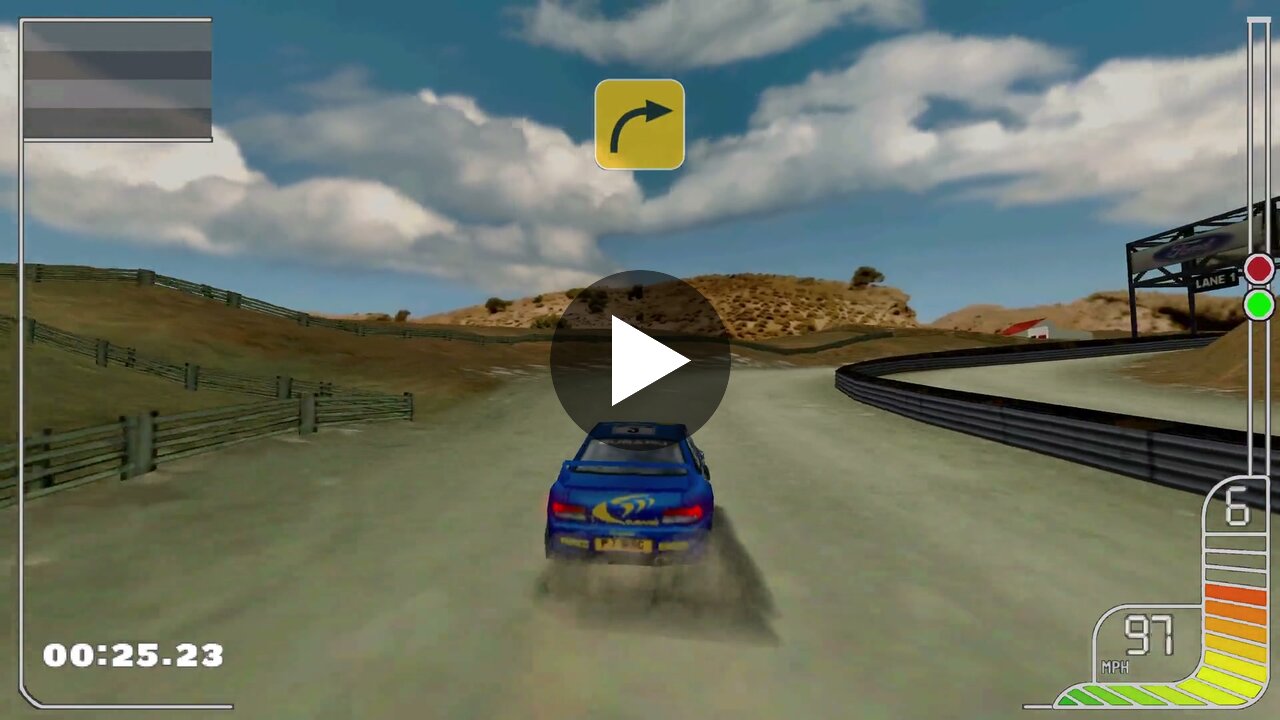
Greece and Sweden in 16:9 widescreen at high resolution with the HD art pack: the redrawn HUD, pace-note signs, skies and distant scenery. Click to watch (3 minutes, with sound).
Problems this launcher solves
| Problem | What the launcher does |
|---|---|
| The game won't start on a modern PC: it stops at its CD check, its Windows version check and its old graphics modes. | It starts on today's Windows and under Wine and Proton, from the installed files, with no CD. |
| Under Wine it falls back to slow software drawing on some PCs, or uses the weaker of two graphics cards. | It runs on your graphics card, the faster one on PCs with two. The game's slowest drawing step is fixed: races held 60 fps at 4K on the test PC. |
| Closing the game window (or Alt+F4) does nothing. | Closing the window quits the game. |
| Only the left stick drives; triggers do nothing. | The triggers or the right stick are the throttle and brake. With an Xbox-style pad both triggers work at once (left-foot braking). Start pauses a race and the d-pad moves through the menus. |
| The 1998 button order feels wrong on today's pads. | A modern layout by default (A handbrake, bumpers change gear, Y changes the view), or the 1998 order, or your own. |
| The controller choice falls back to the keyboard by itself, and some saves leave the car turning in circles. | The choice stays, and a save left in that state starts normally again. |
| No rumble. | Optional rumble on impacts, with a test button in the window. |
| The game offers no race resolution above 800×600, and stretches on a wide screen. | Races at higher resolutions, up to 4K. 16:9 widescreen shows more to the sides instead of stretching, and the HUD, messages, results and loading screens scale with the resolution. |
| The view ends close, and scenery pops in between stage sections. | A longer view, up to 3× further, eased when the stage changes it, with less flicker on distant hills. |
| Textures shimmer in the distance. | Smooth textures that don't shimmer, or a crisp unfiltered look. A frame-rate cap and a vsync choice for even frames. |
| The art is 640×480. | The HD art pack, bundled: the race HUD, the intro, menus, loading screens, logos, skies, banners, billboards and the cars' liveries, redrawn at high resolution. |
| Patching the game folder risks your copy. | Your game folder is only read; the launcher plays from its own copy and keeps your saves in a folder of their own. |
Screenshots
What you need
Colin McRae Rally for Windows PC, the original 1998 CD-ROM release by Codemasters, installed and updated to version 1.5.
- Install it from your CD with the full install option: the launcher can't read data that was left on the CD.
- Apply the official Codemasters v1.5 update if your copy isn't updated
yet. The installed folder holds
Rally.exenext to the foldersGame,New_Feandini. - An installed copy from an older PC, or a backup of the game folder, works too: the launcher only needs that folder.
Recognised today: the official European v1.5 Rally.exe, and the European
v1.5 Rally.exe from a community fan pack. The launcher checks your
Rally.exe. If it doesn't know your version, it says so, shows a code
(its SHA-256) and does not start the game. Please report that code with
the unknown version form.
Report the code, never the executable.
Not supported: the PlayStation version, Colin McRae Rally 2.0 and later games.
Download and install
Download from the latest release:
CMRLauncher-<version>.zip for Windows, Steam and your own Wine, or
CMRLauncher-<version>-x86_64.AppImage for Linux without Steam.
Windows
- Unpack the zip anywhere, for example into your game folder.
- Keep
CMRLauncher.exe,cmrhooks.dlland thehdfolder together:cmrhooks.dlldraws the HUD at high resolutions andhdis the HD art pack. - Double-click
CMRLauncher.exe. The settings window opens.
Native Windows hasn't been tested yet. Whether it works or not, please
send a test report
with your launcher.log (see Where things live).
Steam Deck
Not tested on a Deck yet. In Desktop Mode:
- Unpack the zip, for example into
~/Games/cmr-launcher. - In Steam: Games → Add a Non-Steam Game to My Library… → Browse, and
pick
CMRLauncher.exe. - Right-click it → Properties → Compatibility → tick Force the use of a specific Steam Play compatibility tool and choose GE-Proton (installed with ProtonUp-Qt from Discover).
Back in Game Mode, the window offers the Steam Deck look and works with the Deck's controls (see The settings window). Under Proton, Steam shows the Deck's controls to the game as an Xbox-style pad, so rumble should work.
Linux: AppImage
chmod +x CMRLauncher-*-x86_64.AppImage
./CMRLauncher-*-x86_64.AppImage
It brings its own Wine, so nothing else has to be installed. Its Wine
prefix is ~/.local/share/cmr-launcher/prefix. If
gamescope is installed, the
game runs in it at the right size (recommended, especially with a rotated
monitor); otherwise in a plain window. Your Linux files are drive Z: in
the window.
Linux: Steam (Proton)
The same steps as for the Steam Deck, with the zip's CMRLauncher.exe
(tested with GE-Proton 11; Proton Experimental should work too). Proton
runs the launcher directly, without the Linux helper or gamescope.
Linux: your own Wine
The zip's linux/cmr-play runs the game through your Wine and gamescope:
linux/cmr-play           # the settings window, then the game
linux/cmr-play --play    # the game with the saved settings, no window
linux/cmr-play stop      # end the game
linux/cmr-play status    # running or idle
Variables, a distrobox and the session are in linux/README.md.
First run
- Press Browse… and pick the folder with your
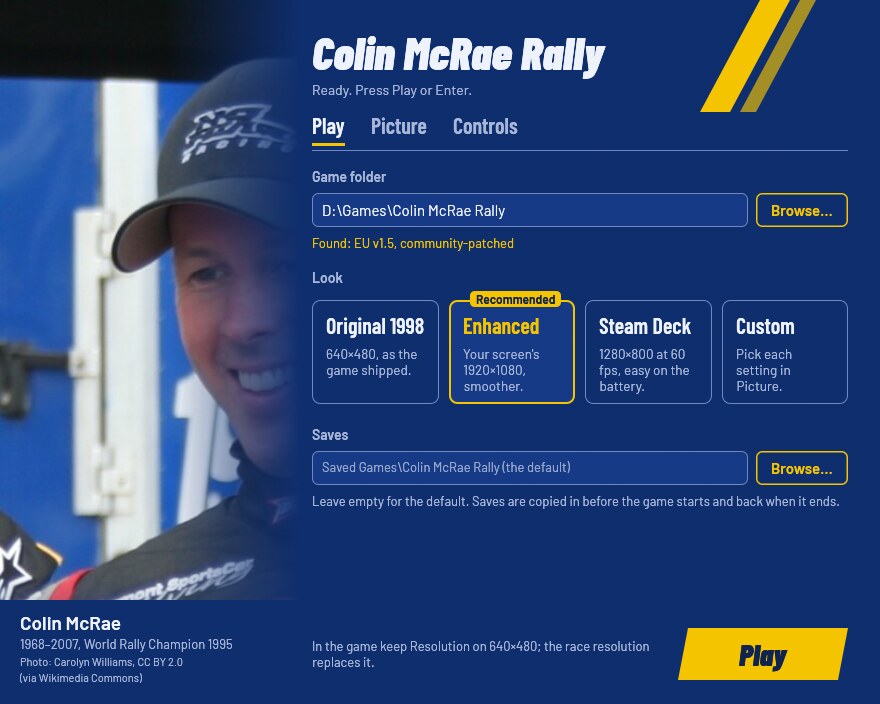
Rally.exe. Under Wine your Linux files are driveZ:, e.g.Z:\home\you\Games\Colin McRae Rally. The window shows which version it found. - Pick a look. The first run starts on Steam Deck; Enhanced fits your screen and is marked Recommended (on a Deck, Steam Deck is).
- Press Play (or Enter, or Start on a pad).
The first start takes a few seconds while the launcher copies the game into its private folder and installs the HD art pack there; later starts copy only what changed. Your choices are remembered for next time.
The settings window
- Play: the game folder, the look and the saves folder.
- Picture: each picture setting (and on Linux the scaler).
- Controls: rumble with a Test button, then the pad layout: Modern, Original 1998 or Custom, with a button for each action.
| Look | Race resolution | Picture | When to pick it |
|---|---|---|---|
| Original 1998 | the game's own (640×480) | the game as it shipped; only the left stick drives (no trigger pedals) | to play it as in 1998 |
| Enhanced | your screen's | widescreen on wide screens, 1.5× draw distance, smooth textures, eased view distance, vsync, HD art | on a PC (Recommended) |
| Steam Deck | 1280×800 | widescreen, 1.25× draw distance, smooth textures, eased view distance, vsync, 60 fps cap, HD art | on a Deck, easy on the battery; the first run's look |
| Custom | any | any change in the Picture tab | your own mix |
The pad's trigger pedals come with the look: on in Enhanced and Steam Deck, off in Original 1998. Closing the game window quits the game in every look.
The window works with a pad or the keyboard alone: the d-pad or Tab moves between controls, A or Space changes the one in focus, LB/RB or Ctrl+Tab switch tabs, and Start or Enter plays. Play stays greyed out until the game folder holds a version the launcher knows, and the line next to it says why.
Gamepad
In the game: Options → Settings → Controller 1, set Control method to your pad (Joystick 1) and Controller type to Analogue joystick, then set steering, acceleration and braking to Analogue on the next screen.
| On the pad | In menus | In a race |
|---|---|---|
| A | select | handbrake |
| B | back | — |
| Y | — | change view |
| LB / RB | — | gear down / up |
| Triggers or right stick | — | brake / throttle |
| Start | — | pause |
| D-pad | move | — |
That is the Modern layout; pick another in the Controls tab.
Rumble and separate trigger pedals need an Xbox-style (XInput) pad; on
8BitDo pads use X-input mode. Under Wine and Proton, Run joystick panel
in the game does nothing (it opens an old Windows dialog that can't appear
there). To see what your pad sends to the game, run
CMRLauncher.exe --controllers and move every stick and button; the
result goes to launcher.log.
Options
Every option has the same name in the window, in launcher.cfg
(underscores) and as a flag (hyphens). launcher.cfg is in
Where things live; the first run writes it with
every option commented out and explained.
launcher.cfg / flag | In the window | Values | Unset | What it changes |
|---|---|---|---|---|
game / --game | Play: Game folder | a folder | found next to the launcher, else asked | The folder with your installed Rally.exe; only read. Remembered once given. |
saves / --saves | Play: Saves | a folder | Saved Games\Colin McRae Rally | Where your saves and settings (cmRally.cfg, SAVESLOT*.cms) are kept: copied into the game before it starts and back when it ends. |
runtime / --runtime | — (file and flag only) | a folder | %LOCALAPPDATA%\CMRLauncher\Rally | Where the launcher keeps its private copy of the game. |
language / --language | — (advanced) | ENGLISH, FRENCH, GERMAN, SPANISH, ITALIAN | English | The Language value seeded into the game's registry key when it is missing. The game picks and keeps its own language; changing this later changes nothing (docs/RUNTIME_NOTES.md). |
look / --look | Play: the look cards | original, enhanced, steam_deck | each picture option on its own | Every picture setting at once; picture options given on their own win over it. The window saves the single values instead. |
resolution / --resolution | Picture: Race resolution | WIDTHxHEIGHT (320×240 to 7680×4320), original, off | the game's own | The size races are drawn at, in place of the game's 640×480. Keep the game's own Resolution option on 640×480; the menus stay 640×480. |
widescreen / --widescreen | Picture: Widescreen | on, off | off | On a 16:9 or wider race resolution, shows more to the sides instead of stretching. |
draw_distance / --draw-distance | Picture: Draw distance | 1.0 to 3.0 | the game's own | How far you see. Longer costs speed and can flicker far away. |
texture_filter / --texture-filter | Picture: Textures | original, smooth, sharp | the game's own | Smooth: no shimmering in the distance. Sharp: crisp, unfiltered pixels. |
fps_limit / --fps-limit | Picture: Frame-rate cap | 10 to 1000, off | no cap | The most frames a second the picture is redrawn; the driving keeps its own rate. |
vsync / --vsync | Picture: Vsync | on, off | the game's own | Waits for the screen's refresh: no tearing. |
smooth_distance / --smooth-distance | Picture: Ease view distance | on, off | off | Eases the stage's view distance changes over about a second, so scenery doesn't pop in. |
hd_art / --hd-art | Picture: HD art | on, off, or a folder made with cmr-hd | off | The HUD, logos, menu pictures and more, redrawn at high resolution (docs/UPSCALING.md). |
scaler / --scaler | Picture: Scaler (Linux only) | nearest, pixel, fsr, linear | linear | How gamescope enlarges the picture: Crisp pixels, Even pixels, FSR or Soft. Read by cmr-play. |
gamepad_axes / --gamepad-axes | — (advanced; the look sets it) | on, off | on (off in the Original look) | Triggers or right stick as throttle and brake, Start pauses. Off: only the left stick drives, as in 1998. |
rumble / --rumble | Controls: Rumble | 0 to 100, off | off | Shakes the pad on impacts, at this strength in percent. |
buttons / --buttons | Buttons: Pad buttons | modern, original, or eight button numbers | modern | The pad layout. The numbers are for select, back, change view, gear down, handbrake, gear up, (unused), pause, e.g. 1,2,4,5,1,6,7,8. |
close_quits / --close-quits | — (advanced) | on, off | on, in every look | Closing the game window (Alt+F4) quits the game. Off: the 1998 behaviour. |
Unset means the game's own value (or the default named above). Starting
CMRLauncher.exe with any option skips the window and plays; options
override launcher.cfg for that run, and only --game is remembered.
For example, in Steam's launch options:
CMRLauncher.exe --look enhanced --draw-distance 2
CMRLauncher.exe --resolution original
CMRLauncher.exe --check --game "D:\Games\Colin McRae Rally"
The launcher's own switches:
--no-window: play with the saved settings, no window.--settings [--linux]: only the window, forcmr-play(exit 0 Play pressed, 3 closed without Play, 4 no window possible, 5 another launcher is running;--linuxadds the scaler).--check: checks the game folder and itsRally.exewithout playing. The report goes to the terminal andlauncher.log; exit 0 ready, 1 not.--controllers [seconds]: logs what your joysticks send tolauncher.log.--help: the list of options.
A flag or value the launcher can't use exits with 2 and says what it
needs. Only one launcher runs at a time: starting a second one brings the
open window forward, or says the game is already running and exits with
5. A start with options (--no-window, --game…) while the window is
open says to use the window, also with 5. Play is refused the same way
while the game from the launcher's copy still runs, even when the
launcher that started it was killed.
Where things live
| What | Windows | Linux (AppImage, cmr-play) |
|---|---|---|
Settings (launcher.cfg) and log (launcher.log) | %LOCALAPPDATA%\CMRLauncher\ | in the prefix, drive_c/users/<you>/AppData/Local/CMRLauncher/ |
| The launcher's copy of the game (runtime), with the HD art pack it installed | %LOCALAPPDATA%\CMRLauncher\Rally | in the prefix, drive_c/users/<you>/AppData/Local/CMRLauncher/Rally |
| Your saves | %USERPROFILE%\Saved Games\Colin McRae Rally (or your saves setting) | in the prefix, drive_c/users/<you>/Saved Games/Colin McRae Rally |
| Wine prefix | — | ~/.local/share/cmr-launcher/prefix |
cmr-play's logs and lock (play.log, settings.log) | — | ~/.config/cmr-launcher |
A launcher.cfg next to CMRLauncher.exe is used instead of the one
above (a portable setup). Under Proton everything is in Steam's
compatdata/<appid>/pfx prefix. The game itself writes its saves into the
runtime copy's save folder; the launcher copies them to your saves
folder after each run and back before the next, so the saves folder is the
one to keep.
The launcher writes the game's registry values at
HKLM\SOFTWARE\Codemasters\Rally\1.00 (32-bit view), or in your user's
VirtualStore when that needs administrator rights; under Wine, UseEGL=N
in Wine's own settings. On Windows with two graphics cards it picks the
faster one for the game in the per-program graphics settings.
Troubleshooting
- "This Rally.exe is not a version the launcher knows yet": the
launcher shows the code (SHA-256) of your
Rally.exeand doesn't patch it. Please report the code with the unknown version form. - The car doesn't move, or turns in circles. The controls in your save point at a pad that isn't there. Plug the pad in, or set Control method back to Keyboard in Options → Settings → Controller 1.
- The game crashes at start on a PC with a portrait (rotated) monitor.
The 1998 game can't use a portrait main screen. Make a landscape monitor
your main display, or on Linux use
cmr-playor the AppImage with gamescope, which gives the game a landscape screen. - Steam/Proton: the game crashes right away with an NVIDIA card. Some
setups only give 32-bit programs working OpenGL through Proton's WoW64
mode. Add
PROTON_USE_WOW64=1in front of%command%in the launch options. - Anything else: run
CMRLauncher.exe --check, then open an issue with the bug form and attachlauncher.log(remove personal paths). Never attach game files.
Known limitations
- Only the European v1.5
Rally.exeis recognised so far. - Native Windows and the Steam Deck haven't been tested yet. Under Wine the looks, one launcher at a time, the saves copying and every way of quitting were checked in the game; see docs/RUNTIME_NOTES.md.
- The menus are enlarged on the CPU each frame; without a graphics card (software drawing) that is slower at 4K.
- A short white flash before the legal screen at high resolutions.
- Split screen isn't adjusted for widescreen.
Uninstall
- Back up your saves:
%USERPROFILE%\Saved Games\Colin McRae Rally(or yoursavesfolder). On Linux it is inside the Wine prefix (drive_c/users/<you>/Saved Games/Colin McRae Rally), and deleting the prefix deletes it. - Delete the launcher's folder (or the AppImage).
- Windows: delete
%LOCALAPPDATA%\CMRLauncher(settings, log and the private copy of the game). The registry keyHKLM\SOFTWARE\Codemasters\Rally\1.00is the game's own; keep it if you still play the game without the launcher. - Linux: copy the saves out, then delete
~/.local/share/cmr-launcher/prefixand~/.config/cmr-launcher. Proton: removing the Steam shortcut offers to delete its prefix, saves included.
Your game folder was never changed, so there is nothing to undo there.
For developers
Rust (edition 2024), MinGW-w64 i686 with lld, Wine for the Windows-target
tests and cargo-deny; the gaming distrobox has them all. Windows builds
link with lld b