Dead or Alive 4 Online
Dead or Alive 4 Online is a Windows native PC port of Dead or Alive 4.
- Type: PC port
- Game: Dead or Alive 4
- Runs on Windows
- By dwreckgg
- Latest release netplay-v1.0.10, 2026-11-09
- Source: https://github.com/dwreckgg/doa4-online
README
Dead or Alive 4 Online
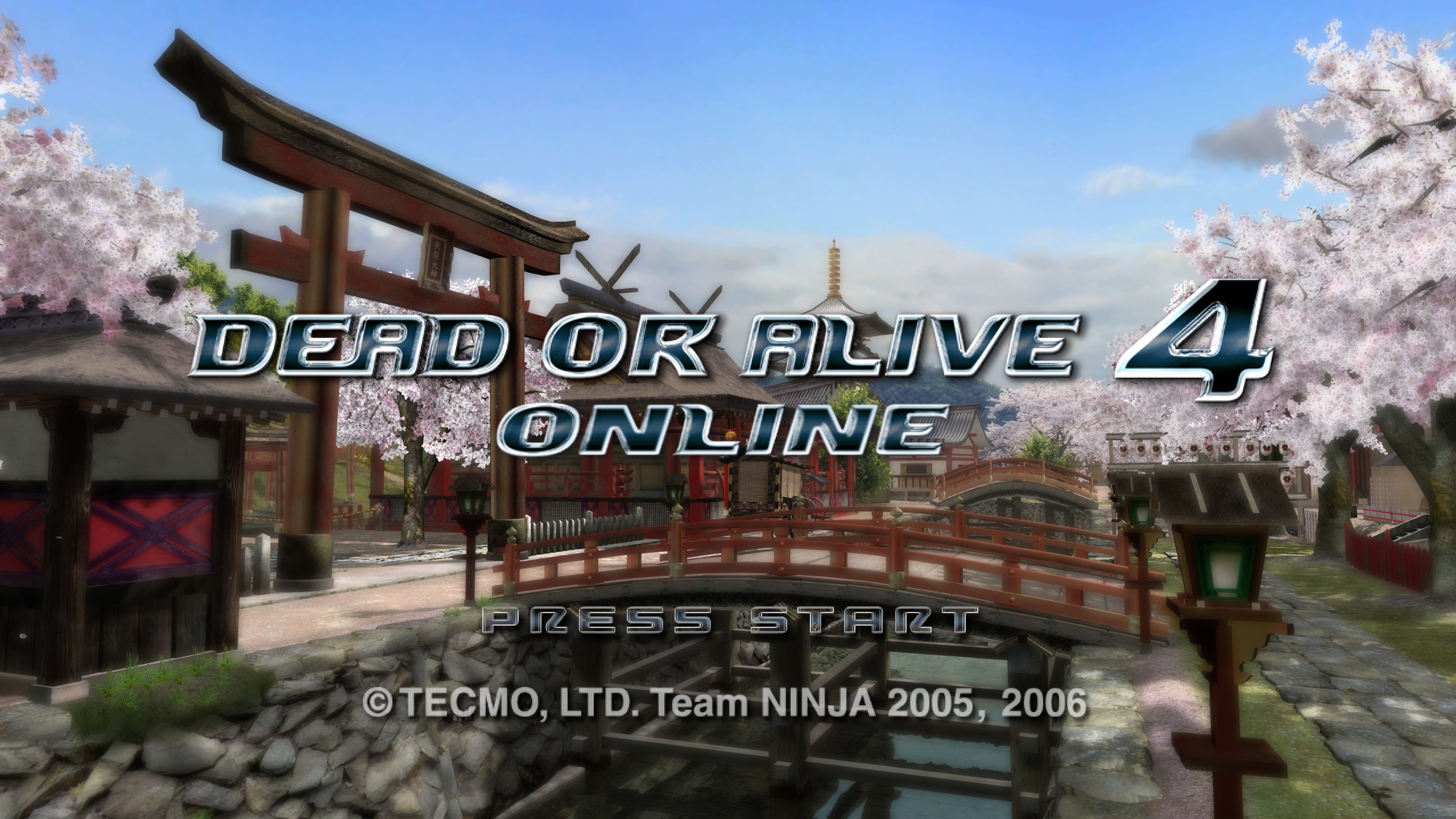
Dead or Alive 4 Online is a native Windows build of Dead or Alive 4 (Xbox 360) with two-player online play, statically recompiled with the ReXGlue SDK. It also builds 34 swimsuits from Dead or Alive Xtreme 2 (DOAX2) on your PC from your own disc, as extra costumes. This is alpha 0.3.2: it works and is used, but it is still an alpha, and the known issues are listed below. No game data is included. You need your own copy of the game, and the swimsuits need your own DOAX2 disc.
It is a fork of parkerallan/doa4-recomp, published at Dwreckgg/doa4-online. On top of it: two-player online play, frame pacing, an Esc menu (Game / Controls / Photo / Extras / Online tabs), graphics and display options (exclusive fullscreen, VSync, output size), the game's text language and subtitles saved between starts, an option to skip the boot intro, a notice on the title screen when a new version is out, full-quality photos, the DOAX2 swimsuits, and a first-run setup that finds or extracts the game files. Building it yourself is for contributors: see docs/BUILDING.md.
Easy setup: play online with a friend
You do not need to build anything. Each player does steps 1-3 once.
What you need: Windows 10 or 11, 64-bit; a CPU with AVX2 (Intel Haswell / AMD Zen or newer) and at
least two cores; the Microsoft Visual C++ 2015-2022 x64 runtime (if it is missing, the game stops with a "VCRUNTIME140.dll was not found" style error: install it from
Microsoft's download page);
your own copy of Dead or Alive 4 (USA, Europe) (Rev 1) as a disc image (.iso) or an extracted
folder; and, only for the swimsuits, your own USA copy of Dead or Alive Xtreme 2.
-
Download the game program. Open the Releases page, pick the newest
alpha-v...release and downloadDOA4-alpha-v...-win64.zip. Both players must use the same release. If you already have an older copy, update it in the game instead: see Updating. -
Unzip it into a folder of its own, for example
C:\Games\Dead or Alive 4 Online(plain letters, digits and spaces only in the path). -
Start
dead_or_alive_4.exe. The first time, the game shows its setup screen:
- Pick your Dead or Alive 4 disc image or an already extracted game folder, and it sets itself up (it shows the space needed and free, and a progress bar). No game data comes with the download.
- Optional: the DOAX2 swimsuits. The setup then offers the swimsuits: pick your USA DOAX2 disc
image (
.iso) or its extracted folder. Nothing from DOAX2 is installed or downloaded: the game builds the swimsuits on your PC, which takes a few seconds on a recent PC, and writes about 300 MB into your saves folder (it needs about 364 MB free there). Press Start without swimsuits to skip it; you can import later from the Esc menu (DOAX2 swimsuits).
-
Connect. In the game press Esc and open the Online tab.
- The host presses Host, then Copy to copy the code, and sends it to the friend.
- The friend pastes the code and presses Join.
- Windows Firewall: when Windows asks, tick both Private and Public and allow the game (both players). If the prompt is hidden behind the game, press Alt+Tab.
-
Play. When both show Connected, the host presses Start online session. Both games restart into the session (host = player 1). At the title screen only the host presses Start, so the game loads the host's profile. The friend should not press anything until the menus appear: if the friend advances the title screen, the game can freeze for both players, and you then need to leave the session (Leave online session) and start a new one. Pick Versus, your characters and a stage, and fight. Everything is unlocked in a session and your own save is never changed.
-
Finish. Leave online session in the Online tab; both games restart offline.
Can't connect? On the host's router, turn on UPnP or forward UDP port 7200 to the host's PC. If the friend's game shows its own code while connecting, the host can type it under Strict router? and press Reach out. More detail, and what each message means: Online play.
Online play in more detail
How it works: online play links the two games so they play as if both players sat at one console. The host is player 1 and the friend is player 2 of an ordinary offline game (pick Versus, characters and a stage as you would at home), and each player's controller input is sent to the other PC. The game's own online mode (its Xbox Live menus) does not work: there are no Xbox Live lobbies, matchmaking or avatars. Connect through the Esc menu's Online tab instead.
Language in a session: both games use the host's text language and subtitles. Your own choice is not changed, and it is back when the session ends.
Slower PCs: both games run at the speed of the slower PC. On a CPU with fewer cores (for example 4 cores) the game can slow down a lot when playing online. Online, avoid the CPU-heavy stages, such as Savannah Safari and Experimental Playground, and avoid the DOAX2 swimsuits: they take more CPU than the original DOA4 costumes.
Both players need the same release: the online handshake compares the compiled code, so two
different builds refuse each other. The releases are built by GitHub Actions and published as
pre-releases named alpha-v<x.y.z> on
the Releases page. A release holds the game's exe
and its two DLLs, never game data. SHA256SUMS.txt (in the zip and on the page) holds the SHA-256 of
the three files.
Firewall (both players): the first time you Host or Join, Windows asks whether to allow the game through the firewall. Tick both Private and Public networks: Public is unticked by default, and a Public network then blocks the connection. The prompt can hide behind the fullscreen game: press Alt+Tab. If the other player still cannot connect, turn on UPnP in the host's router, or forward UDP 7200 to the host PC.
When the code does not connect: the host's game asks the router to open its port (UPnP). If the router does not, the host's tab offers Strict router? ("If the other player cannot connect, type the code they show and press Reach out."); failing that, forward UDP port 7200 (DOA4 uses 7200-7215: 7200 unless another program holds it) on the host's router to the host PC. Some routers refuse a mapping that expires after an hour; the game then asks for a permanent one. A permanent mapping stays until the router restarts or you remove it in the router's own settings.
What the messages mean:
| Message | Meaning |
|---|---|
| "You have an older release (...): press Check for Updates, then restart the game." / "The other player has an older release (...): they need to press Check for Updates." | Two different releases: refused at the handshake. The older side updates. A copy from the old netplay-v1.0.x releases is always the older one, whatever its numbers; the message then shows both full tags. |
| "You run a self-built exe ..." / "The other player runs a self-built exe ..." | One game was built from source: both should use the latest release. On an old netplay-v1.0.x copy, "The other player runs a self-built exe" also appears when the other player has the alpha: press Check for Updates. |
| "The game files differ (...): both players need the same game files." | The named file groups of the two games' data differ. |
| "A direct connection is not possible between your networks; relay arrives with lobbies." | The routers change the port per destination (symmetric NAT), or every attempt to connect failed: the two PCs cannot reach each other directly yet. |
| "Waiting for the other player..." | The other player's input is late and the game holds. After 10 s: "The other player stopped responding. The session ended; both games restart." |
| "The games went out of sync. The session ended; both games restart." | A desync. Both games wrote diagnostics: send the session logs (below). |
Session logs: Open session logs in the Online tab opens <saves folder>\netplay\sessions
(the saves folder is the one the Game tab shows, Saves, settings, photos and logs). After a
desync, send the newest session's folder.
DOAX2 swimsuits
The game can build 34 swimsuits from Dead or Alive Xtreme 2 as extra costumes for the girls. They come after each character's own and extra costumes on the costume select screen, and you can pick them straight away on any save.
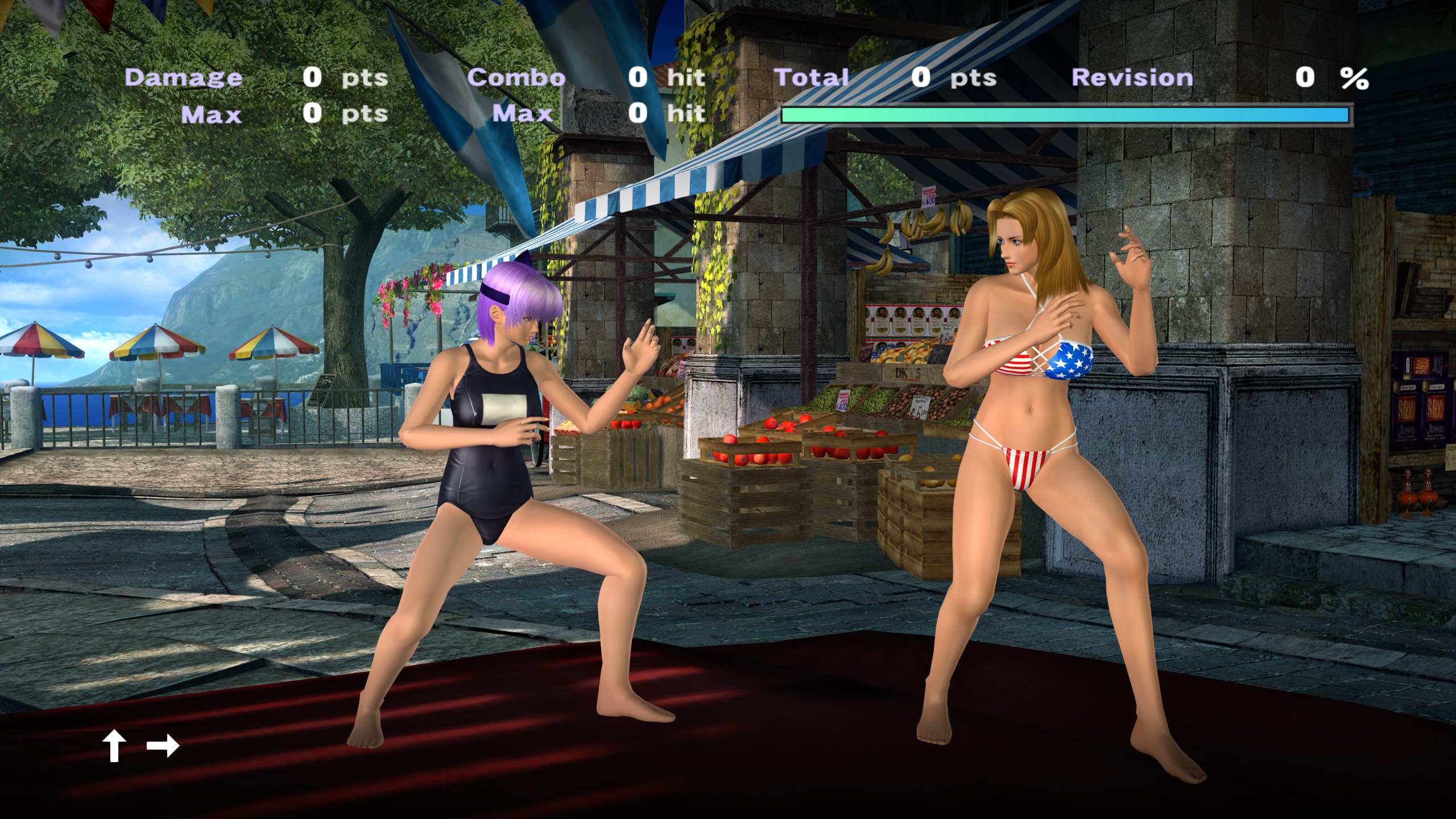
- You need your own USA copy of DOAX2, as a disc image (
.iso) or an extracted folder. Other pressings do not match and are refused as a wrong disc. Your Dead or Alive 4 files must be the Rev 1 files the game is set up with. - Where: on the first start (the setup screen's optional step), or any time in the Esc menu: Extras tab, Import DOAX2 swimsuits... (it reads Import again... once you have them). It shows its progress and has Cancel.
- How long, how much: under a minute on a recent PC (3 to 9 seconds on the test PC, depending on how
many threads it may use). It writes about 300 MB into a
doax2_suitsfolder in your saves folder and needs about 364 MB free there while it works. Nothing else is written, and DOAX2 itself is only read. - Restart to use them. When an import changes the suits, the result screen offers Restart now. Host and Join stay off until you restart.
- Costumes: importing also unlocks all the DOA4 costumes for the nine girls who have them. Your save isn't changed.
- Full DOAX2 breast movement (Extras tab) uses DOAX2's up-and-down range instead of the character's DOA4 range. It takes effect at once.
Online with swimsuits:
- A player with the suits keeps them in a session. If the other player does not have them, that player sees COS. 1 for those costumes.
- A session where only one player has the suits has weaker protection against the two games drifting apart (a desync). The Online tab says who has them (Swimsuits: both, only you, only the other player, or neither player).
- Two players without the swimsuits play exactly as before.
- Two imports made by different versions of the importer count as different imports.
Updating
When a new release is out, press Check for Updates in the Online tab of the Esc menu: it shows the
newest release, downloads its three files, checks each against its SHA256SUMS.txt, swaps them in, and
asks you to restart. Press it again if it says to. It is off while you are online. Both players need the
same release. You can also download the new zip and unzip it over the old folder.
When a newer release is out, the title screen also says so ("Update available:" with its version number) until you press Start. It only tells you and downloads nothing; turn it off in the Online tab with Tell me about new versions at start-up.
- The launcher is retired for now. The DOA4 launcher is not shipped with the releases any more, and its
Update button should no longer be used: start
dead_or_alive_4.exeand use Check for Updates. It may come back later. - Copies from the old
netplay-v1.0.xreleases (v1.0.7, v1.0.9 and so on): press Check for Updates once. A last bridge release on the old channel carries the alpha build, and from then on the game follows thealpha-v...releases.
The Esc menu and hotkeys
Press Esc at any time in the game to open the menu, and Esc again (or Close (Esc) at the
bottom) to close it. Your choices are saved to dead_or_alive_4.toml next to the exe and come back on
the next start. The menu has five tabs: Game, Controls, Photo, Extras and Online.
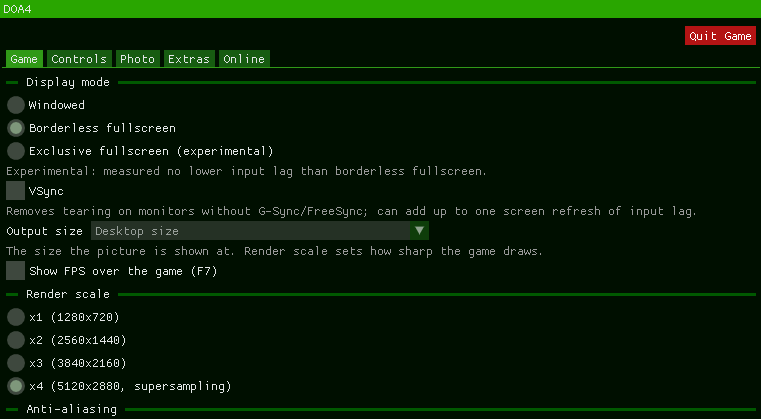
Game, from the top:
- Display mode: Windowed, Borderless fullscreen, or Exclusive fullscreen (experimental). The note under it: "Experimental: measured no lower input lag than borderless fullscreen."
- VSync (off unless you turn it on): "Removes tearing on monitors without G-Sync/FreeSync; can add up to one screen refresh of input lag."
- Output size: the size of the window in Windowed, the monitor mode in Exclusive fullscreen, and always the desktop size in Borderless fullscreen. "The size the picture is shown at. Render scale sets how sharp the game draws."
- Show FPS over the game (F7).
- Render scale: x1 (1280x720), x2 (2560x1440), x3 (3840x2160) or x4 (5120x2880, supersampling). It takes effect after a restart: until then the tab says "Applies after a restart (running at x1)." (with the scale the game runs at), and Restart now restarts the game for you.
- Anti-aliasing: Off, FXAA or FXAA Extreme. "The game uses 2x MSAA; FXAA Extreme suits it best. FXAA also softens text a little."
- Texture filtering: Off, 2x, 4x, 8x or 16x. "Applies to textures as the game draws them; you may see it after the next screen loads."
- Speakers: Automatic, Stereo or 5.1 surround. "Automatic follows Windows: 5.1 when the speakers are set to 5.1 or more, stereo otherwise. 5.1 surround always sends six channels." It takes effect after a restart: until then the tab says "Applies after a restart (running on Automatic)." (with the choice the game runs on) and offers Restart now. Output device under it shows how many channels your device has and what the game is sending.
- Language: the game's text language: English, Japanese, French, German, Italian, Spanish, Traditional Chinese or Korean. Your pick is applied to the running game and kept for the next start. The text language and subtitles you choose on the game's own options screen are kept the same way.
- Start-up: Skip the intro at start-up (off unless you turn it on): "Starts at the title screen. Applies at the next start."
- Game files: the folder the game runs from, with Change... to pick another and Open folder. "A new location is used from the next start."
- Saves: the folder that holds your saves and shader cache.
The top of the Game tab:
Controls
- Controller: pick Player 1 to Player 4, then click a button in the list and press the
controller button you want for it (Esc cancels). Reset Player N restores the default layout.
Remapping needs the SDL input backend (
input_backend = sdl). - Keyboard: Use keyboard as controller turns keyboard play on. Choose which player the keyboard is (P1 to P4), click an action and press the key you want for it; Reset keyboard restores the defaults. Esc opens the menu, so the keyboard's Start is Enter.
Photo
- F12 saves a photo of the game's own frame at the render scale, without any overlay.
- Format: PNG at monitor size (the default), PNG at full render size, or JPG at full render size.
- Folder: where photos go (default
Pictures\DOA4): Choose folder..., Open folder, and Use default to go back to the default. - In-game snapshots: "Also save a full-quality copy when you save a snapshot to the in-game Album"
saves a full-quality copy of every snapshot you save in the game's own photo mode (the game's Album
keeps a small, compressed copy).
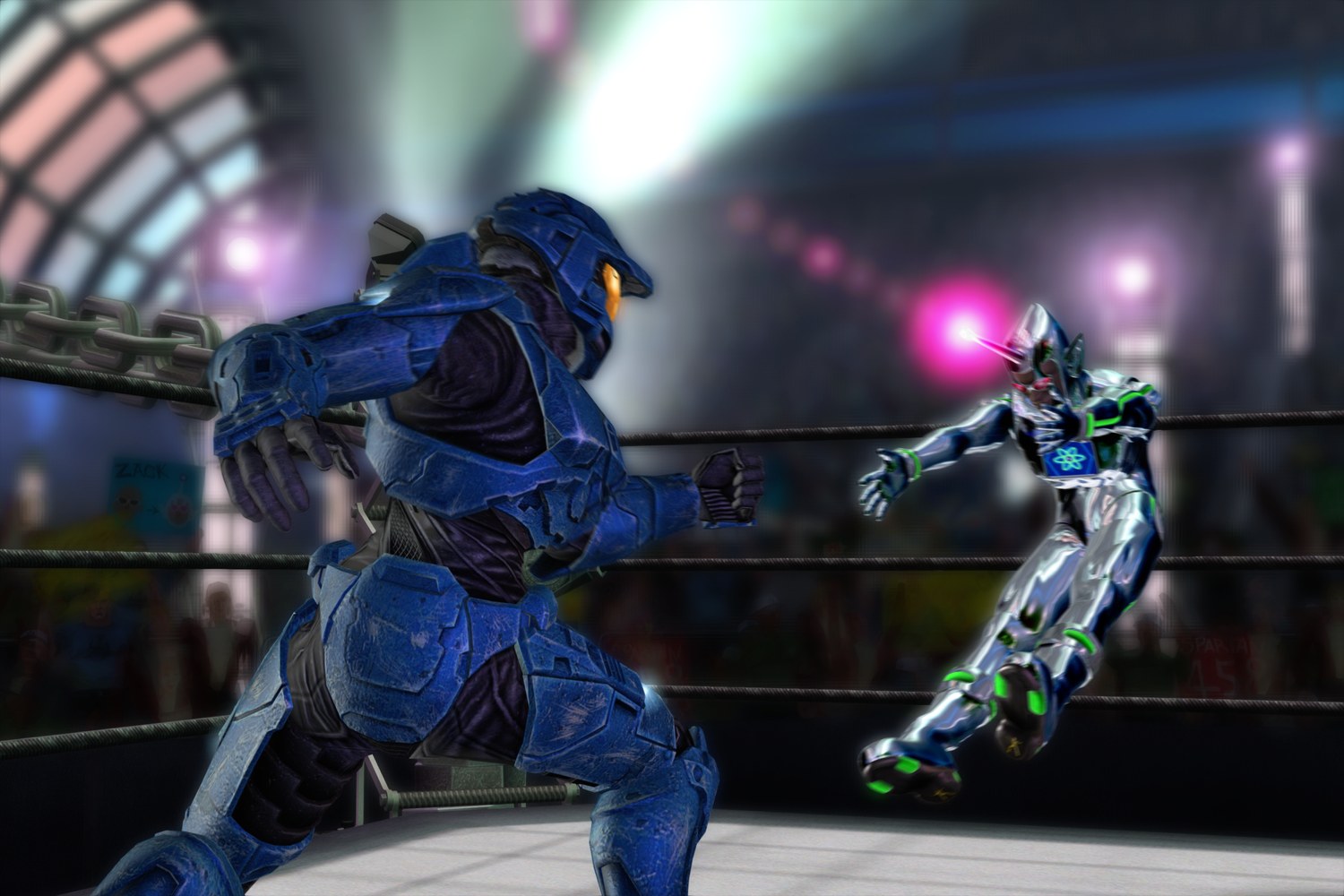
Extras
- Unlocks: Unlock all characters, Unlock all costumes, Unlock all system voices, Unlock all stages, or Unlock everything. Load your profile first (reach the main menu). Before the first unlock the game backs up your save, and the tab shows where.
- Game tweaks: "All stages in Tag battle" and "Hidden characters in multiplayer select".
- Extra costumes: "Helena's opera dress", "Kokoro's pink and blue kimonos" and "Christie's cutscene costume", added after each character's own costumes.
- Wipe unlocks... locks everything again, as in a new save, after it asks; a backup of your save is made first.
- DOAX2 swimsuits: Import DOAX2 swimsuits... (or Import again...), then Restart now to use them; see DOAX2 swimsuits.
Online
- Play with a friend: Host shows Your code (Copy puts it on the clipboard); the other player types it and presses Join. The tab then shows the connection and the ping. The host presses Start online session to begin, and Leave online session ends it. Disconnect stops hosting or drops the connection before a session starts.
- Input delay: Auto, or Manual with a slider from 1 to 8 frames. The host's choice applies to both players.
- Strict router?: if the other player cannot connect, type the code their game shows and press Reach out.
- Show ping and input delay over the game (F9).
- Check for Updates downloads the newest release, and Open session logs opens the folder of online session logs. About shows which version you run.
- Tell me about new versions at start-up (on unless you turn it off): when a newer release is out, the title screen shows "Update available:" with its version number (for example "Update available: 0.3.2") until you press Start. It only tells you; Check for Updates does the download.
During an online session some options are locked so both games stay identical: the Extras tab, options that need a restart, the language, and changing the game folder. Settings changed during a session are restored when it ends.
Hotkeys
| Key | What it does |
|---|---|
| Esc | Opens and closes the menu |
| F12 | Saves a photo |
| F7 | Shows the frames per second |
| F9 | Shows the online ping and input delay |
| F6 | Shows the diagnostics overlay |
| F8 | Online: marks the moment of a sound or timing glitch in the session log (send the log with your report) |
Saves, settings, photos and logs
- Saves and the shader cache go to the folder in
doa4_user_dataindead_or_alive_4.toml(for exampledoa4_user_data = "C:/Games/DOA4saves", with forward slashes), else toDocuments\dead_or_alive_4. Keep it outside OneDrive if you can (OneDrive can lock files the game is writing). The Esc menu's Game tab shows the folder in use. The imported swimsuits are in itsdoax2_suitsfolder. - Settings live in
dead_or_alive_4.tomlnext to the exe; the Esc menu edits them. - Photos go to
Pictures\DOA4unless the Photo tab says otherwise (Open folder opens it). - Logs:
logs\dead_or_alive_4_NNN.lognext to the exe. Send the newest one with a bug report. - Online session logs: Open session logs in the Online tab (Online play in more detail).
Linux
Linux is not officially supported yet. One player reports that under Proton and Wine (GE-Proton11-12) the game does not open as intended: it shows only a black screen. They could still join an online session with another player, and after that the game ran fine. Solo offline play does not seem to wor