OpenCrown PC
OpenCrown PC is a native port of Dragon's Crown Pro to Windows, Linux, and Android, allowing players to run the game using their own console save files and play online.
- Type: PC port
- Game: Dragon's Crown Pro
- Runs on Windows, Linux and Android
- By Nezara
- Latest release v1.0.8.2, 2026-11-03
- Source: https://github.com/Nezara/OpenCrown-PC
README
OpenCrown PC
Dragon's Crown Pro Multiplayer Port, running natively on Windows, Linux and Steam Deck





Getting started · Linux / Steam Deck · Android · Launcher · Controls · Online · How it works · Building · FAQ
OpenCrown PC lets you play Dragon's Crown Pro on a Windows PC, on Linux or on a Steam Deck from a dump of your own PS4/PS5 copy. It is a native launcher, not an emulator: the game's own code runs directly on your CPU, while OpenCrown provides the PS4 system libraries, the renderer, input, saves and online play.
This is a hobby project made by one person with AI assistance (details below). It isn't affiliated with or endorsed by Vanillaware, Atlus or Sony.
Important
No game files are included, and none will ever be. You need your own dump of Dragon's Crown Pro (CUSA10454). See Your dump.
Support the people who made it
Dragon's Crown Pro is a beautiful game made by a small studio. If you enjoy it here, please make sure they get paid for it.
- 🛒 Buy Dragon's Crown Pro on the PlayStation Store.
- 🦄 Play Unicorn Overlord, Vanillaware's tactical RPG, on the PlayStation Store.
- ⚔️ Support Vanillaware's latest game, Muramasa: Revenant Blades on Steam. It's the best way to tell them there's a PC audience for their games.
Made with AI assistance 🤖
Important
OpenCrown PC was built with help from AI. Much of the code and the reverse-engineering behind it was written by Claude, Anthropic's AI model. Nezara led the project: set the direction, decided what went in, and tested, hunted bugs and diagnosed problems on every build. The full source is public, so you can see exactly what's here.
Features
- 🖥️ Runs natively on Windows and Linux. No PS4 emulator; the game's code runs as a regular Windows or Linux program.
- 🕹️ Steam Deck ready. One AppImage file, playable from Game Mode: the launcher works with the controller and touch screen, the right trackpad steers the fairy pointer and tapping the screen sends the fairy to that spot.
- 🎨 Rewritten renderer on SDL GPU (Direct3D 12 or Vulkan on Windows, Vulkan on Linux) with an OpenGL 3.3 fallback, at 1080p or 4K (the PS4 Pro mode).
- 🎮 Gamepads (Xbox, DualShock / DualSense and others through SDL3), up to 4 local players, with rumble.
- ⌨️ Keyboard and mouse with mouse attacks and the fairy pointer on the mouse, all rebindable.
- 🔄 Dynamic button prompts. On-screen prompts switch between PlayStation buttons and your keyboard / mouse keys, following whichever you used last, and show your own bindings.
- 💾 PS4/PS5-compatible saves. Save files are byte-identical to the console's, so you can bring your PS4/PS5 progress over and take it back.
- 🌐 Online co-op for up to 4 players, using the game's own netcode over direct peer-to-peer connections, with friend codes and room text chat.
- 🎥 Separate cameras online (new in 1.0.8). In online adventures each player's screen follows their own character, and fights hold the party together until the enemies are beaten. Works on Windows, Linux and Android. (details)
- 🌍 Fan translations and mods. Modified game archives (for example a fan translation) are accepted.
- 🇯🇵 Japanese button layout option: Circle confirms and Cross cancels in menus.
- ⏭️ Optional story and tutorial skip on new characters (details below).
- 🪟 Launcher for your dump, saves, controls, display, online settings and bug reports.
- 🔄 Built-in updates. The launcher tells you when a new version is out, shows what changed and installs it with one click.
Screenshots
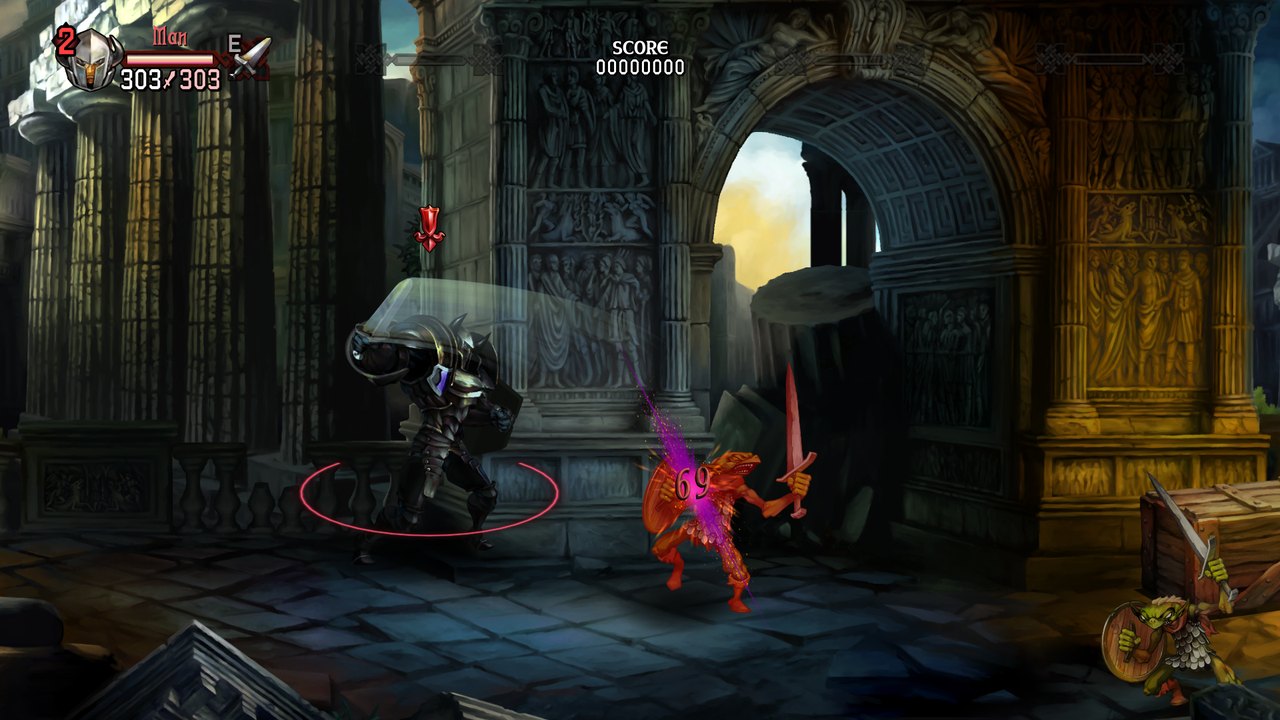 | 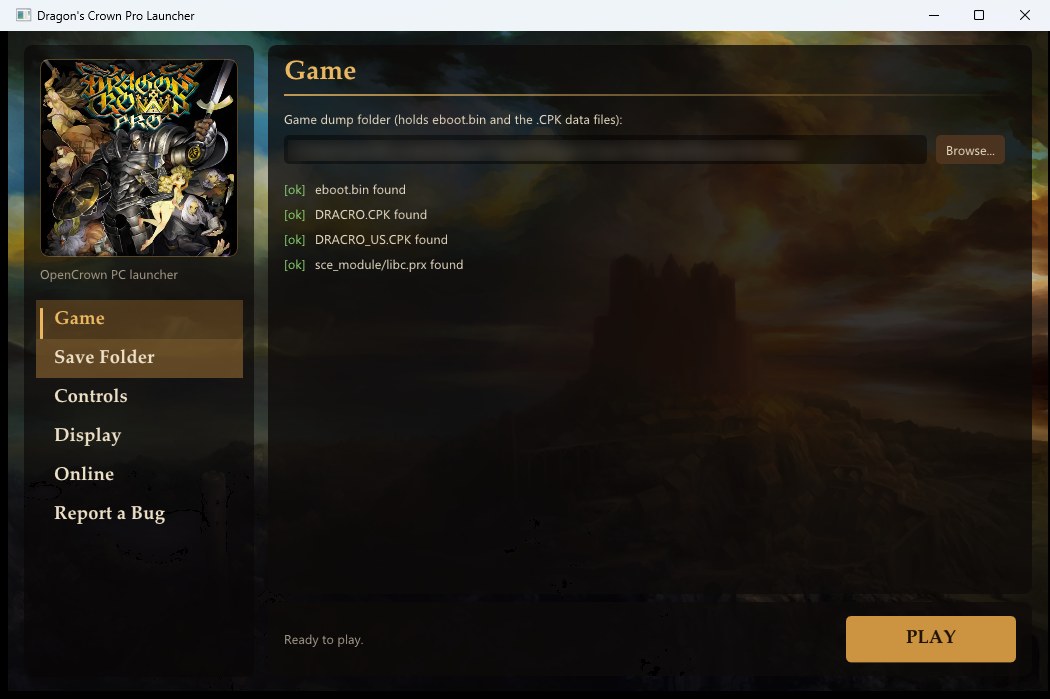 |
| Stage 1, the Ancient Temple | The launcher, ready to play |
All screenshots are from OpenCrown running a personal dump. The game art belongs to Vanillaware / Atlus.
Requirements
| OS | Windows 10 or 11, 64-bit, or 64-bit Linux with glibc 2.35+ (Steam Deck / SteamOS 3.5+, Ubuntu 22.04+, Debian 12+, Fedora, Arch, ...) |
| Android (beta) | Android 9+, 64-bit ARM CPU, Vulkan 1.1, and your own decrypted PS Vita dump (PCSE00019) with the 1.09 update. See Android. |
| GPU | Direct3D 12 or Vulkan for the default renderer; anything with OpenGL 3.3 (most GPUs from the last ~12 years) as the fallback |
| CPU | A modern x86-64 CPU (the game's code runs on it directly) |
| Game | Your own dump of Dragon's Crown Pro (CUSA10454) |
| Online | An Internet connection. UPnP on your router helps but isn't required. |
Your dump
OpenCrown needs the game's files from a console you own. Which console depends on the version you play:
PC (Windows) and Linux / Steam Deck: Dragon's Crown Pro (CUSA10454) from a PS4 or PS5 you own: the decrypted eboot.bin together with the rest of the game folder (the files the game reads at run time and the sce_sys folder).
OpenCrown Mobile (Android): Dragon's Crown (PCSE00019) from a PS Vita you own, as two folders:
- The base game: the decrypted
eboot.bintogether with the rest of the game folder (thesce_moduleandsce_sysfolders and the files the game reads at run time). - The 1.09 update: laid out the same way, with its own decrypted
eboot.bin. Other update versions aren't supported.
The launcher checks both folders and tells you if anything is missing.
Warning
Encrypted packages won't work. A PKG from the PS4/PS5, the PS Vita or the PlayStation Store is encrypted. OpenCrown can't decrypt it, and it never will. It also won't help you get the game any other way. Dump the copy you own with the usual homebrew tools for your console.
Your dump is only ever read. OpenCrown never writes to it or modifies it; the small patches described below (34 bytes in total) are applied in memory each time you play.
Getting started
All downloads are on opencrown.net and on the Releases page.
Windows
- Download the latest
OpenCrownPC-*-win64.zipfrom opencrown.net or Releases. - Unzip it anywhere, for example
C:\Games\OpenCrownPC. Keep the three files together:OpenCrownPC Launcher.exe,dcp_run.exeandSDL3.dll. - Run
OpenCrownPC Launcher.exe. Windows SmartScreen may warn you because the program isn't code-signed (it's a hobby project). Click More info → Run anyway. - On the Game page, browse to your dump folder (the one containing
eboot.bin). The launcher checks the folder and tells you if anything is missing. - The first time, it asks where to keep your saves. The default is
Documents\Dragons Crown Pro\saves. - Press Play. 🎉
Your settings, saves and logs all live in Documents\Dragons Crown Pro\ unless you choose a different save folder.
Linux / Steam Deck
Everything is in one file: OpenCrown-<version>-x86_64.AppImage from Releases. Nothing to install, no root needed.
Desktop Linux
- Download the AppImage and put it wherever you like, for example
~/Games/OpenCrown/. - Make it executable: right-click it → Properties → Permissions → Allow executing file as program, or in a terminal:
chmod +x OpenCrown-*-x86_64.AppImage - Run it (double-click, or
./OpenCrown-*-x86_64.AppImage). - On the Game page, browse to your dump folder, choose where your saves go the first time, and press Play. 🎉
Steam Deck
- Hold the power button → Switch to Desktop.
- Copy the AppImage and your dump folder to the Deck (internal storage or the SD card both work), for example with a USB stick or over the network.
- In the file manager (Dolphin), right-click the AppImage → Properties → Permissions → tick Is executable.
- Open Steam → Games → Add a Non-Steam Game to My Library… → Browse… → pick the AppImage → Add Selected Programs.
- Switch back to Game Mode (the Return to Gaming Mode icon on the desktop) and start OpenCrown from your library.
- The launcher works with the controller: D-pad / stick to move, A to select, B to go back, L1 / R1 to switch pages, Start to play. On the Game page use Browse to find your dump; folders with a complete dump are marked [dump] (the SD card has its own button). Press Steam + X if you need the on-screen keyboard.
- In the game, tap the touch screen to send the fairy pointer there and interact (doors, chests); drag to move it. On a Steam Deck the controller is the main input: mouse clicks never attack. With Steam Input on, add Touchscreen Native Support to the shortcut's controller layout (Action Sets → Add Always-On command → System) so the game gets real touches.
On Linux, settings, saves and logs live in ~/.local/share/OpenCrown/. Updating through the launcher replaces the AppImage in place, so your Steam shortcut keeps working (the file name keeps its old version number; that's expected).
Android (beta)
OpenCrown Mobile runs the game's PS Vita version on Android. It's lighter to run (960×544, a quarter of the pixels of 1080p), cheaper to translate on phone CPUs (32-bit ARM to 64-bit ARM instead of x86-64) and the game already supports touch. It plays online together with OpenCrown PC, and saves move between the two with no conversion.
What you need
- An Android 9 or newer phone, tablet or handheld with a 64-bit ARM CPU and Vulkan 1.1. A controller is recommended; on-screen controls appear while none is connected.
- Your own decrypted PS Vita dump: the base game and the 1.09 update. See Your dump.
Install
- Download
OpenCrownMobile-*-arm64.apkfrom Releases on the device (or copy it over from your PC). - Open the APK and tap Install. The first time, Android asks you to allow installing apps from your browser or file manager: allow it, go back and install. The app isn't from the Play Store, so Play Protect may warn you; choose Install anyway.
- Start OpenCrown Mobile once. When it asks for All files access, allow it (it needs it to read the game files you copy in). It creates the folder
Internal storage/OpenCrown/withdump/Game/anddump/Update/inside. - Copy your dump to the device. Connect it to your PC with a USB cable and choose File transfer on the device, then on the PC open the device's
Internal storage/OpenCrown/dump/:- copy the contents of the base game folder into
dump/Game/, and - copy the contents of the 1.09 update folder into
dump/Update/.
- copy the contents of the base game folder into
- Back in the launcher, press Check again on the Game page. Both lines should start with [ok] (base game 01.00 and update 1.09 found); if not, the line says what's missing.
- Press Play. 🎉
Saves. On the Save Folder page, Import PC save brings in a save from OpenCrown on PC (Documents\Dragons Crown Pro\saves\SAVEDATA00\SAVE0.DAT; your current save is backed up first), and Export save sends your Mobile save wherever you pick (Downloads, a USB stick, Google Drive, ...) to put into that same folder on the PC. No conversion is needed either way.
Playing. A controller works like on a Vita, and its buttons can be changed on the Controls page. Without a controller, use the on-screen controls; touching the screen moves the fairy pointer.
On-screen controls (new in 0.1.6). On the Controls page you can set their opacity and size, and choose a floating stick that centres where your thumb lands. Edit touch layout lets you drag and resize each group of buttons (you can also open the editor in game by holding Select + Start on the touch controls for 2 seconds). Reset touch layout puts everything back. In town, tapping the screen opens the Town Map: that's how the Vita version works. Online play (the Online page) uses the same lobby as OpenCrown PC and starts at the stables in town.
Saves, settings and log.txt live in Internal storage/OpenCrown/.
The launcher
The launcher is a small window with a sidebar. Once your dump is set, it uses the game's own artwork from your dump, so the exe itself contains no game art.
| Page | What it does |
|---|---|
| Game | Choose and check your dump folder, then press Play. The game starts in its own window; the launcher writes everything it prints to logs\last_run.log. |
| Controls | Rebind every keyboard and mouse action and adjust the fairy pointer speed (saved to input.ini, which you can also edit by hand; delete it to restore the defaults). Also the Japanese button layout option: Circle confirms, Cross cancels in menus. |
| Display | Windowed or borderless fullscreen, window size, 4K rendering (PS4 Pro mode), and the game language (English, French, Spanish, German, Italian, from the game's own files). |
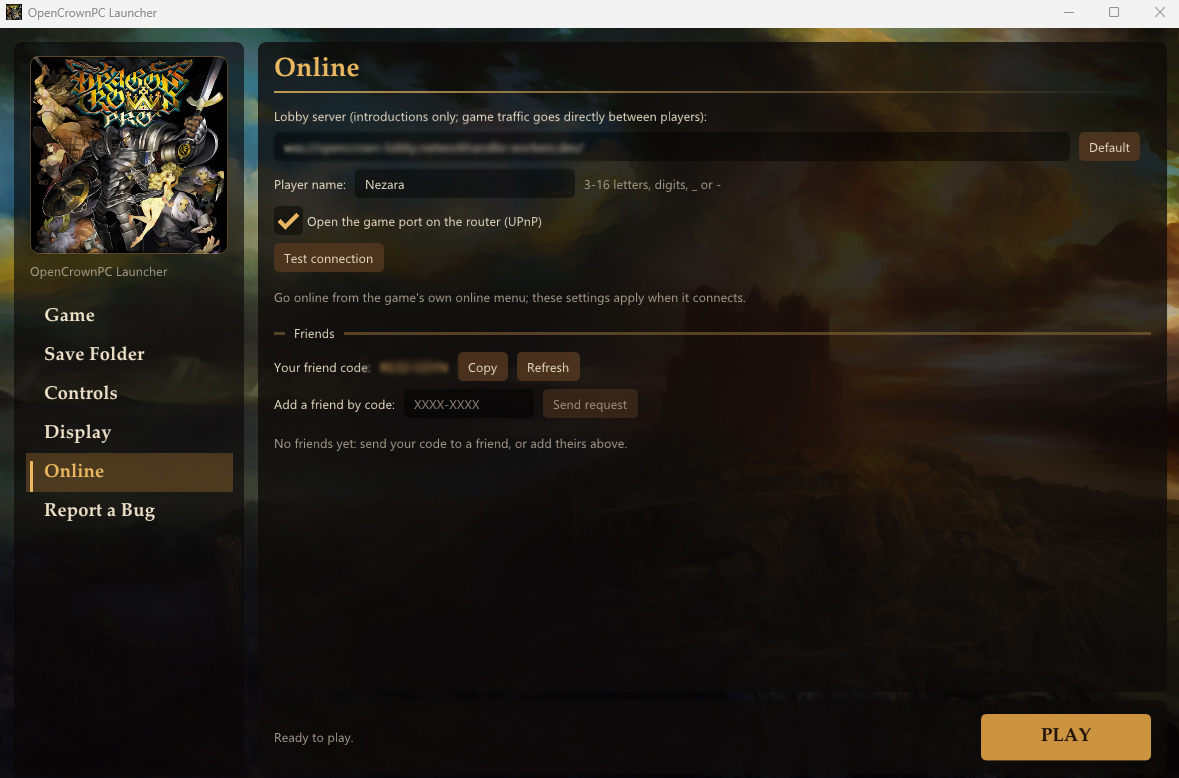
| Online | Your online name, your friend code, adding friends by code, incoming and outgoing friend requests, UPnP, room text chat, Separate cameras when I host, a connection test and the lobby server address. |
| Save Folder | Where your saves live. Point it at a folder with a SAVEDATA00 from your PS4/PS5 to keep playing your console progress. |
| Report a Bug | Sends a short note, your OS name and version, and the end of your last log, so problems can be fixed. You can preview exactly what is sent first. See Privacy. |
| Update | At the bottom left. Shows whether a new version is out and what it fixes; Download and install updates OpenCrown in place (the download is checked against its SHA-256 first). The automatic check at start can be switched off there. |
Launcher settings are stored in launcher.ini next to your saves and logs.
Controls
Gamepads work out of the box with the PS4 layout. Keyboard and mouse defaults are below; everything can be changed on the Controls page. If a controller's buttons do the wrong thing, run Controller setup on that page and press each button once.
| Action | Default | Action | Default | |
|---|---|---|---|---|
| Move | W A S D | Attack (□) | Left mouse | |
| Jump (✕) | Space | Special (○) | Right mouse | |
| Item / interact (△) | E | Evade / L1 · R1 | Left Shift | |
| L2 / R2 | Z / C | L3 / R3 | Left Ctrl / V | |
| D-pad | Arrow keys | Pause (Options) | Esc | |
| Character menu (touchpad) | Tab | Town map | M | |
| Look / right stick | I J K L | Fairy pointer | Hold middle mouse |
The fairy pointer: hold the middle mouse button and move the mouse to steer Rannie's fairy to treasure, doors and runes. Press E to tap while pointing. Mouse attacks are paused while you hold it. If you'd rather not hold a button, you can set an on/off key.
Mouse cursor: the Windows / Linux cursor is hidden over the game window while you play (the fairy is your pointer), and comes back for text boxes such as name entry and chat.
Button prompts follow you: the game's on-screen prompts ("Press ✕", "Press TOUCHPAD to open Town Map" and so on) show PlayStation buttons while you use a gamepad. As soon as you touch the keyboard or mouse they switch to key caps and mouse icons labelled with your current bindings, and they switch back when you pick the pad up again. The key and mouse icons are OpenCrown's own drawings; the renderer swaps them in for the game's button sprites.
Steam Deck and touch screens: with Steam Input on (the normal case when you start it from Steam), the sticks and buttons work like a PS4 pad, the right trackpad moves the fairy pointer and clicking it interacts. With Steam Input off, the right trackpad is the fairy pointer and a left trackpad click opens the town map. Tapping the touch screen sends the fairy straight to that spot, and a short tap also interacts. Both can be switched off on the Controls page.
Handy extra: F1 shows performance stats in the window title.
Saves
Saves use the PS4's own format, byte for byte, so the same files work on your console, on PS4 emulators and here. Windows and Linux use the same files too. To continue a console playthrough, copy your SAVEDATA00 folder into your OpenCrown save folder (or point the Save Folder page at it). Copy it back the same way.
Keep a backup of your saves before moving them between devices. It's free insurance.
What is changed in the game
Very little. The PS4 system libraries the game calls (kernel, file system, audio, controller, saves, fonts, networking) are translated to Windows or Linux equivalents, and the PS4 renderer is rewritten to draw the game's frames on your GPU. Everything else is the game's own native code, running unchanged.
The game's code is patched in a few places. The patches are applied in memory each time you play and never written to your dump:
- Story skip (2 bytes). The game has its own "start from the second half" skip, but it normally only offers it once a class has cleared the game. One 2-byte change offers it to every new character.
- Skip reminder (26 bytes in four places). If you say no to the story skip, the game asks once more with a reminder that online play unlocks partway through the story, then respects your answer. Four small jumps send the game to a few lines of OpenCrown's own code that show the reminder.
- Tutorial question (6 bytes). Instead of starting the tutorial automatically, the game asks "Begin the tutorial?" on a save's first character.
- Separate cameras (online adventures only, see below).
Each patch checks that the original bytes are exactly what it expects first; if they aren't, it leaves that spot alone.
How it works