Haiku
Haiku is a native PC port of Fire Emblem Fates that recompiles the game's ARM code to x86-64 and adds features like widescreen and high frame rates.
- Type: PC port
- Game: Fire Emblem Fates
- Runs on Windows
- By tyle
- Latest release v1.4.1, 2026-11-21
- Source: https://github.com/tyle-beep/Haiku
README
Haiku
Fire Emblem Fates, recompiled for PC.
Haiku is a native Windows port of Fire Emblem Fates Special Edition: the US release, the European release in five languages, and the Japanese release, Fire Emblem if. The game's own ARM code is statically recompiled to x86-64, and everything around it, from graphics and audio to files, saves, input and the system services, is native PC code. Nothing is emulated. On top of that it adds what a PC version should have: an options menu, controllers, widescreen and ultrawide, high frame rates, the bottom screen on one display, mods, a randomizer and online battles.
Important
This repository and its downloads contain no game files. There is no part of Fire Emblem Fates here: no code, art, audio, text or keys. To play, you need your own legally obtained copy of the game, dumped by you. Haiku builds itself on your PC from that dump. See No game files included.
Screenshots
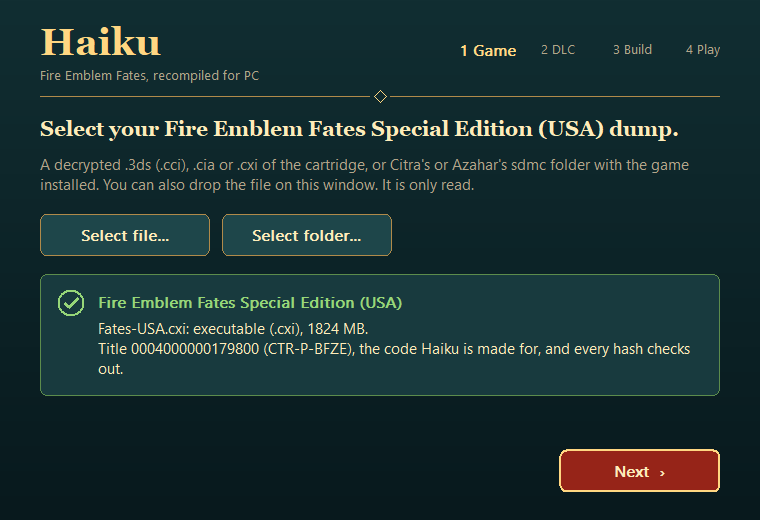
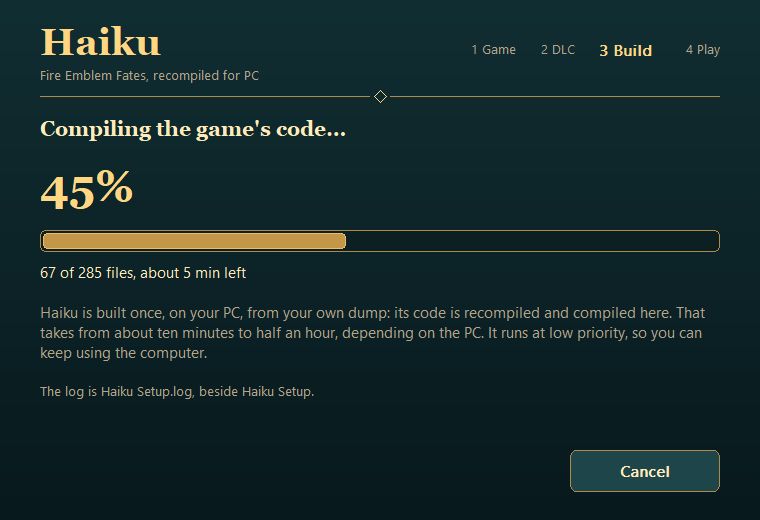
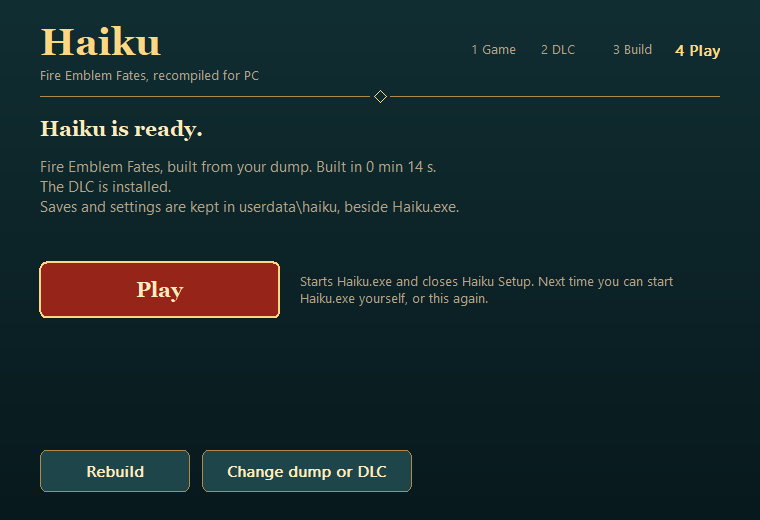
Haiku Setup, the screens Haiku.exe shows the first time, which check your dump and build the game's code:
| Your dump, checked | Building | Ready to play |
|---|---|---|
 |  |  |
Features
A native port
- Static recompilation, no emulation. The game's code is recompiled ahead of time to native x86-64 code. There is no CPU interpreter, emulated GPU, sound chip, kernel or system service in Haiku.exe: each run ends by checking that nothing emulated ran.
- Native Vulkan renderer. The game's draw lists are rendered directly on your GPU, including 3D models, lighting, terrain, shadows, effects, particles and movies.
- Native audio: the game's own sound driver feeds a native mixer. Native files and saves: the game is installed as a plain folder, and saves are plain files.
Three versions of the game
- US (
CTR-P-BFZE), European (CTR-P-BFZP) and Japanese (Fire Emblem if,CTR-P-BFZJ) Special Editions. Haiku Setup recognises which one your dump is and builds that version; each has its own DLC and its own saves. - All three side by side. One Haiku folder can hold the US, European and Japanese versions at once: Add a version… in Haiku Setup installs another from its dump, without touching the others, and Options > Interface > Game Version switches between them with a restart. Each version keeps its own game language, voices and mods folder. Remove a version… deletes one version's folder and keeps your saves and settings.
- The European release plays in English, French, German, Spanish or Italian (Options > Interface > Game Language). Haiku's own menus and added text come in every language, made from your dump.
- The Japanese release runs with its own script and voices, and Haiku's menus in Japanese (or English: Options > Interface > Menu Language). It keeps what the Western releases don't have: My Room's petting minigame (drag with the mouse), the Festival of Bonds and Cipher DLC, and Corrin's three speaking styles per gender.
- Japanese voices for the US and European releases: on Haiku Setup's Play screen, Add Japanese voices… takes the voice files from a dump that has them, the Japanese release or an undub, and the DLC's from the Japanese DLC. Switch between English and Japanese on the Play screen or in Options > Audio.
Graphics
- Render scale from 1x to 8x the 3DS resolution.
- High frame rates. In-between frames are drawn at your display's refresh rate (for example 175 FPS on a 175 Hz monitor) while the game itself runs at exactly its normal speed. VSync and an FPS cap are options.
- Anti-aliasing (MSAA 2x, 4x or 8x).
- Full Draw Distance: grass and objects no longer pop in as the camera moves.
- Windowed, borderless or exclusive fullscreen, with a choice of monitor and resolution, ultrawide included.
- Map pixel art stays crisp at every map zoom level.
Widescreen and ultrawide
- 16:9, 21:9 and 32:9, as well as the original 5:3 and an automatic mode that follows the window.
- The game's 3D view is truly widened: you see more of the map and battles, with nothing stretched.
- Menus and dialogue stay centred at their original proportions, with side panels made from the game's own ornamental art filling the wide sides (or, if you prefer, the backdrop carried on softly, or black). Full-screen pictures such as banners, wallpapers, title cards and the Dragon Vein screen cover the sides too, and the game's artwork is never stretched.
The bottom screen on one display
- Auto (the default): the top screen fills the window, and the bottom screen slides in only when the game shows something worth seeing on it (the unit under the cursor, the battle forecast, combat through the EXP bar, tutorials, touch screens), then slides away again. It works during combat too.
- Always Shown, Manual (show it with a key or button: tap to toggle, hold to peek), Panel (docked beside the top screen) and Classic (the console layouts).
- The floating bottom screen can be moved by dragging its frame and resized from a corner. It snaps to the window's edges, and its opacity and timing can be set.
- Touch it with the mouse, or with a cursor on the controller's right stick.
Controls
- Controllers through SDL3: Xbox, PlayStation (DualShock 4, DualSense), Switch Pro and Joy-Con, and more, with hotplug.
- Button icons in the game's style for Xbox, PlayStation or keyboard, switching automatically or set by hand.
- Full rebinding for keyboard and controller, including the key that opens the options.
- Rumble when the battle screen shakes.
- Keyboard and mouse play: the mouse touches the bottom screen and works the options menu.
An options menu in the game's own style
- Opens with Esc or the controller's Guide/Home/PS button, and from Options on the game's Main Menu. The game pauses while it's open.
- Tabs: Display, Bottom Screen, Audio, Controls, Gameplay, Interface, Mods, Cheats, all drawn with the game's own art and font, and usable with keyboard, mouse or controller.
Gameplay and quality of life
- Game Speed from 1x up to 8x and Max, with a key to switch to fast speed and back.
- Skip Story: skipped story scenes aren't shown at all, while battles, boss quotes and enemy phases stay untouched.
- Enemy Targeting Lines: on the map, a line from each enemy to the unit its own AI will attack next enemy phase.
- Growth Rates button on the bottom screen's unit status.
- Divine Pulse, off by default: turn back time on a battle map, as in Three Houses and Engage. A timeline of the battle's moments (your actions and the enemy's) shows the map at each one as you scroll, and you confirm the one to return to. Charges grow with the story as in Three Houses (up to 13, 10 on Lunatic), or set a fixed number or unlimited; they refill every map. It's in the map menu, on a rebindable key, and it offers itself before a defeat.
- Boon/bane stats shown when you choose Corrin's boon and bane.
- S-supports with anyone: Corrin can S-support any partner, of either gender, using the game's own scenes with Corrin's lines regendered.
- Choose Kana's gender: ask when Kana appears, keep the game's own, male, female or random.
- Free camera in battles, and a free camera in My Castle (fly or orbit), with a smoother third-person camera when walking around My Castle.
- Sunglasses: a new facial detail for Corrin in the avatar creator, on every portrait and the 3D model.
- Exit to Desktop from the Main Menu, the map menu and the options, and Return to Title from the map menu and the options.
- No SpotPass questions after creating your avatar, no "Loading extra data" message at every start, and no eShop entries in the Dragon's Gate (only what you have installed).
- Saves and settings are kept next to Haiku.exe, in
userdata\haiku.
DLC and amiibo
- DLC: point Haiku Setup at your own DLC and its maps are in the Dragon's Gate, as on the console.
- amiibo Hero Battles: the battles of Marth, Ike, Lucina and Robin are in the Dragon's Gate's list, and winning one recruits that hero through the game's own script. No amiibo needed.
Randomizer
- Start a New Game as Randomizer, Characters or Classes, chosen on the game's own screens.
- Characters trade places through the story, with their own portraits, names, voices, models, growths and skills. The pool has 99 characters, including story characters, Lilith, the amiibo heroes and Kana (of a random gender).
- Classes are shuffled within each character's gender and tier, with weapons to match. Corrin's own class is randomized too, and Swap Corrin puts your Corrin in someone else's place.
- Seeds: the seed is shown so a run can be shared, and a fixed seed can be set in
settings.toml. - Stored per save, with a rules version, so a randomized save always loads the same run and an ordinary save plays as normal.
Cheats
A Cheats tab, off by default:
- Units: change a unit's class, stats, level, EXP and weapon ranks, give any skill, or add any character to your army.
- Battle: 100% critical or hit, enemies always miss, no damage, one-hit kills, move again, unlimited movement, Dragon Veins for anyone, a frozen turn count, an EXP multiplier, perfect level-ups, any class using any weapon.
- Items & Resources: gold, a full convoy, unlimited seals, My Castle's resources.
- Story & Supports: every support conversation, support ranks, and Chapter Select.
- Save States: eight slots with a thumbnail, the date and where you were (the chapter and turn, or My Castle), plus quick save and quick load keys. They're kept beside Haiku.exe and never touch the game's own saves.
Mods
- A Mods screen, from the Main Menu or the options: turn mods on and off, set their load order, see file conflicts and missing dependencies, and Apply and Restart.
- Mods go in the
modsfolder of the version they are for,games\<version>\mods(the Mods screen's Open Mods Folder opens it), as folders or zips, the way you downloaded them. Luma3DS-style (LayeredFS) and plainromfs/mods work as they are, including replacement music and sounds, text, models and maps. File patches (.ips, .bps) are supported. - Other layouts work too: a mod made of the game's own folders (such as
GameData,morbu) with noromfs/folder around them, and a mod that holds several releases, whose folder for each release (named by the game's title id) is up to two folders down. Folders of optional files are left alone. - Texture packs, including Citra-format HD texture packs. Large downloads (zips within zips, or packs split into several parts) are recognised and unpacked once, in the background.
- Code mods:
code.ips, IPS32,code.bps,code.binandexheader.binpatches are recompiled to native code, not interpreted. Haiku needs a C compiler for that. It asks first, and offers two: Zig, a one-time 96 MB download that compiles in under a minute, or the compiler that comes with Haiku, which needs no download but takes several minutes for a big code mod. The Mods page's Code Mod Compiler row changes the choice, and Haiku's compiler is the backup if Zig can't be downloaded. - A mod with several code patches uses
code.ips(or the one its readme names). Pick another with the mod'scode_patchoption ingames\<version>\mods.toml; the mod's note on the Mods screen says how. - A code mod that can't be compiled is left out with a note saying why, and the other mods, other code mods included, still run.
- Native plugins in C (or anything that makes a DLL), with hooks before and after the game's functions, per-frame callbacks, memory access and options: see
sdk/haiku_mod.h. - No mods come with Haiku. Mods made by others, HD texture packs for example, belong to their authors; get them from them.
- Haiku's own text is kept under text mods. When a mod replaces a message file, Haiku adds its own lines to it (Kana's chosen gender, same-gender S-supports, End Turn, the Sunglasses) and fills in any line the mod's file lacks from the game's, so nothing shows up blank.
- A code patch made for another release (US, European or Japanese) is never applied to the build of a different one: the Mods screen says it's left out, and the mod's files are still used. A mod can name its game in
mod.toml(title = "0004000000179800").
Fan translations of the Japanese game
Haiku can use the fan translations made for the Japanese release, Fire Emblem if: Team If's translation (the Fire Emblem if fan translation project) and cris1010's "Fire Emblem Fates Uncensored Patch" (Team If's work continued, released on the Varis Hangout forum). Neither comes with Haiku; get them from their own pages.
- Team If: put the release's zip in the
modsfolder as it is, then turn it on in the Mods screen. - Uncensored Patch: it comes as a RAR, which Haiku can't open. Extract it with 7-Zip (the password is on the patch's own page), and put the extracted folder (or just its
romfolder) inmods. - The patcher (IfPatcher.exe) is never run.
- On the Japanese release (the best fit, since the translations were made for it): the files go in as they are, and the patch's
dlcfolders are laid over your own Japanese DLC, so its patched DLC file isn't needed. You get the whole translated game with the Japan-only content: the petting minigame, the Festival of Bonds, the original script and Corrin's speaking styles. Haiku's menus and its added lines (Kana's question, same-gender S-supports) switch to English, made from the translation's own lines. - On the US or European release: Haiku lays the files out as Team If's patcher does (
m/Xbecomesm/@E/X) and trims them to what that game reads. The patch's Japanese fonts are left out: the game's own fonts draw the translation, and the few signs they can't show (such as ō, or the ≪ ≫ around dragon speech) are written as the nearest ones they can. To use the patch's fonts anyway, addoptions = { fonts = 1 }to the mod's entry ingames\<version>\mods.toml. What stays as that game has it: the petting minigame is cut from its code, the Japan-only DLC can't run, DLC maps keep their English text, and a line the translation doesn't have is the game's own. Speaking Style (Options > Gameplay, or the avatar creator's voice) gives Corrin the Japanese script's three speaking styles. The translations work with Voices: Japanese; on the European release the translation shows when the Game Language is English. - The patch's title logo is used.
- A save state remembers the mods it was made with, and won't load once a translation has been turned on or off since; the game's own saves are fine either way.
Online battles
- Online Battle in the game's own Wireless Battle menu: one player picks Host and gets a code, the other picks Join and types it in. It is peer to peer, and each player brings their own team to the game's own multiplayer maps.
- The host chooses whether characters changed with cheats are allowed. When they aren't, such characters are greyed out when picking a team.
- Gameplay mods must match on both PCs, while visual mods (textures, text, sounds) can be used freely. A mismatch says which mods differ.
Getting started
- Dump your game. You need your own Fire Emblem Fates Special Edition cartridge (US, European or Japanese), dumped and decrypted with GodMode9 on your own 3DS: a
.3ds/.cci,.ciaor.cxi, or the sdmc folder of Citra or Azahar with the game installed. Optionally dump your DLC the same way (a decrypted.cia). Haiku never needs or asks for console keys. - Download
Haiku.zipfrom the Releases page and extract it somewhere you can write to, for exampleC:\Games\Haiku. No administrator rights are needed. - Run
Haiku.exe. The first time, it opens Haiku Setup: select your dump, then your DLC (or continue without it). - Build. Haiku Setup checks your dump against its own hashes, installs the game's files, makes Haiku's own files from them, recompiles the game's code and compiles it with the bundled compiler. It takes about 10 to 30 minutes, once, and runs at low priority. If it stops, start Haiku.exe again and it carries on.
- Play. From then on
Haiku.exegoes straight to the game. Press Esc for the options; Haiku Setup (Rebuild, Change dump or DLC, Add a version, Remove a version, Japanese voices) is in Options > Interface.
Updating: from 1.4 on, Haiku updates itself. Once a day it checks for a new release; when there is one, a notice on the game's Main Menu opens its notes with Install, Later and Skip This Version. Install downloads it, checks its SHA-256 and its signature by Haiku's release key, replaces only Haiku's own files (putting them back if anything fails) and restarts. Options > Interface > Check for Updates turns the check off.
To update by hand (and from 1.3 or earlier, which can't update themselves): extract a new release over the folder and start Haiku.exe. It plays at once unless the release needs the game's code built again, which it then does by itself first (only what changed), with a progress screen in the game's own window and look. Saves, settings and mods are never touched. An install of 1.0, 1.1 or 1.2 is updated the same way: Haiku.exe finds the game installed, builds the game's code once, and removes the old Haiku Setup.exe.
Your dump is only ever read. Everything Haiku makes stays in its folder.
System requirements
- Windows 10 or 11, 64-bit.
- A GPU with Vulkan support.
- About 3 GB of disk space: a finished install is about 2.6 GB, most of it the game's files installed from your dump.
- The one-time build needs a fair amount of memory. Haiku only starts as many compilers as your free memory allows, so a PC with less memory builds more slowly rather than failing.
Building from source
Most players should use the release. To build Haiku yourself you need Windows x64 with Git Bash, Rust (stable), w64devkit 2.11.0, Python 3 and your own dump.
- Haiku.exe (the engine, Haiku's overrides, which
source/build.rscompiles in with w64devkit's gcc, and Haiku Setup, thebuilder/library):cargo build --release --manifest-path source/Cargo.toml, ordev/build.sh <name>. It holds no game code. - The game's code module (
data\code\game.dll, what the release builds on the player's PC):Haiku.exe --make-module <dump or data folder> <out dir>, ordev/recomp.sh <name>, whichdev/build.shthen puts beside the run. - A release folder like the one on the Releases page: put the official SDL3 x64
SDL3.dllindist-dll/, thendev/builder/package.sh <out dir>. It writes<out dir>/HaikuandHaiku.zip. The compiler's source zip comes fromdev/builder/toolchain-source.sh. - The files Haiku makes from the game (decoded UI and fonts, button icons, message files and so on) are not in this repository.
dev/builder/derived.packholds recipes for them, andHaiku.exe --apply-derived dev/builder/derived.pack <romfs> .makes them in your checkout from a RomFS installed from your dump (thedata\romfsfolder of an install).
The dev scripts take their paths from the environment (dev/env.sh: HAIKU_WORK, HAIKU_TOOLCHAIN, `HAIKU_DUM