Frozen Bubble
Frozen-Bubble: SDL3 is a C++ rewrite of the classic Frozen Bubble 2 game, featuring network multiplayer and playable on multiple platforms.
- Type: standalone game
- Runs on Windows, Linux, macOS and Android
- By dchau360
- Latest release v2.4.160, 2026-10-30
- Source: https://github.com/dchau360/frozen-bubble-sdl3
- Website: https://llmfinder.net
README
Frozen-Bubble: SDL3
A C++ / SDL3 port of the classic Frozen Bubble 2, reimplementing its gameplay, network multiplayer, and chain reaction system. The original was Linux-only; this port runs on Linux, macOS, Windows, Android TV, and in the browser.
The original was written in Perl; this is a full rewrite in C++. Core gameplay and the network protocol are faithfully reproduced, but edge-case mechanics may still differ — bug reports are welcome via GitHub Issues.

▶ Play in your browser (no install, works on phones) · Download for Linux, macOS, Windows, Android · Join the Discord to find opponents. Online rooms hold up to 20 players.
▶ Watch the 1-minute trailer: 1-player, a 4-player battle, and a 2-player round to the win
Game Modes
Frozen Bubble is a free, open-source arcade puzzle game: aim, fire, and pop chains of colored bubbles before they reach the bottom. A faithful port of the beloved 2002 classic, rebuilt from scratch for modern devices — with four multiplayer modes and full team play, local or online.
Four ways to play multiplayer
- Classic — last player or team standing wins.
- Clear Mode — first to clear your entire board wins the round.
- Race — first to pop a target number of bubbles (50 by default) wins.
- Timed — most bubbles popped when the clock runs out (30 seconds by default) wins.
Every mode plays the same whether you're local or online, and the host can adjust each mode's numbers to fit the room.
Teams — join a team, or stay a free agent, from any room's Set Teams screen — teams work in all four modes above, not just one. Teammates share the win when one of you takes the round, and in Timed mode your team's pops even pool together, so a coordinated pair can out-pop a solo player. Hosts get one-tap Auto-balance buttons to split the room into 2, 3, 4, or 5 teams instantly.
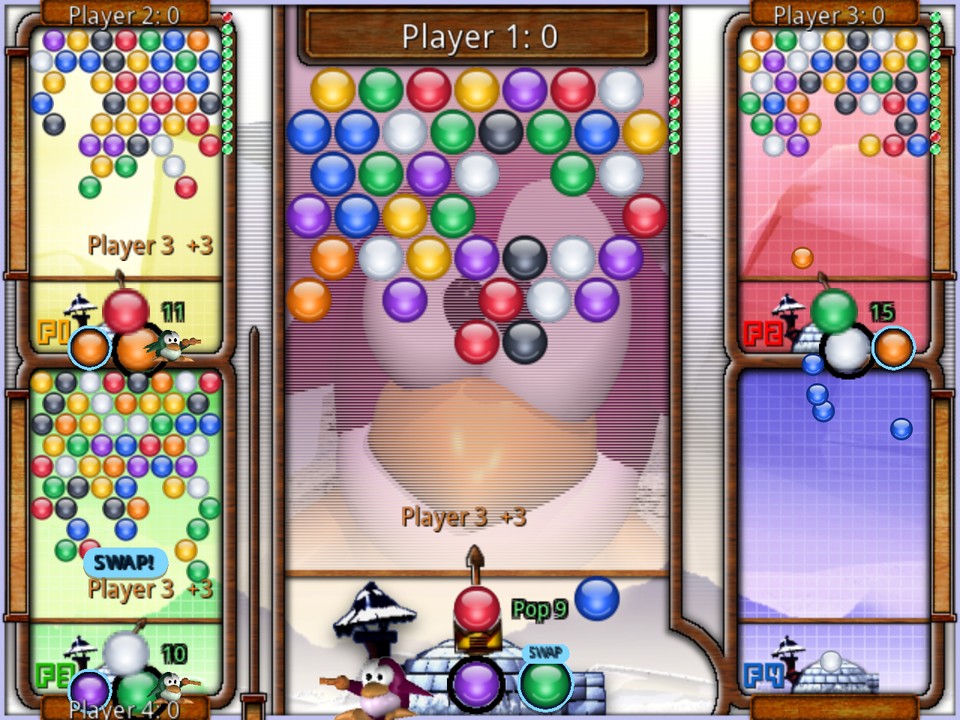
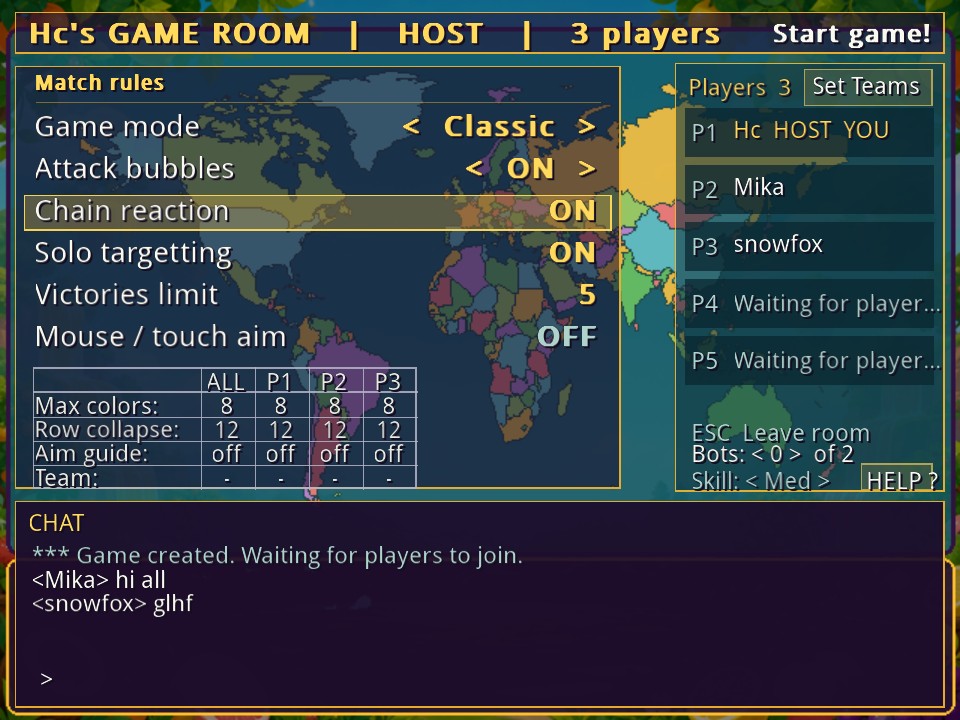
Online multiplayer — play with friends or strangers over the internet, 2–20 players per room, on the included dedicated server. Rooms bigger than 5 players get a battle-royale layout showing your most relevant opponents, quick-target hotkeys, and a spectate mode once you're out. The host controls chain reactions, attack bubbles, per-player aim assist, mouse/touch aim, and more — every joined player sees the rules update live.
Online tournaments — single-elimination brackets for 4–16 human entrants (bots can't enter), started from the online lobby's Create Tournament row, which opens a bracket browser you can also reach fully by keyboard/gamepad; any tournament already open lists right there in the lobby too, alongside ordinary game rooms. Creating one first walks you through a ruleset screen — game mode, attack bubbles, chain reactions, aim guide, and colors — applied identically to every match in that bracket; join an open one while it's still in registration, and the organizer alone decides when to start (no unanimous ready-up required). Byes pad an odd-sized field up to the next bracket size (4, 8, or 16), every match is best of three, and the bracket screen shows each match's live state, countdown, and score. Leaving the tournament or disconnecting mid-match forfeits your current and any future match; withdrawing asks for confirmation first since it forfeits a match in progress. If both players in a match report different winners, that match goes disputed and stays that way until the server operator resolves it — see SetupServer.md if you're running your own server.
Local multiplayer — 2–5 players, one device — keyboard, controller, or a mix. Empty seats can be filled with bots at three skill levels, so a bigger match doesn't need a full house of controllers.
Local games above two players are experimental — far less play-tested than two-player and network play, and the smaller side boards have had rendering glitches. Two causes are fixed (see CHANGELOG.md); the mode has not had a full pass since.
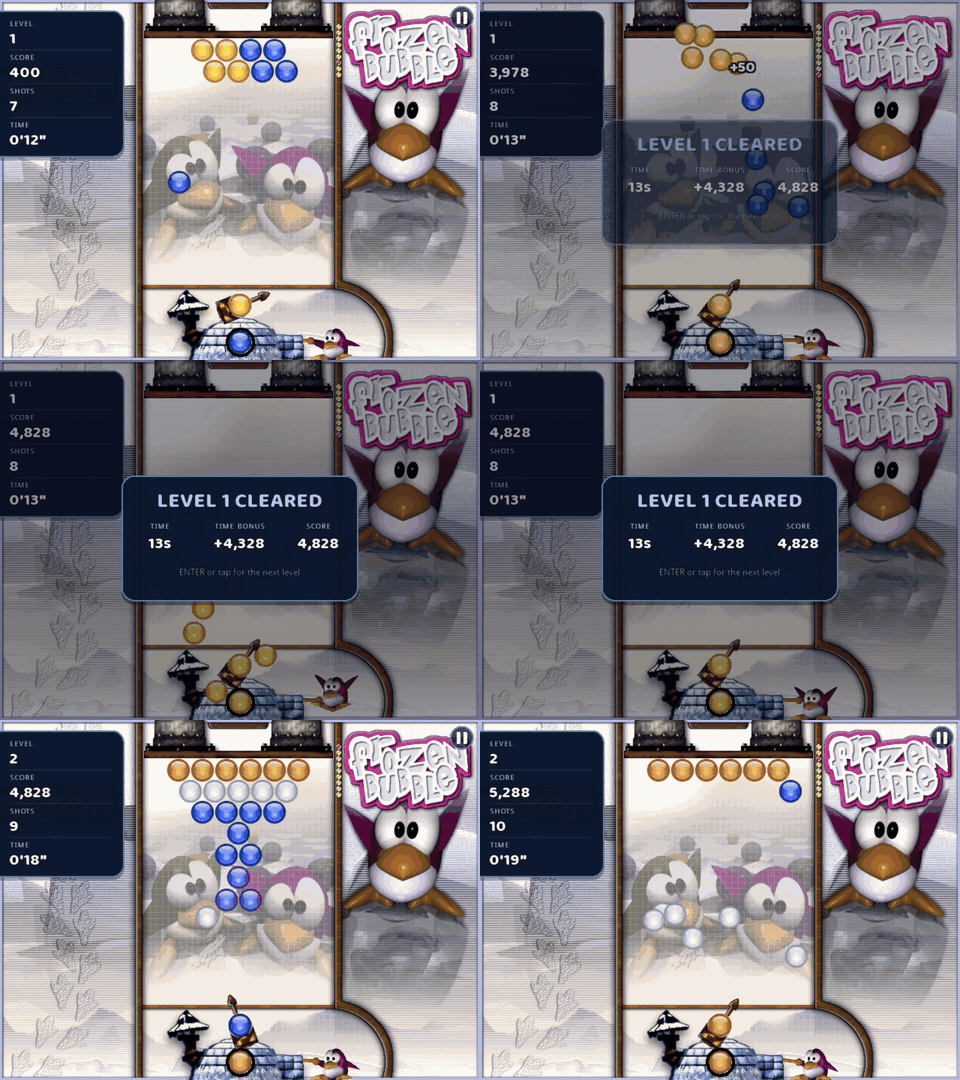
Single player — 100 levels of classic bubble-popping, with scoring and chain reactions. Clear a level fast for a time bonus, Bust-a-Move style: 5,000 points within 5 seconds, 84 fewer per second after that, nothing from 65 seconds. A shot counter and the run's total time sit under the score. Lose a level and you're asked whether to Continue (retry that level, score back to 0, the run's clock and shot count keep going) or Start over from level 1. Your best runs are kept on the High Scores screen, each with its level, time and shot count.
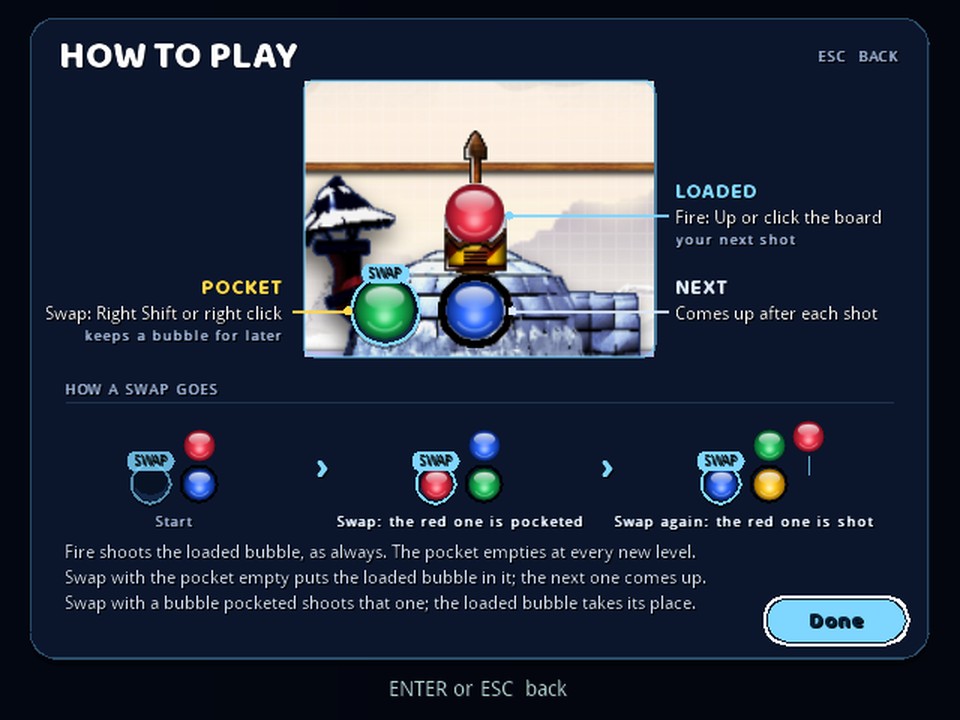
Swap. A pocket beside the next bubble. Press Swap (Right Shift, a right click, or a tap below the board) and the loaded bubble goes into the pocket while the next one comes up; press it again and the pocketed bubble is shot, with the loaded one taking its place. Fire always shoots the loaded bubble, and the pocket empties at every new level. It works in 1-player and online games, and How to play (in the 1-player menu and in Controls & Settings) shows it with your own controls.
The 1-player game screen. A score panel down the left (level, score counting up, shots, time), cards for level cleared, game over and pause, the next level dropping in row by row, and an "N DROPPED!" when a shot cuts bubbles loose. The background, penguin, launcher, sounds and scoring stay as they were. The glossy candy bubbles are a switch, Bubbles in the 1-player menu (CANDY / CLASSIC, CANDY by default), and apply in every mode, multiplayer included.
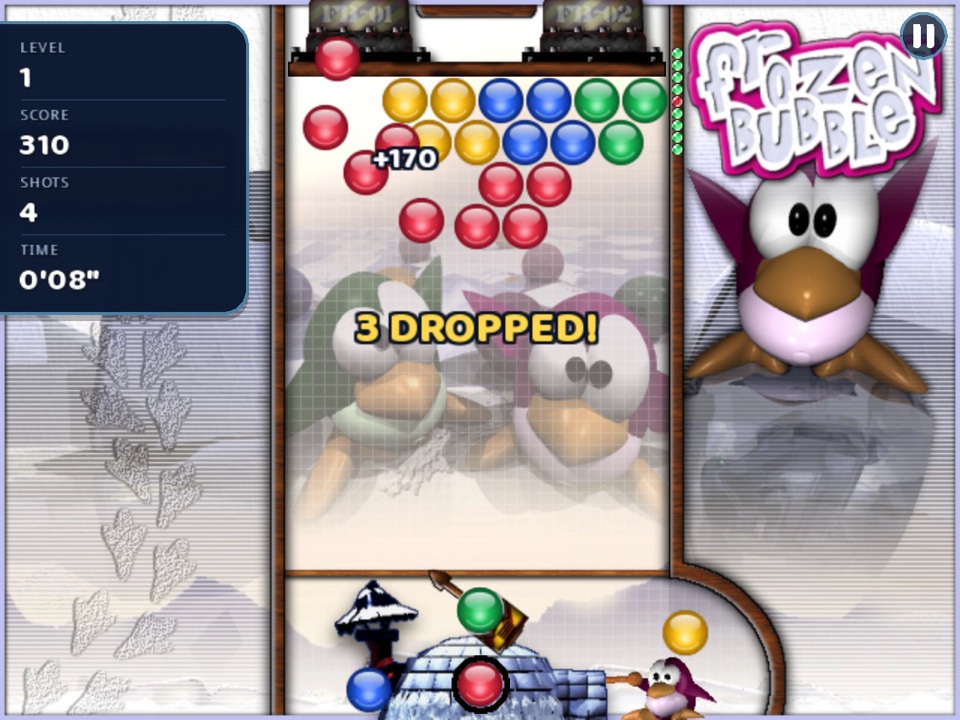
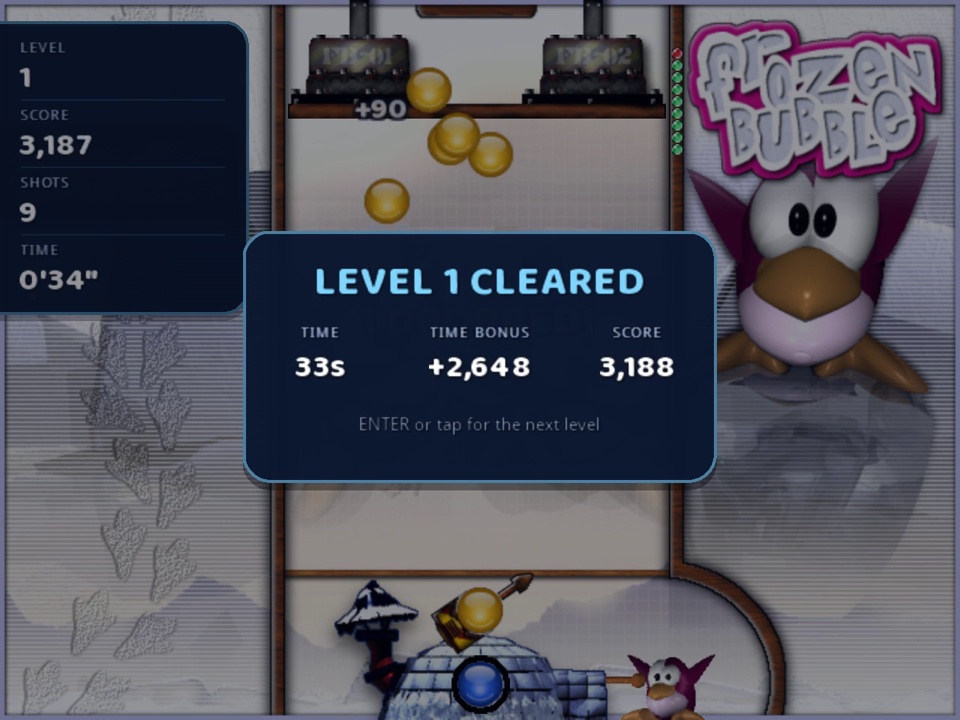
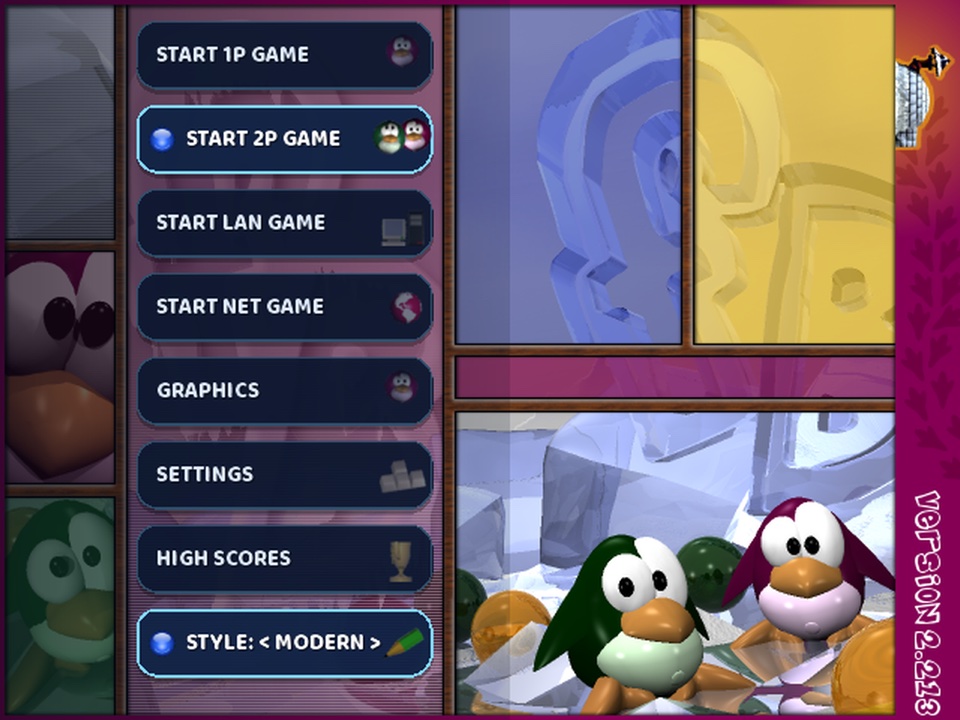
Modern menus. The title screen and the 1-player menu match the game screen: dark rounded cards, with a candy bubble on the selected row, and the 1-player menu explains each mode in a line and has switches for its settings. The online screens (server lists, lobby, game room, Set Teams) and Controls & Settings keep their classic look in every style. The original title screen is still there: pick another STYLE on the title screen.
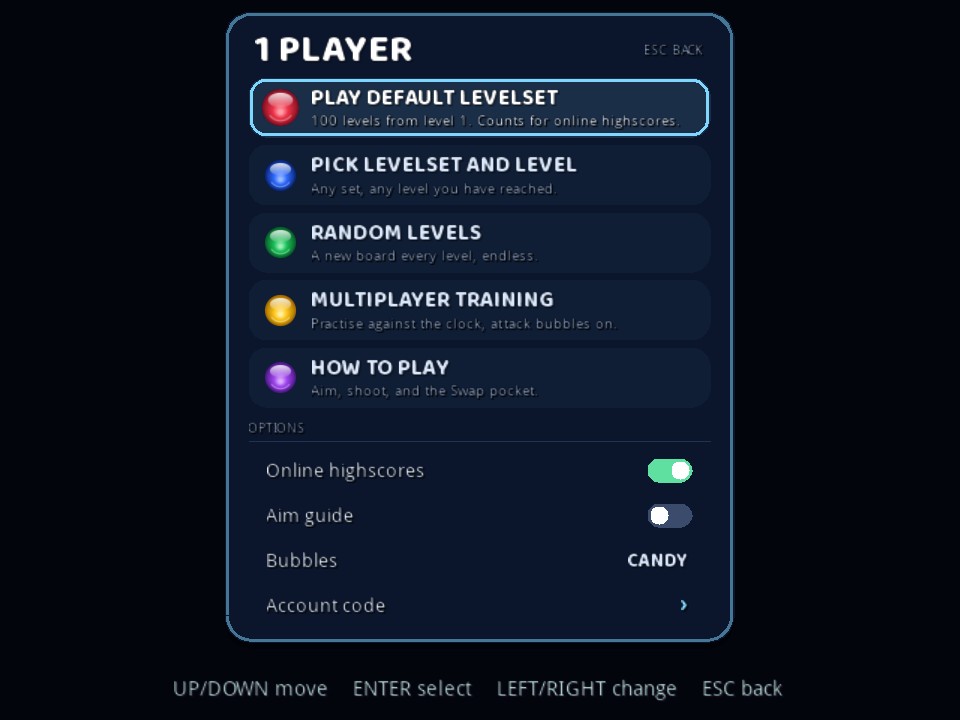
Online highscores. Classic runs from level 1 go on an online board shared by everyone playing this port: most points in one life, and furthest level cleared (faster time breaks ties, so the fastest finish of all 100 levels is #1; each run also shows its shot count), each split keyboard/gamepad vs mouse/touch (a level where you used both counts as mouse/touch), all-time and this week. See it in the game under High Scores → POINTS / LEVEL, or on the web at fb.servequake.com/scores. Runs are sent under your anonymous account once you're back in a menu; turn off Online highscores in the 1-player menu to stop sending. Scores aren't verified yet.
Attack bubbles is a three-way setting, host-controlled in the room and per-player in local multiplayer: ON sends every malus you earn straight at your opponents, OFF turns attacks off entirely, and Blockable has the malus you earn pay down whatever is still queued against you first, sending only the surplus — it can't go negative, so blocking more than you owe just empties your queue rather than banking credit. A HELP button next to Bot skill (or F1/gamepad Y anytime) opens a full settings guide covering this and everything else on the panel, including how malus targeting differs once a room has 6 or more players alive.
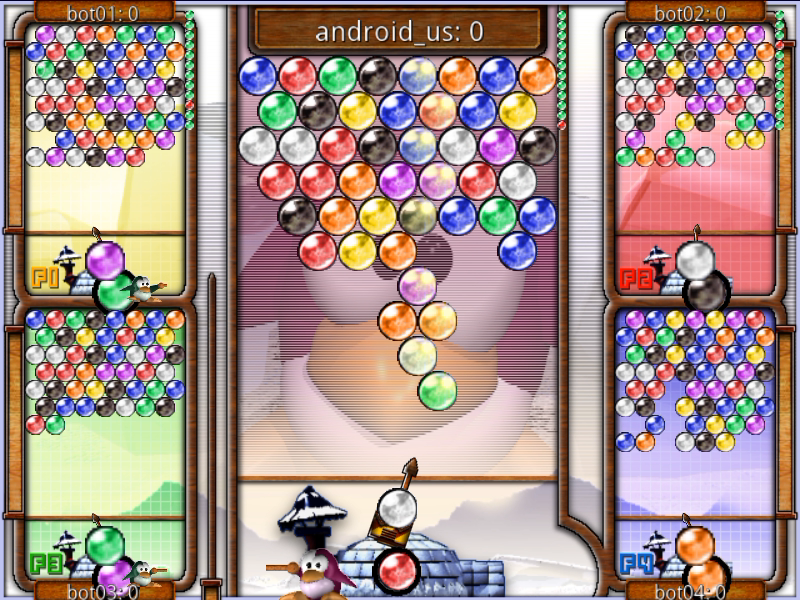
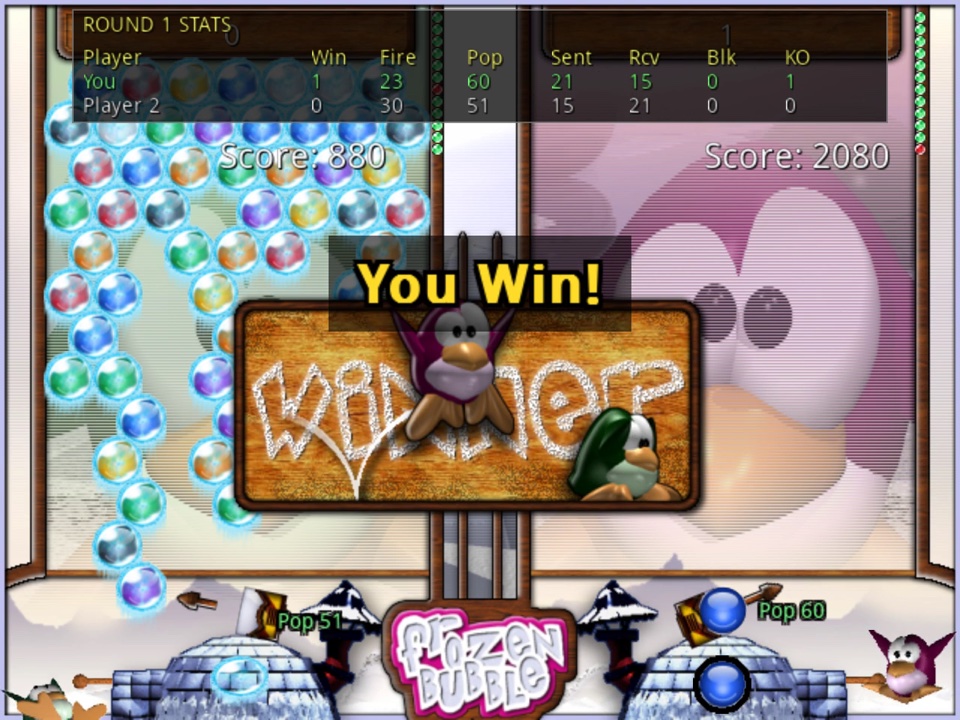
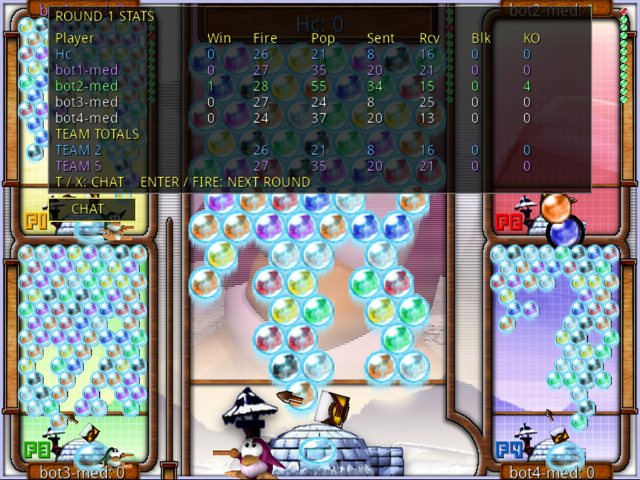
After each round a per-player stats table shows bubbles fired and popped, malus sent, received, and blocked, and kills. In-game chat works during play (Enter or T, gamepad X) and between rounds.
Bots. The host of a room can add up to four bots from the setting under the player list, with a skill of Low/Med/High — each bot keeps whatever skill was set at the moment it was added, so a room can mix difficulties (add a High bot, change the setting, add a Low one). Each one joins as an ordinary member — everyone sees it in the roster and it counts against the room's cap — and plays with the same aiming as a local-multiplayer bot: a High bot plans one shot ahead using the next-bubble preview, on top of always taking the best pop it can find, and reacts roughly 3x faster than a Low one. Handy for filling out a room, or for playing on a quiet server. Works on every platform, including the itch.io browser build — a browser bot opens its own WebSocket to the server instead of a raw socket. Bot thinking happens on the host's own device, not the server: each bot's board runs inside the host's client like a hidden extra player, so a room full of bots draws on the host's CPU (and, on a laptop or phone, its battery), not the server's. A server can also cap how many bots may be running across the whole server, in which case adding one past that limit fails with a chat message rather than a crash — that's the server operator's setting, not yours (SetupServer.md).
Dealing with abusive players. If you host the room, /kick p2 removes the player in that roster position (/kick <nick> works too). Type /block <nick> in chat to hide someone's messages — in the lobby and mid-match both, and it takes effect immediately without needing the server's cooperation. /unblock <nick> undoes it, /blocked lists who you have blocked, and the list is saved per device. /report <nick> <what happened> sends a report to that server's operator; each server is run by a different person, so what happens next is up to them — blocking is the part that is in your hands. Type /help in chat for the full list.
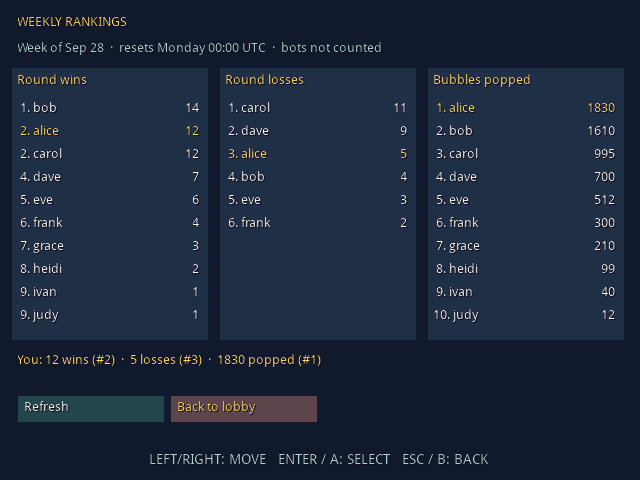
Weekly rankings. Each server ranks its players by round wins, round losses and bubbles popped for the week, starting over every Monday at 00:00 UTC. Bots are never counted. Open Weekly rankings in the online lobby to see the top 10 in each category and your own line; the public server's board is also on the web at fb.servequake.com/weekly. The lobby's Online list shows each player's round-wins rank as a gold #N next to their name, with you listed first. This needs a server running v2.4.116 or later.
Controls
| Action | Keyboard | Mouse | Touch |
|---|---|---|---|
| Aim | Left / Right arrow | Move mouse | Tap left / right half, or drag |
| Fire | Up arrow or Space | Left click | Tap centre, or tap target |
| Back / quit | Escape | Right click | Swipe left |
| Pause (1-player) | P or Pause, or gamepad Start | Pause button, top right | Pause button, top right |
While paused, a click or tap anywhere resumes.
In menus on touch devices: tap to select, swipe up/down to scroll, swipe left to go back. To leave a round in progress, swipe left across the bottom of the screen, level with the launcher or below it — anywhere higher is where you aim, so the swipe is confined to the band that aiming ignores and can't quit your game by accident. In list-style panels — settings, the LAN and Net server lists, the connect form, and the online lobby and game room — the first tap on a row highlights it and a second tap on the same row activates it, so you can see what a row says before changing it. Rows adjusted sideways (like game speed) step with a second tap on either half, rather than needing L/R keys. In the game room's per-player grid, a tap picks the cell first, so you never change the wrong player's setting by mis-tapping.
Tapping Chat raises the keyboard and shows the full chat log over the map while you type, rather than the usual last few lines, so you can see what you're replying to.
Mouse and touch aiming are enabled per-room by the host, and change the in-game gestures above: with them off, tapping a screen half aims that way; with them on, you drag to aim and tap to fire at a point.
Fairness: free-angle mouse/touch aim is easier than keyboard left/right aiming. In network games the host should set this consistently so everyone plays with the same scheme.
Controllers (Android TV and desktop): D-pad left/right aims, A or D-pad up fires and selects, B goes back, Start pauses. Rebind anything under Settings → Keys, per player — navigate with up/down, press Enter, then press the button you want. Reset ctrl defaults restores that player's defaults, and Reset all settings at the bottom of the same panel restores everything — key bindings, speed, sound, mouse aim. It asks for a second press before it does anything.
Mouse/touch aim is on by default everywhere except Android TV, which has neither a mouse nor a touchscreen. Either way it is a per-device setting you can change, and keyboard or controller aiming keeps working alongside it: whichever you used last takes over.
Playing in the browser
The browser build runs anywhere with WebAssembly support. Settings, key bindings, level history and high scores are saved in the browser and survive a reload, scoped to that browser profile and the exact origin — they don't follow you to another browser, device, host or port. In a private window, or where site storage is blocked, the game falls back to session-only defaults and logs a diagnostic to the console. Details in web/README.md.
Game speed (Settings → speed, 1.0×–5.0×) is normalized to real elapsed time, so it should hold steady regardless of frame rate — but a device that can't sustain the frame rate a high setting demands, older Android hardware especially, can still fall short of it: the same guard that prevents a huge jump after resuming from the background also caps how much a single slow frame is allowed to catch up. That's why Android's own default (2.0×) is set lower than desktop's (3.0×). The browser build sidesteps the question entirely by always running a fixed internal rate rather than your saved setting, which is part of why it tends to look the most consistent across devices.
Network play
Run a server:
./start-server.sh          # default port 1511
./start-server.sh -p 1234  # custom port
./start-server.sh -d       # debug output
This enables both TCP (direct connections) and UDP broadcast (LAN auto-discovery).
Host a game: start the server, then launch the game and pick LAN Game (auto-discovers) or Net Game (enter an IP). Create a room and wait for players.
Join: LAN Game to auto-discover on your network, or Net Game and enter the host's IP. Any player pressing Enter after a round ends starts the next round for everyone.
LAN auto-discovery needs a UDP broadcast, which browsers cannot send — the browser build's LAN Game list is always empty. Use Net Game with the host's address there, or play native.
Public servers are listed in the frozen-bubble-servers repo, in the same format as the original frozen-bubble.org list:
# host port
myserver.example.com 1511
The game fetches this list automatically on startup. Submit a PR there to add yours.
Android TV
On phones, tablets and Google TV, install from Google Play. On a Fire TV, sideload with the Downloader app from the Amazon Appstore: enter code 1308098 (or the URL http://aftv.news/1308098) and follow the prompts.
Entering text (IP address, nickname): when a field is active the on-screen keyboard appears. If Delete/Clear doesn't respond straight away, press any letter key first — the field is then active, and Delete will erase both it and the existing text.
If the game feels sluggish — slow menus, laggy aiming, a late-responding remote — reboot the Fire TV (Settings → My Fire TV → Restart) and launch it again. Fire TV boxes and sticks are memory-tight, and a device that has been up a long time with other apps behind it leaves the game much less to work with. This is worth trying before assuming a bug; if it is still slow on a freshly rebooted device, that is worth a bug report.
On a phone or tablet, the same APK installs and rotates freely with the device, decided automatically from the device's UI mode — a TV box stays landscape-locked. Mouse/touch aim is also on by default there; see Controls.
macOS notes
Releases are Apple Silicon (arm64) only and will not launch on an Intel Mac. Intel users can build from source or play in the browser. Universal binaries would mean building SDL3 and every dependency for both architectures, since Homebrew ships single-architecture bottles.
The app is ad-hoc signed but not notarized, so macOS may report it as "damaged and can't be opened". Strip the quarantine flag:
xattr -cr /Applications/FrozenBubble.app
Or right-click the app → Open → Open to bypass Gatekeeper once.
Download
Latest builds are on the releases page. Android is also on Google Play. itch.io hosts the browser version.
| Platform | Download | Notes |
|---|---|---|
| Linux | frozen-bubble-linux-x86_64.AppImage | chmod +x and run |
| macOS | frozen-bubble-macos-arm64.dmg | Apple Silicon only — see [macOS notes](#ma |