GT3 PC Enhanced
GT3 PC Enhanced is a Windows port of Gran Turismo 3 A-Spec with enhanced graphics, performance, and modding support.
- Type: PC port
- Game: Gran Turismo 3 A-Spec
- Runs on Windows
- By Silentwarior112
- Latest release 1.0.2, 2026-11-21
- Source: https://github.com/Silentwarior112/GT3-PC-ENHANCED
README
Gran Turismo 3 decompiled, ported to Windows, and enhanced.
Based on the GT3 Enhanced engine from the Gran Turismo 3 Decompilation.
Thank you @MisukaM @Hatersbby for testing
How to install
Download the compiled package, or compile from the source code with build.cmd.
Then open the launcher, extract the game files from any of the three main versions
or run the game from a disc file directly,
configure the settings, and play.
Perfect 1:1 parity with the PlayStation 2 original, only better:
Graphics quality
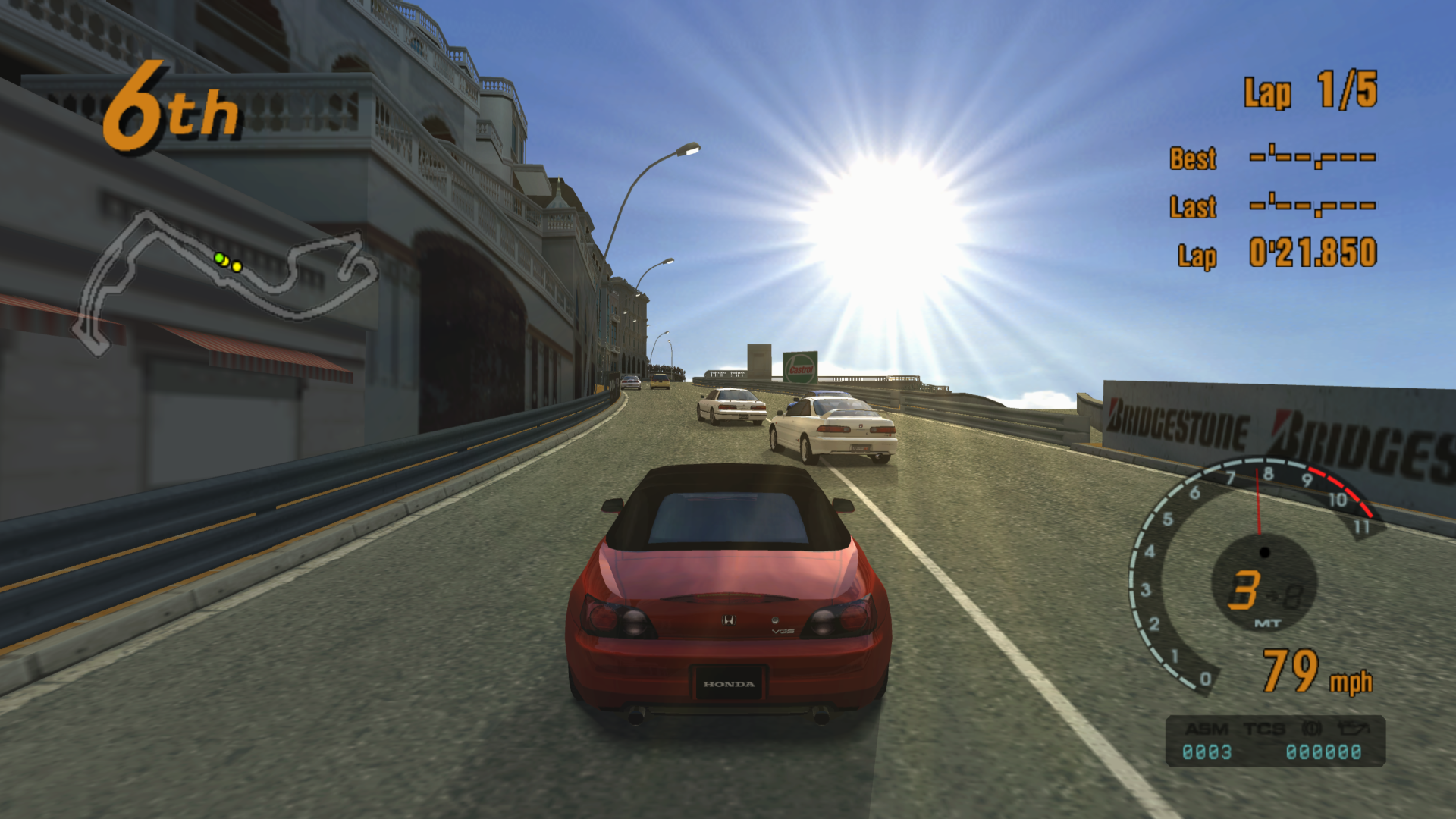
- All original graphics, reproduced more accurately and with better clarity than emulation.
- Fully dynamic aspect ratio control: HUD and Field of view re-calibrate automatically.
Performance quality
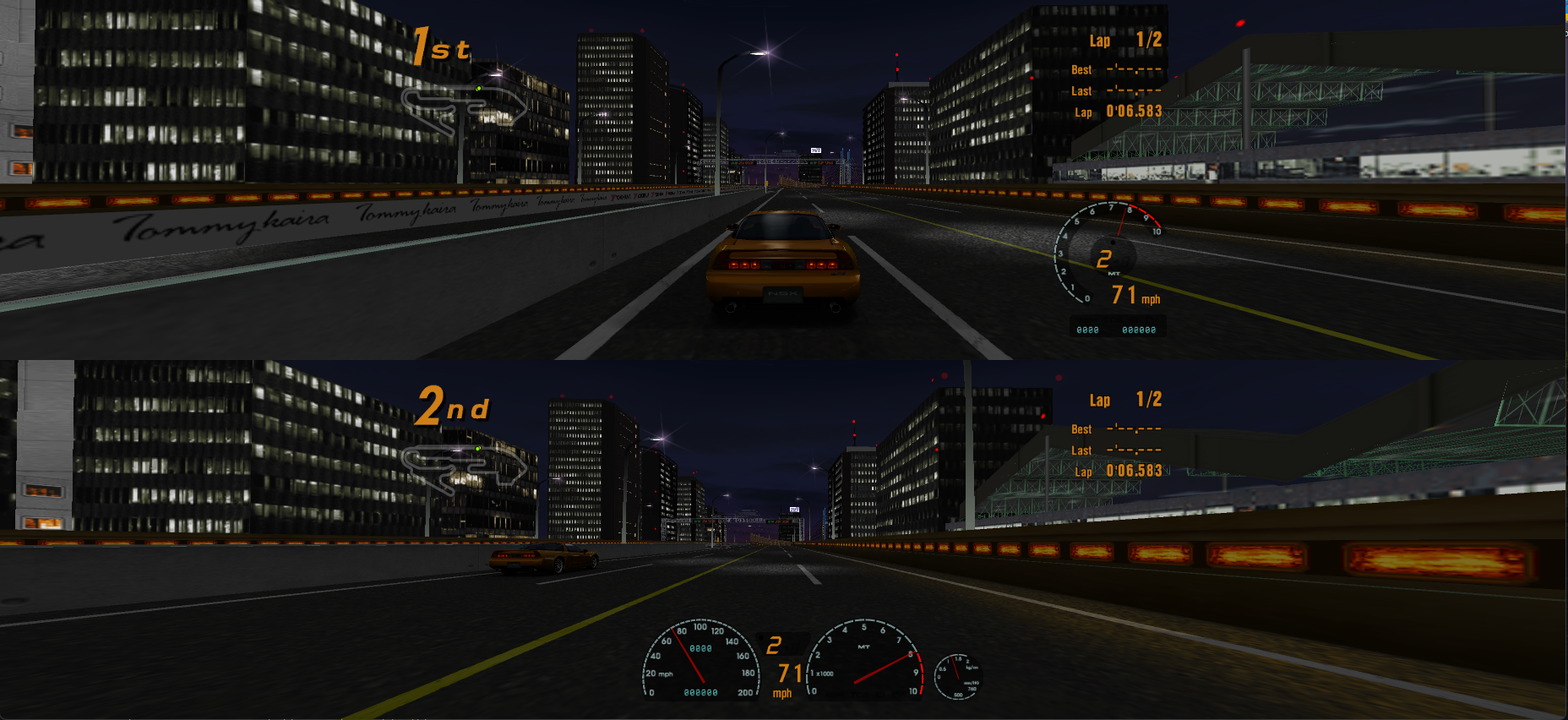
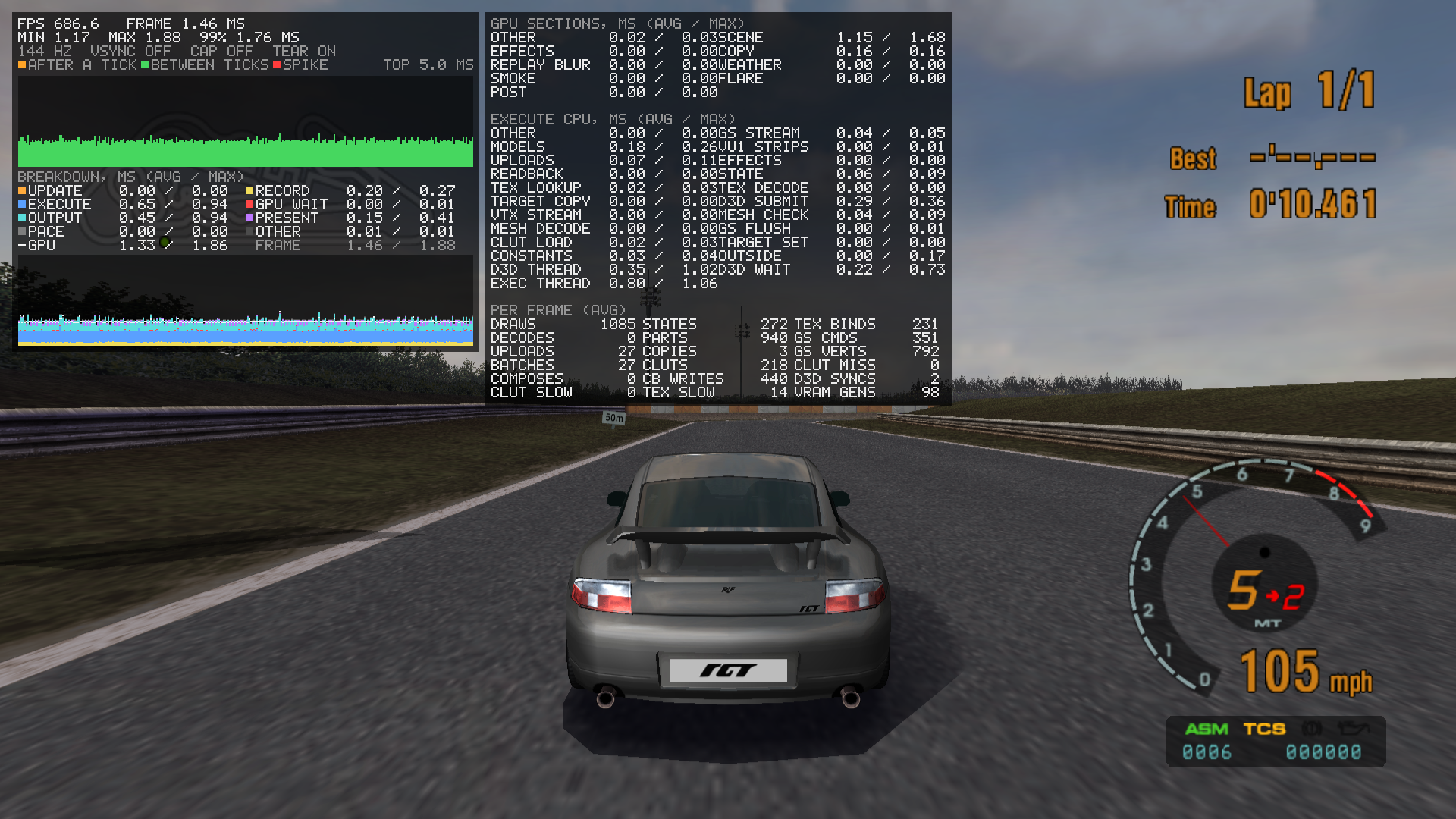
- Optimized for PC, with some multi-threading implemented to produce very high and consistent frame rates.
- True High Frame Rate support
Launcher
- The launcher is a lightweight 640x360 window that holds the settings and access to managers (Mods, Textures, Saves, etc.)
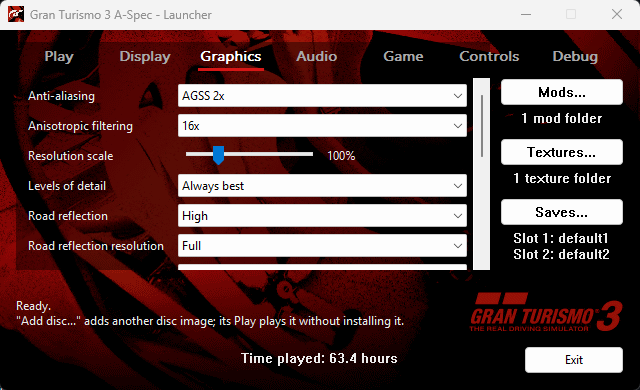
The launcher's background is `launcher_bg.png`.
Both the launcher and the main executable use `gt3pc.ico` for their program icon.
The background and icon are embedded into the programs when built. Changing them requires
compiling the source again (run build.cmd)
Languages
- The launcher and the in-game settings overlay menu are localized for multiple languages, and the game's language depends on the regional variant:
- The launcher and overlay menu support 9 languages, English is the base language, and all other
  languages were translated via an automated process from English, so the quality may not be perfect for
  other languages:
  - English
  - Français
  - Deutsch
  - Italiano
  - Español
  - 日本語
  - Русский
  - Português
  - Polski

- Editing the codebase has been made safe in this regard too: Any new strings added will be checked by
  `build.cmd` and `Build Mod Plugin.cmd` and prompt you in the command line interface to translate them
  to the other languages with a streamlined process: You can manually input the translations as it asks
  you, or you can export the untranslated strings to a file (good for automated processes), or you can
  skip translating them and continue to build the executable.

- The game's own language support is largely confined by its regional variant. Each variant has unfinished
  or missing assets for languages it never officially supported, so using an unexpected language will run
  into any gaps in the localization assets. Additionally, for languages that were never supported by the original game,
  you would have to update the executable and also create all of the localization assets for it, which
  is relatively involved to do, including separate menu graphics and scripting with the translated strings.
Game Engine
- A mild hybrid between the original GT3 engine, and the additional backend features from GT Concept
Gran Turismo Concept had significant engine updates and even some improvements and bug fixes to the physics,
however NONE of the physics-related things carried over from GT Concept are enabled. They are available in the code
as toggles at src\include\game\enhanced\<all files inside the folder>

The significant features used are:
 1. Some replay camera behavior
 2. GTC's zoom button in replays with Triangle
 3. Some sound-related updates in relation to the camera
 4. All HUD-related updates, except for the change in the needle's appearance
 5. Car animation system, mainly for the Toyota Pod
- Additional game engine features:
- Suspension ride height fix: Cars can have different front and rear heights + fixed slope logic
- Dynamic Brake model positions: Wheel models can push the brake model back to prevent the models clipping into eachother
- More cars in a race: Up to 32 cars. 1st - 6th are still the only results counted, anything lower than 6th is considered a 6th placement.
- Optional Rev Cut behavior: Realistic mode.
- Optional Gear Shift behavior: Realistic mode, and Realistic + Clutch mode
- Clutch support
- H-shifter support
- Options menu via the Hotkey (Default is F2 or the controller's Home Button)
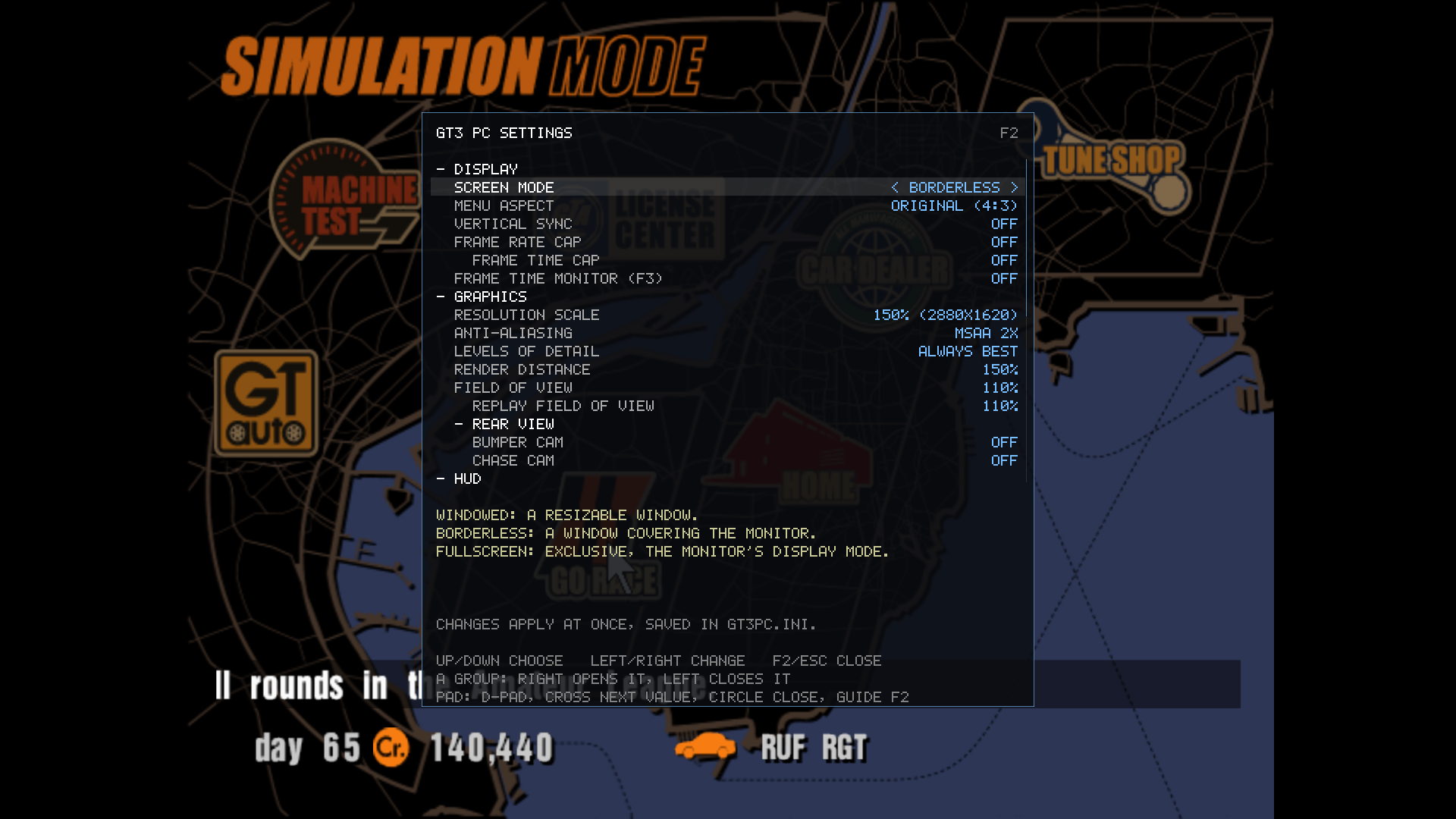
  + Display
  + Graphics
  + Cameras: Adjust FOV, enable cockpit cam, calibrate / edit / add new race cameras
  + Split Screen layout: Horizontal, Vertical, or a Separate monitor
  + Audio output / Volume
  + Game settings and modifiers
  + Challenge Modes
  + Controls: Deadzones, toggle between using the wheel or gamepad if both are connected
  + Debug: Developer cheats
  Interface Language Selector (Options menu & the Launcher)
  Take Screenshot
- Escape menu via the Hotkey (Default is Esc or holding the controller's Home Button for a few seconds)
  - Restart
  - Restart as New Game
  - Exit
- Debug Camera and Look-around support with the Right Stick during racing and menus
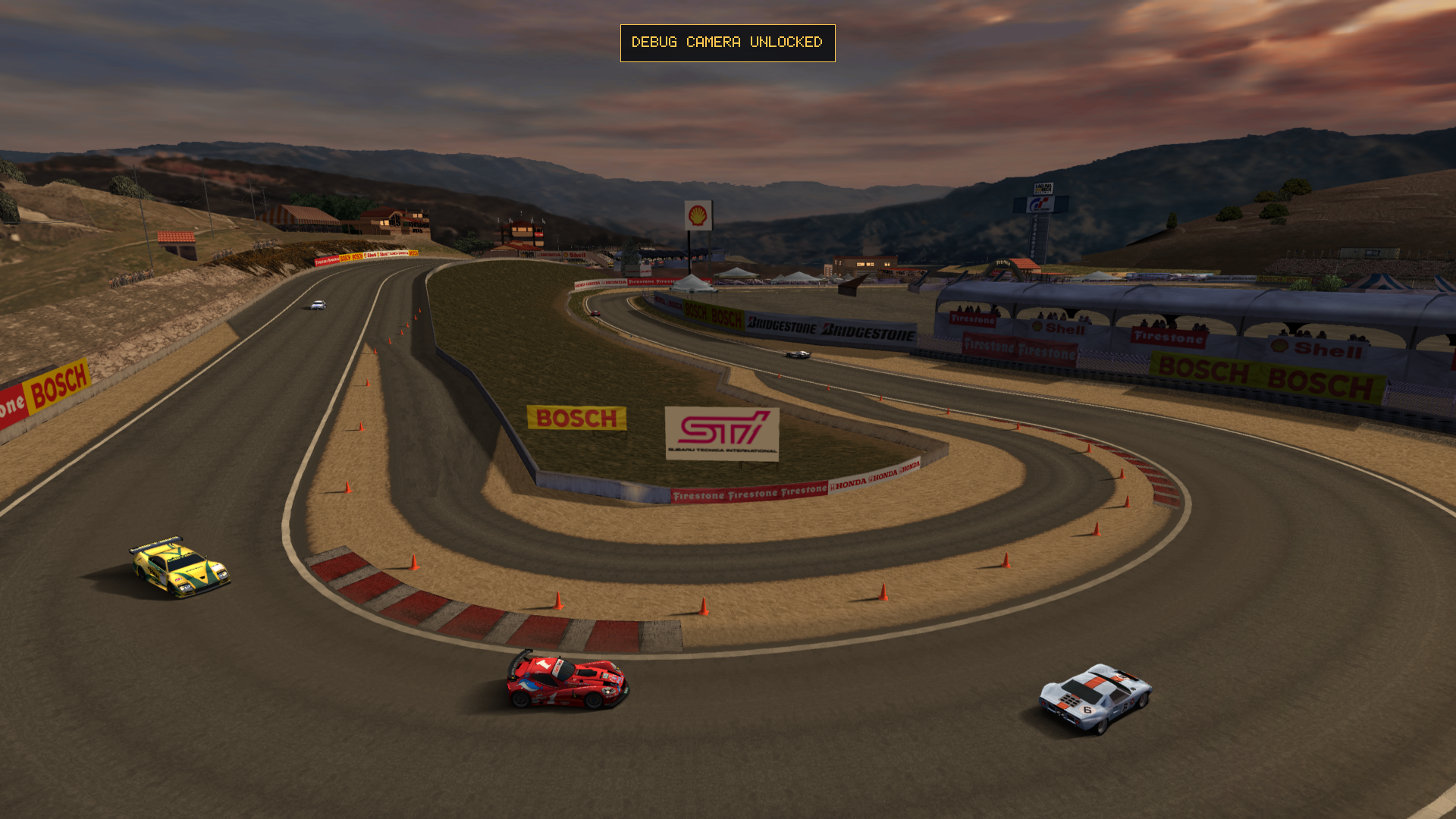
Controls:
- Enter Debug Camera (Default is F7)
- Move
- Look
- FOV control
- Y-axis look toggle
- Ground Collision toggle
- Lock Camera (Holds camera in place and switches back to game controls)
- Unlimited cars in the garage
Extra list controls: Left and Right = 10
L1 and R1 = 100
- Race songs: Added .mp3 and .wav file support for custom music, and automatic .ads file conversion to .wav
- Song changer in races: Press the Hotkey to open it (Default is SELECT on the controller, or M) Use UP and DOWN on the Controller to change songs, SELECT to close
You can point the launcher's song manager to any file or folder on your system.
Alternatively, you can specifically place songs in the game data's bgm folder directly.
If you place .ads song files in the bgm folder, the launcher will convert the .ads
file to .wav and add it to the song database automatically.

bgm\
  mySong.mp3 (Launcher automatically adds the song to the game's database)
  songFromAnotherGT.ads (Launcher automatically converts and adds the song to the game's database)

In the launcher, you can enter the song manager to fix the song's metadata.
The automatic conversion only provides basic information

Note: The audio in original race songs were normalized to be as loud as possible, so
adding a normally mastered song will sound quiet. You can increase the race song volume in the Options menu (F2)
- Movies: Added standard H.264 .MP4 file support for mods
- .ipic preview frames: Changed to standard .png, and the game pre-caches them to memory on startup. When the game is installed, the launcher automatically converts ipic files into png. Any .mp4 files in the stream folder will get their 1st frame automatically cached. Any custom .pss files will require a manual insertion of a preview frame png.
[root folder]\cache\movie_frames\midfield.png <-- Cached 1st frame of stream\midfield.mp4

stream\
  opening.pss  <-- Original intro movie file
  opening.mp4  <-- Custom intro movie file will load instead if it exists
  course\
    akasaka.png <-- Preview frame for akasaka.pss (Arcade mode's Tokyo R246 course)
- Fonts: Added .otf and .ttf file support for mods
If you want to change the game's fonts, place the files like so:
font\system\
    sw_12.ttf
    sw_16.ttf
    sw_20.ttf
    sq_9.ttf
    kanji.ttf
font\menu\
    speed.ttf
    meter.ttf
    odo.ttf
    rank.ttf
    gearr.ttf

Tip: The game uses unicode values that ttf / otf files usually never use for certain symbols or characters. So a regular ttf / otf
will have a few missing symbols / characters. A good otf / ttf replacement will need to be customized, programs like FontForge can do so.
- Parameter Databases: Changed the proprietary formats to standard SQLite.
When installing game files, the launcher will automatically convert the proprietary
database format into SQLite.

To edit the database, get SQLite Studio and open the db files with it.

database\
  common.sqlite3 <-- Shared database data
  paramdb.sqlite3 <-- JP Region's database
  paramdb_eu.sqlite3 <-- Database for european group of regions: BR,FR,GR,IT,SP
  paramdb_us.sqlite3 <-- US Region's database

gameconf\
  demoplay.sqlite3
  product.sqlite3 <-- The game uses this one.
  product_test.sqlite3

text\
  realtime.sqlite3
- External Texture replacement system (Default hotkey is F10)
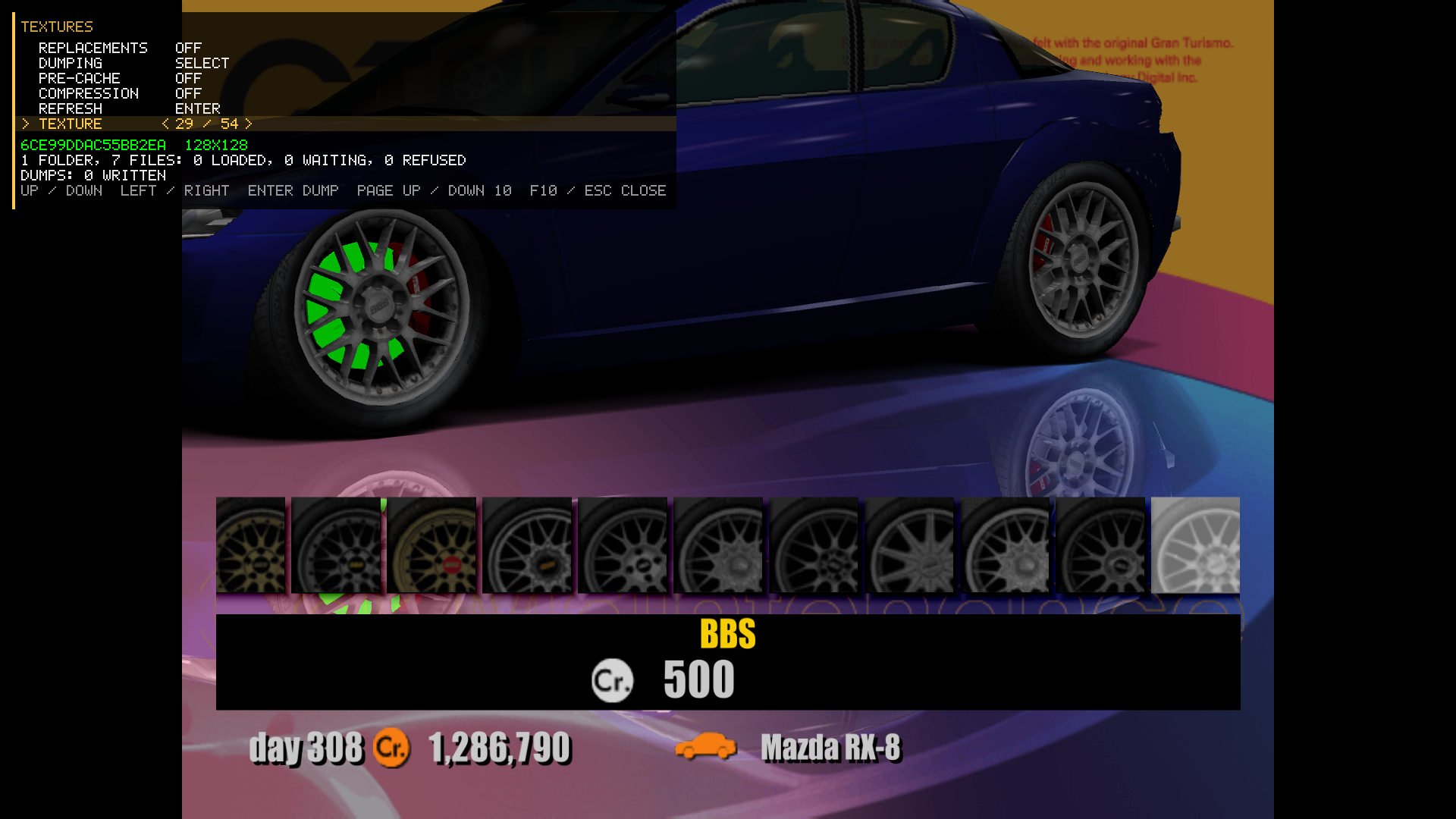
> Toggle Replacements on/off in the popup window or the hotkey
> Toggle Texture Dumping with 2 modes: Select and All. Select allows finding one texture on-screen and dumping only that one.
> Pre-Cache mode: Allows caching texture replacements for better performance. Keep it off while making replacements.
> Compression: Turn on to save disk space
> Refresh Button / Texture selector in the popup window

- Dumped textures go into the tex_replacements folder, under either dumps, or dumps_selected.
- When dumping textures in All mode, they only dump upon being loaded into memory.
- To use replacements, add a texture replacement folder in the textures manager in the launcher.

- Textures are hashed by content only, so no ghost / duplicate dumps can occur.
- Mod manager
The launcher features a manager for mod folders.
Mods that have unique game files specific to it are added here.
Mod folders can use `mod.png` and `mod.txt` for its thumbnail image and description.
The manager also has a template mod folder maker.
- Texture pack manager
The launcher features a manager for texture packs.
Texture pack folder can use `mod.png` and `mod.txt` for its thumbnail image and description.
- I.Link is untouched.
Online functionality will not be added to this project.
If you want to make an online version of this, see the plugin system below
- Game Engine Plugins
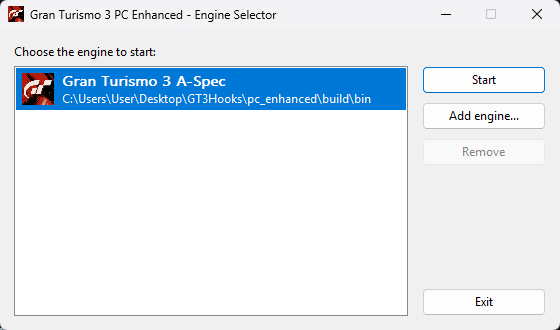
GT3 PC Enhanced supports overrides of the launcher and game executable with its engine plugin system.
A custom launcher and executable can be created and integrated into the base launcher as a selectable game engine
in it's own folder separate from the base Gran Turismo 3: A-Spec engine this project provides.

This allows easy support for mods that make engine changes without over-complicating the installation process.
Because custom engines fully override the default launcher and executable, mods can have fully custom launchers
and their own settings. All engines share the same gt3pc.ini settings file, so your settings are retained across
different engines. Only the game data (mod folders) are separately configured per-engine.

To make a custom build of this project as a plugin, simply run `Build Mod Plugin.cmd`, then find the output in `build/plugins`.
Inside the plugin's folder is `engine.txt`, this allows you to set the mod's title.
Settings
Display
- Windowed, Borderless, and Exclusive Fullscreen support
- Fully dynamic resolution
- Effective frame rate control: VSync (1-3 frame buffer), or Frame Time control
- Frame rate monitor
- Multi-Monitor Support: Play with multiple monitors
- Split-Screen Multi-monitor: 2-Player mode can make use of a 2nd Monitor
- Menus aspect ratio control
- Movie aspect ratio control
Graphics
- Resolution: 10% - 400% Supersampling * The current window size
- Anti-Aliasing: FXAA, MSAA, AGSS
- Anisotropic Filtering: Up to 16x
- Detail: Can force the game to always use the best LOD
- Road Reflection Quality
- Road Reflection Resolution
- Car Reflections Quality
- Environment Map Detail / Resolution
- Depth of Field effect in replays
- Render distance modifier
- Showroom Wheel models in races
- Showroom Tire models in races
Cameras
- Field of View modifiers
- Rear view mirror toggles
- Replay cameras during races
- Chase cam angle modifier
- Cockpit camera & settings
- Use the car's showroom model while in the cockpit view (good for the few convertibles in the game)
- Custom Cameras: Create your own global camera or per-car cameras Position, tilt, angle, and rigidity settings
Split Screen
- Split screen display modes
Audio
- Volume controls
- Two audio output options: Kernel Streaming for ultra-low latency, or Windows WASAPI
Game Settings
- Language
- Units
- Starting Credits: Default, 15,000, 18,000, custom
- HUD Settings:
- HUD layout settings
- HUD element color customizer
- Extra features and modifiers
- Course Scaler: Distort tracks by scaling their x, y, or z axes
- Prize Car Randomizer: Awarded prize cars are fully random, not seeded.
- Prize pool includes unused cars found in the game's files and database, such as developer sample cars
- Course Randomizer: GT Mode Races use a random course + Icon change to ?
- Unrestricted wheels: Any car can enter the wheel shop
- Buy cars not for sale
- Cars in a race
- Rev Cut behavior
- Gear Shift behavior
- Car Grip / Power / Tire wear modifiers
- Surface modifiers
Challenge Modes
- Money Decay: You lose more money each day. Can you stay ahead of the daily tax?
- Car Decay: Your cars become weaker each day. Find the optimal route to win every race.
- Course Shrinkage: Courses get smaller each day. Can you make it to the end before traffic jams?
Controls
- Keyboard / Mouse, Controllers, and Wheels are supported
- Button mappings
- Deadzone calibration
- Hotkey mappings
- Debug Camera mappings
Developer Settings
- Logging
- Fill garage: Gives every car in every color on a new game
- Fill money: A large amount of credits on a new game
- Unlock Arcade tracks: Unlocks every track in every mode, including ones that weren't available in certain modes
- Unlock all licenses: Sets a bronze medal on every license test
- Course forcer: Any race loads the selected course file instead.
- Lap forcer: Any race has this many laps.
- Race Time forcer: Any timed race lasts this long.
- Course Mode forcer: Forces a certain finish line position
- Race model in menus: Loads the race model of a car in menus w/ LOD level selector
Technical
File jumping + References in source code
1. Install the C/C++ extension in VS Code
In the Extensions view (Ctrl+Shift+X), search for C/C++ by Microsoft. This is what does the jumping.
2. Run setup.cmd
It installs or completes Visual Studio Build Tools; expect a UAC prompt and an installer window the first time. Then it sets up build. That step writes build\compile_commands.json, the file navigation needs. You don't have to build the game first.
3. Open the repo in VS Code with File > Open Folder.
The shipped .vscode/settings.json finds the compile database relative to the folder you open.
4. Let it index.
The first time, the status bar shows IntelliSense working through ~650 files for a few minutes. After that, it opens instantly. If the CMake Tools extension is installed and offers to configure the project, decline. It isn't needed, and its default settings may try a 64-bit setup in build, which this project refuses.
5. Usage
| Key | Function |
|---|---|
| F12 / Ctrl+click | go to definition |
| Alt+F12 | peek the definition in place |
| Shift+F12 | find all references |
| Alt+← / Alt+→ | back / forward through your jumps |
| Ctrl+P | open a file by name |
| Ctrl+T | find a function or class anywhere |
Adding or renaming source files needs nothing extra: the next build.cmd updates the compile database by itself.
6. If jumping doesn't work
- No build\compile_commands.json: run setup.cmd or build.cmd again.
- Wrong folder open: File > Open Folder on the repo root itself.
- Results look stale or incomplete: Ctrl+Shift+P, then C/C++: Reset IntelliSense Database, then let it re-index.
- A .vscode\c_cpp_properties.json exists (VS Code sometimes offers to create one): its settings win over the shipped one. Delete it, or add "compileCommands": "${workspaceFolder}/build/compile_commands.json" to it.