James Pond 2: Codename RoboCod - Recompiled
James Pond 2: Codename RoboCod - Recompiled is a native PC port of James Pond 2: Codename RoboCod for Windows, macOS, Linux, and Android with widescreen, smooth motion, and a pause menu.
- Type: PC port
- Game: James Pond 2: Codename RoboCod
- Runs on Windows
- By Gary Riches
- Latest release v1.0.4, 2026-10-28
- Source: https://github.com/griches/JamesPond2RobocodRecomp
README
James Pond 2: Codename RoboCod — Recompiled



A native version of the Amiga classic James Pond 2: Codename RoboCod (Millennium, 1991) for Windows, macOS, Steam Deck and Linux, Android and PlayStation 5. The game's 68000 code has been translated into C++, so it runs as a program of its own instead of in an emulator, and it adds what the Amiga never had: true widescreen, smooth motion at your display's refresh rate, a pause menu with saves, a level select, a CRT filter, controller rumble and more.
Important
You need your own copy of the game: an Amiga disk image of James Pond 2: Codename RoboCod. No game data is included.
Contents
- What's new
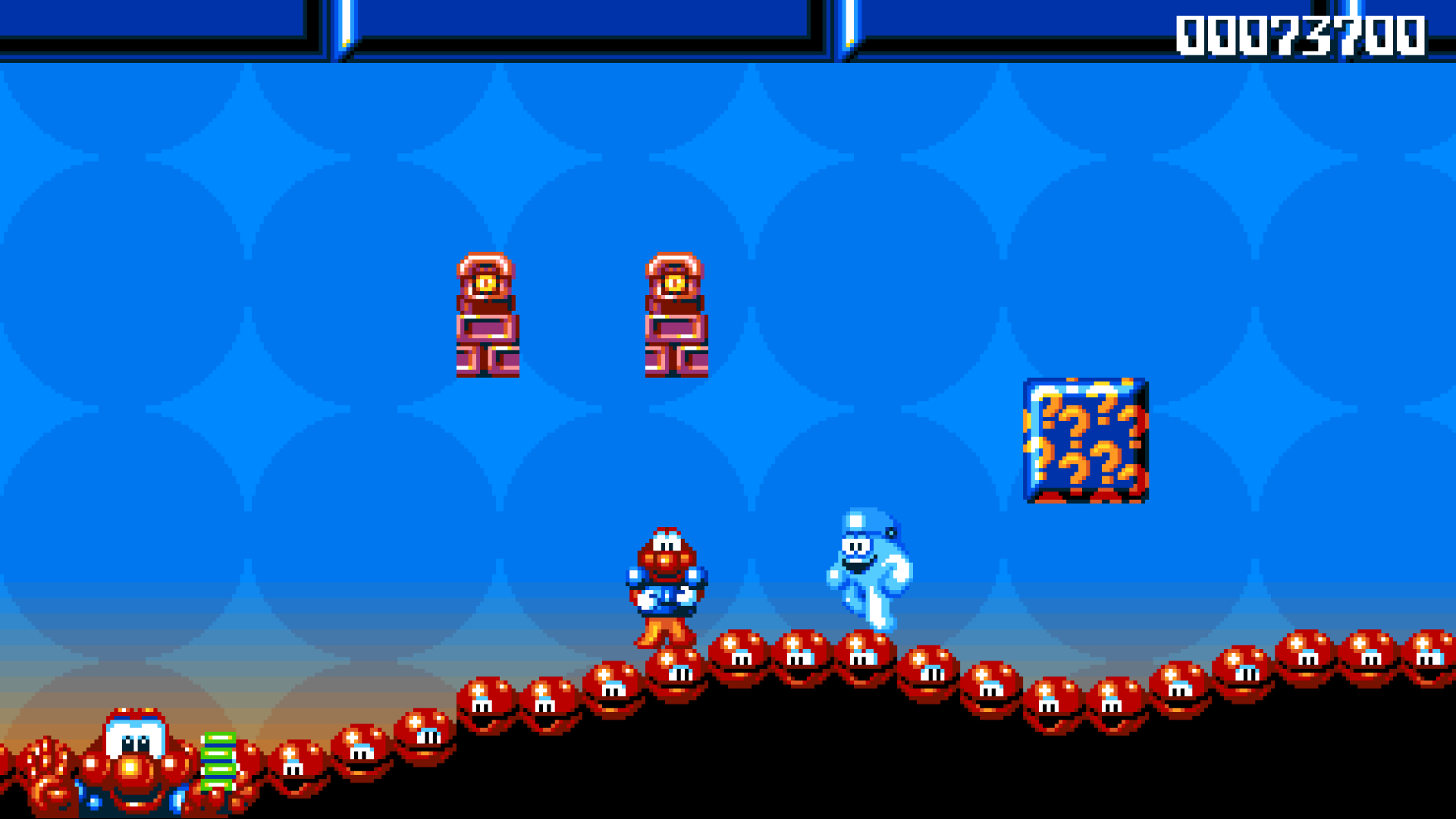
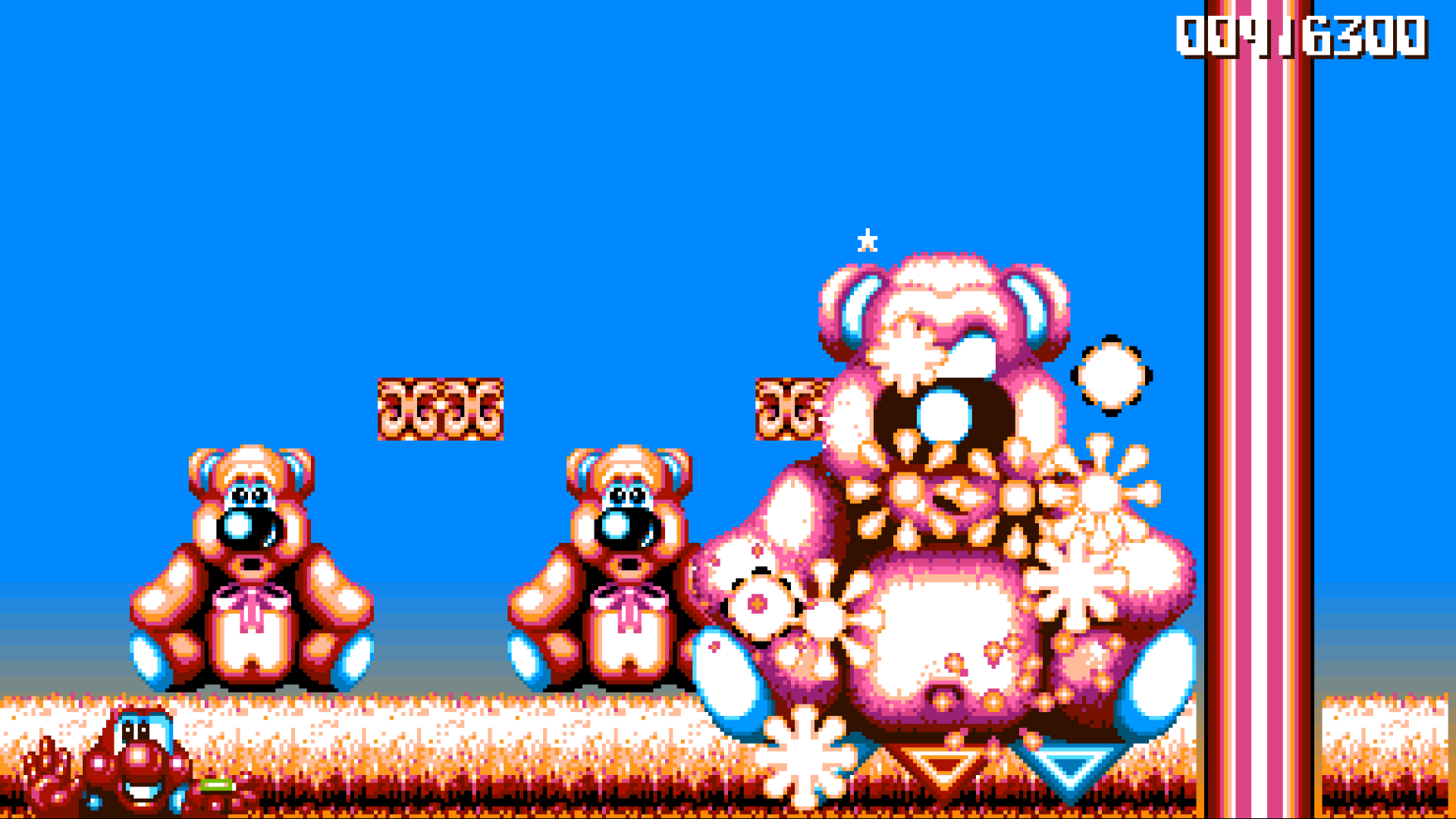
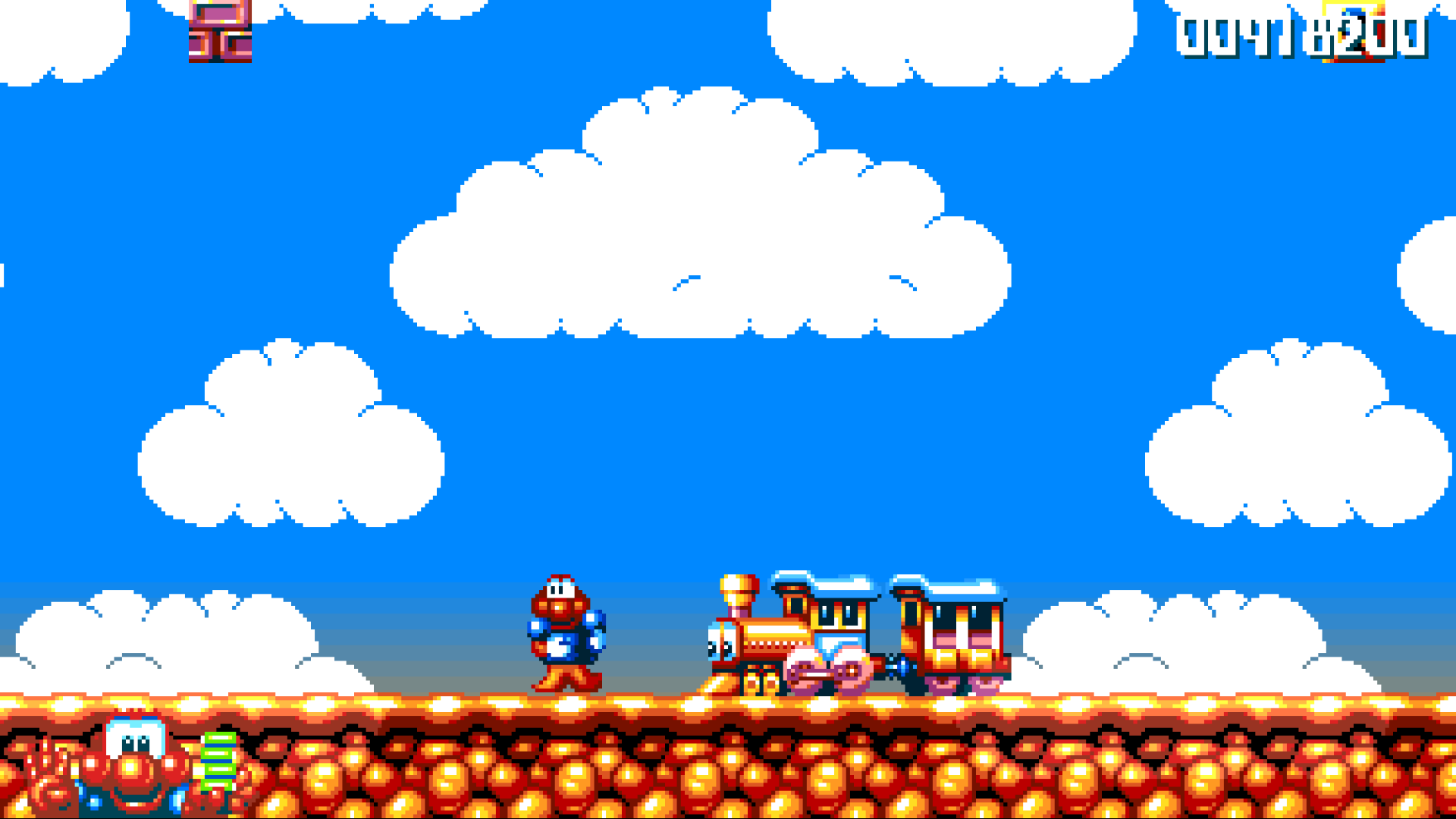
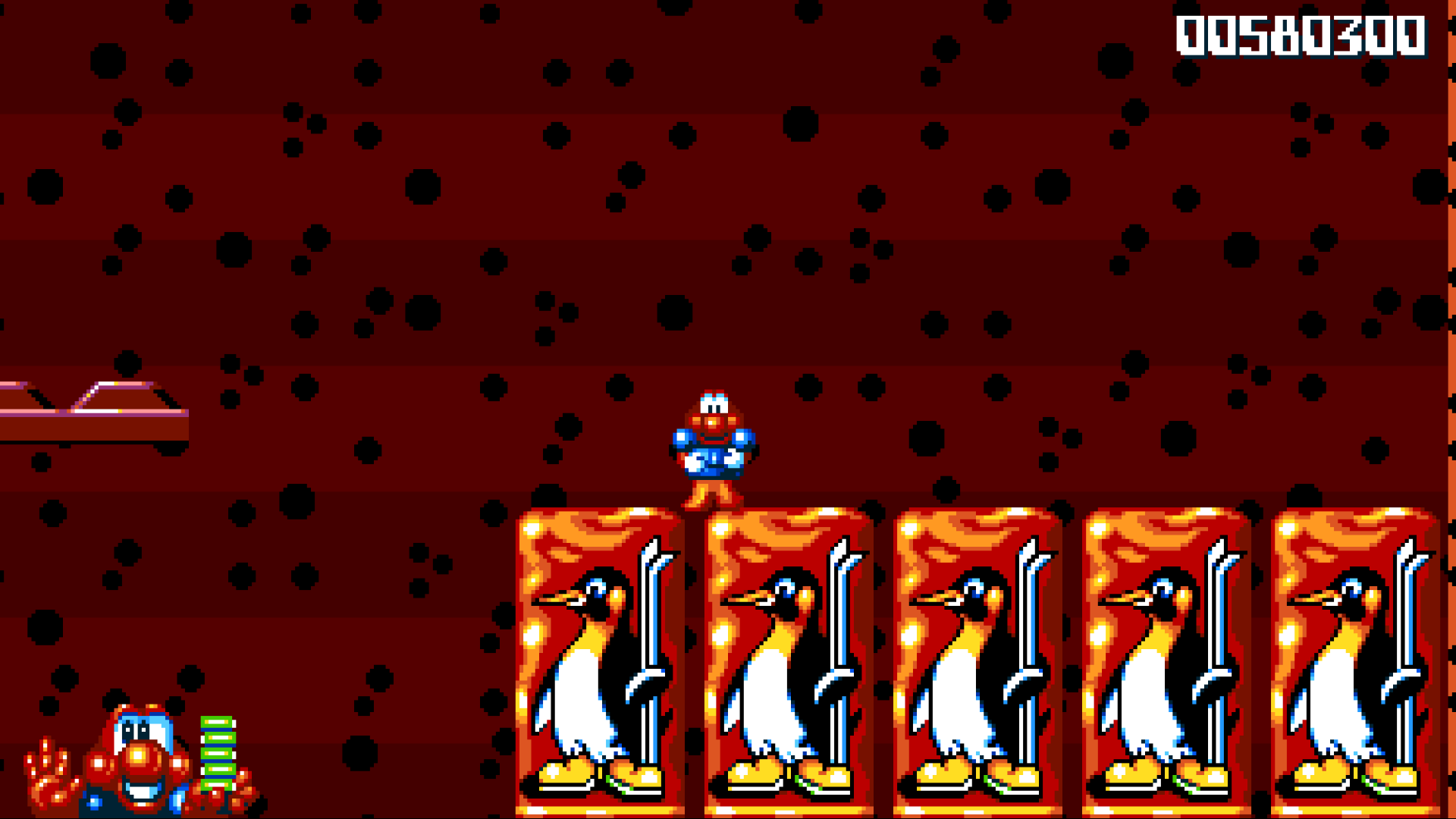
- Screenshots
- What you need
- Install: Windows · macOS · Steam Deck · Linux · Android · PlayStation 5
- Controls
- The menu
- Saves and settings
- Help
- Building from source
- Credits and licences
What's new
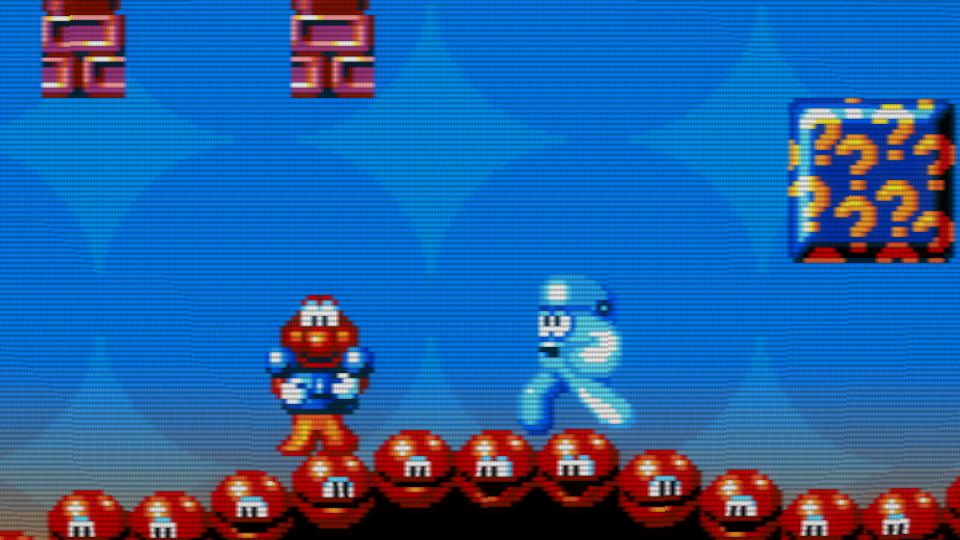
- Widescreen. The game is redrawn wider from its own state: scenery, background, enemies and items, not stretched. The score and lives move to the corners of the screen. Turn it off for the original 4:3 picture.
- Smooth motion. The game still thinks at the Amiga's 50 frames a second; the picture in between is drawn at your display's own rate (60, 90, 120 Hz or more), so scrolling is smooth.
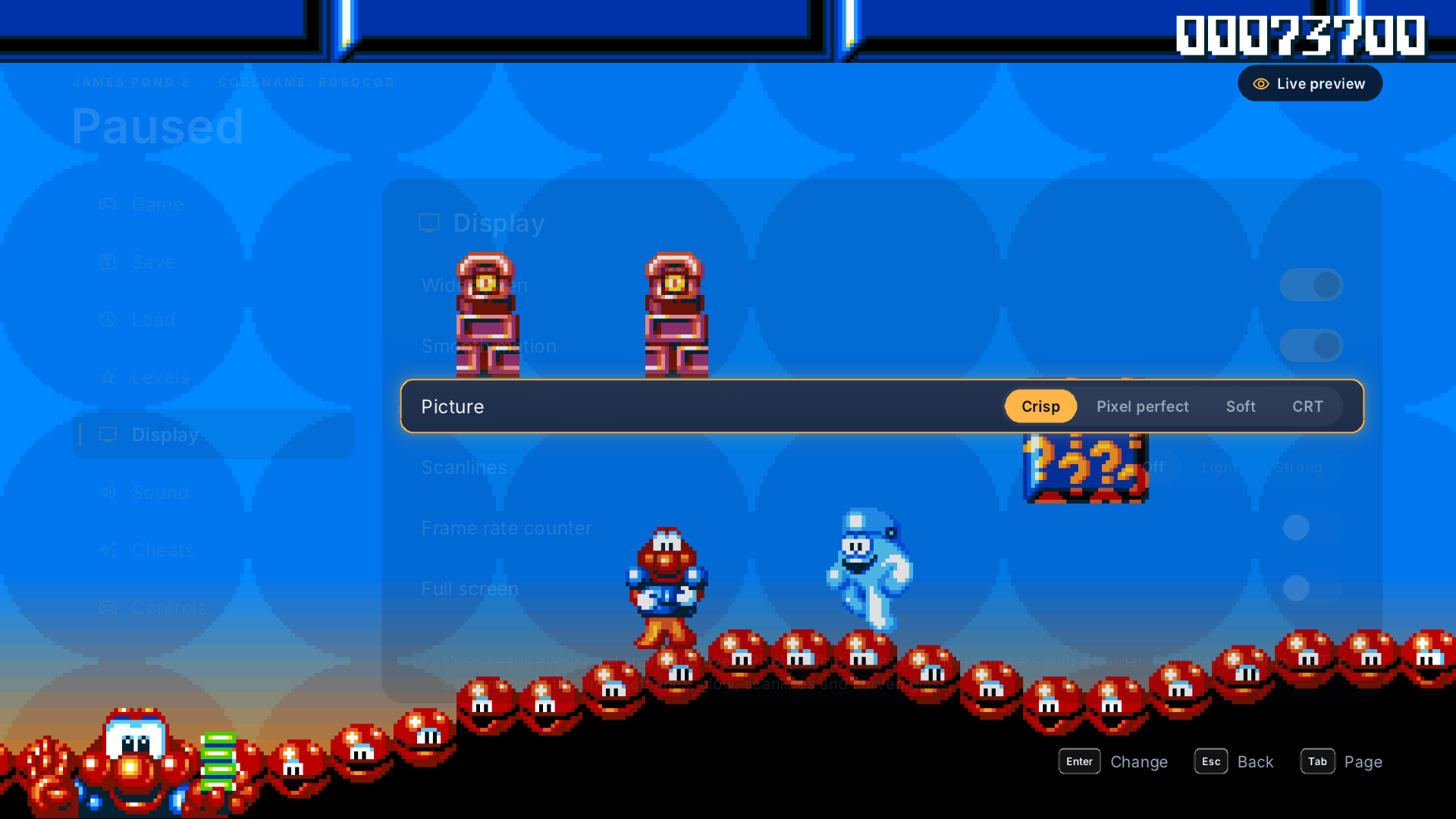
- Picture. Crisp, pixel perfect, soft or CRT (curved glass, glow and the fine colour stripes of a television's screen), with optional scanlines.
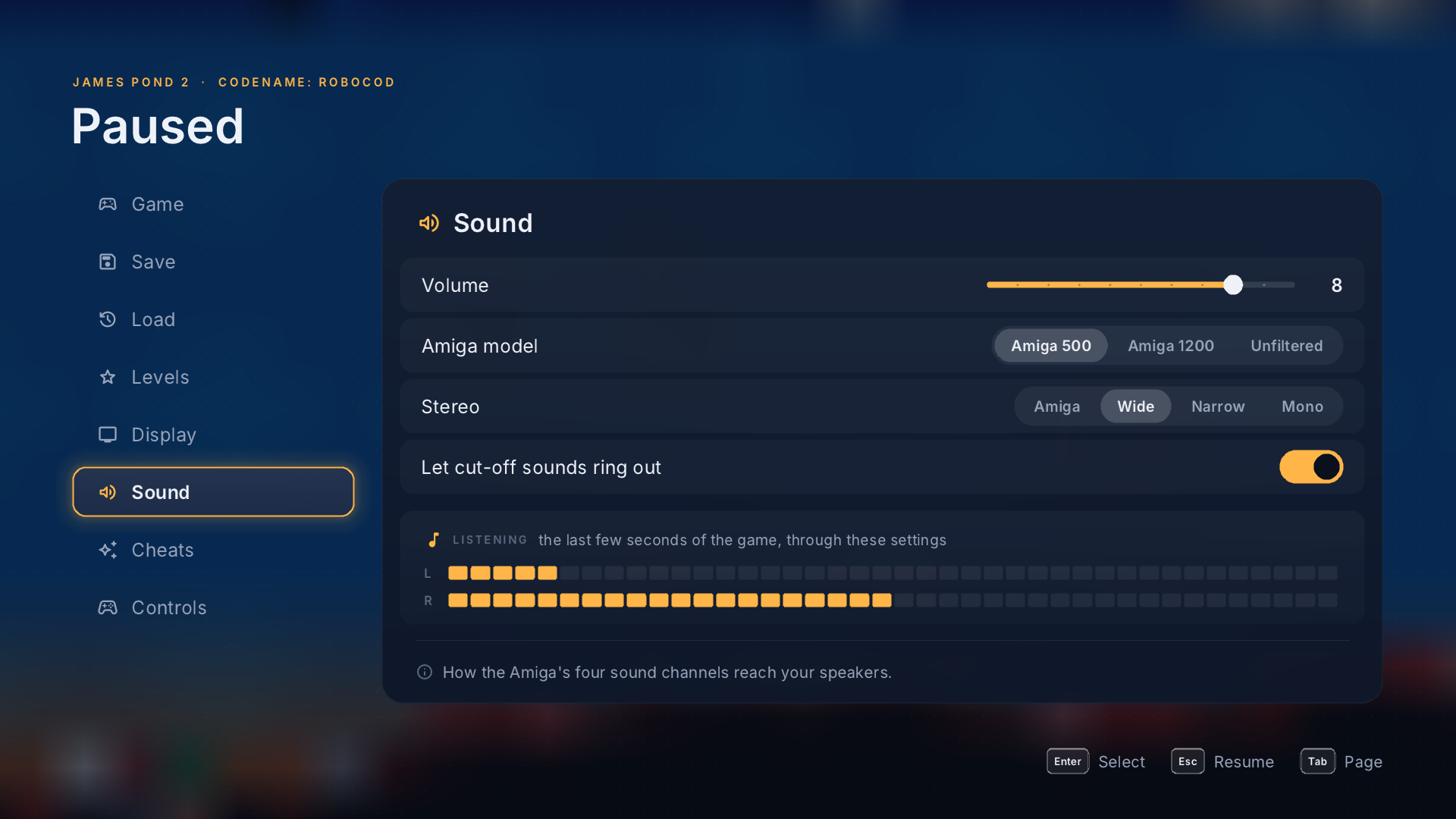
- Amiga sound. The four sound channels go through a model of the Amiga 500's output filter (or the Amiga 1200's, or none), with stereo you can narrow for headphones. Sounds the game cut off abruptly can fade out instead.
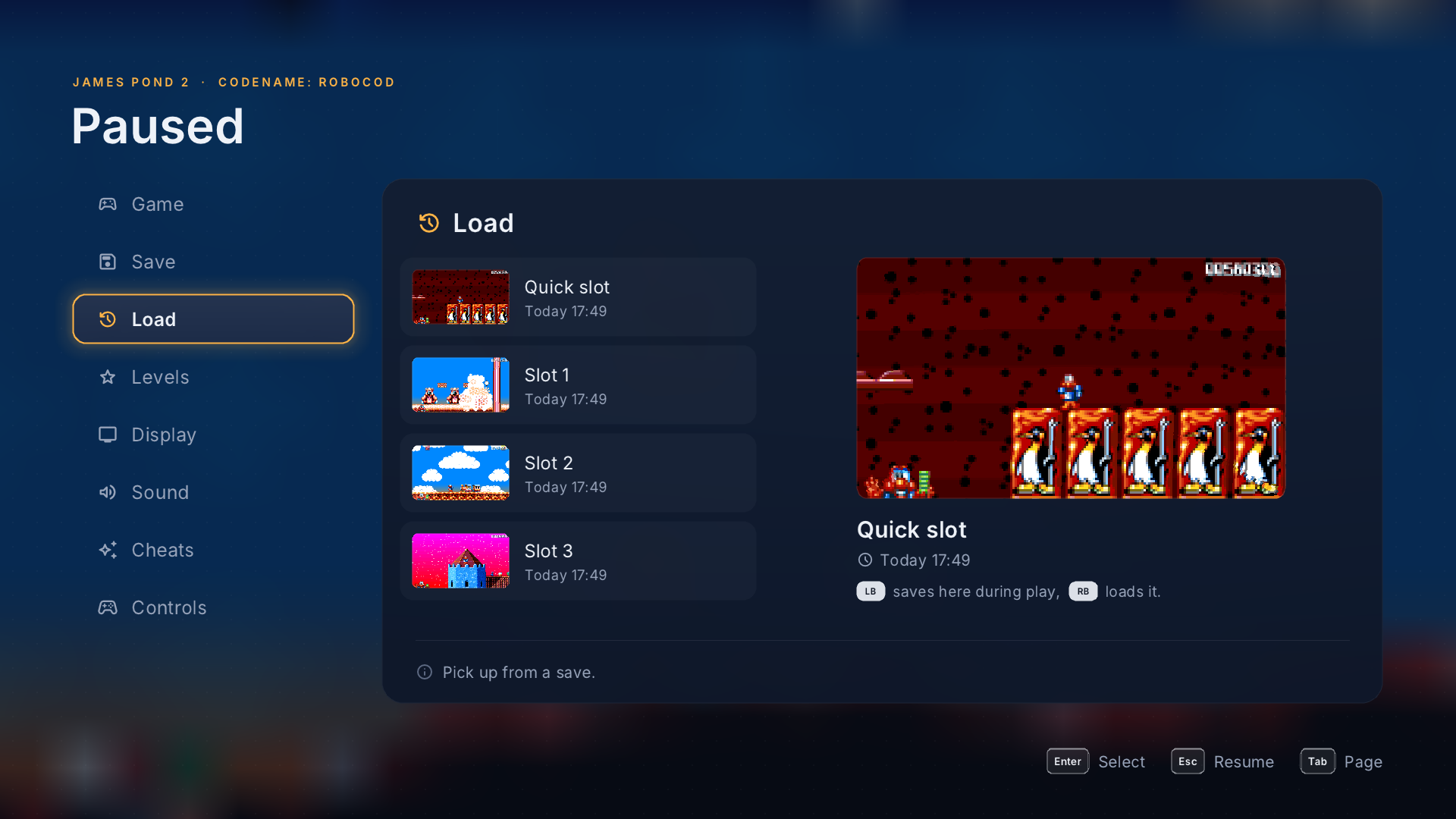
- Saves. A quick save on one button, three save slots with pictures, and on your next start an offer to carry on where you left off.
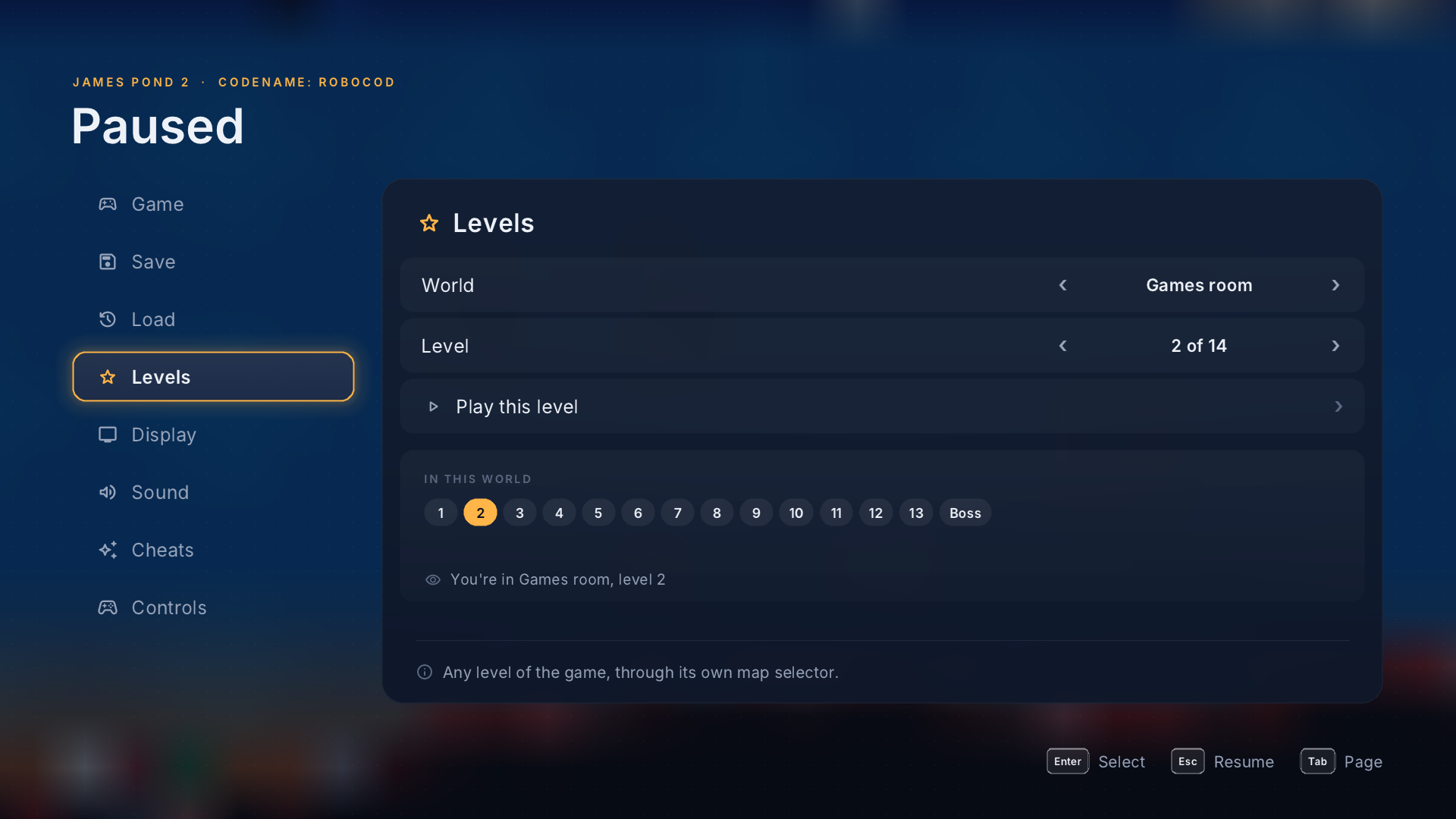
- Level select. Play any level of any world from the menu.
- Cheats. The game's own: invincibility, infinite lives, wings and skip to the exit, without typing the secret word.
- Rumble. A buzz when Robocod is hit or loses a life, a thump with each explosion and a shake when the screen shakes, at the strength you choose.
- Controllers. Xbox, PlayStation, Nintendo and Steam Deck buttons are shown as they appear on your controller.
Screenshots
 |  |
 | 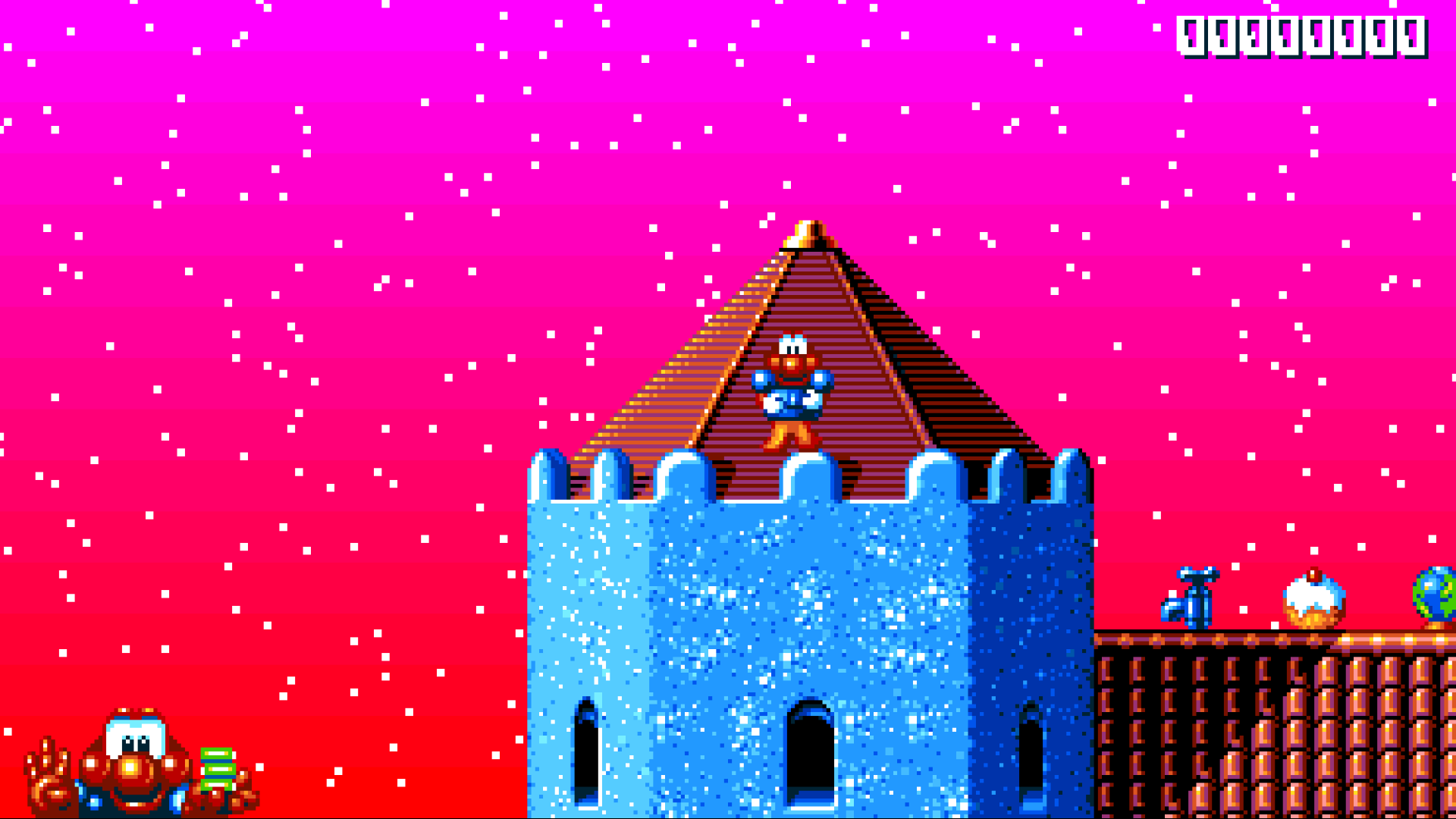 |
 |  |
 |  |
 |  |
What you need
-
Your own disk image of the Amiga game. These work:
- an
.adfdisk image of the Kixx re-release or one of the common cracked disks (for example Skid Row's); - the same packed as
.adz(gzip) or inside a.zip; - a WHDLoad install folder of the game.
These don't, yet: the original Millennium release, raw-track ("extended ADF") dumps of the copy-protected disk,
.dmsand.ipfimages. The game tells you which you have; see Help. - an
-
For Android: a device with a controller, its own or one connected over Bluetooth or USB.
-
For the PlayStation 5: a console that runs homebrew, with an FTP server and a way to register a title folder (ShadowMountPlus, for example).
Install
Windows
- Download
JamesPond2-Windows-<version>.zipfrom the releases and unzip it anywhere, for example intoDocuments. - Open the
JamesPond2folder and start James Pond 2.exe. - The first time, the game asks for your disk. It lists any it finds in your Downloads, Desktop and Documents folders; choose one, choose Choose a disk image… to pick it yourself, or drop the file on the window. The disk is copied into the game's own folder, so this happens only once.
Needs 64-bit Windows 10 or 11. If Windows SmartScreen warns about an unknown app, choose More info, then Run anyway.
macOS
- Download
JamesPond2-macOS-<version>.zipfrom the releases and unzip it. - Move James Pond 2.app to your Applications folder and open it.
- The first time, the game asks for your disk. It lists any it finds in your Downloads, Desktop and Documents folders; choose one, choose Choose a disk image… to pick it yourself, or drop the file on the window. The disk is copied into the game's own folder, so this happens only once.
Needs macOS 13 or later, on Apple silicon or Intel.
Steam Deck
- In Desktop Mode, download
JamesPond2-Linux-<version>.tar.gzfrom the releases and unpack it into a folder of your choice, for example~/Games/JamesPond2. - Put your disk image next to
jp2and name itjp2.adf, or leave it anywhere and choose it on the first start: the game looks in your Downloads, Desktop and Documents, EmuDeck's Amiga folders and SD cards. - In Steam, choose Add a Game → Add a Non-Steam Game…, browse to the
folder and add
run.sh. Rename the entry James Pond 2 if you like. - Back in Game Mode, start it from your library. The Deck's buttons are shown in the menus, and the picture fills the Deck's 16:10 screen.
If the Deck's controls don't respond, set the game's controller layout in Steam to Gamepad.
Linux
As for the Steam Deck: unpack JamesPond2-Linux-<version>.tar.gz and run
./jp2 (or ./run.sh for full screen). The program needs only the C
library, so it runs on most 64-bit x86 distributions.
Android
For Android handhelds (Retroid Pocket, AYN Odin, Anbernic and the like), Android TV boxes, and phones or tablets with a controller.
- Download
JamesPond2-Android-<version>.apkfrom the releases and open it on the device to install it. Android asks you to allow installing apps from wherever you opened it (the browser or the file manager) the first time. From a computer,adb install JamesPond2-Android-<version>.apkdoes the same. - Start James Pond 2. The first time, the game asks for your disk: choose Choose a disk image… and pick it in Android's file picker. The disk is copied into the game's own folder, so this happens only once.
Without a file picker (some Android TV boxes), copy the disk over USB into
Android/data/mobi.bouncingball.jamespond2/files on the device's storage
(the folder is there after the first start), then choose Look again.
Needs Android 7 or later on a 64-bit ARM device. The game is played with a controller, and Back does what Esc does: it opens the menu, and goes back in it. A handheld whose built-in controls have no rumble motor of their own buzzes with the device's vibration motor instead.
PlayStation 5
- Download
JamesPond2-PS5-<version>.zipfrom the releases and unzip it. You get aPPSA99323folder. - Copy the whole
PPSA99323folder to/data/homebrew/on the console over FTP. - Copy your disk image into
/data/homebrew/PPSA99323/. Any file name works. - Register the title (ShadowMountPlus does this when it scans
/data/homebrew) and start James Pond 2: Codename RoboCod from the home screen. It plays from your disk straight away; there's nothing to unpack or prepare first.
If you start it before the disk is there, it shows where the disk goes. Copy it in, then choose Look again.
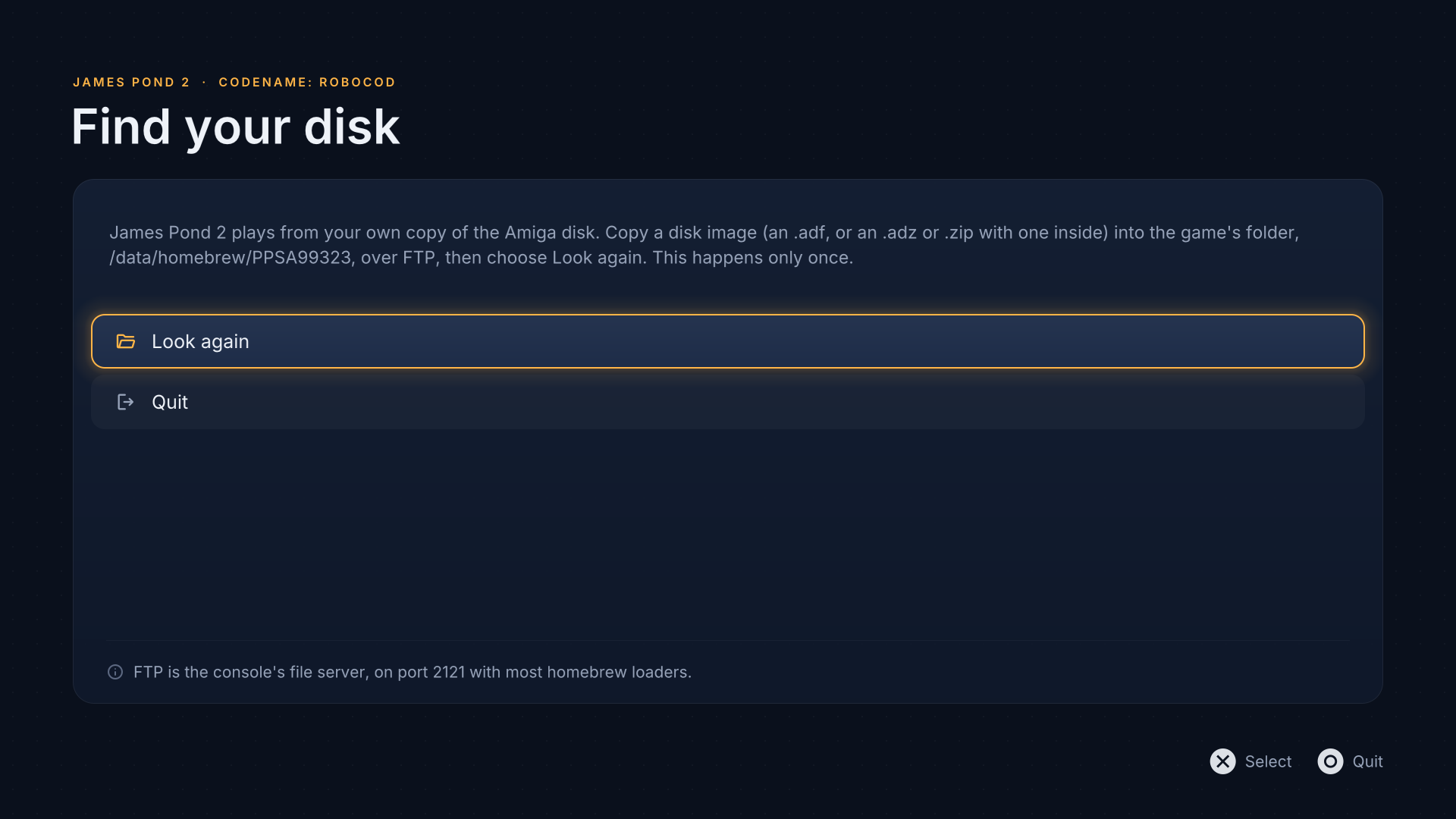
The game runs at 4K. Saves and settings stay in the title's folder, so keep
userdata/ if you reinstall.
Controls
| Action | Controller | Keyboard |
|---|---|---|
| Move | D-pad or left stick | Arrow keys |
| Jump | A (✕) | ↑ |
| Stretch up | B or X (○ or □) | Space or Right Ctrl |
| Quick save / quick load | L1 / R1 | F5 / F8 (or 1 / 2) |
| Smooth motion on or off | Y (△) | 4 |
| Widescreen on or off | 3 | |
| Menu | Menu or View (Options or Create) | Esc |
On the Amiga, pushing the joystick up also jumped. That's off by default so the stick can't jump by accident; turn on Up also jumps in the Controls menu to get it back.
Hold down while you fall to curl up into a ball: that's how Robocod squashes enemies and bosses, as in the original.
In the menu: move with the D-pad or arrow keys, choose with A (✕) or Enter, go back with B (○) or Esc, and change page with L1 / R1 or Tab.
The menu
Press Menu (Options on a PlayStation controller) or Esc at any time.
| Page | What it has |
|---|---|
| Game | Resume, quit to the title screen, quit the game; your score, lives and energy |
| Save | The quick slot and three slots, each with a picture and the time it was saved |
| Load | The same slots, to load from |
| Levels | Any level of any world; Play this level takes you there |
| Display | Widescreen, smooth motion, picture (crisp, pixel perfect, soft, CRT), scanlines, a frame rate counter, full screen |
| Sound | Volume, Amiga model (Amiga 500, Amiga 1200, unfiltered), stereo width, let cut-off sounds ring out |
| Cheats | Invincible, infinite lives, wings, skip to the exit |
| Controls | Up also jumps, rumble strength (off, 1–10), and every button and key |
While a Display setting is selected, the menu fades so you can see the change on the game itself. On the Sound page, the last few seconds of the game play again through the settings you choose.
Saves and settings
Everything the game keeps is in one folder:
| System | Folder |
|---|---|
| Windows | %APPDATA%\bouncingball\James Pond 2\ |
| macOS | ~/Library/Application Support/bouncingball/James Pond 2/ |
| Steam Deck and Linux | ~/.local/share/bouncingball/James Pond 2/ |
| Android | the game's own storage, which Clear storage in Android's settings for the app empties |
| PlayStation 5 | /data/homebrew/PPSA99323/userdata/bouncingball/James Pond 2/ |
quicksave.jp2s,slot1.jp2s…slot3.jp2s: your saves (the.thumbfiles beside them are their pictures);resume.jp2s: where you were when you last quit in the middle of a level;settings.ini: your menu settings;disk.adf: the copy of your disk the game plays from (Windows, macOS, Linux, Android).
Saves belong to your disk: a save made with one release of the game won't load with another.
Help
The game says my disk isn't supported. It names what it found:
| Message | What to do |
|---|---|
| the original Millennium release, which isn't supported yet | Use the Kixx re-release, its WHDLoad install or a cracked disk |
| a raw-track image (extended ADF) | Use a standard .adf of a cracked or Kixx disk |
| DMS images aren't supported | Turn it into an ADF first; xDMS or WinUAE can |
| IPF images aren't supported | Use a standard .adf |
| that's an LHA archive | Unpack it and choose the folder (a WHDLoad install) |
| this isn't the Amiga (OCS) James Pond 2 disk | The file is another game, or another machine's version |
I want to use a different disk. Delete disk.adf from the saves folder
(above) and start the game again; it asks for one. On Android, Clear
storage for the app does it, but takes your saves and settings with it.
Windows says it protected your PC. That's SmartScreen, which warns about programs it hasn't seen often. Choose More info, then Run anyway.
The picture is too sharp, or too soft. Try the other Picture settings in the Display menu. Pixel perfect keeps every pixel the same size; CRT looks like an old television.
Scrolling stutters. Make sure Smooth motion is on (Display menu, or press Y / 4). The frame rate counter in the Display menu shows what your display is getting.
The music sounds muffled. That's the Amiga 500's filter, as most people heard the game. Choose Amiga 1200 or Unfiltered in the Sound menu for a brighter sound.
Robocod can't go back left through some tubes. That's the original game: some of the narrow sloping tubes only let him through in one direction.
Android: the controller does nothing. Press any button on it: the game reads the controller used last, and Android counts some devices that aren't controllers (a TV box's remote, for one) as controllers too.
PlayStation 5: the title doesn't show on the home screen. Run
ShadowMountPlus's scan again, or restart the console with the folder in
/data/homebrew/.
PlayStation 5: the game can't find the disk. It must be directly in
/data/homebrew/PPSA99323/ (or one folder below it), as an .adf, .adz
or .zip.
Building from source
See docs/BUILDING.md. In short: the recompiler reads your disk image and writes the game's code as C++, which is then compiled with the runtime (the Amiga's custom chips, sound and the new features) against SDL3. The generated code is made from your disk on your machine and is never part of this repository.
Credits and licences
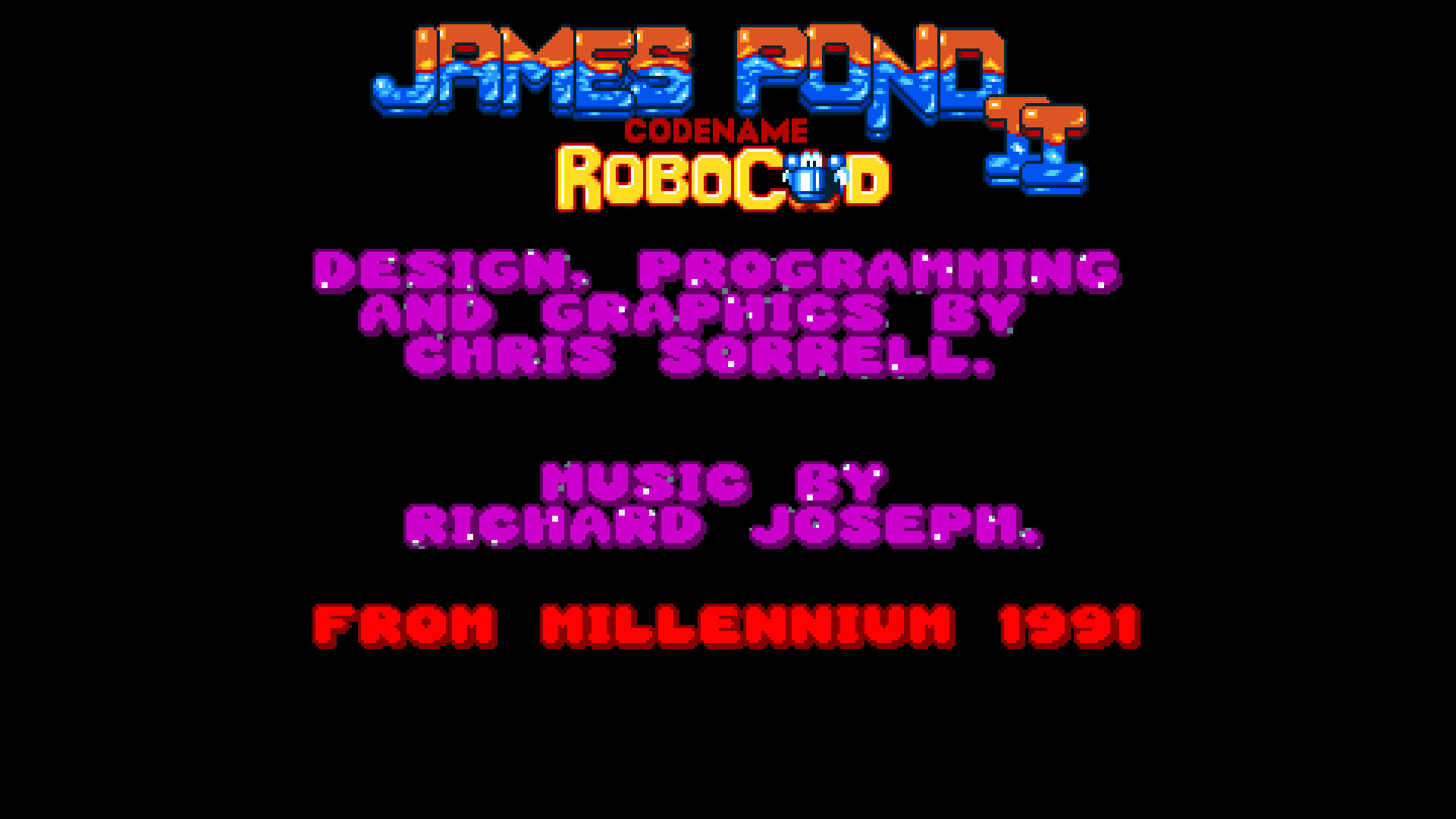
James Pond 2: Codename RoboCod was designed, programmed and drawn by Chris Sorrell, with music by Richard Joseph, and published by Millennium in 1991. This project is not affiliated with or endorsed by its rights holders, and contains none of the game: you play it from your own copy.
Built with:
- SDL3 (zlib licence)
- Musashi, Karl Stenerud's 68000 emulator, for code the recompiler hasn't translated (MIT licence)
- stb_truetype (public domain)
- puff, Mark Adler's inflater, for zipped disks (zlib licence)
- Inter (SIL Open Font License) and Material Symbols (Apache 2.0) in the menus
- On the PlayStation 5: PS5_Vulkan and Mesa's RADV for the graphics
Their licence texts are in vendor/, res/fonts/, and beside the program in
each release.
This project's own code is licensed under the GNU General Public License v3.0.