killzone-shadowfall-pc
Killzone Shadow Fall for PC is a native Windows port of the PlayStation 4 game that runs the game's code directly on your CPU and translates graphics to Vulkan in real time.
- Type: PC port
- Game: Killzone Shadow Fall
- Runs on Windows
- By lesca-191204
- Latest release v0.6.0, 2026-10-25
- Source: https://github.com/lesca-191204/killzone-shadowfall-pc
README
Killzone Shadow Fall for PC
English | Español



💬 We have a Discord! The community server is the place to report problems, tell us what you'd like to see next, and hear first about new ports and how to support them. 👉 discord.gg/UYFcV5rbDw
❤️ The ports are and will stay free. If you want to help, a PayPal donation is welcome but completely optional.
Native Windows port of Killzone Shadow Fall (PS4). The game's code runs directly on your CPU; graphics are translated to Vulkan in real time. Public beta: the whole campaign is playable, and it keeps improving with every report.
🆕 0.6.0: 🎮 Xbox button icons · 🏔️ detail distance (LOD) · 🔭 FOV up to 200% · 🚀 faster shaders · 🛠️ 12 issues fixed or improved (crashes, AMD, 4 GB cards, launcher).
⚠️ No game files are included. You need your own dumped copy of the game, version 01.81: CUSA00190 (the tested one) or another region (see Game versions). This project is not affiliated with Sony Interactive Entertainment or Guerrilla Games. Killzone is a trademark of Sony Interactive Entertainment.

📥 Download and play
- Download the latest zip from Releases and unzip it anywhere (outside "Program Files").
- Open Killzone Shadow Fall.exe, choose your dump's folder (the one holding
eboot.bin). - Press PLAY. The launcher updates itself when a new version comes out, keeping your saves.
| Minimum / recommended | |
|---|---|
| 🪟 System | Windows 10 (1903+) or 11, 64-bit |
| 🎮 GPU | Vulkan 1.3 · 4-6 GB VRAM for 1080p-1440p, 8 GB for 1800p and 4K |
| 🧠 RAM | 16 GB |
| ✅ Tested on | Ryzen 7 5700 + RTX 2060 Super (8 GB): playable from start to finish |
Not tested yet on AMD GPUs or Intel CPUs: reports are very welcome.
🎮 Controls
🦉 The OWL drone on keyboard and mouse: hold Delete and move the mouse. That is your finger on the PS4 touchpad: swipe to choose the OWL's command, just like on the controller. The game also reminds you for a few seconds when it starts.
Keyboard and mouse (shooter-style defaults; change any key in the launcher → Controls):
| Action | Key | Action | Key | |
|---|---|---|---|---|
| Move | W A S D | Camera | Mouse (direct, 1:1) | |
| Fire (R2) | Left click | Aim (L2) | Right click | |
| Jump / ✕ | Space | ○ (crouch) | C | |
| □ (reload / use) | R | △ (weapon) | Q | |
| L1 / R1 | 1 / 3 | Sprint (L3) | Left Shift | |
| Melee (R3) | F | D-pad | Arrow keys | |
| Options (pause) | Enter | Touchpad click ← / → | Tab / Backspace | |
| 🦉 OWL (touchpad) | Hold Delete + mouse | Free the cursor | Left Alt |
Controller: Xbox, DualShock 4, DualSense and any SDL-compatible pad, with remappable buttons, stick dead zone, vibration and controller speaker volume.
Shortcuts while playing:
| Shortcut | What it does |
|---|---|
| Insert · R3 + L2 | Opens the in-game menu (all the settings below) |
| Hold Share / View / Select (~1 s) | Quick menu: Resume · Settings · Exit game (controller only) |
| Esc · Circle / B | Closes the menu |
| L1 / R1 · Q / E | Switch menu tabs |
| F12 | Screenshot (user\ps4\screenshots) |
| F9 · F10 | Free camera on / off · back to the player (Cheats) |
| Alt + F4 | Closes the game |
✨ Features
🎯 Direct mouse aim (1:1)
The mouse turns the camera directly: no emulated stick, no dead zone, no response curve and no speed cap. In practice it plays almost exactly like a PC shooter.
- Sensitivity: about 1 is recommended (higher values turn very fast).
- Fast turns (x1 to x12, x6 by default): while the mouse moves, the game's turn speed limit is raised so a quick 90° or 180° flick isn't held back. A controller keeps the game's own feel.
- Invert Y axis.
- ℹ️ By the game's design, the camera turns at a different speed when you walk than when you sprint, so walking without sprinting can still feel a little different. Sprinting and aiming behave like a true 1:1 mouse.
- Change all of it in the launcher (Controls) or live in the in-game menu (Controls tab).
🔭 Field of view (FOV)
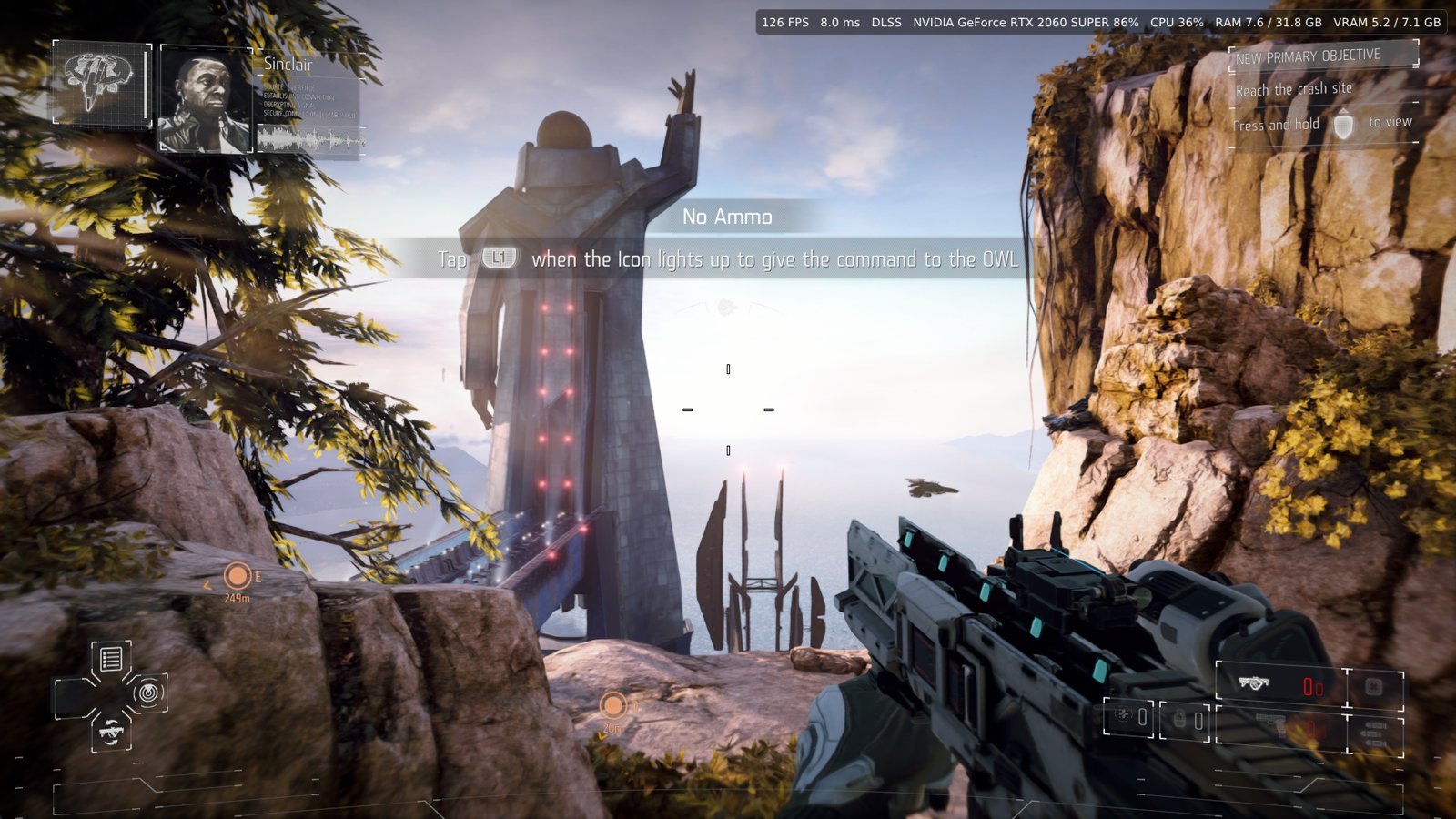
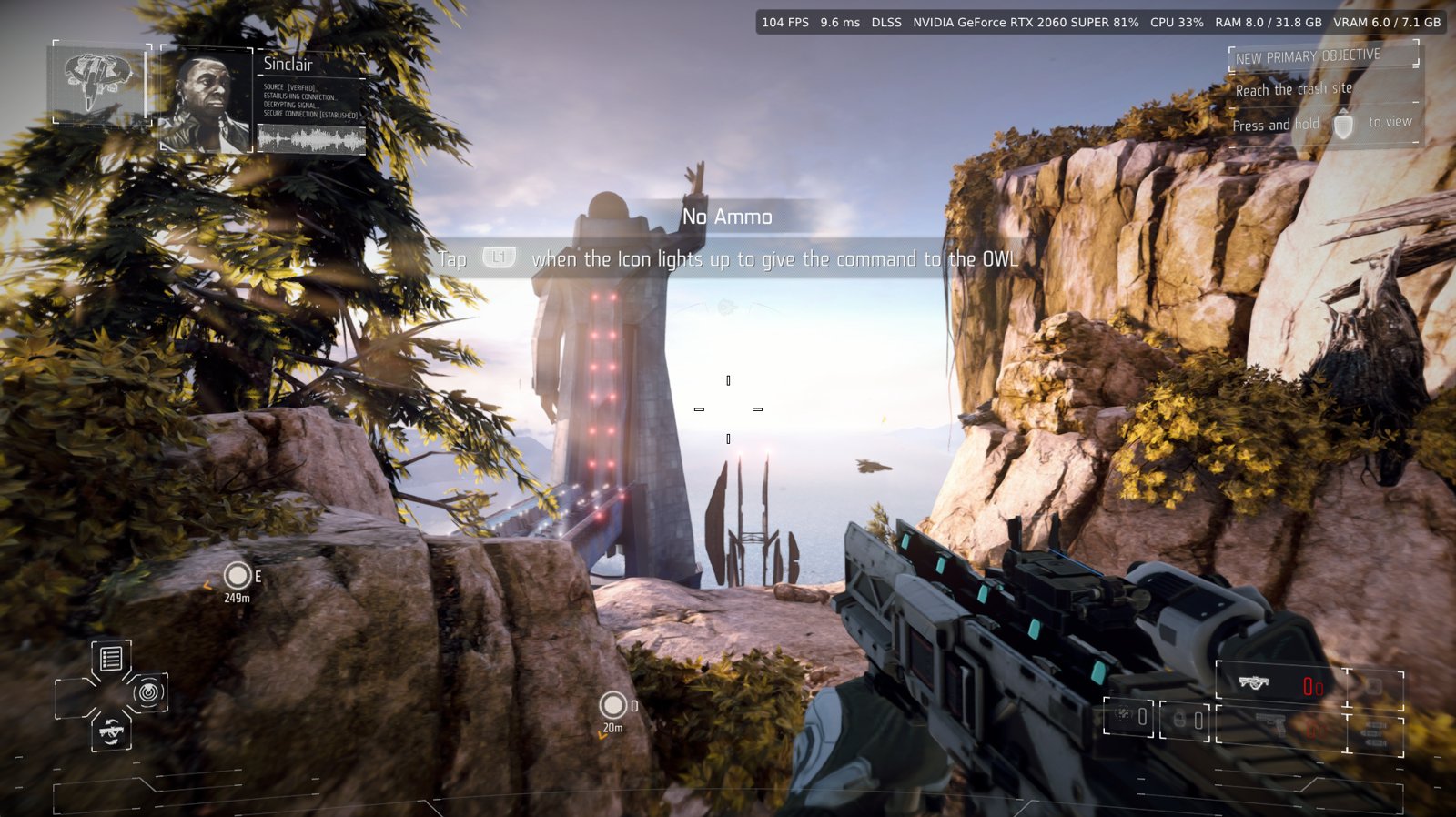
A FOV slider from 80% to 200% of the original (100% = as on PS4). Set it in the launcher (Game tab) or change it live while playing in the in-game menu (Controls tab): the view widens at once. Aiming zoom scales in the same proportion.
| FOV 100% (PS4) | FOV 150% |
|---|---|
 |  |
⚙️ In-game menu (overlay)
Press Insert (or R3 + L2) at any time. Almost every launcher option is now here, and most apply at once, without closing the game. Settings are saved automatically and the launcher shows the same values.

| Tab | Option | When it applies |
|---|---|---|
| 🎮 Controls | Mouse sensitivity, fast turns, invert Y | ⚡ Live |
| Field of view (FOV) | ⚡ Live | |
| Vibration, stick dead zone, controller speaker | ⚡ Live | |
| Hold Share for the quick menu, tips at startup | ⚡ Live | |
| Camera shake (explosions, hits) | ⚡ Live | |
| Button prompts: automatic / keyboard and mouse / PS4 / Xbox | 🔄 Restart | |
| 🖼️ Image | Display mode (window / borderless / fullscreen), VSync | ⚡ Live |
| FSR 1 upscaling, sharpening (RCAS) and its strength | ⚡ Live | |
| Upscaler FSR 3.1 / FSR 4 / DLSS (when the game started with one) | ⚡ Live | |
| Upscaling quality (Quality, Balanced, Performance, Ultra performance) | ⚡ Live · 🔄 restart from / to Native | |
| Frame generation Off / FSR 3.1 / DLSS | ⚡ Live · 🔄 restart to turn it on from Off | |
| Texture sharpness (LOD bias, -2 to +2) | ⚡ Live | |
| Anisotropic filtering | 🔄 Restart | |
| Effects: motion blur, depth of field, bloom, film grain | 🔄 Restart | |
| 🚀 Performance | Frame rate limit, frames queued, background shader compiling | ⚡ Live |
| GPU readback options (the 0.2.5 performance options) | 🔄 Restart | |
| 📊 Overlay | FPS, frame time, upscaler, GPU, CPU, RAM, VRAM · size, corner, opacity | ⚡ Live |
| 🎮 Cheats | God mode, infinite ammo, no reload, unlimited sprint, Tactical Echo, all chapters, free camera | ⚡ Live |
- 🔄 Apply and restart: options marked restart show a button that closes the game and the launcher starts it again by itself with the new settings (unsaved progress since your last checkpoint is lost).
- 🚪 Exit game: a button in the menu and in the quick menu closes the game cleanly; no keyboard needed when you play from the couch or through Steam.
- ℹ️ The in-game menu is in English for now.
🚀 Performance
- 0.3.0: the threads that feed the GPU and stream the levels run at a higher Windows priority, and on CPUs with 8 threads or fewer the GPU command thread too: smoother frame pacing on weaker CPUs when other programs compete for them.
- 0.2.5: Advanced → Performance keeps the GPU busy instead of waiting (about +40-50% FPS in heavy scenes in our tests). If you get a crash or a graphics error, turn those two options off (one at a time) and tell us.
🖥️ Resolution, upscaling and frame generation
- Above 1080p with AMD FSR 3.1, AMD FSR 4 or NVIDIA DLSS (1440p, 1800p, 4K): the game renders at 1080p and the upscaler takes it to your resolution; HUD, menus and videos are drawn sharp at full size.
- Sharp and stable: sub-pixel jitter and the game's own per-pixel motion vectors, so the weapon, moving objects and the camera are tracked correctly.
- Frame generation: AMD FSR 3.1 on any GPU, NVIDIA DLSS on GeForce RTX 40/50 (up to 4x on RTX 50). Almost twice the frames on screen with sharp HUD and text.
- Classic method (a game resolution patch) still under Advanced.
✨ AMD FSR 4
AMD's AI upscaler: a sharper and more stable image than FSR 3.1, at a slightly higher GPU cost.
- Launcher → Graphics → Upscaling → Method → AMD FSR 4 (best quality).
- In the FSR 4 files row press Download (once, about 30 MB, ~1 minute) until it says Installed.
- Press PLAY. In game, Insert → Image → Upscaler switches between FSR 3.1 / FSR 4 / DLSS.
| 🎮 Cards | Vulkan 1.3 with 8-bit integers: GeForce RTX 20 or newer, Radeon RX 6000 / 7000 / 9000, Intel Arc |
| 🔁 Fallback | Without the files or on another card, the game uses FSR 3.1 |
| 📦 Files | From FireBurn/Q2RTX, built from AMD's FidelityFX code (MIT). The zip already ships our optimized passes |
⏳ When you enter a level or reload a checkpoint, FSR 4 can freeze the game for 3-4 seconds the first time while it prepares its AI model. It isn't a crash: wait and it continues.
🎚️ Upscaling quality modes
Launcher → Graphics → FSR / DLSS quality. The 3D scene is drawn smaller and FSR 3.1 or DLSS rebuild it up to your output resolution. HUD, menus and videos stay sharp at full size.
| Mode | Scene at 1080p output | 1440p | 1800p | 4K |
|---|---|---|---|---|
| ⭐ Native (best quality) | 1080p | 1080p | 1080p | 1080p |
| Quality | 720p | 960p | 1080p | 1080p |
| Balanced | 630p | 836p | 1044p | 1080p |
| Performance | 540p | 720p | 900p | 1080p |
| Ultra performance | 360p | 480p | 600p | 720p |
| ✅ Use it when | ❌ It won't help when |
|---|---|
| Your graphics card is the limit: modest GPU, or 1440p / 1800p / 4K with the GPU near 100% | Your processor is the limit (low FPS while the GPU is under 100%): fewer pixels don't help the CPU |
| You want more FPS and accept a slightly softer image | Your GPU already holds the FPS you want: Native looks best |
It needs FSR 3.1, FSR 4 or DLSS as the method (Graphics → Upscaling) or frame generation on. 🎚️ Change it in game with Insert → Image → Upscaling quality: between the reduced modes it applies ⚡ live; from or to Native use Apply and restart. The menu shows the sizes in use ("WxH scene, WxH output").
🖥️ Ultrawide 21:9 and 32:9 (beta)
Launcher → Graphics → Display → Ultrawide (beta): 2560 × 1080, 3440 × 1440, 3840 × 1600 (21:9) and 5120 × 1440 (32:9).
- 🔭 Hor+: the picture fills the screen and you see more at the sides, nothing stretched.
- 🎯 HUD, menus and videos stay in the middle at 16:9.
- ⚙️ Uses FSR / DLSS (it replaces the render resolution); applied when the game starts.
- ⚠️ Beta: some 3D HUD markers (objectives) can look slightly shifted, and the sides may show the last frame during videos.
🧩 Shader cache and precompiling
The game's shaders are compiled by your PC the first time each area needs them, which is why a new zone can stutter or an effect can show up late. Every compiled shader is saved in the cache: once you've played an area, it is ready and loads fast the next time.
| Where | Option | What it does |
|---|---|---|
| 🧰 Launcher → Advanced | Precompile shaders at startup (on by default) | Before the game opens, prepares every shader already in your cache on all your cores. The start takes longer (the first time with a big cache, more) and uses more memory meanwhile. |
| 🎮 In game → Performance | Compile new shaders in the background | Live. Fewer stutters in new areas; an object or effect may appear a moment later. |
- 💡 It helps most on PCs with a not-so-fast CPU: the work is done once at startup instead of while you play, so there are far fewer hitches.
- ⏳ The first time can take a while and areas you never played still compile as you reach them; after that starts are quick. The more you play, the better it gets.
🎬 Screen effects
Turn off motion blur, depth of field, bloom and film grain (Launcher → Graphics → Effects, or Insert → Image): they apply when the game starts (use Apply and restart in the menu). Camera shake (explosions, hits) switches live in Insert → Controls. Weapon recoil stays.
⌨️ Keyboard, mouse and Xbox button icons
The game's prompts can show your keys (or the mouse button) or Xbox buttons instead of PS4 buttons: automatic (default: the last device used, and Xbox icons for any controller that isn't a PlayStation one), keyboard and mouse, PS4 or Xbox. Set it in the launcher (Controls) or Insert → Controls → Button prompts. 🔄 The game uses the option it was opened with: restart to change it. Sticks and the touchpad keep their PS4 icons.
🏔️ Detail distance (LOD)
How far characters and objects keep their detailed models, from 50% to 300% (100% = as on PS4). Higher: less pop-in in the distance, more GPU and CPU work. Lower: more FPS. Set it in the launcher (Graphics → Image) or change it live in Insert → Image → Level of detail.
🎮 Cheats, debug and free camera
Launcher → Cheats · in game: Insert → Cheats (applied at once)
| Cheat | What it does |
|---|---|
| 🛡️ God mode | You take no damage |
| 🔫 Infinite ammo | Reserve ammo and grenades are never used up |
| ♻️ No reload | The magazine never empties |
| 🏃 Unlimited sprint | Stamina refills while you sprint |
| 🦉 Continuous Tactical Echo | The OWL scan keeps pulsing (use it once after each load) |
| 🔓 Unlock all chapters (debug) | Every chapter in Chapter Select; your saved progress doesn't change |
Cheats only affect the player. Unlock all chapters uses the debug settings the developers left in the game.
🎥 Free camera
| Keyboard and mouse | Controller | |
|---|---|---|
| On / off · back to the player | F9 · F10 | Insert → Cheats → Free camera |
| Move · down / up | W A S D · Q / E | Left stick · L1 / R1 |
| Look | Mouse or arrow keys | Right stick |
| Faster / slower | Shift / Ctrl | R2 / L2 |
The player stands still while the camera flies. 📸 Great for screenshots (F12).
🧰 Launcher
New in 0.5.0: a launcher redesigned from scratch, with every option clearer.
| 🧭 Side menu | Home · Graphics · Controls (Keyboard and mouse / Controller) · Cheats · Advanced |
| 🗂️ Cards by topic | Display, Upscaling (method, FSR 4, quality, frame generation), Image quality, Effects… each option explained |
| 🎨 Two themes | Vektan (cyan) or Helghast (orange) |
| ❤️ Support | PayPal and Ports Discord buttons at the top |
Everything as before: English and Spanish · dump check · automatic updates · display mode, window size, resolution, ultrawide, upscaler (FSR 4 download included) and its quality mode, frame generation, frame rate limit (30, 60, experimental 144 / 240 / unlimited), VSync, anisotropic filtering, texture sharpness, FSR 1, screen effects, shader precompile, button icons, cheats · keyboard, mouse and controller mapping · FOV · quick links to saves, screenshots and logs.
🛟 If the new launcher doesn't open or looks wrong, open
Classic launcher.bat(next toKillzone Shadow Fall.exe): the previous launcher, same options, saves and settings. The new one needs Microsoft Edge WebView2 (included in Windows 10/11); without it the classic one opens by itself.
🗂️ Game versions
| Release | Region | Status |
|---|---|---|
| CUSA00190 | USA | ✅ Tested (the port's reference) |
| CUSA00191 | Latin America | ⚠️ Not tested, may work |
| CUSA00002 | Europe | ⚠️ Not tested, may work (choose the language in the game's options) |
| CUSA00085 | Japan | ⚠️ Not tested; Japanese texts may look wrong or be missing |
- Version 01.81 is required in every region (base game or its update).
- Saves are shared between regions: switching keeps them. No folder renaming or
param.sfoedits.
🐧 Linux and Steam Deck (Proton, not tested by us)
- Add Killzone Shadow Fall.exe to Steam as a non-Steam game.
- Properties → Compatibility: force Proton Experimental or GE-Proton.
- Start it from Steam, choose your dump's folder and press PLAY.
Reports (distro or Steam Deck, Proton version, GPU) are welcome on Discord or in issues. A native Linux version (AppImage) will come once the game is fully stable.
⚠️ Known issues
- Performance options (0.2.5): they give about 40-50% more FPS, but if the game closes or something looks wrong, turn off Advanced → Performance and try again before reporting.
- Mouse: walking without sprinting turns at the game's own (slower) speed; see Direct mouse aim.
- First play: some effects can show up a few frames late while their shader compiles; see Shader cache.
- FSR 4: a 3-4 second freeze the first time you enter a level or reload a checkpoint (it prepares its AI model), and a short pause when you change the quality mode live with it.
- Ultrawide (beta): some 3D HUD markers can look slightly shifted; video sides may show the last frame.
- Above 60 FPS (experimental): turn VSync off on a 60 Hz monitor.
- The shader cache can take several GB ("Clear cache" in the launcher).
- Multiplayer: offline only (Botzone).
🗺️ Roadmap
✅ Done in 0.6.0: 🎮 Xbox button icons · 🏔️ detail distance (LOD) · 🔭 FOV up to 200% · 🚀 faster and more correct shaders · 🛠️ crash fixes and launcher fixes.
🔜 Coming next: the port is nearly complete in features, so the focus now is
- 🐞 Stability and crashes, above all on Intel Arc and AMD graphics.
- 🧩 Compatibility with other regions and dumps, and the remaining issues.
- 🌍 More languages in the launcher.
- Something new only if it's important (tell us on Discord).
Later
- In-game menu in Spanish.
- Native Linux version (AppImage), with Steam Deck in mind, once the game is fully stable.
🐞 Reporting bugs
Tell us on Discord or open an issue with what
happened, where (chapter), your GPU, CPU and driver, and attach that session's folder from
user\logs\ (launcher Logs button). Crash or graphics error? First try with
Advanced → Performance turned off and say whether it still happens.
🛠️ Building from source
As in the gow3_pc base (instructions): MSYS2 CLANG64,
bash build.sh, then bash packaging/windows/package_kzsf.sh for the zip (first,
packaging/windows/make_kzsf_icon.py <your dump>/sce_sys/icon0.png launcher/kzsf.ico). For DLSS,
build the bridge first with Visual Studio 2022 and the NVIDIA DLSS SDK:
DLSS_SDK_ROOT=<checkout> bash packaging/windows/build_dlss_kzsf.sh.
Español

