Magical Pop'n Recomp
Magical Pop'n Recomp is a native Windows port of Magical Pop'n for the Super Nintendo Entertainment System with native 16:9 widescreen support.
- Type: PC port
- Game: Magical Pop'n
- Runs on Windows
- By looking-glassinsects
- Latest release v0.9.6, 2026-11-12
- Source: https://github.com/looking-glassinsects/MagicalPopnRecomp
README

Magical Pop'n Recomp



Quick start Playing Widescreen How it works Credits
A static recompilation of the SNES game Magical Pop'n (Pack-In-Video / Polestar, 1995). The game's 65816 code is translated into C ahead of time and compiled into a native Windows program, with a small menu for window size, fullscreen, smoothing, FPS, volume, controls and language.
Important
This repository contains no game code, graphics data or ROM contents. You need your own copy of the game as a ROM file.
The builder reads it on your PC and produces MagicalPopn.exe.
Note
This is version 0.9.7, so there is a slight chance of bugs. If you find one, please open an issue, ideally with a save state (F5) or a screenshot (F12).
Native 16:9 widescreen
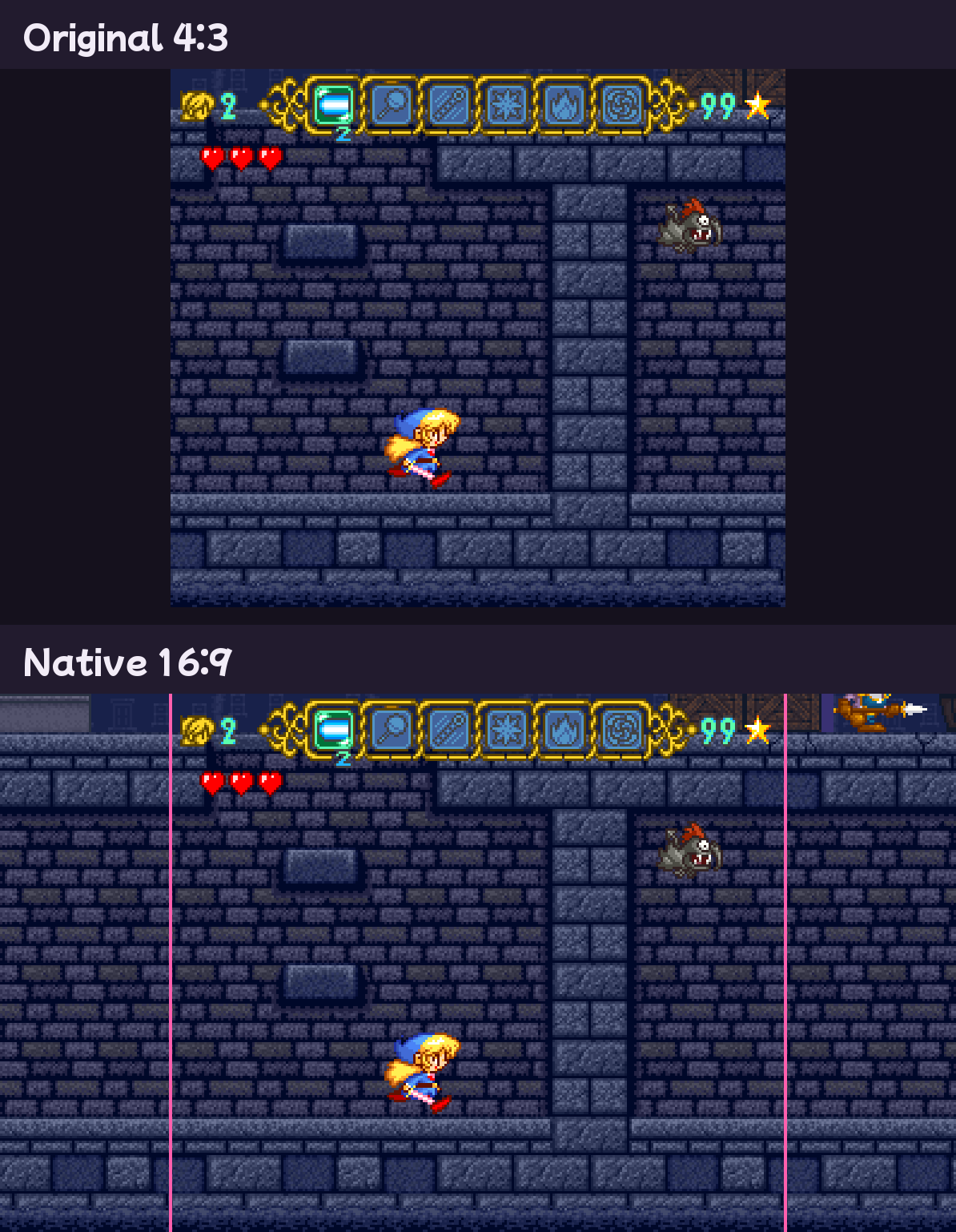
Levels are rendered wider rather than stretched, so the pixels keep their shape and the extra columns on each side show the real level and its enemies.
Tip
16:9 is now tested room by room: every area of the game was walked from end to end, and each side column was compared pixel by pixel with what the original 4:3 picture shows at the same spot. A few small glitches remain.
Quick start
- Download
MagicalPopn-Builder.zipfrom the latest release and extract it anywhere. - Drag your ROM onto
Builder.exe(or onto the builder window). - Wait about a minute and a half while it builds, then press Play.
Tip
That's all: nothing to install. You need Windows 10 or 11 (64-bit) and a Magical Pop'n ROM.
Any dump works: .sfc, .smc or .zip, with or without a copier header, the original
Japanese release or a translated/patched version.
Note
Linux support is planned, once the game is in a comfortable state on Windows.
The game is built into the same folder as the builder (choose another under Install to), and you can
move MagicalPopn.exe with its states folder and settings.ini anywhere.
The download includes its own C compiler (llvm-mingw,
clang + lld, trimmed to 64-bit Windows) in the toolchain folder, so the builder never needs
Visual Studio or Python.
Building from the source instead
With Python 3 and either a toolchain folder holding llvm-mingw in the repository root or the
Microsoft C++ Build Tools, run Builder.bat or:
python tools/pipeline.py ROM [--out DIR]
To package the builder yourself:
python -m PyInstaller builder/Builder.spec
The whole game is compiled before it starts. There's nothing to configure:
- The repository ships a code map (
data/codemap.txt): the addresses of every routine found by many hours of automated play, plus a checksum of the code bytes at each one, and no game data. Every entry whose code matches your ROM is used. The map covers the original Japanese release, the FastROM v1.1 patch (Japanese and English) and the English translation patch, so all of these build straight away. - Static analysis adds everything reachable from those routines, including routines referenced through pointer tables in the code.
- After compiling, the builder test-plays the finished game and recompiles once more if that test found anything new.
As a safety net, any code the build still missed runs through a built-in interpreter instead of stopping, and building again includes it.
Playing
| Keyboard | SNES | Xbox | PlayStation | Switch |
|---|---|---|---|---|
| Arrow keys | D-pad | D-pad / left stick | D-pad / left stick | D-pad / left stick |
| Z / X | B / A | A / B | Cross / Circle | B / A |
| A / S | Y / X | X / Y | Square / Triangle | Y / X |
| Q / W | L / R | LB / RB | L1 / R1 | L / R |
| Enter / Right Shift | Start / Select | Start / Back | Options / Share | + / − |
| Key | Action |
|---|---|
| F1 or Esc | menu (on a controller: click a stick, press Home / PS, or hold Select + Start) |
| F5 / F9 | save state / load state (current slot) |
| F6 / F7 | previous / next save slot (9 slots) |
| P | pause |
| F11 or Alt+Enter | fullscreen |
| F12 | screenshot (saved to screenshots\) |
| Tab (hold) / right trigger | fast-forward |
Controllers
Plug in or pair any controller, before or during play, and it works straight away. You can use several at once. Buttons go by position, as on a Super Famicom pad: bottom = B, right = A, left = Y, top = X. The game reads:
- Xbox-style controllers (XInput): all four slots. This also covers most modern third-party pads, 8BitDo pads in X mode, Steam Input and DS4Windows.
- Every other controller: read directly through Windows (HID), so any USB or Bluetooth gamepad or joystick gives its buttons, sticks and d-pad.
- Built-in layouts:
- DualShock 4 and DualSense, over USB and Bluetooth.
- Switch Pro Controller and the Nintendo Switch Online SNES controller, which the game wakes up and switches to their full report.
- 8BitDo pads in D-input mode, common USB SNES-style pads, and the usual PC gamepad layout.
Tip
If a controller's buttons end up in the wrong places, open Set up controller on the Controls page of the F1 menu
and press each button when asked. Esc skips a button and Backspace stops. The layout is saved for
that kind of controller ([pad VVVV-PPPP] in settings.ini). Reset to defaults puts every
controller back to its built-in layout.
The F1 menu
The F1 menu, styled after the Super Famicom cover art, is a single list on a pink panel, with the selected row highlighted. Use Up and Down to pick a row, Left and Right to change it, and Enter to activate. Esc goes back, and closes the menu from the main page. The mouse works too: hover to select, left-click to change or activate, right-click to change the other way. A note under the list explains the selected setting, and settings are saved automatically.
| Page | Settings |
|---|---|
| Main | resume, save/load state, save slot, continue on launch, remove slowdown, language (English / 日本語), check for updates, screenshot, reset (press twice), quit (press twice), and the three pages below |
| Video | window size, display mode, VSync, low latency, motion smoothing (60 / 120 fps), widescreen (off / 16:9 / 16:10 / 21:9), pixel shape (square / TV 8:7 / stretch), integer scaling, smoothing, scanlines, sprite limit, FPS counter |
| Sound | volume, mute, mute in background, pause in background |
| Controls | the controller in use, controller setup, rebind every key, fast-forward speed, reset to defaults |
Sprite limit is off by default. The SNES can only draw so many sprites on one line (32 sprites or 34 eight-pixel slices), and anything past that is cut off. The game hits the limit in a few busy moments, such as the heroine running past the dust cloud on the title screen. With the setting off, every sprite is drawn. Turn it on for the original look. Only the picture changes: the game still sees the hardware's overflow flags as before, so it plays the same.
Check for updates (on by default): when the game starts it looks for a newer release on this repository. If there is one, a box offers to update. Choose Yes and the game downloads the new builder (about 90 MB), rebuilds itself from the ROM it was made from (a minute or two) and starts again, with your saves and settings kept. Nothing about you or your game is sent. Updating this way works from version 0.9.4.1 onwards.
Remove slowdown (on by default): when the game can't finish a frame in time, as in busy scenes, it gets extra processor time instead of slowing down like the original. Only the game's own work gets the extra time; the picture, timers and music stay exactly on time. About three quarters of the slowdown is gone; very long loading moments can still slow down briefly. Turn it off for the original timing, slowdown included.
Continue on launch (off by default) saves your exact place when you quit and resumes it the
next time you start. Settings are saved in settings.ini next to the game, and save states
in states\.
Smoothness and latency
Tip
On a monitor faster than 75 Hz, set motion smoothing to 120 under Video for the smoothest motion. For the lowest delay, keep it at 60 and turn on low latency.
How smoothing, pacing and audio work
- Motion smoothing (off by default; set it to 120 under Video, for screens faster than 75 Hz): the game still runs at its native 60 fps, and an in-between picture is drawn after every game frame. On a 240 Hz monitor each picture stays up for exactly two refreshes, on a 120 Hz one for one. A 144 Hz monitor can't divide 120 evenly, so it gets a new picture on 5 refreshes out of every 6. A display thread redraws the frame with the console's own graphics chip, with each layer's scroll position and every sprite placed where they are at that exact moment between the last two frames. Pixel art stays crisp: nothing is blended or smeared. In-between pictures are drawn at half-pixel precision, across and down, so a background that scrolls one pixel per frame still gets a step in between. Sprites move with the game objects they belong to, the camera follows a steady path instead of the game's uneven whole-pixel steps, and brightness fades pass through in-between levels. Pictures are timed by a clock locked to the monitor's real refresh signal, so each one stays on screen for exactly the same number of refreshes (two each at 120 fps on a 240 Hz screen). Each picture is drawn a few milliseconds before its refresh and presented just after it, so a slow moment in the graphics driver doesn't make it miss its refresh. It uses VSync and adds about 1.5 frames (~28 ms) of delay. Set it to 60 under Video for the lowest latency.
- With motion smoothing at 60 (or on a 60 Hz screen), each game frame is shown as it is. On a 120 Hz or 240 Hz monitor each frame stays for exactly 2 or 4 refreshes, so motion stays perfectly even, and the wait for the next refresh shrinks to about 8 ms or 4 ms. Other refresh rates (such as 144 Hz) use timer pacing.
- Low latency (applies with motion smoothing at 60): the frame is shown the moment the console finishes drawing it. Controller input is then read as late as possible, just before the game's own read, about 3 ms before the next frame is due. Together this removes more than a frame of delay compared with ordinary emulation.
- Audio runs on its own WASAPI thread. Gentle rate control (at most ±1% pitch, inaudible) keeps about 20 ms of sound buffered, so it never crackles or drifts.
Widescreen
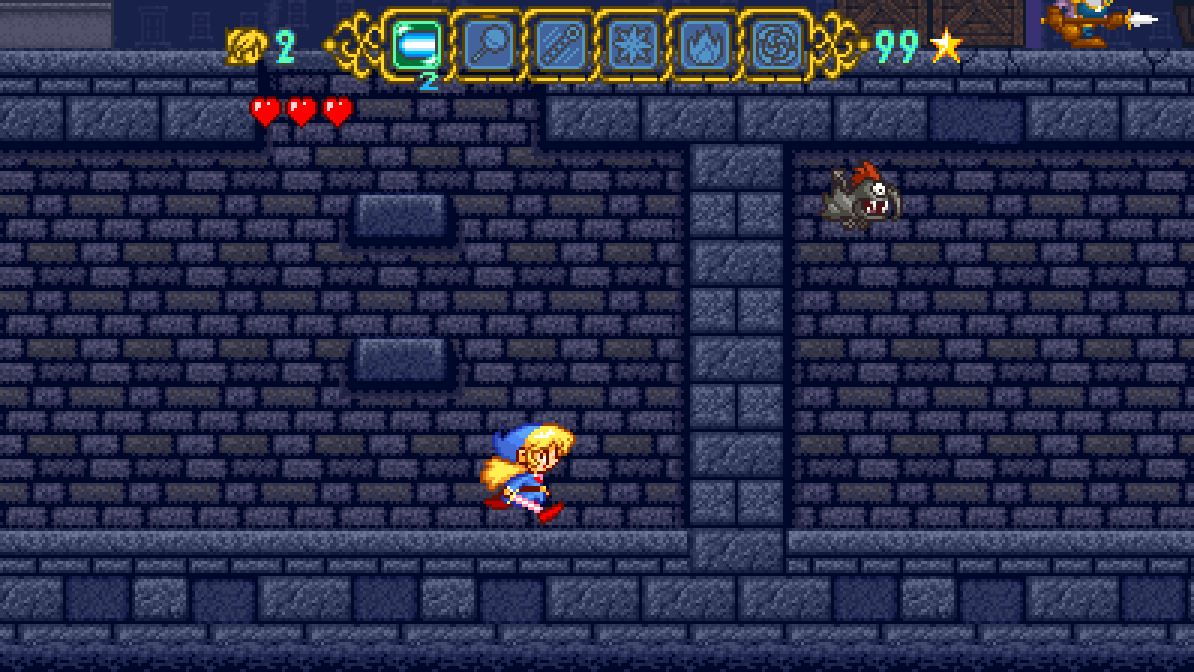
Widescreen (off by default; choose it under Video) is rendered natively, not stretched: the game shows more of the level at both sides. Magical Pop'n only keeps one screen-and-a-bit of the level in video memory, but it holds a much wider strip of the decoded level map in WRAM. Each frame, the renderer finds where the visible picture sits in that map and draws the extra columns from it, so they show the real level.
- The status bar stays centred.
- Screens that don't scroll (logos, title, story scenes, menus) are pillarboxed in black, since they were only ever drawn 256 pixels wide.
- Each area is wide from its very first frame, and nothing is drawn beyond the area's own edges.
- Narrow castle rooms, which the game streams into video memory a column at a time, are drawn from video memory as it fills, so their sides match the real room. So are small rooms whose picture can't be found in the level map.
- Back layers that the game streams a column at a time, such as the dark forest's far trees, are drawn from the game's own copy of the whole layer.
- Nothing is drawn that the original game doesn't have: where there is no level, the sides stay black.
- Enemies, items, doors and effects are drawn in the extra columns too: the game's sprite-drawing helpers are patched (found by code signature, so this works for any version of the game) to cull against the wide screen instead of the 4:3 one. Enemies stay active from 128 px left of the original screen to 112 px right of it, which covers 16:9 and 16:10.
- Bosses that roam the screen, such as the stone giant's head, use the full width, up to the ends of their arena.
Note
At 21:9, enemies can still appear a few pixels inside the far right edge.
The game's own text comes from the ROM you build from, so a translated ROM gives an English game.
How it works
flowchart LR
    A[Your ROM] --> B[Trace profiler<br>emulator + input bot]
    B --> C[65816 tracer<br>pointer harvesting]
    D[(Code map)] --> C
    C --> E[C emitter<br>about 2 million lines]
    E --> F[clang or MSVC]
    F --> G[MagicalPopn.exe]
- A trace profiler (emulator and input bot) plays your ROM and records code entry points with their register widths.
- A 65816 tracer with pointer harvesting finds every routine from those entries.
- A C emitter turns the routines into about 2 million lines of C.
- The bundled clang (or MSVC) compiles them into
MagicalPopn.exe, with the ROM embedded as a resource.
Repository layout
| Path | |
|---|---|
builder/builder.pyw | the builder window |
tools/toolchain.py | bundled clang or MSVC: compile, resources, link |
tools/pipeline.py | build steps; also usable from the command line: python tools/pipeline.py ROM [--out DIR] [--force] |
tools/snes.py | reads any dump format and identifies the game |
tools/disasm65816.py | recursive-descent tracer that tracks the M/X register-width flags; pointer and pointer-table harvesting |
data/codemap.txt | shipped code entry points (addresses + code checksums, no game data); regenerate with tools/make_codemap.py |
tools/emit_c.py | turns each routine into C with fixed register widths, and applies the widescreen sprite patches |
runtime/trace_main.c | build-time profiler: plays the game with a bot and records code entry points |
runtime/rt.* | 65816 semantics, call/return handling (unwinds games' stack tricks), interpreter fallback, save-state capture |
runtime/hw.c | SNES hardware (PPU, SPC700 + DSP, DMA) via LakeSnes, the widescreen level-map source, and motion smoothing (per-line PPU records, in-between pictures) |
runtime/main.c | game loop, plus the env-gated test harness that walks every room and checks the widescreen picture |
runtime/platform_win32.c, audio_wasapi.c, menu.c, settings.c | OpenGL window with vsync (and the motion-smoothing display thread), WASAPI audio, input, F1 menu, settings |
Note
Nothing is tied to one particular dump. Every address the game uses is found by analysing the ROM you provide.
Credits
- Contributor: Claude by Anthropic, on the recompiler, runtime and builder.
- Hardware emulation: LakeSnes by angelo_wf, MIT licence
(
third_party/LakeSnes/LICENSE.txt). Only itssnes/core is included; its PPU is extended for widescreen rendering and motion smoothing (changes marked[widescreen]and[recomp]). - Icon and README picture: the heroine's sprite from Magical Pop'n (
assets/, rebuilt bytools/make_icon.py). - Menu font: Mochiy Pop P One by Fontworks, SIL Open Font License (
runtime/fonts/OFL.txt);tools/subset_font.pycuts it down to the menu's characters. - Compiler in the release download: llvm-mingw by Martin Storsjö (LLVM, Apache 2.0 with LLVM exception; mingw-w64 runtime, see
toolchain/LICENSE.TXT).
Caution
Magical Pop'n © 1995 Pack-In-Video / Polestar. This project is not affiliated with them and includes none of their data apart from the heroine's sprite used as the icon and the crop of the cover art in the builder window.