nativeMons
nativeMons is a launcher for native Pokémon PC ports on Windows, supporting multiple games and offering controller, keyboard, and mouse input.
- Type: tool
- Game: Pokemon Red
- By Hailey Ross
- Source: https://github.com/Hailey-Ross/nativeMons
README


One launcher for native Pokémon ports on Windows, with a menu for controller, keyboard and mouse. It starts each game through its own engine, and the engines stay forks that keep pulling their upstream updates. It also installs and runs the fan game Pokémon Infinite Fusion, and any other self-contained PC game you add.
No games are included: you need your own ROMs. Not affiliated with or endorsed by Nintendo, Creatures Inc., GAME FREAK inc. or The Pokémon Company.
Supported games
| Generation | Game | Gen1Recomp | Fulldex | Platinum PC port | nativeplat |
|---|---|---|---|---|---|
| 1 | Red, Blue, Yellow | ✓ | |||
| 2 | Gold, Silver, Crystal | ✓ | |||
| 3 | Ruby, Sapphire | ✓ | |||
| 3 | FireRed, LeafGreen, Emerald | ✓ | ✓ | ||
| 4 | Diamond, Pearl | ✓ | |||
| 4 | HeartGold, SoulSilver | ✓ | |||
| 4 | Platinum | ✓ | ✓ | ✓ | |
| 5 | Black, White, Black 2, White 2 | ✓ |
Plus Pokémon Infinite Fusion, a PC fan game with no ROM, which the launcher installs and runs as its own program.
Not supported yet: Generation 6 and later (3DS and Switch games).
Several copies of a game: if your folders hold more than one version, such as Rev 0 and Rev 1, the game's page gets a ROM version row to choose between them.
ROM hacks are games of their own. A hack of a game Fulldex runs (FireRed, LeafGreen and Emerald; Platinum hacks the same way, not yet tried) gets its own place in Games, named after its file: Pokemon_FireRed_Rocket_Edition.gba shows as "Pokemon FireRed Rocket Edition". Rename on its page changes that, and the name stays even if the file is renamed. Whether a ROM is a hack is decided by its contents only: it carries the game's code but isn't one of that game's clean dumps (every clean revision is known). The file name only gives it its name, so a clean copy under any file name stays with its game. It runs on Fulldex only, with saves, backups and save slots of its own, and its saves read as the base game's do, for Move Pokemon, My Collection and PKHeX. Widescreen depends on the hack. Tested: Pokémon Rocket Edition FINAL v1.0.2, a FireRed hack, which opens straight into the game and plays with no graphical issues.
Where a game has more than one engine it starts in Fulldex, and you can switch on its page. Each engine accepts certain versions of a ROM, mostly the US release: the launcher tells you if yours isn't one. Windows only for now.
Accepted ROMs
Gen1Recomp and nativeplat only run exact dumps, so they check each ROM's SHA-1. If yours is refused, the game's page shows the hash it found.
| Game | Engine | Accepted SHA-1 |
|---|---|---|
| Red | Gen1Recomp | ea9bcae617fdf159b045185467ae58b2e4a48b9a |
| Blue | Gen1Recomp | d7037c83e1ae5b39bde3c30787637ba1d4c48ce2 |
| Yellow | Gen1Recomp | cc7d03262ebfaf2f06772c1a480c7d9d5f4a38e1 |
| Gold | Gen1Recomp | d8b8a3600a465308c9953dfa04f0081c05bdcb94 |
| Silver | Gen1Recomp | 49b163f7e57702bc939d642a18f591de55d92dae |
| Crystal | Gen1Recomp | f4cd194bdee0d04ca4eac29e09b8e4e9d818c133f2f52230b536214ef7c9924f483392993e226cfb |
| FireRed | Gen1Recomp | 41cb23d8dccc8ebd7c649cd8fbb58eeace6e2fdcdd5945db9b930750cb39d00c84da8571feebf417 |
| LeafGreen | Gen1Recomp | 574fa542ffebb14be69902d1d36f1ec0a4afd71e7862c67bdecbe21d1d69ce082ce34327e1c6ed5e |
| Ruby | Gen1Recomp | f28b6ffc97847e94a6c21a63cacf633ee5c8df1e610b96a9c9a7d03d2bafb655e7560ccff1a6d8945b64eacf892920518db4ec664e62a086dd5f5bc8 |
| Sapphire | Gen1Recomp | 3ccbbd45f8553c36463f13b938e833f652b793e44722efb8cd45772ca32555b98fd3b9719f8e60a989b45fb172e6b55d51fc0e61989775187f6fe63c |
| Emerald | Gen1Recomp | f3ae088181bf583e55daf962a92bb46f4f1d07b7 |
| Diamond | nativeplat | a46233d8b79a69ea87aa295a0efad5237d02841e |
| Pearl | nativeplat | 99083bf15ec7c6b81b4ba241ee10abd9e80999ac |
| Platinum | nativeplat | 0862ec35b24de5c7e2dcb88c9eea0873110d755c (Rev 1)ce81046eda7d232513069519cb2085349896dec7 (Rev 0) |
Fulldex and the Platinum PC port don't check a hash: they go by the game code in the ROM's header, so most dumps of a supported game work.
Decrypt an encrypted DS ROM first: the launcher offers this when it finds one. nativeplat's own import screen refuses Platinum Rev 0, but nativeMons places the ROM itself. The two revisions share the same game files, differing only in a GTS screen, and Platinum runs nativeplat's Rev 1 code either way.
Download and set up
Which download?
- Stable (recommended): the latest build that's been checked.
- Dev: the newest changes, built from every commit to
dev. It may be broken, so back up your saves.
What you need: a Windows 10 or 11 PC, and your own Pokémon game files (ROMs). No games come with nativeMons.
- Download the zip: on the release page, click Download Windows ZIP.
- Unzip it. Right-click the downloaded file and choose Extract All..., then Extract. Put the folder somewhere easy to find, such as your Documents or Desktop (not inside Program Files).
- Open it. In the new folder, double-click NativeMonsLauncher.
- If Windows shows "Windows protected your PC", click More info, then Run anyway. This appears because nativeMons is a free project without a paid signing certificate.
- Add your games. On the home screen, choose ROMs, then Add a folder, and pick the folder your game files are in. Or just drag that folder onto the nativeMons window.
- It finds Game Boy, Game Boy Color, Game Boy Advance and DS games (
.gb,.gbc,.gba,.nds, and.zipfiles holding them). The file names don't matter: games are found by reading each ROM.
- It finds Game Boy, Game Boy Color, Game Boy Advance and DS games (
- Wait about a minute the first time. nativeMons gets your games ready behind its loading screen. After that it opens in about a second.
- Play. Choose Games, pick a game, and press Play.
Already have saves from another emulator? Choose Settings, then Import saves. Your original save files aren't changed.
A DS game that won't start? Some DS ROMs need a small fix first (their secure area decrypted). nativeMons offers it when it finds one. The fix needs Python 3: if your PC has none, nativeMons can fetch Python's official Windows package from python.org into its own tools\python folder (nothing is installed in Windows).
What happens on the first start
The first start after adding ROMs takes about a minute behind the splash screen:
- Your Game Boy and GBA games are prepared for Gen1Recomp from your ROMs, three at a time.
- The game the menu opens on gets its title screen and town wallpaper; the other games' pictures are made in the background once the menu is up.
Everything runs out of sight at low priority. Windows Defender scans the many small files preparing writes, which is most of the load during that first start. After that the launcher opens in about a second.
Before a stable release, tests/stable-check/stable-check.ps1 tests a release package on copies of your ROMs and saves. It runs in groups, so a failed part can be retested with -Retest; its header explains the options.
Using it
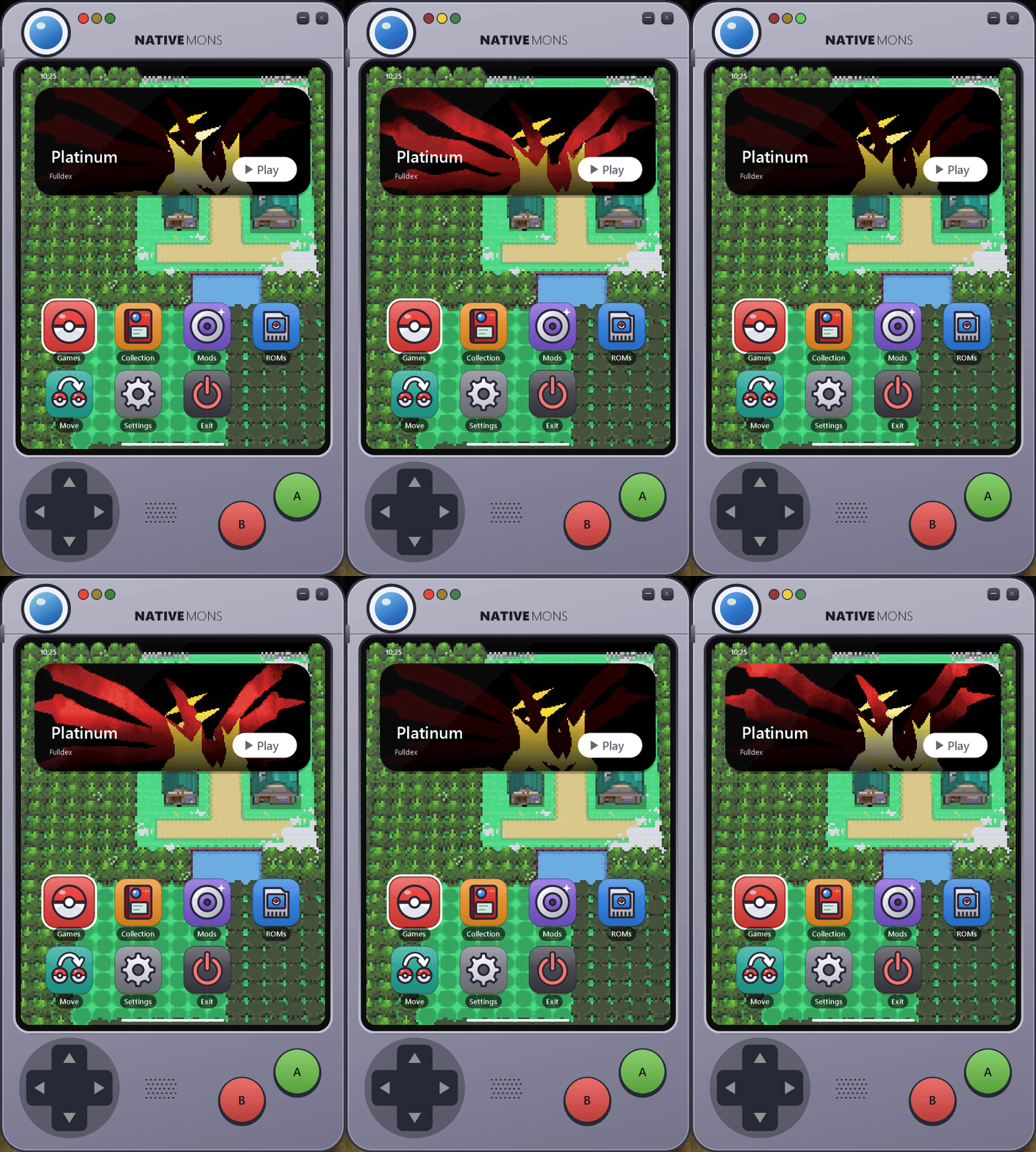
The launcher is a phone-sized Pokédex that takes on each game's colours, and unfolds into a tablet for Move. Its home screen shows the game you played last: its intro plays in the Play tile, and one of its towns is the wallpaper, both captured from your own ROM on your PC. Below that are Games, Collection, Mods, ROMs, Move, Settings and Exit. The highlighted app's icon moves (the Games Poké Ball shakes as if mid-catch), and opening one grows its icon to fill the screen before the new screen's rows pop in. Closing the launcher powers it down like an old device: the screen shrinks to a dot, the lights flicker out, and it drops away off the bottom of the screen. Whenever the launcher is loading, a rainbow Poké Ball spins: on the splash at start, while it works on something such as preparing a game or backing up a save, while a game's title screen is being made in its Play tile, and while Pokémon pictures and Pokédex entries arrive.
- D-pad or left stick: move. A: select. B: back.
- Keyboard: arrow keys or WASD, Enter, Esc.
- Mouse: hover to select, click to choose, right-click to go back. The D-pad and buttons on the device can be clicked too, and dragging its shell moves the window.
Dropping files on the window works on any menu screen. A folder becomes a ROM folder. A .gb, .gbc, .gba or .nds ROM is used where it is, without its folder. A .zip's ROMs are copied into state\roms, and the zip isn't changed. A .sav goes to Import saves. Afterwards a page says which game each ROM turned out to be. If a ROM isn't one nativeMons runs, the page says so and shows its SHA-1. ROMs > Add a ROM file does the same from a file picker. ROMs added on their own, and copies taken from a zip, are listed on the ROMs page, where you can remove them.
Shortcuts: NativeMonsLauncher.exe --game <id> starts a game and closes the launcher when the game ends. Ids are the lowercase names, such as firered, crystal or black2. Add --slot <number or name> to choose which of its saves to use, or --launcher to open the menu on that game's page instead. If the launcher is already open, it takes the request itself. --play <id> still works.
A game's page in Games has Play, its engine, ROM version, saves, game options, mods, backups, export and the PKHeX and OpenHome buttons.
Pokémon Infinite Fusion and Infinite Fusion 2
Pokémon Infinite Fusion and Infinite Fusion 2 (Hoenn) are PC fan games (RPG Maker XP on mkxp-z), not ROMs. Both work the same way here; the paths below are Infinite Fusion's, and Infinite Fusion 2's are games\infinitefusion2, state\saves\infinitefusion2 and %APPDATA%\infinitefusion-hoenn. Open one in Games and choose one of two ways in; both are fine, and you can switch between them later:
- Import it into the launcher. From your installed folder, from the game's downloaded zip, or straight from its GitHub (that one needs Git for Windows). The launcher keeps the game in
games\infinitefusionand its saves instate\saves\infinitefusion, both inside the launcher's folder. Saves you already have in%APPDATA%\infinitefusionare copied in, and the originals stay. Update gets the newest release the way the game's ownINSTALL_OR_UPDATEdoes. Uninstall removes the game's files and keeps its saves. - Add an existing installation. The launcher runs your own copy where it is and never changes its files, and its saves stay where the game keeps them, in
%APPDATA%\infinitefusion. Update it with the game's own updater. Remove from the launcher only forgets it.
Either way the launcher backs up the save files before each session (newest 30, under state\save-backups), and the game keeps backups of its own too. About 5 GB (Infinite Fusion 2: about 3 GB). The Play tile and wallpaper come from each game's own title screen and region map. Move Pokémon, quick start and the save tools don't apply to them. Both count toward My Collection, each with a Pokédex of its own under Romhacks and fan games.
Other PC games
Add a PC game, at the end of Games, adds any self-contained game with its own program, such as another fan game, with nothing written for it. Three ways in:
- From its folder: point to where the game lives. It runs there, and nothing is copied.
- From a .zip: the launcher unpacks it into
games\and keeps that copy. The zip stays as it is. - Choose its program (.exe): then run it where it is, or let the launcher copy the game's folder into
games\.
The launcher finds the game's program itself, leaving out installers and uninstallers, and asks which one when there's more than one. It's named after the program (rename it on its page) and gets a colour of its own.
These games go without the extras: no captured title screen or wallpaper, and no save handling, since the launcher can't know where such a game keeps its saves. The launcher starts the game, shows it on Discord, and waits for it to close; if the program only hands over to another one in its folder and quits, the session lasts until that one closes too. Remove from the launcher forgets it, and deletes the launcher's copy if it made one; your own folder and saves are never touched.
Saves
Several saves per game. Saves on a game's page lets you keep as many saves as you like, each with a name of your choice. Switch between them, start a new one, copy or delete them. A switch keeps your current save exactly as it is, and the engines follow it.
Bringing your saves. Settings > Import saves finds .sav files in your ROM folders and any others you add, and works out their game by reading them. The originals aren't changed, and a save that gets replaced is backed up first.
One save across engines. FireRed, LeafGreen and Emerald can run on Gen1Recomp or Fulldex, and Platinum on Fulldex, nativeplat or the PC port. Each of these shares one save when your ROM works with the engines. Before and after each game the launcher brings them level:
- A verified backup comes first. Every save that's about to change is copied, and the copy is checked byte for byte.
- The result has to prove itself: its trainer, party, boxes, Pokédex and bag must match the source, or it's thrown away.
- If that fails, both saves stay as they were, the game still starts, and it tries again next time.
- If both saves changed, you choose which to keep. The other goes to your backups.
Everything stays in the launcher's folder. Saves, settings, mods and prepared games live beside NativeMonsLauncher.exe, in state and in each engine's folder, so the whole folder can move to another drive or PC. Gen1Recomp kept its own in %APPDATA%\LOVE\nativemons before; the first start of a newer launcher copies them into state\gen1recomp, checks every file, and leaves the old folder as it was, as a backup you can delete. If that copy can't finish, Gen1Recomp keeps using the old folder and the launcher tries again next time. Pokémon Infinite Fusion, when you add your existing installation, keeps its saves where the game puts them.
A game's page lists its Save backups to go back to. After each game the save is checked for corruption, and you're offered a healthy backup if it fails.
Sending saves back. Settings > Export saves, or a game's page, gives you:
- A plain
.savfor emulators, flash carts and PKHeX. - 3DS Virtual Console (Game Boy and Game Boy Color): a Checkpoint folder holding
sav.dat, copied byte for byte. Matching it to a Checkpoint backup of the game checks the size and copies itsSecureValue. - 3DS DS games: needs a Checkpoint backup of the game, for the exact file name and size.
Only some of this has been tried on a real 3DS, so back up your 3DS save first.
Pokémon
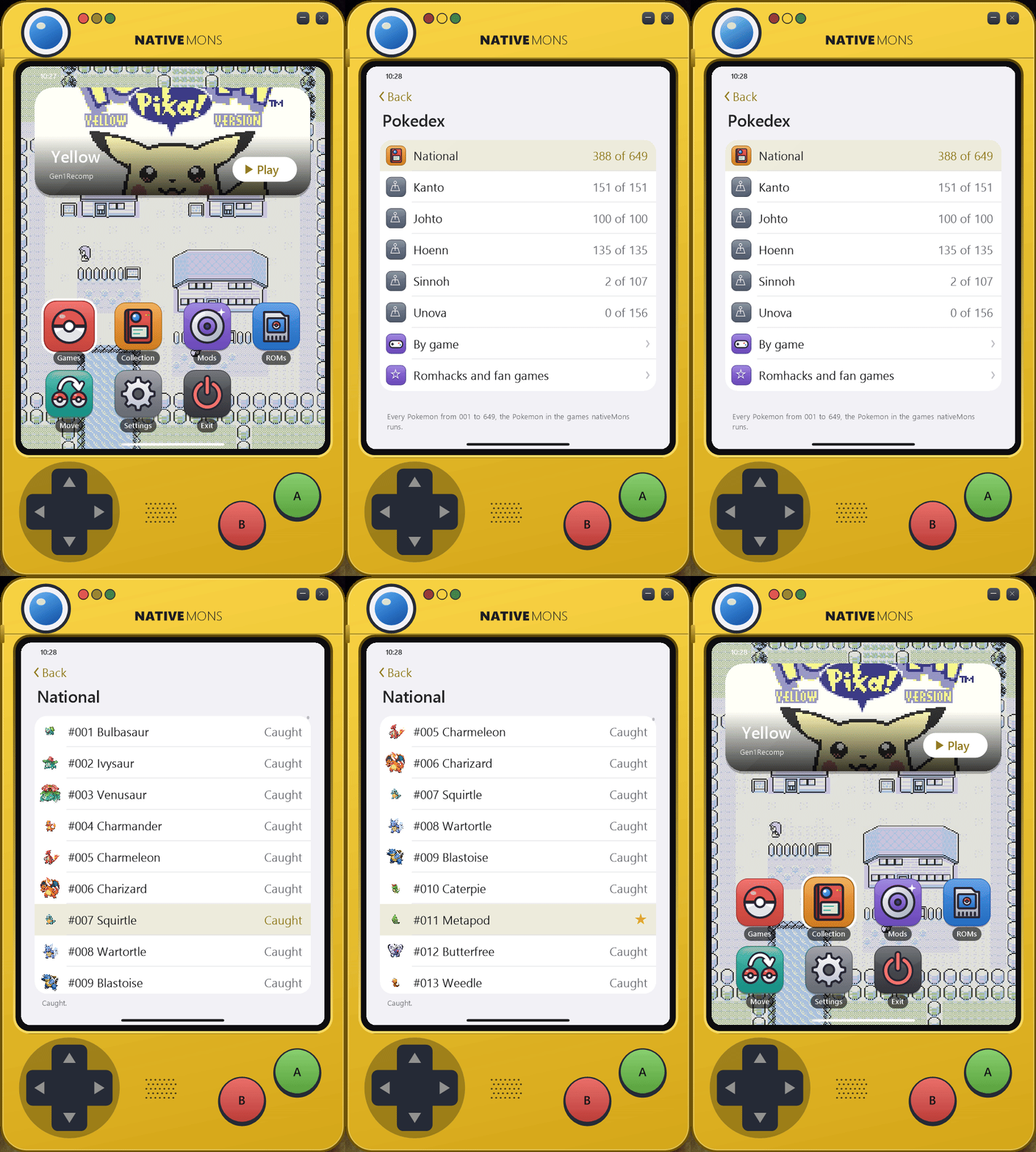
My Collection is a Pokédex built from all the saves of every game the launcher finds. It has a National list from 001 to 1025, a list for each region from Kanto to Paldea (by the generation that introduced each Pokémon), and your counts by game. Pokémon you haven't seen show as ???. ROM hacks and fan games such as Infinite Fusion never count toward it: Romhacks and fan games lists them apart, each with a Pokédex of its own. Infinite Fusion's is read from its own saves: species caught and seen by National Dex number, and its fusions counted apart. The launcher only reads the game's species list and saves, and never changes them.
A caught Pokémon's entry shows its picture, category, types, height, weight, base stats, abilities and the description from a game you caught it in, plus each game that has it. Types, base stats and abilities are shown as that game's generation had them (from PKHeX's tables): Clefairy is Normal in Crystal, Generation 1 has one Special stat, and abilities start with Generation 3. A gold star marks a shiny, and A switches between its shiny and normal pictures. Shinies are counted only while they're in a party or a box, because saves keep no record of the rest.
Entries come from PokéAPI the first time you open them and are kept in state\pokedex-cache. No game text is included in nativeMons.
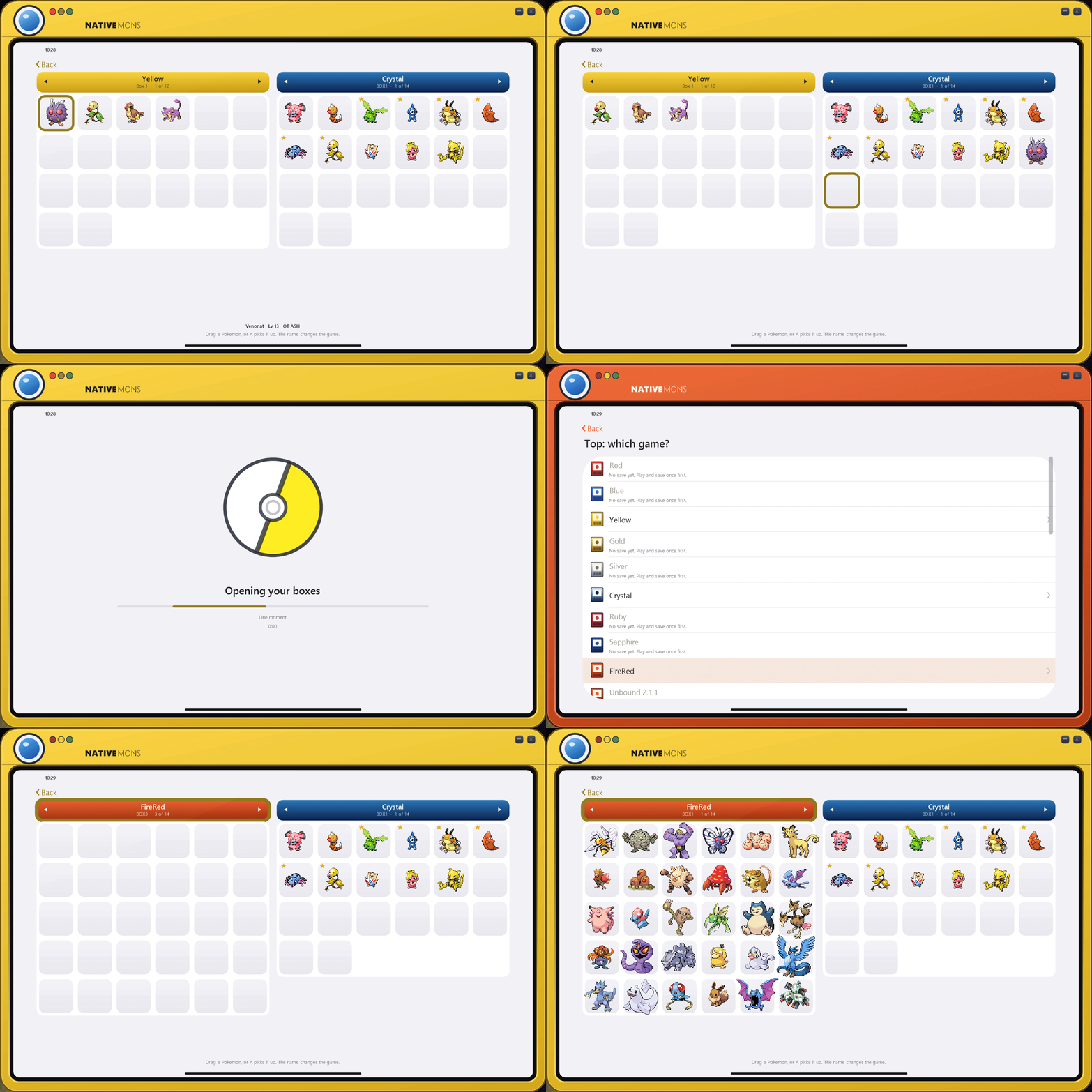
Move Pokemon shows your games' PC boxes the way Pokémon HOME does. The Pokédex unfolds into a tablet for it, smoothly, and folds back into the phone when you leave: two games side by side, each showing one box as a grid of its Pokémon. Drag a Pokémon onto an empty slot of the other game: moves go between games, so dropped back in its own game it returns to its place. With a controller, A picks it up and the cursor jumps to the other game's nearest empty slot, A puts it down and B puts it back; X switches between the two games and LB/RB change the box, and the bar at the bottom shows the buttons. On a keyboard, Enter is A, Escape is B, Tab or X switches games and Q/E change the box. ◀ ▶ step through a game's boxes, and holding a dragged Pokémon over them turns the box too; selecting the game's name switches to another game. It uses PKHeX.Core, and both saves are backed up to state\save-backups first. If a move is blocked, you choose whether to delete or change the attacks in the way, then retry. A Pokémon that doesn't exist in the destination game can't go there. Only Pokémon in the PC boxes can be moved, not your party.
Moves with no real transfer between the games use the conversion code from OpenHome (GPL-3.0), and PKHeX checks the result. The result may be flagged as not legal, and its form, ball and origin may change. The original data is kept and comes back when the Pokémon returns to its own generation. This part is experimental: try a moved Pokémon in battle before relying on it.
Open in PKHeX and Open in OpenHome on a game's page open its save in your own copy of either.
Pokémon pictures come from pogo.hails.app ([hailsDotGO](https://github.com/Hailey