Pokémon Fulldex
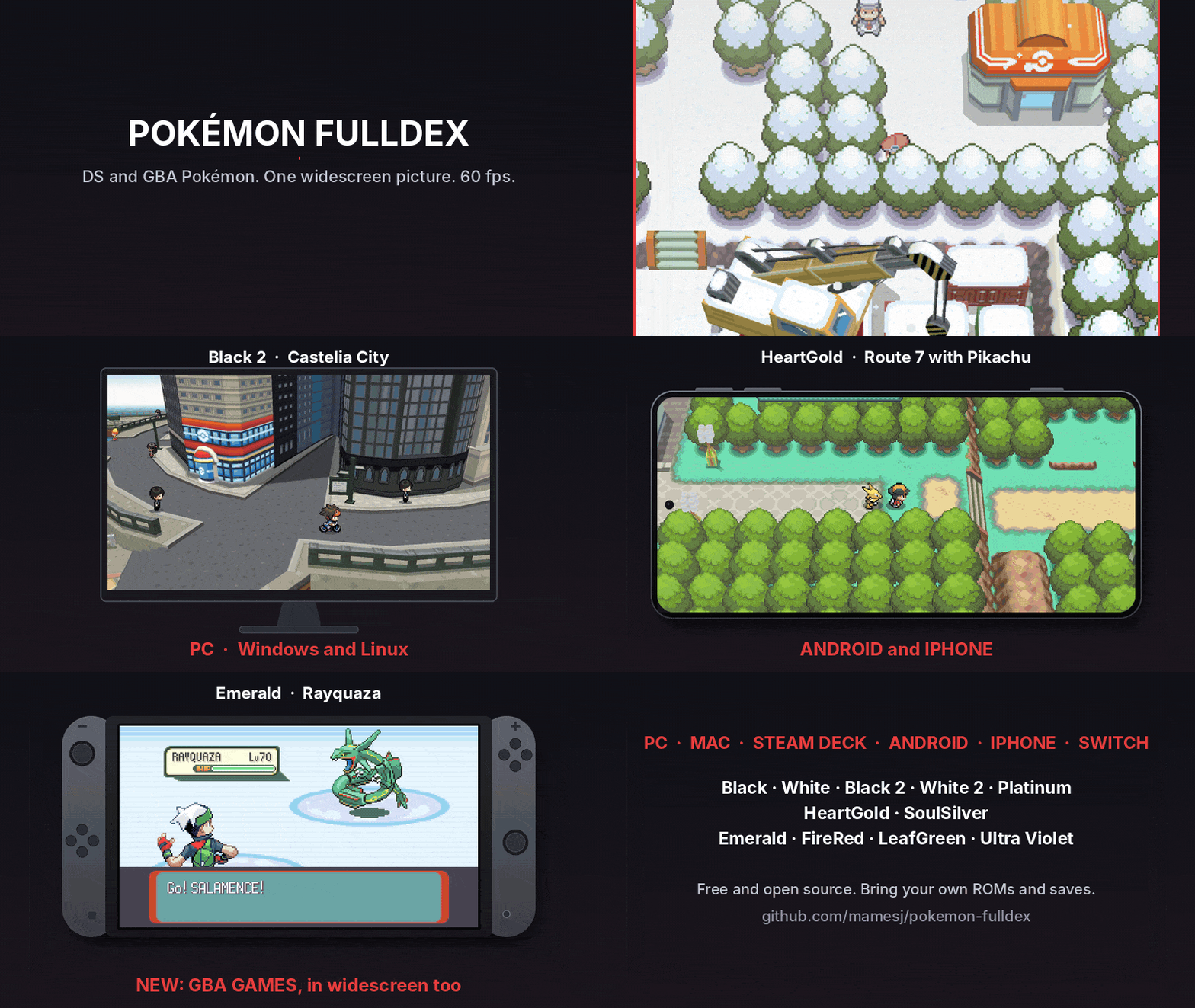
Pokémon Fulldex is a native PC port of Pokémon DS and GBA games that supports widescreen, higher resolutions, and 60 FPS.
- Type: PC port
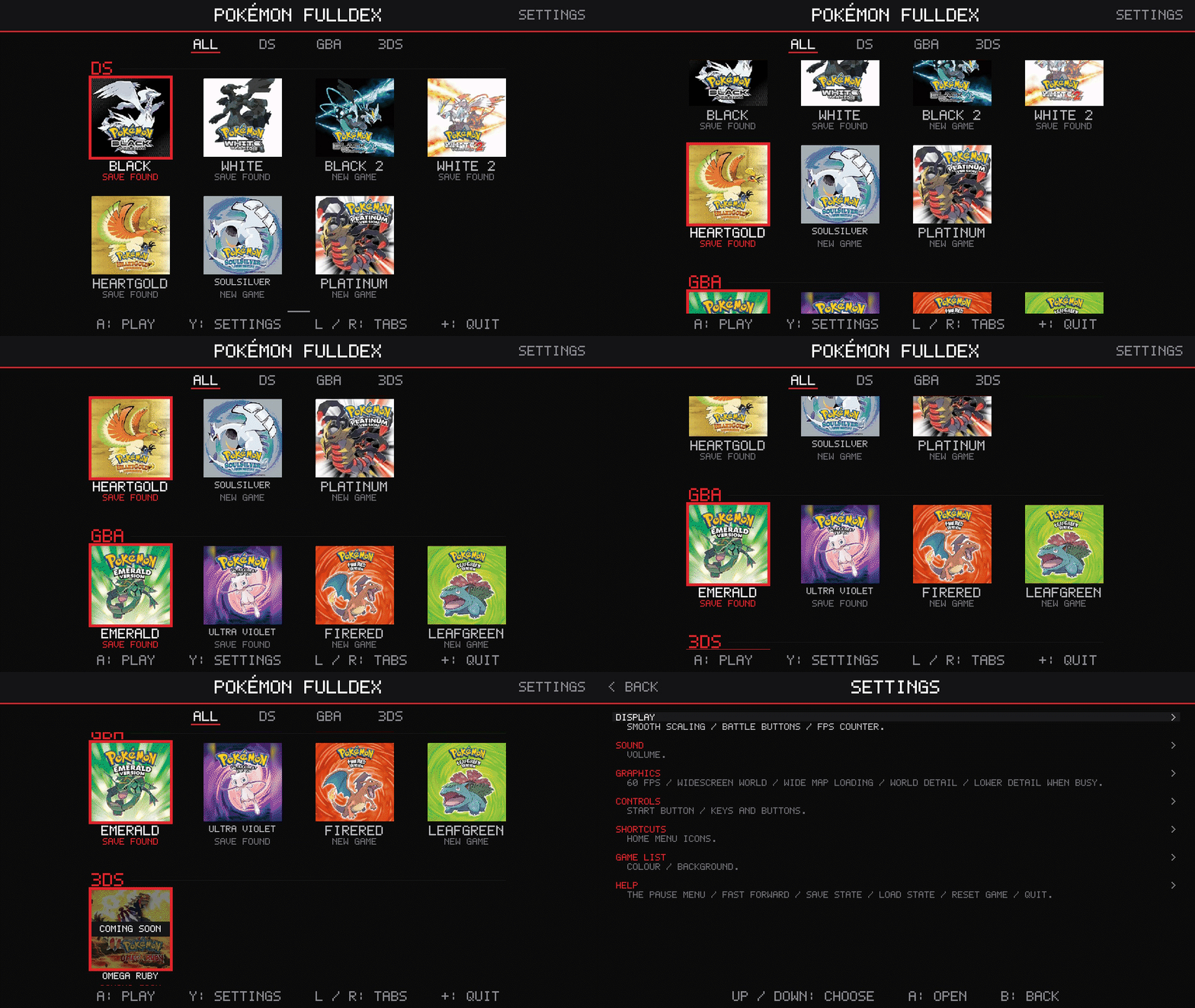
- Game: Pokemon FireRed, Pokemon LeafGreen, Pokemon Emerald, Pokemon Platinum, Pokemon HeartGold, Pokemon SoulSilver, Pokemon Black, Pokemon White, Pokemon Black 2, Pokemon White 2
- Runs on Windows, Linux and macOS
- By mamesj
- Latest release pc-v1, 2026-11-03
- Source: https://github.com/mamesj/pokemon-fulldex
README
Pokémon Fulldex
All your favourite Pokémon games on a PC (Windows and Linux), a Mac, a Steam Deck or other handheld PC, an Android phone, an iPhone or iPad, or a modded Nintendo Switch: one screen, widescreen, 60 fps, up to 4K on a PC and 720p on the Switch. No more squinting at two tiny stacked DS screens.
DS: Black 2, White 2, Black, White, HeartGold, SoulSilver, Platinum, Diamond and Pearl.
GBA: Emerald, Ruby, Sapphire, FireRed, LeafGreen and Ultra Violet.
3DS: Omega Ruby, Alpha Sapphire, X, Y, Ultra Sun and Ultra Moon, coming soon.
Which languages: Supported games.
Downloads
| Where you play | Download | Install |
|---|---|---|
| Windows PC, and Windows handhelds (ROG Ally, Legion Go, MSI Claw) | pokemon-ds-wide-pc-windows-x86_64.zip | PC |
| Mac with Apple silicon (M1 and newer) | pokemon-ds-wide-pc-macos-arm64.zip | Mac |
| Mac with an Intel processor | pokemon-ds-wide-pc-macos-x86_64.zip | Mac |
| Linux (glibc 2.38+) and the Steam Deck | pokemon-ds-wide-pc-linux-x86_64.tar.gz, or as an AppImage (Gear Lever) | PC |
| Android phone (64-bit, Android 7 or newer) | pokemon-ds-wide-android.apk | Android |
| iPhone and iPad (iOS 14 or newer, sideloaded) | pokemon-ds-wide-ios.ipa | iPhone |
| Nintendo Switch (homebrew) | pokemon-ds-wide-all-switch.zip | Switch |
One program per platform: start it and pick the game from the list. You bring your own ROMs: the downloads hold none of the games. What's new in each update: Releases.
What is it?
A program for your PC or your Switch (as homebrew) that runs the game on the melonDS emulator core (built in: there is nothing else to install), plus a layer that knows what the game is doing (which screen, which menu, which battle) and rearranges it into one proper widescreen picture. It is not a native port (those are the dream, see What's next); it's the DS game, presented the way it should look on a modern screen.
| melonDS | this | |
|---|---|---|
| Screens | two 256×192 DS screens, stacked or side by side | one 16:9 picture, the touch screen's buttons tucked beside the action |
| 3D world | 4:3 at DS resolution | 16:9, skies and scenery carried to the edges: up to 4K on a PC (your graphics card), 720p on the Switch (its graphics chip) |
| Frame rate | the game's own 30 fps 3D | 60 fps, with in-between frames |
Supported games
| Game | Languages | Notes |
|---|---|---|
| Black 2 / White 2 | English, French, Spanish | German, Italian, Japanese and Korean in beta |
| Black / White | English, French, Spanish | German, Italian, Japanese and Korean in beta |
| SoulSilver / HeartGold | English, French, Spanish (and Italian HeartGold) | German, Italian, Japanese and Korean in beta |
| Platinum | English, French, Spanish | German, Italian, Japanese and Korean in beta |
| Diamond / Pearl | Diamond: English, Spanish, German, Italian. Pearl: English, French, Spanish, German, Korean | Experimental |
| Emerald (GBA) | English | |
| Ruby / Sapphire (GBA) | English (1.0, 1.1, 1.2), German, French, Spanish, Italian, Japanese | |
| FireRed / LeafGreen (GBA) | English (1.0, 1.1) | |
| Ultra Violet (GBA, a FireRed hack) | 1.22 | as its .gba, or its .ips patch beside a FireRed 1.0 ROM |
| Omega Ruby / Alpha Sapphire, X / Y, Ultra Sun / Ultra Moon (3DS) | Coming soon |
- Beta languages work with the exact ROM copies they were checked against, and complete playthroughs haven't been verified yet. Other GBA games play too, without widescreen.
- Each language keeps its own save (
heartgold-fr.sav,black2-es.sav,pearl-fr.sav...). - The menus speak English, Spanish, Italian, French, German, Japanese and Korean (DISPLAY > LANGUAGE; AUTO follows your system), whatever the game's own language. More in regional games and touch controls.
Install
On a PC, Mac, Steam Deck or handheld (Windows, macOS and Linux)
Show the guide
- Download
pokemon-ds-wide-pc-windows-x86_64.zip(Windows) orpokemon-ds-wide-pc-linux-x86_64.tar.gz(Linux). On Linux there is also an AppImage, the program as one file: add it to Gear Lever (or another AppImage manager) and it updates itself. Its ROMs, saves and settings go in~/.local/share/pokemon-ds-wide(O in the game list opens itsromsfolder). - Unpack it anywhere (not inside Program Files) and put your ROMs in its
romsfolder (any names). - Start
Pokemon Fulldex.exe(Linux:pokemon-ds-wide) and pick a game. Windows may warn about an unknown publisher the first time: choose "More info", then "Run anyway".
It starts in borderless fullscreen at 1080p with 60 fps; F11 switches to a
window. In the game list, arrow keys or a controller choose, Enter or A
plays, H (or a controller's Y) opens the settings and O opens the
roms folder. While playing, Esc (or a controller's Start or Guide button)
opens the pause menu; QUIT there goes back to the list.
Controls: any controller (Xbox, PlayStation, Switch Pro and others) plays
as a DS; hold its right trigger to fast forward. On the keyboard: arrow keys,
X/Z for A/B, S/A for X/Y, Q/W for L/R, Enter for START, Backspace for SELECT,
the mouse for the touch screen, Left Shift to fast forward, F5 to save a state and F8 to load it.
The README.txt inside has the full list. CONTROLS > KEYS AND BUTTONS in the pause menu (or on
the game list's settings page) changes any of them, including fast forward, swapping the screens,
save state and load state, on the keyboard and on a controller (the game list follows the ones you change).
Saves go in the saves folder, one per game (black2.sav, soulsilver.sav,
platinum.sav, ...). To carry on from another emulator, put its .sav there
under that name. Pictures: the list shows each game's box art; for your own,
put a JPEG or PNG in an icons folder beside the program, named after the game's
code (IREO.jpg for Black 2, see the README.txt).
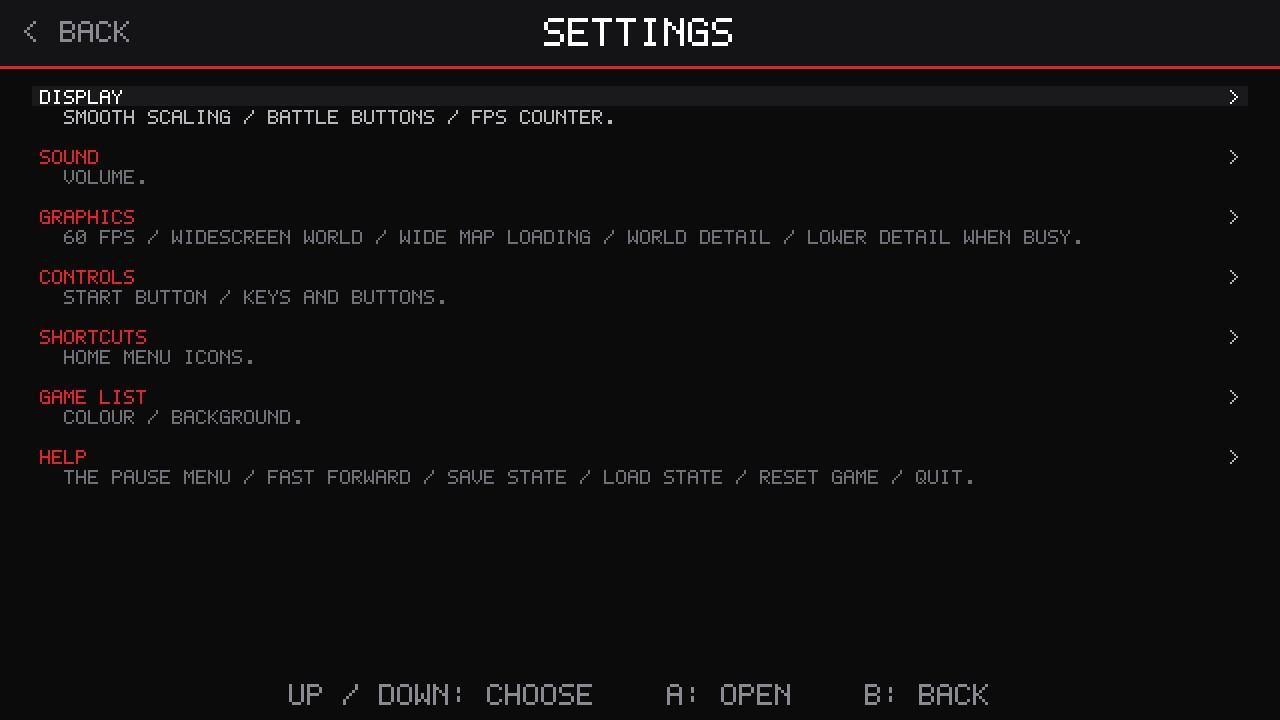
Settings (all of them: Settings). The ones that matter most on a PC:
| Setting | Starts at | What it does |
|---|---|---|
| 3D RESOLUTION | 1080P | how sharp the 3D world is: 720P, 1080P, 1440P (2K) or 2160P (4K) |
| LOWER RES WHEN BUSY | OFF | ON: a lower resolution for a moment instead of slowing down |
| FAST FORWARD LOW RES | OFF | ON: 360P while fast forwarding, for more FPS on a slower PC |
| WORLD ON GPU | ON | the world drawn by your graphics card; turn it off if it looks wrong |
| BORDERLESS FULLSCREEN | ON | fills your screen; F11 does the same |
| SCREEN LAYOUT | MERGED | the one widescreen picture, or the two DS screens laid out as on other emulators |
Desktop shortcuts: DESKTOP SHORTCUTS on the settings page puts a shortcut for each game on your desktop (on Linux also in your apps menu, and so in the Steam Deck's "Add a Non-Steam Game" list), with its box art; each starts its game straight away.
What it needs: Windows 10 or 11 (64-bit), or 64-bit Linux from late 2023 on (Ubuntu 24.04, Fedora 39, SteamOS 3.5 or newer); nothing else to install. For WORLD ON GPU, a graphics card with OpenGL 4.3, which nearly any from 2012 on has with up-to-date drivers; without it, the processor draws the world (that wants a much faster processor).
Steam Deck: in Desktop Mode, unpack the Linux download and put your ROMs in
its roms folder; in Steam, Games > Add a Non-Steam Game to My Library,
browse to pokemon-ds-wide (file type: All Files); then start it from your
library in Gaming Mode with a gamepad controller layout. Set 3D RESOLUTION to
720P for the Deck's 1280x800 screen.
Mac (macOS 11 or newer):
- Download the one for your Mac. Apple menu > About This Mac: if it says Chip: Apple M1
(or M2, M3, M4, ...), take
pokemon-ds-wide-pc-macos-arm64.zip; if it says Processor: Intel, takepokemon-ds-wide-pc-macos-x86_64.zip. - Unzip it (double-click it in Downloads; Safari may have done it already) and drag Pokémon Fulldex into Applications.
- Open it once. macOS says it can't check the app (it isn't notarised by Apple): click
Done. Then go to System Settings > Privacy & Security, scroll down to the line about
Pokémon Fulldex and click Open Anyway, then Open. You only do this once.
Or, in Terminal:
xattr -dr com.apple.quarantine "/Applications/Pokemon Fulldex.app", then open it as any app. - Add your ROMs: press O in the game list. The Finder opens its
romsfolder (~/Library/Application Support/Pokemon DS Widescreen/roms): put your DS and GBA ROMs in it and they appear in the list. Your own saves go in thesavesfolder next to it.
The keys and a controller work as on a PC; Ctrl+Cmd+F (or F11) switches between fullscreen and a window. A Mac's OpenGL stops short of what WORLD ON GPU needs, so the processor draws the widescreen world, at 720P to start: a MacBook Air M1 holds 60 FPS at 1080P.
How fast a PC? Not measured on a range of PCs yet, so these are estimates. The Switch runs all seven games at 60 fps, and one core of any PC from the last eight years or so is several times as fast as one of the Switch's. What grows with your screen is the 3D resolution, drawn by the graphics card:
- Minimum: a 4-core processor (Intel Core i5 6th generation or Ryzen 1000 on), graphics built into the processor (Intel HD 520 or Radeon Vega 8 class) at 720p to 1080p, 4 GB of memory.
- Recommended: a recent 6-core processor and a graphics card such as a GTX 1060 or RX 580 for 1440p; 4K wants an RTX 2070 or better.
Tell us how yours runs, with its game.log.
On the Nintendo Switch
Show the guide
All seven games in one program (pokemon-ds-wide-all-switch.zip):
- Unzip it to the root of the SD card. It makes
/switch/pokemon-ds-wide/with an emptyromsfolder inside. - Copy your ROMs into
/switch/pokemon-ds-wide/roms/(any names). - Hold R while starting any game, pick Pokémon Fulldex, then the game (started from the album there is not enough memory).
In the list the D-pad or a stick moves between games, A plays, Y opens the settings (the pause menu's options, each explained) and + goes back to the Homebrew Menu. It opens on the game you played last. While playing, + opens the pause menu (START BUTTON in the settings can make + the DS's START again, with + and − together for the menu); QUIT there saves and comes back to the list (also when started from its HOME Menu icon). With only one game found there is no list: it starts straight away. Touch screen: tap it in handheld mode; docked, the right stick moves a cursor and ZL touches. Pressing the right stick in shows the other screen.
Coming from the older one-game downloads? Their folders keep working: the
list also shows the games in them (/switch/pokemon-black2-wide/ and so on) and
plays each with the save already there. Those downloads are no longer updated,
so the all-in-one is the one to use.
Saves: each game keeps its save under its own name (black2.sav,
white2.sav, black.sav, white.sav, soulsilver.sav, heartgold.sav,
platinum.sav), with the GBA games' (emerald.sav...): in the saves folder of
/switch/pokemon-ds-wide/ for a ROM in its roms folder, or of an older one-game
download's folder for a ROM there. Saves an earlier version left beside the ROMs are
moved into saves the first time the list opens (that older download no longer finds
them). To carry on from an emulator or a flash cart, copy your save in under that name.
Pictures: each game shows its box art. For your own, put a square JPEG
or PNG in /switch/pokemon-ds-wide/icons/ named after the game's code: IRBO
Black, IRAO White, IREO Black 2, IRDO White 2, IPKE HeartGold, IPGE
SoulSilver, CPUE Platinum (e.g. icons/IREO.jpg).
Recommended: start each game from the HOME Menu. In the all-in-one's
settings (Y in the list), HOME MENU ICONS puts an icon for each game in
the list on the Switch's HOME Menu, with its box art, which starts that game
straight away with no holding R. It is made on your console (no PC or keys
file). Like any forwarder, the icons need sigpatches to start. Keep
/switch/pokemon-ds-wide/ where it is, as the icons start the program in it;
choose HOME MENU ICONS again after adding games. Each game then has its own
entry, so sys-clk (below) can have its own settings for it. To remove one:
Options on its icon, Data Management, Delete Software.
sys-clk (recommended for full speed), handheld. With a forwarder, start the game, open sys-clk's overlay and set these for that game's own profile: they then apply whenever you play it, and only then. Without one, set them for the game you start the Homebrew Menu from, or as the global profile.
| CPU | 1785 MHz (1581 is enough for most places) |
| GPU | 460 MHz (the highest of the console's own handheld speeds; no need to go higher) |
| Memory | 1600 MHz |
Without sys-clk the games run at the console's normal speeds and drop frames in busy places.
Settings (all of them: Settings). Recommended on the Switch:
| Setting | Recommended | What it does |
|---|---|---|
| 60 FPS | ON | in-between frames: the games draw their 3D at 30 fps |
| BATTLE BUTTONS | PANEL | Black 2, White 2, Black and White: the game's own FIGHT, BAG, RUN and POKÉMON panel beside the battle (Black and White also have STRIP: large buttons in the message box) |
| WORLD DETAIL | 720 | lines the wide world is drawn with (540 if you want headroom) |
| LOWER DETAIL WHEN BUSY | OFF | ON: fewer lines for a moment instead of slowing down |
The world is always drawn by the Switch's graphics chip, and each frame is shown at an even time, a frame after it is made (smoother in busy towns and battles). The games run on melonDS's FAST JIT. If a start ever fails with it, the next one falls back by itself (hold L while starting for the interpreter).
On Android
Show the guide
- Download
pokemon-ds-wide-android.apkon your phone and open it. Android asks to allow installing apps from your browser or Files app the first time: allow it, then install. - Put your ROMs in a folder on the phone (any names), for example
ROMsin its internal storage. - Start Pokemon DS, tap the screen, allow access to files, and pick that folder. Tap a game twice (or press A on a controller) to play.
Controls: on-screen buttons (D-pad, A, B, X, Y, L, R, START, SELECT and MENU at the top) while you play by touch; hold >> beside R to fast forward; tap the picture itself to touch the DS's touch screen. A controller (Bluetooth or USB: Xbox, PlayStation, Backbone, Razer Kishi and others) plays as a DS and hides the on-screen buttons; its Start opens the pause menu and its right trigger fast forwards. CONTROLS > KEYS AND BUTTONS in the pause menu (and on the game list) changes which button does what, including fast forward, swapping the screens, save state and load state.
Saves go in a saves folder inside your ROMs folder (made for you). The
settings and game.log are in Android/data/io.github.mamesj.pokemonds/files.
What it needs: Android 7.0 or newer on a 64-bit phone. The 3D world is drawn by the processor at 720P to start (3D RESOLUTION in the settings: Y in the list, or SETTINGS at the top right). Tested on a Pixel 9 Pro XL, where it runs at full speed; please tell us how yours runs (see Reporting a bug).
Android also has a layout editor in the pause menu for moving and resizing the on-screen buttons.
On an iPhone or iPad
Show the guide
Apple only lets apps from its App Store install on their own, so this one is sideloaded: a sideloading tool signs it with your own Apple ID (a free one works) and puts it on your iPhone. From a Windows PC or a Mac:
- Install a sideloading tool: Sideloadly or AltStore (on Windows, also Apple's Apple Devices app or iTunes).
- Download
pokemon-ds-wide-ios.ipa, plug in your iPhone (tap Trust on it), and give the IPA to the tool with your Apple ID. - On the iPhone: turn on Settings > Privacy & Security > Developer Mode (it restarts), then trust your Apple ID in Settings > General > VPN & Device Management.
- Put your ROMs in the Files app: On My iPhone > Pokémon Fulldex > roms (AirDrop,
iCloud Drive, or from a PC: the Apple Devices app's Files tab, or the Finder on a Mac).
DS and GBA ROMs go in that same
romsfolder. A.gbaopened from the Files app is taken in too. FOLDER at the top of the game list opens that folder. Tap a game twice to play.
With a free Apple ID, iOS stops opening sideloaded apps after 7 days: sideload it again (your saves stay). AltStore and SideStore can do that for you.
Controls: as on Android: on-screen buttons while you play by touch (MENU at the top for the pause menu), or a controller (Xbox, PlayStation, Backbone and others), which hides them. The game list is upright. Starting a game turns an iPhone or an iPad sideways.
Saves, settings, cheats and game.log are all in that Pokémon Fulldex folder in the
Files app.
What to expect: iOS lets no app make code as it runs, so the faster way the other versions run the DS (melonDS's JIT) is left out, and a recent iPhone (an iPhone 13 or newer) is the most likely to keep up. The 3D world is drawn by the processor at 720P to start (3D RESOLUTION in the settings; 540P or LOWER RES WHEN BUSY if yours slows down). QUIT in the pause menu may