Resident Evil: The Umbrella Chronicles Recomp
reuc-recomp is a native PC port of Resident Evil The Umbrella Chronicles for Windows with unlocked FPS, ultrawide support, and mouse and gamepad controls.
- Type: PC port
- Game: Resident Evil: The Umbrella Chronicles
- Runs on Windows
- By solleo95
- Latest release 0.0.13, 2026-11-01
- Source: https://github.com/solleo95/reuc-recomp
- Website: https://discord.gg/njy2CqecyY
README
Resident Evil: The Umbrella Chronicles — PC native port (recompilation)
The Wii game running natively on Windows: very fast loading, unlocked FPS, native ultrawide, mouse, gamepad, light gun and Wii Remote aiming, DLSS / FSR, frame generation, ray-traced shadows, HDR, mods and online co-op.
English · Русский




Video · Features · Installation · Multiplayer · Modding · Building · Contributing · Credits · License
Early build: please read
Warning
This is a very early build and development is still very active.
The game is already very playable, but it has been tested only on the author's hardware, so some problems and bugs are quite likely on yours. Please report them in the Issues or on the Discord server.
Multiplayer is still quite raw: it has a number of known problems and has not been tested much. See Multiplayer.
When you report a problem, please say what GPU, driver and Windows version you use, and describe how to reproduce the problem (see Reporting problems).
Important
No game files are included and none will ever be. This is not a piracy tool. You need your own copy of the game (a disc image of Resident Evil: The Umbrella Chronicles for the Wii, region NTSC-U, game ID RBUE08), and you unpack it yourself: the launcher does it with the built-in Wit, or you run Wit by hand. See Installation. The project is not affiliated with, endorsed by or connected to Capcom, Nintendo, NVIDIA or AMD.
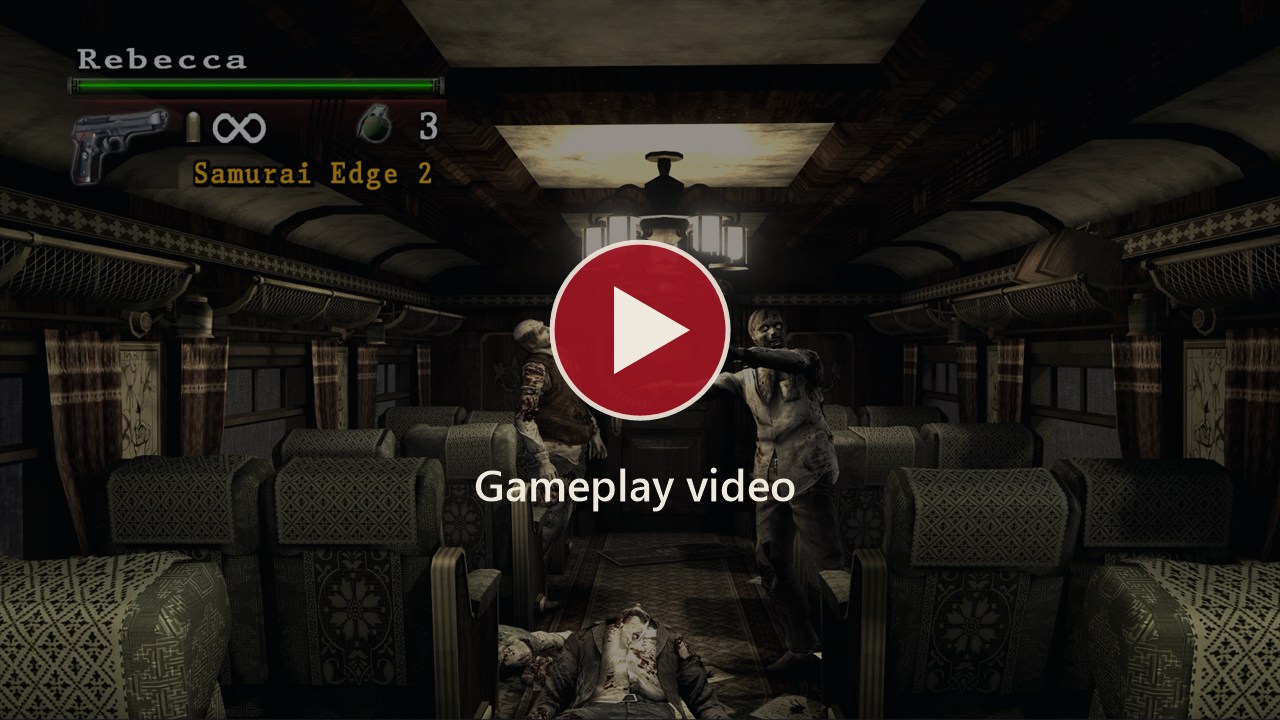
Gameplay video
Contents
- Gameplay video
- Features
- System requirements
- Installation
- In-game menu and controls
- Multiplayer (online co-op)
- Known issues
- Reporting problems
- Modding
- Building from source
- Contributing
- License
- Credits
Features
Native execution and performance
- Native code, no emulator. The game's PowerPC program is statically translated to native x86-64 code ahead of time and runs directly on your CPU, with its own Windows runtime and a Vulkan, DirectX 11 or DirectX 12 renderer (your choice in the launcher) instead of the Wii's GPU.
- High performance and unlocked FPS. Frame-rate limit presets up to 240 FPS or no limit at all, instead of the original 30. The build uses ThinLTO and profile-guided optimisation, and the hot paths of the Wii SDK are replaced by native code.
- Very fast loading. Scenes, menus and chapter changes load far quicker than on the console: the game's files are read straight from your drive by native code.
- Shaders and pipelines are warmed up before the game starts, so shader compilation does not cause stutters during play.
- Windowed, borderless and exclusive fullscreen modes, any resolution and an adjustable internal render scale.
- Native ultrawide. On 21:9, 32:9 and any other screen wider than 16:9 you see a real wide picture, with more of the world on the sides and no black bars, cropping or stretching. The aim, pickups and hit detection cover the whole screen. Menus, text and button prompts keep their normal shape; movies stay 16:9. Taller windows (4:3, 16:10) work too. Details: Ultrawide and the HUD.
Controls built for PC
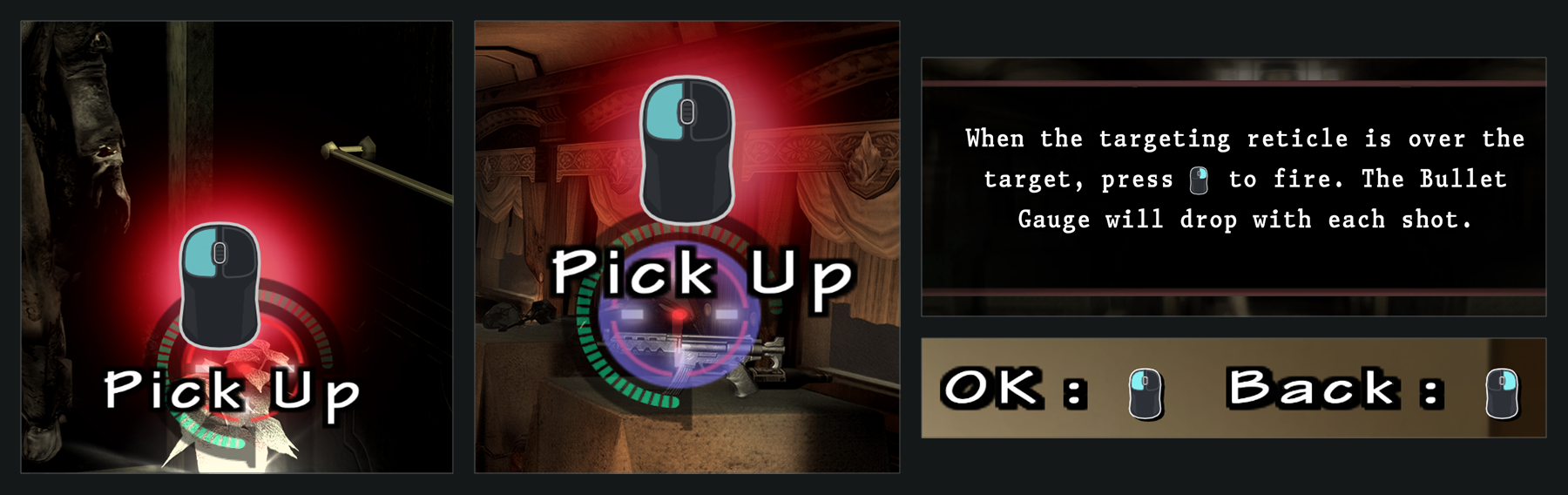
- Very comfortable, responsive mouse control. Raw relative mouse input without acceleration or smoothing, with the aiming latency reduced so the crosshair follows your hand. The original Wii-remote gestures (knife, quick-time events, grenade) work with the mouse and the keyboard.
- Mouse sensitivity slider (10-300%, default 100%) at the top of the Controls page in the launcher and in the in-game menu. It changes the aim speed at once; shake and swipe gestures keep working the same way.
- Gamepad support. Xbox, PlayStation (DualShock 4, DualSense), Nintendo Switch Pro and most other gamepads work as soon as they are plugged in. The left stick aims, the right stick is the analog stick of the Wii Nunchuk (it moves the camera), and the buttons follow the usual layout. A gamepad with a motion sensor can also aim by tilting it: swing it for the knife, shake it to break free. Motion aiming is off by default.
- Gamepad settings are on the Controllers page (launcher and in-game menu): choose keyboard and mouse, gamepad or automatic, pick the gamepad model, and press Gamepad to change stick roles, dead zones, motion aiming and every button. The Controls page stays for keyboard and mouse.
- Light guns (Sinden, GUN4IR, Retro Shooter Reaper, Dolphin Bar in a mouse mode). Set Pointing device to Light gun (absolute pointer) on the Controls page and the crosshair follows where the gun points instead of adding up mouse motion (which makes a gun drift like a trackball). Aim smoothing steadies a shaky pointer. Reload by shooting at the screen edge turns a shot in a corner or near an edge into a reload, for guns that have no off-screen reload. Setup per device: Light guns and the Wii Remote.
- Wii Remote. A Wii Remote paired through Windows Bluetooth, or a Mayflash DolphinBar in mode 4, works directly, with no extra program: the pointer from its infrared camera (you need a sensor bar), the buttons, a Nunchuk, swings for the knife and shakes. Its settings and bindings are in the Wii Remote window on the Controllers page. Pairing steps and the default layout: Light guns and the Wii Remote. Not tried on real hardware yet.
- On-screen hints and prompts show the controller you play with: mouse and keyboard icons, Xbox, PlayStation and Nintendo button pictures for a gamepad, or the Wii Remote's own buttons when you used the remote last (and they update when you rebind a key).
- Aim reticle you can restyle. The Reticle tab of the in-game menu hides the aim trail, the laser dot, the white marks and the green ammo arc, sets a colour for each player, the size of the laser dot and the length of the trail, and fades your partner's reticle in co-op. In single-player the laser dot sits right under the mouse and the trail follows the real path of your hand.
- Every action can be rebound in the launcher and has several bindings; mouse buttons, the wheel, gamepad buttons and key combinations are supported. The key that opens the in-game menu can be changed too.
- Keyboard and mouse, a gamepad, a light gun or a Wii Remote: the choice is yours. The in-game menu opens with Insert by default (see In-game menu); the gamepad cannot move around the menus yet, use the mouse there.
Improved graphics
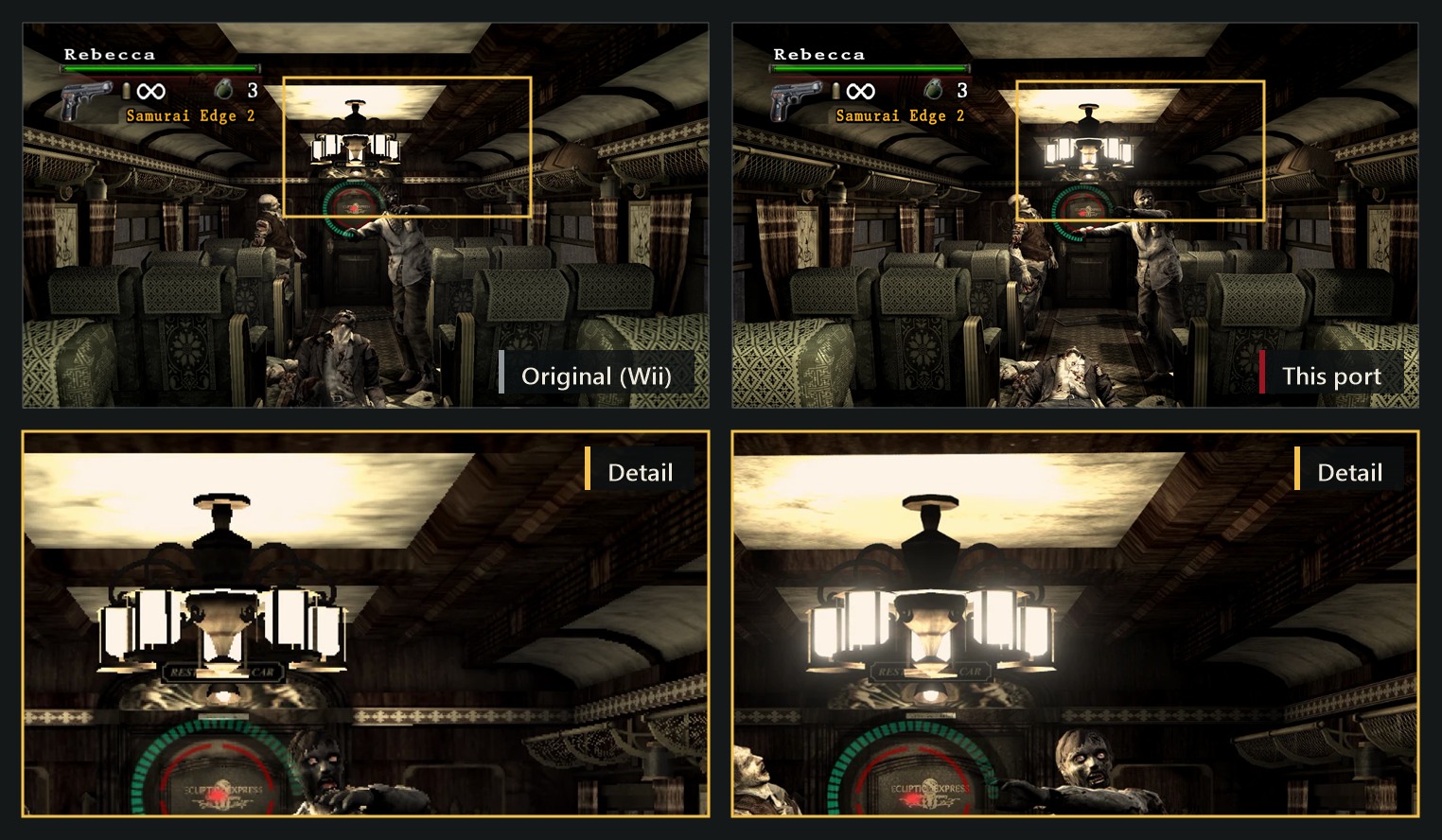
- Upscaling: NVIDIA DLSS (Super Resolution and DLAA, all quality modes) and AMD FSR 3.1 (any GPU). The HUD is drawn at full output resolution, so it stays sharp.
- Frame generation: NVIDIA DLSS Frame Generation (2x on RTX 40, up to 6x on RTX 50) and FSR 3.1 Frame Generation (works on GPUs without RTX). The HUD is excluded from interpolation. With NVIDIA Reflex for low latency.
- Ray tracing (GPUs with ray query support): ray-traced shadows from the sun and the lamps, with our own denoiser; DLSS Ray Reconstruction on RTX GPUs. More ray-traced effects are in development.
- Native HDR output (HDR10) when Windows HDR is on.
- Improved effects: our own floating-point bloom, ambient occlusion (GTAO), contact shadows, per-pixel lighting, SMAA, 16x anisotropic filtering and motion blur — each one can be switched on and off separately.
- Optional DLSS 5 (Neural Rendering) for supported NVIDIA GPUs. The DLSS 5 runtime is not part of this project and is not distributed with it: you place
nvngx_dlssnr.dllnext touc.exeyourself, and only then the DLSS 5 option appears. Off by default. - High-resolution texture replacement (see Modding).
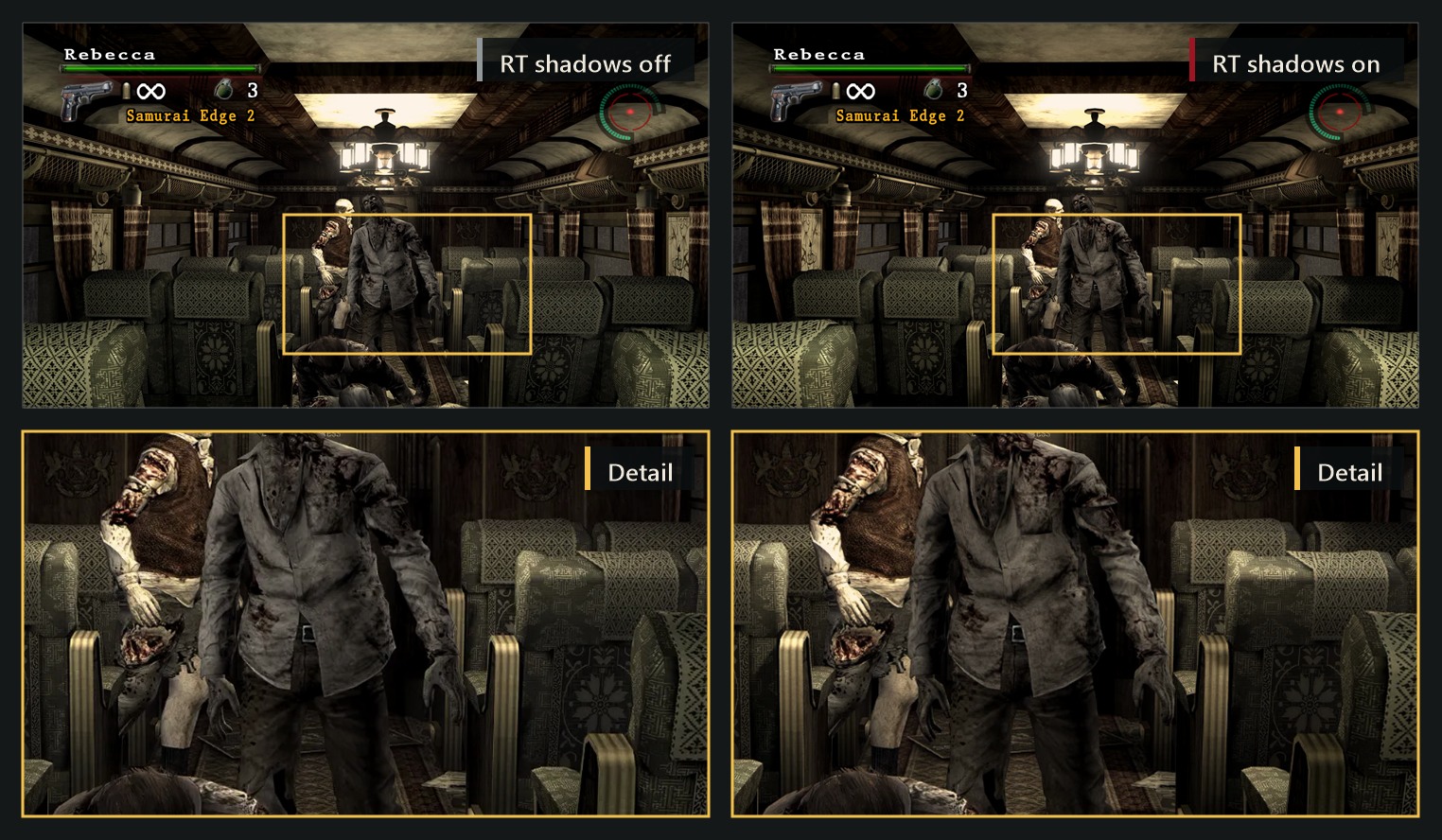
Details: Upscaling and frame generation · Graphics effects.
Launcher
- Built-in launcher in 13 languages: English, Русский, Deutsch, Français, Español, Italiano, Português, Polski, Українська, Türkçe, 日本語, 한국어, 简体中文.
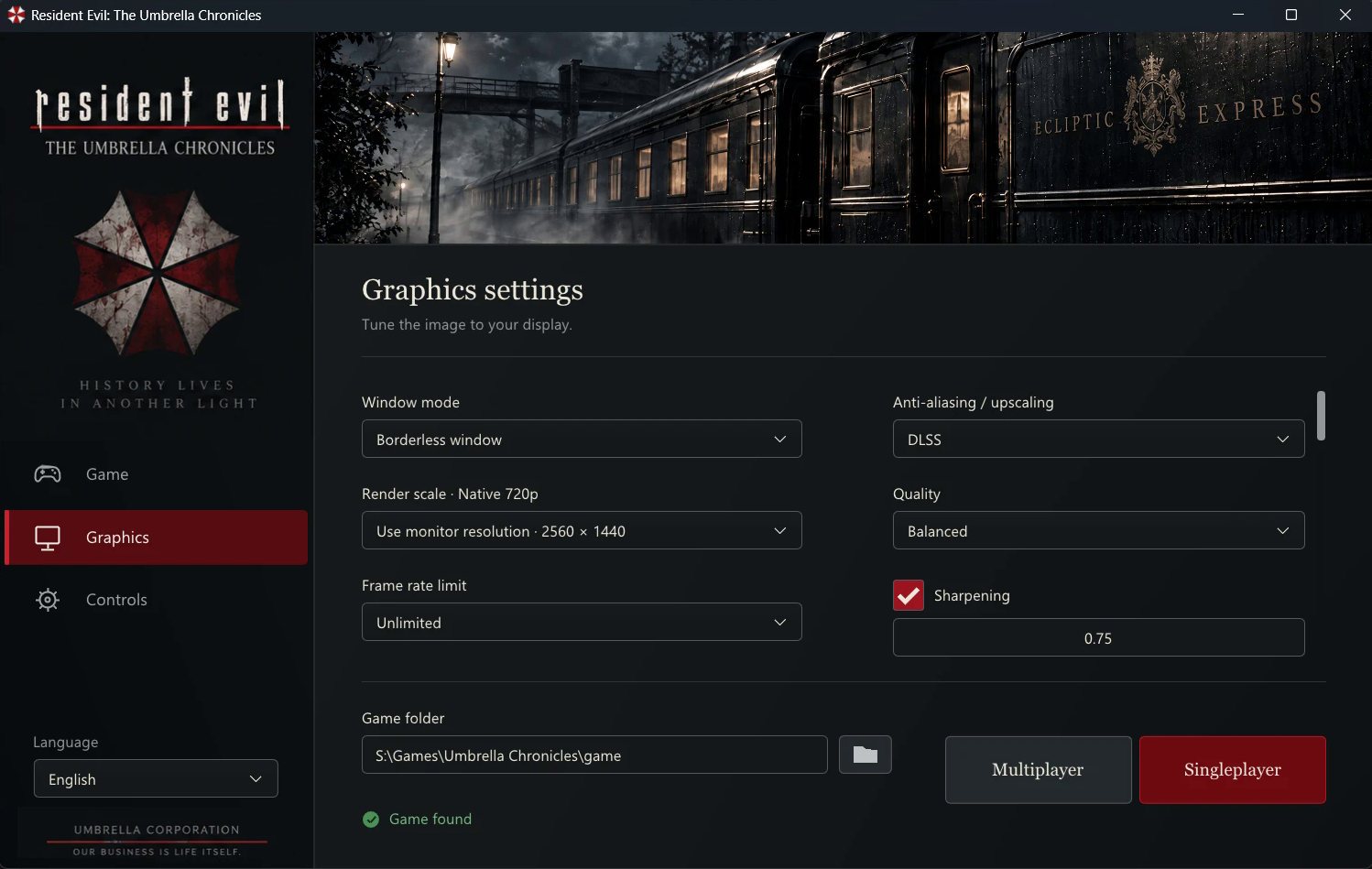
- All settings in one place: resolution, window mode, ultrawide HUD position, FPS limit, upscaler, frame generation, effects, ray tracing, HDR, DLSS 5, key bindings, mouse sensitivity, pointing device (mouse or light gun) and reload zone, gamepad and Wii Remote settings. Features your GPU cannot run are greyed out with the reason.
- Unpacks your game image for you: choose the disc image in the launcher and it unpacks it itself with the built-in Wit, no manual steps (details).
- One-click updates: the launcher checks the latest release, verifies the files (SHA-256) and replaces them, keeping your settings, saves and mods.
- Multiplayer lobby with automatic router port opening (UPnP) and NAT punching (details).
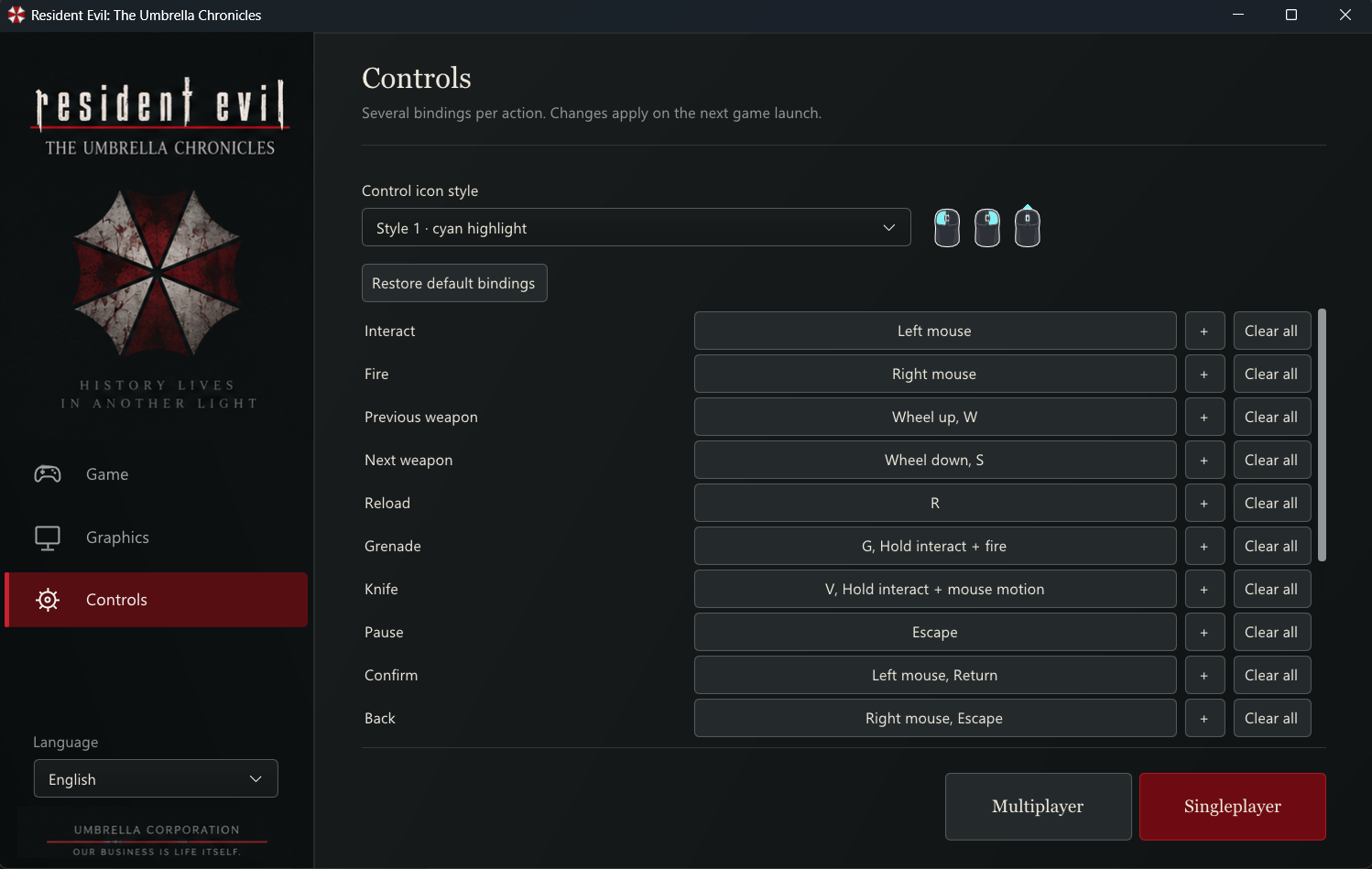
Extensive modding
- Mods are folders in
mods/that you can switch on and off while the game is running. - You can change practically any resource: textures (DDS), audio (OGG / WAV), text and fonts, any file of the disc, archives, movies, and weapon and game data without writing code.
- Scripts in Lua and JavaScript with a documented game API (players, weapons, enemies, camera, input, events, UI, settings), plus hooks into the game's own functions.
- Native DLL mods for anything that scripts are too slow or too limited for.
- Example mods in
mods-examples(infinite ammo, god mode, randomizer, inspector, native DLL and more).
See Modding.
Online co-op
- Two-player network co-op over LAN or the Internet, with automatic port opening on routers that support UPnP and manual NAT punching. See Multiplayer. Currently raw and little tested.
System requirements
The port has been tested only on the author's PC (NVIDIA GeForce RTX 4080, Windows 11), so the minimum requirements are not determined yet. What is known:
| OS | Windows 10 / 11, 64-bit |
| CPU | x86-64 with AVX2 (Intel Haswell / AMD Excavator or newer) |
| GPU | A GPU with Vulkan 1.3 support and an up-to-date driver |
| DLSS and DLSS Frame Generation | NVIDIA GeForce RTX (frame generation 2x on RTX 40, up to 6x on RTX 50) |
| FSR 3.1 and FSR Frame Generation | Any GPU with Vulkan 1.3 — RTX is not required |
| Ray tracing | A GPU with ray query support (the launcher shows if yours has it) |
| DLSS 5 | Optional; NVIDIA RTX GPU and the nvngx_dlssnr.dll runtime that you provide yourself |
| Game | Your own image of Resident Evil: The Umbrella Chronicles for the Wii, NTSC-U (RBUE08) |
Note
Only the North American release (RBUE08) is supported. The translated game code is tied to the exact main.dol of that release, so the PAL (RBUP08) and Japanese (RBUJ08) versions will not work.
Installation
1. Download the port
- Open the Releases page and download
UC-Windows-X.Y.Z.zip. - Unpack it into a folder where you have write permission (for example
C:\Games\Umbrella Chronicles; notProgram Files). The archive contents go directly into that folder: you will seeuc_launcher.exe,uc.exeand several DLL files.
2. Unpack your game image (in the launcher or with Wit)
The port does not contain the game. It reads the game's files from a folder where your own disc image is unpacked (the folder that contains DATA). There are two ways to get it, pick one: the launcher unpacks the image for you (way A, the easiest), or you unpack it yourself with Wit (way B).
What you need (both ways): an image of your own disc of the NTSC-U version (RBUE08) in .iso, .wbfs, .ciso, .wdf or .wia format, and about 4 GB of free disk space. (The .rvz format of Dolphin is not supported: convert it to ISO in Dolphin first, right-click the game → Convert File…. Discs in a drive are not supported either: use an image.) You can dump your disc with a Wii and homebrew software.
Way A. The launcher unpacks the image
The unpacking tool Wit (Wiimms ISO Tools) is already built into the port (the tools\wit folder), so there is nothing to download and no command to type.
- Run
uc_launcher.exe. If the game is not found yet, the launcher asks you to select the extracted game folder. - Click the disc button (the round disc icon, tooltip "Select a disc image…") to the right of the folder button and choose your image file. You can also paste the path of the image into the Game folder field. The message under the field changes to "Disc image selected. It is unpacked into the game folder before the game starts."
- Press the red Singleplayer button. The Unpacking the game window opens with a progress bar and a Cancel button. It takes about a minute.
- When it is done, the launcher sets the Game folder to the new
gamefolder next touc.exeand starts the game by itself. The next time just press Singleplayer: the image is not needed any more, you can keep it or delete it.
What to know:
- Only the NTSC-U image (
RBUE08) is accepted. The launcher reads the disc ID first. An image of another region, or a file that is not a disc image, is refused with a message, and nothing on your disk is changed. - The
gamefolder next touc.exeis replaced. When the image is accepted, the launcher deletes the oldgamefolder (if there is one) and unpacks the game into a new one. If you put your own files into that folder, back them up first. The old folder counts as free space, so 4 GB free after deleting it is enough. - The image must not be inside the
gamefolder (it would be deleted together with it): move it somewhere else. The launcher tells you if you picked such a file. - A half-unpacked game is never left behind. If you press Cancel or the unpacking fails (damaged image, disk full) or
DATA\sys\main.dolis missing at the end, the half-unpackedgamefolder is removed. If this happens after the oldgamefolder was deleted, there is nogamefolder until you select the image and press Singleplayer again. - The path of the image is not saved in
config.json: until the unpacking succeeds, the launcher keeps the folder that was set before. - Multiplayer stays unavailable until the game is unpacked: first press Singleplayer once.
- The game is always unpacked into
gamenext touc.exe. If you want it in another folder, use way B.
Messages you may see: "The Wit tool is missing next to the launcher" (the tools\wit folder was deleted: reinstall or update the port); "This is not an image of the NTSC-U disc (RBUE08)"; "Not enough free disk space"; "The image is inside the game folder"; "Unpacking failed: the image may be damaged or the disk is full".
Way B. Unpack by hand with Wit
Use it if you want the game in another folder or do not want the launcher to touch the game folder.
-
Download Wit for Windows from https://wit.wiimm.de/wit/ and unpack it somewhere, for example to
C:\Tools\wit. -
Open PowerShell or the command prompt in the folder with the port (where
uc.exeis) and run (change the paths to yours):C:\Tools\wit\bin\wit.exe extract "C:\Images\Umbrella Chronicles.iso" ".\game"wit extract(short formwit x) writes the whole disc into thegamefolder. It takes a minute and needs about 4 GB of free space. -
Check the result. The file
game\DATA\sys\main.dolmust exist. The structure should look like this:uc.exe uc_launcher.exe game\ ├─ DATA\ │ ├─ files\ (the game's data) │ └─ sys\ │ └─ main.dol └─ UPDATE\ -
(Optional) Check that the image is the right one. The SHA-1 of the file should be
7ed67efe2ba9b0de1cef0bbb2ea157d7a43d7f25:certutil -hashfile "game\DATA\sys\main.dol" SHA1
If you unpacked the game into another folder, you will select it in the launcher at the next step. The folder you choose must be the one that contains DATA.
3. First launch and settings
- Run
uc_launcher.exe. If the launcher says "Select the extracted game folder", click the Game folder field and pick the folder from step 2 (the one that containsDATA), or choose your disc image with the disc button and press Singleplayer (the launcher unpacks the image first, see way A). A green check mark means the game is found. - Choose the language of the launcher (top of the window), the resolution and the window mode.
- Set the graphics options. Good starting point:
- Upscaler: DLSS (RTX GPU) or FSR (any GPU), mode Quality. Without an upscaler the game renders at your resoluti