EliteForce-MacOS-Marino
EliteForce-MacOS-Marino is a native macOS port of Star Trek: Voyager - Elite Force for single-player and multiplayer with a launcher and dedicated server hosting.
- Type: PC port
- Game: Star Trek: Voyager - Elite Force
- Runs on macOS
- By marino Hardin
- Latest release macos-v1.3.0, 2026-11-07
- Source: https://github.com/marinohardin/EliteForce-MacOS-Marino
README
EliteForce-MacOS-Marino (Marino's Build)

My family didn't let me play M-rated games like Quake growing up, so I played Elite Force as a kid! With this project, I wanted to create an easily accessible way to play it again, especially in LAN parties.
What This Is
A native macOS (Apple Silicon) port of Star Trek: Voyager — Elite Force (Raven Software, 2000): the single-player campaign and Holomatch multiplayer, in one app.
A launcher lets you pick Single Player or Holomatch, set up the graphics and choose where your game files are, then starts the game. It runs on an ioquake3-based engine with a Vulkan renderer on Metal (see Origins).
It also supports running a dedicated multiplayer server, with automatic port opening (NAT-PMP / UPnP) and a check that the server is listed on the internet, dramatically simplifying hosting servers compared to the original game.
No game data is included. You need your own copy of the retail game. (Even the icon is intentionally not using copyrighted symbols.)
This is a relatively new release: the campaign is playable and my old PC savegames load, but it hasn't been played through end to end on macOS yet. If you see any glitches, please report them.
Screenshots
Features
-
Launcher. Choose Single Player or Holomatch; a graphics Quality preset (Performance, Balanced, Best) or the individual settings: window or full screen, window size, full Retina resolution, anti-aliasing, texture detail, V-Sync and Brightness; your Holomatch player name, internet master servers (Servers…) and a server browser (Browse…); Host a Server with its Config…; and where the game files are, whether the Expansion Pack was found, and Add Game Files… to copy in more
.pk3files. The launcher shows what the game last used, including changes made in the game's own Video menu. Quitting from the game's own menu brings the launcher back; Cmd+Q quits for good. When a newer version is on this page's Releases, the launcher says so, with a Download… button (checked at most once a day; Check for Updates… and Check for Updates Automatically are in the app menu). -
Holomatch (multiplayer). Join games on your local network (LAN party, see Holomatch and LAN parties), on the internet through the Join menu's Internet sources (live community master servers), or by IP address, with bots. Browse… in the launcher lists every server on your network or on the internet masters, with who's playing, the map and ping, favorites and filters, a look at custom maps (even in 3D) and Join links from websites like efservers.com. See Finding a game: Browse…. It speaks the original Elite Force 1.2 network protocol, with many fixes from cMod by Noah Metzger. Single player and Holomatch keep separate settings (
efspconfig.cfg/hmconfig.cfg); single player never opens a network connection. -
Dedicated server. Host a Server runs a standalone server with a status window (players with Kick, console, map and bot controls), Play on This Mac, and automatic router port opening (NAT-PMP / UPnP). See Hosting a server.
-
Native Apple Silicon, Vulkan on Metal. No Rosetta; the single-player game runs as native code, and the Quake3e Vulkan renderer runs on Metal through MoltenVK.
-
Retina / High-DPI. With High-DPI on, the game renders at the display's native resolution (a 1920×1080 window at 3840×2160), switchable any time from the Video menu.
-
Native macOS fullscreen, switchable live with the green window button or Alt+Enter, even mid-mission. The window can be resized, and the Video menu has Window Size, Fullscreen and High-DPI.
-
Bink cinematics (intro, logos, in-game movies) decoded with FFmpeg. Scripted cutscenes can be skipped with Enter, as in the original.
-
Widescreen. On wide displays the view is wider at the sides, not cropped at the top and bottom (
cg_forceAspect 1for the original 4:3 view). -
Original PC saves load. Savegames from the Windows version can be loaded.
-
Mac keyboard and mouse: the macOS press-and-hold accent popup is disabled, so holding movement keys works, and text input is only active in the console, chat and menus.
Requirements
-
An Apple Silicon Mac (M1 or later). Intel Macs are not supported.
-
macOS 12 Monterey or later.
-
The retail game. Copy these files from the
BaseEFfolder of a PC installation:pak0.pk3(about 541 MB, the main game data). This one is required.pak1.pk3andpak2.pk3, from the 1.1 and 1.2 patches. Also required, for single player too: they carry the patched maps and Holomatch's game code. The original CD has onlypak0.pk3; GOG and Steam copies come patched. Without them the launcher says Patch 1.2 missing, and Add Game Files… adds them.pak3.pk3and other extra paks, if you have them.
GOG and Steam copies work. GOG's Windows installer (the offline setup
.exe) works without a PC: choose the.exeitself with Choose… or Add Game Files… and the app unpacks its.pk3files (pak0–pak3 and playermaps, so the Expansion Pack too), checking each against the installer's own checksums. If an installer can't be read, the app says so and asks for aBaseEFfolder from a PC install instead. A full install from the original CD works too. A minimum install from the CD does not copypak0.pk3to disk: it stays on the CD, atBaseEF/pak0.pk3. Copy it from the CD yourself.The Expansion Pack is optional. Its files go into the same
BaseEF: if they're there when you choose the folder they're copied along; otherwise use Add Game Files… in the launcher and choose the Expansion Pack'sBaseEF(or its.pk3files). The launcher's Game Files section says whether it was found. It adds single player's Virtual Voyager and Holomatch maps that many servers run (such asctf_oldwest).
Install (players)
-
Download
EliteForce-MacOS-Marino-<version>.dmg(or the.zip) from the Releases page. -
Open the DMG and drag Elite Force.app onto the Applications shortcut (or unzip the
.zipand move the app to/Applications, or anywhere you like). Release builds are signed and notarized by Apple, so macOS opens them without warnings. -
Open the app. The launcher opens. It looks for your game data, and if it can't find it, click Choose… under Game Files and pick the folder where Elite Force is installed (the folder that contains
BaseEF), or GOG's setup.exe:- By default the app copies the game files (
*.pk3) and any saves from thatBaseEFinto its own data folder, so you can delete or move the original afterwards. - Tick "Use BaseEF files in place rather than copy" to read them from where they are instead (no copy, nothing extra on disk). The app remembers that folder.
- If the chosen
BaseEFhas nopak0.pk3(a minimum CD install), the app says so; copypak0.pk3from the CD and try again. If it haspak0.pk3but not the patch'spak1.pk3andpak2.pk3(files from the CD alone), the launcher says Patch 1.2 missing and keeps Play off until you add them with Add Game Files….
Then pick Single Player or Holomatch, adjust the graphics if you like, and click Play.
- By default the app copies the game files (
Saves and settings
Config files, saves (and game files the app copied) live in
~/Library/Application Support/EliteForce-MacOS/baseEF/. You don't need to find that
folder yourself: the app's File menu has
- Return to Launcher… and Switch to Holomatch / Switch to Single Player: restart the app at the launcher, or straight in the other mode,
- Show Saves Folder and Show Game Folder: open them in Finder,
- Change Game Folder…: pick a different install (the app restarts to use it),
- Delete Saves & Settings…: moves the app's data folder to the Trash (it lists what's in it first). A game folder you chose to use in place is never touched.
Saves from the Windows version work: the app copies them when it copies your BaseEF, or
you can drop .sav files into the saves folder.
Holomatch and LAN parties
Everyone needs their own copy of the game and the app (or Elite Force 1.2 on a PC; the
protocol is the original one). Holomatch uses pak0.pk3–pak2.pk3 from the retail game, so
copy all of them; extra map paks (*.pk3 in BaseEF) must match between host and players
for the maps they use. Custom maps download automatically when you join a server that has
them (over HTTP when the server offers it). They're kept in a downloads folder in the app's
data folder and only override the game's own files on a server that uses them. The official
paks never download, so Expansion Pack maps need the Expansion Pack (a server
running one shows "Couldn't load maps/….bsp" otherwise).
- Everyone opens the app, picks Holomatch, sets a player name and clicks Play.
- The host opens Servers → Create Server, picks a map and game type (and bots, if you like) and starts it.
- The others open Servers, set the source to Local, pick the host's game and click
Engage, or connect by address from the console (
connect 192.168.1.20, the host's IP address).
Notes:
- The first time, macOS may ask whether Elite Force may find devices on your local network (and, with the firewall on, accept incoming connections on the host): allow it, or LAN games won't show up. Both can be changed later in System Settings → Privacy & Security → Local Network and Network → Firewall.
- The game uses UDP port 27960 (the next players on the same Mac 27961, …). The Join menu's LAN search only looks at ports 27960–27963.
Hosting a server
Instead of hosting from inside the game, pick Host a Server in the launcher. Config…
sets the map rotation, game type, Holomatch modifiers, limits, bots, name, password, network and
Tick Rate (High sends players 40 updates a second instead of 20).
Start Server runs a standalone server (no game window) in a window of its own, with its
address, the players and its console; Play on This Mac joins it from the same Mac. The
launcher stays open, so you can play single player while friends play on your server. Starting
a second server asks first, since players would see both. It also runs from Terminal:
"/Applications/Elite Force.app/Contents/MacOS/Elite Force" +set dedicated 1 +map hm_voy1
(dedicated 2 for the internet), with console commands typed into Terminal.
Playing over the internet
Players outside your home network can only reach your server if your router lets their connection through to your Mac:
- Automatic (recommended): in Config… → Server, choose Internet and leave Open the port on my router automatically on. While the server runs, the app asks your router (NAT-PMP / UPnP, which most home routers support) to forward the port, and the server window shows your public address to give friends. The port closes again when the server stops. Its Listed row names every master that lists your server (proof the port is open) and any that don't yet; some masters list new servers late, or only copy another master's list. Most routers don't loop their public address back, so your own Mac couldn't reach your server through the Internet list. Loopback Host Fix (in the launcher, on by default) lists it as this Mac instead, so you see it too, marked (this Mac) in Browse….
- If the router refuses (the feature is off or unsupported, or your provider puts you
behind a second NAT), the server window says why. Then either forward UDP 27960 (or your
chosen port) to your Mac by hand in the router's settings, or use a private network like
Tailscale: everyone installs it and joins your tailnet, then connects
to your Mac's Tailscale address (
connect 100.x.y.z). The Join menu won't list it there; connect by address.
Internet games and master servers
The Join menu's Internet 1 to Internet 5 sources each ask one master server, a community-run list of the Holomatch games on the internet. Raven's original master is long gone, so the launcher's Servers… button (under Holomatch) lets you pick them. The recommended defaults put the live ones first:
| Join menu | Master server |
|---|---|
| Internet 1 | master.stef1.daggolin.de (the most complete list) |
| Internet 2 | efmaster.tjps.eu |
| Internet 3 | master.stvef.org (copies daggolin's list) |
| Internet 4 | master.stef1.ravensoft.com (Raven's, offline; kept in case it returns) |
| Internet 5 | ipv6.tjps.eu (IPv6 only) |
The sheet shows which ones answer and how many games each lists. Add a master (up to 16) as the community starts new ones, drag them into the order you want, or go back with Restore Recommended Defaults or Restore Original Defaults (the game's own: Raven's, then tjps). A server you host for the internet announces itself to every master in the list; only the first five appear in the Join menu, while Browse… has a tab for each, plus Combined, which merges all their lists.
Finding a game: Browse…
Browse… (in the launcher, under Holomatch) lists the servers on your network, on all the master servers together (Combined) or on each one, and joins one directly.
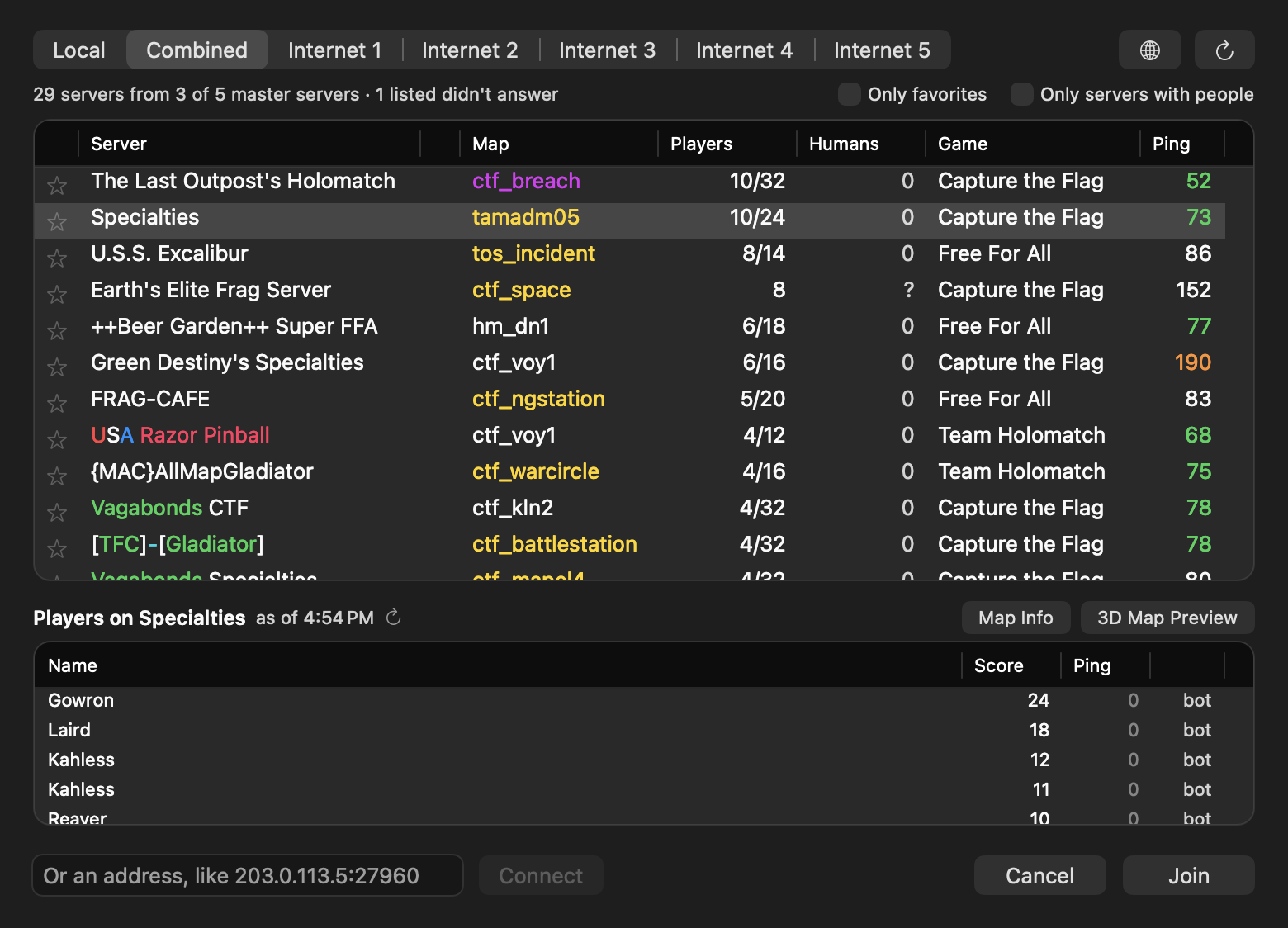
- Humans counts only the people, not bots (? when a server doesn't say). Servers with people come first.
- Select a server to see who's playing. Only that server is asked.
- Map colors: amber maps download when you join (if the server allows it); purple ones are Expansion Pack maps, which servers can't send. Map Info and 3D Map Preview show a custom map on efservers.com; the app looks the map up there when you select the server.
- Join links (
stvef://…) on websites like efservers.com open the app and join that server. If another app such as cMod opens them, Browse… offers Open Join Links with Elite Force.
Uninstall
Choose File → Delete Saves & Settings… (this also removes any game files the app copied), then drag the app to the Trash.
Building from source
Everything needed to build is in the repository. Game data is only needed to run.
Prerequisites
-
Xcode Command Line Tools:
xcode-select --install -
Homebrew packages:
brew install cmake ninja pkg-config molten-vk vulkan-headers vulkan-loader(
vulkan-loaderis only used byrun-macos.sh; the.appbundles its own.) -
SDL and the Vulkan loader for the app:
macos/build-deps.shbuilds SDL3 3.4.18, sdl2-compat 2.32.74 and the Vulkan loader 1.4.363 (the releases Homebrew ships, checksums pinned) for the app's minimum macOS intobuild-deps/install. Homebrew's own builds target the build Mac's macOS, so bundling them would raise the app's minimum.make-app.shruns it when needed; the engine CMake uses it automatically (else pkg-config'ssdl2). -
FFmpeg for the cinematics:
macos/build-ffmpeg.shdownloads FFmpeg 9.0.2 and builds a minimal LGPL version (Bink only, for the app's minimum macOS) intobuild-ffmpeg/install.make-app.shruns it when needed; the engine CMake uses it automatically, and falls back to a Homebrewffmpegif it hasn't been built.
Build
The game modules and the engine are two separate CMake projects:
# 1. Single-player game + UI modules -> efgame/buildmac/libefgame.dylib, libefui.dylib
cmake -S efgame -B efgame/buildmac -DCMAKE_OSX_ARCHITECTURES=arm64
cmake --build efgame/buildmac -j

# 2. Engine executable -> build-macos/efsp  (run macos/build-ffmpeg.sh once first)
cmake -S EFAndroid-SP/app/jni/macos -B build-macos
cmake --build build-macos -j
Run from the build tree
run-macos.sh copies the dylibs next to the executable, points SDL at Homebrew's Vulkan
loader, and starts a 1280×720 window:
./run-macos.sh                                   # data in ./Star Trek Voyager Elite Force/BaseEF
EF_DIR=/path/to/EliteForce ./run-macos.sh        # a folder that contains BaseEF/
EF_DIR=/path/to/EliteForce ./run-macos.sh +set r_fullscreen 1 +set r_highdpi 1
EF_DIR is the folder that contains BaseEF (the fs_basepath), not BaseEF itself.
Make the .app
macos/make-app.sh             # builds both parts, then writes and ad-hoc signs "dist/Elite Force.app"
NO_BUILD=1 macos/make-app.sh  # re-bundle only
macos/make-release.sh builds the app and packages it for a release as a .dmg (with an
Applications shortcut) and a .zip in dist/.
Local builds are ad-hoc signed and run on your own Mac without an Apple developer account.
With a Developer ID certificate, make-release.sh also signs, notarizes and staples the
release (docs/PUBLISHING.md).
The script copies efsp and the two game modules into Contents/MacOS, and SDL3 +
sdl2-compat, the LGPL FFmpeg libraries, the Vulkan loader and MoltenVK into
Contents/Frameworks (license texts go in Contents/Resources/licenses), rewrites their install names to @rpath, and fails if anything still
points outside the bundle or the system. APP_NAME, DISPLAY_NAME, BUNDLE_ID and BREW
can be overridden.
Build options (engine CMake): -DEF_BINK=OFF builds without FFmpeg (no cinematics);
-DEF_FFMPEG_PREFIX=/path uses another FFmpeg install (empty: pkg-config's default).
-DEF_VM_JIT=ON enables the experimental aarch64 QVM JIT; it is off by default and not
needed: the SP game runs natively, and the interpreter is fast enough for Holomatch.
The engine runs single player by default; +set com_holomatch 1 starts Holomatch (the
launcher passes it; it is command-line only). From the .app, naming the mode on the
command line also skips the launcher:
"Elite Force.app/Contents/MacOS/Elite Force" +set com_holomatch 1.
Technical background on the port is in docs/macos-port-notes.md.
Known issues
- Expansion Pack content needs the Expansion Pack's data. Without it, single player's Virtual Voyager button shows EXPANSION ONLY (greyed out) and Holomatch servers running Expansion maps can't be joined. The Expansion Pack itself is untested with this port.
- Still being tested. Please report any glitches found. Back up your saves.
- Apple Silicon only.
- Holomatch is new. Mac-to-Mac games over LAN and online are tested. The internet server browser depends on community master servers being online (see Servers…).
Reporting issues
Please open an issue on Gi