Six Golden Coins
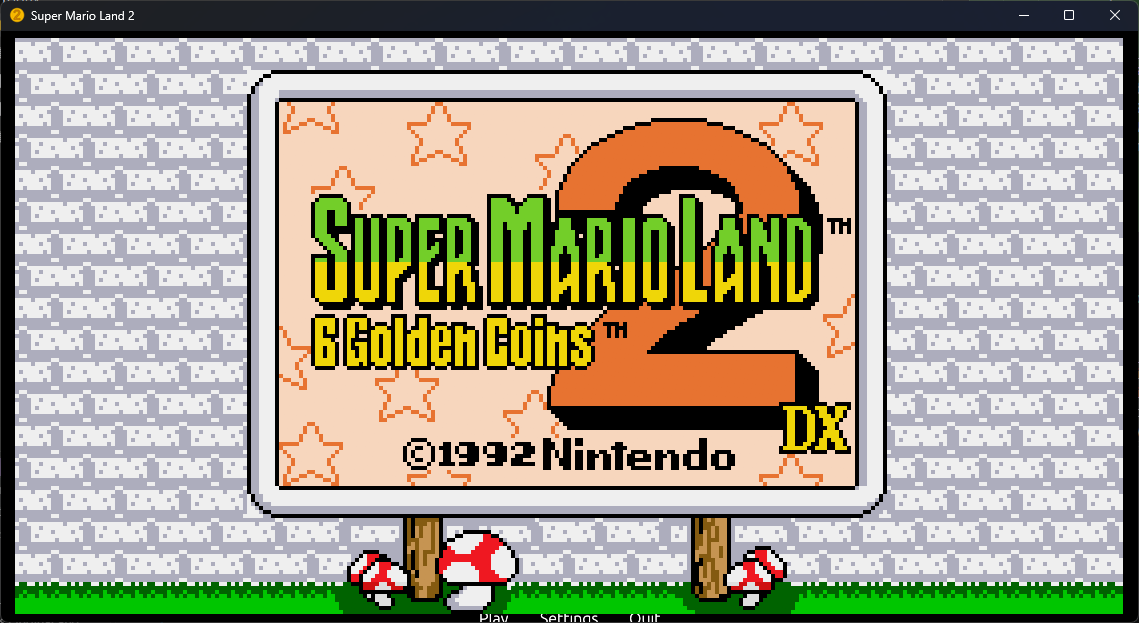
Six Golden Coins is a native port of Super Mario Land 2: 6 Golden Coins for Windows, Linux and macOS with widescreen support and optional frame interpolation.
- Type: PC port
- Game: Super Mario Land 2: 6 Golden Coins
- Runs on Windows, Linux and macOS
- By Patrick Mill
- Latest release v0.1.0, 2026-10-27
- Source: https://github.com/patricksmill/sml2-rs
README

Six Golden Coins
An enhanced desktop edition of Super Mario Land 2: 6 Golden Coins, rewritten in Rust.
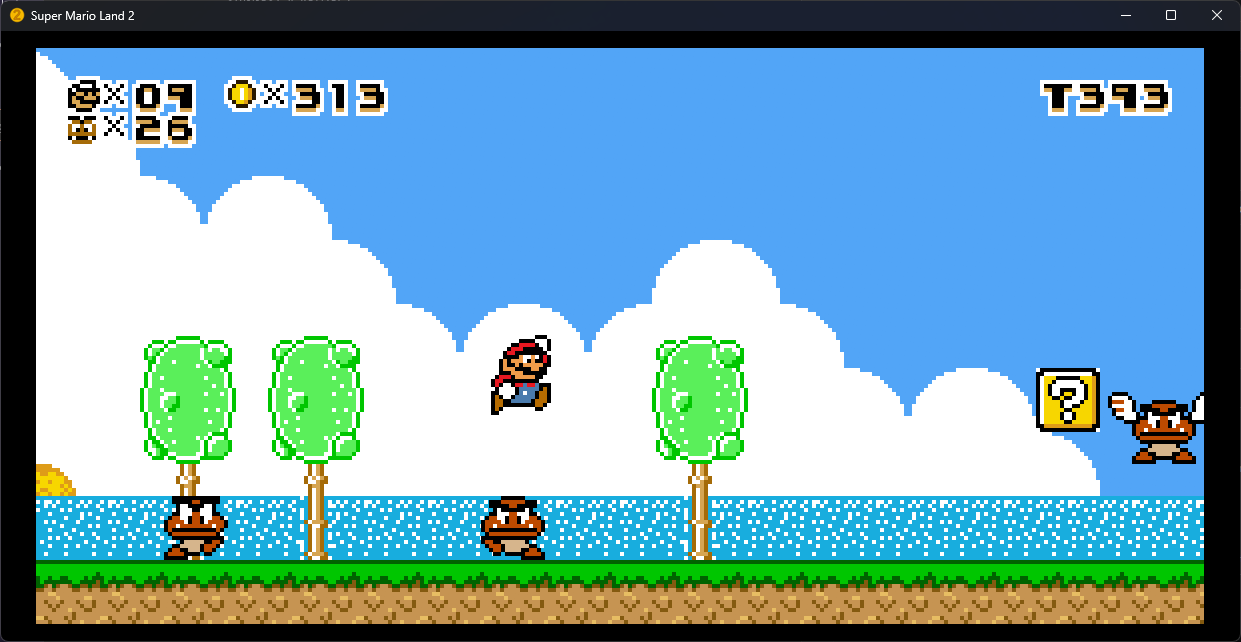
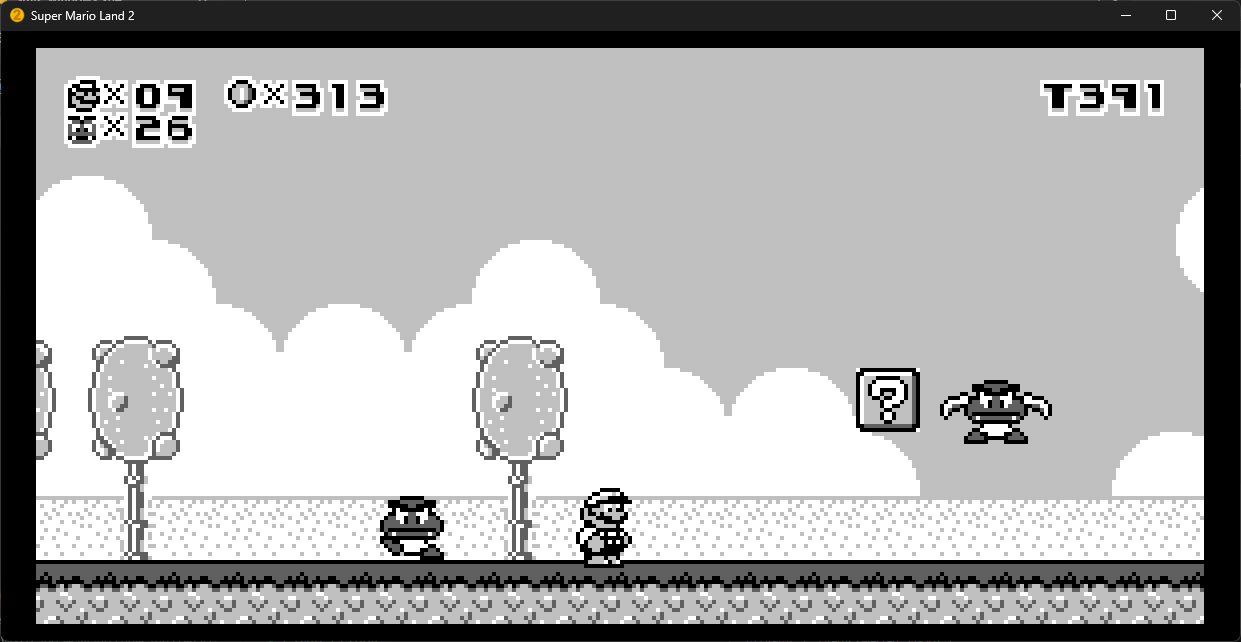
SML2DX colors (left) and the original Game Boy look (right), both widescreen.
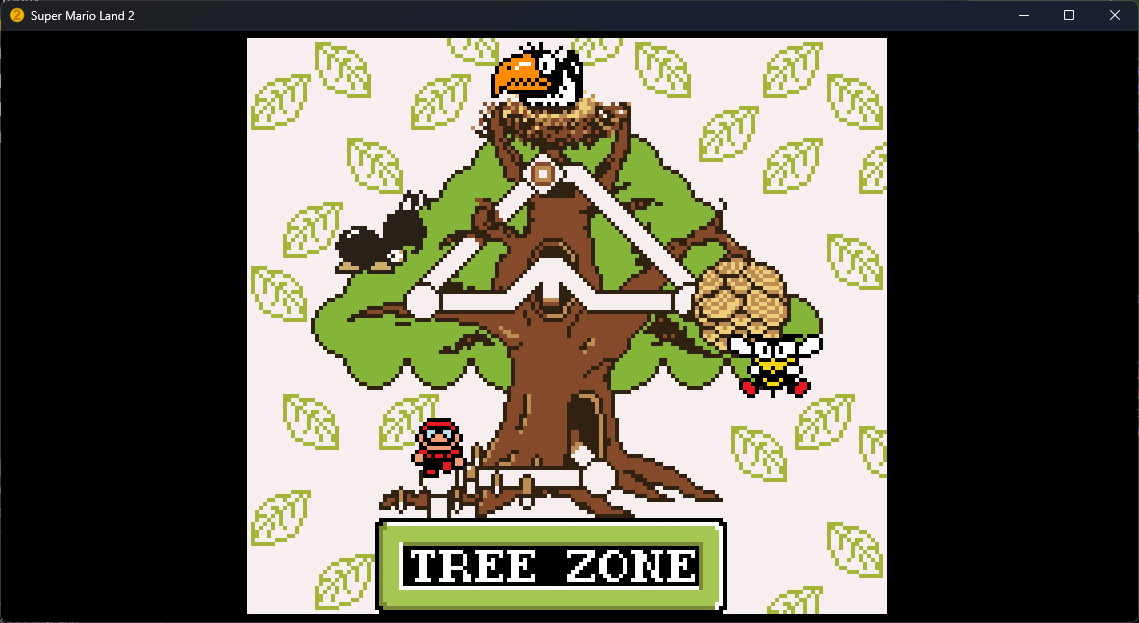
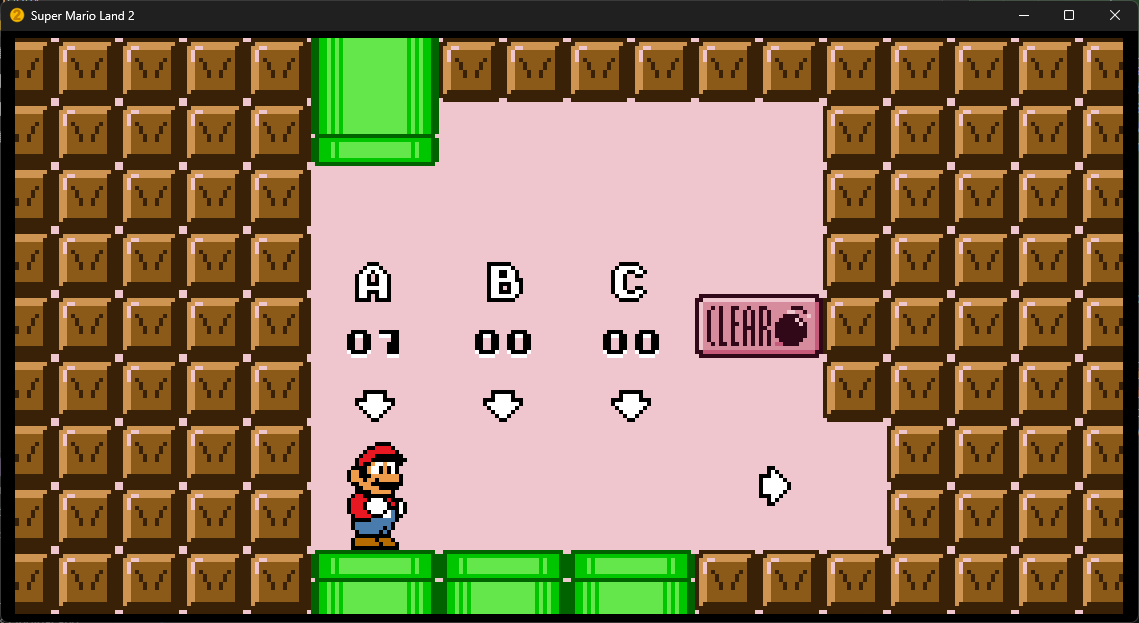
Features
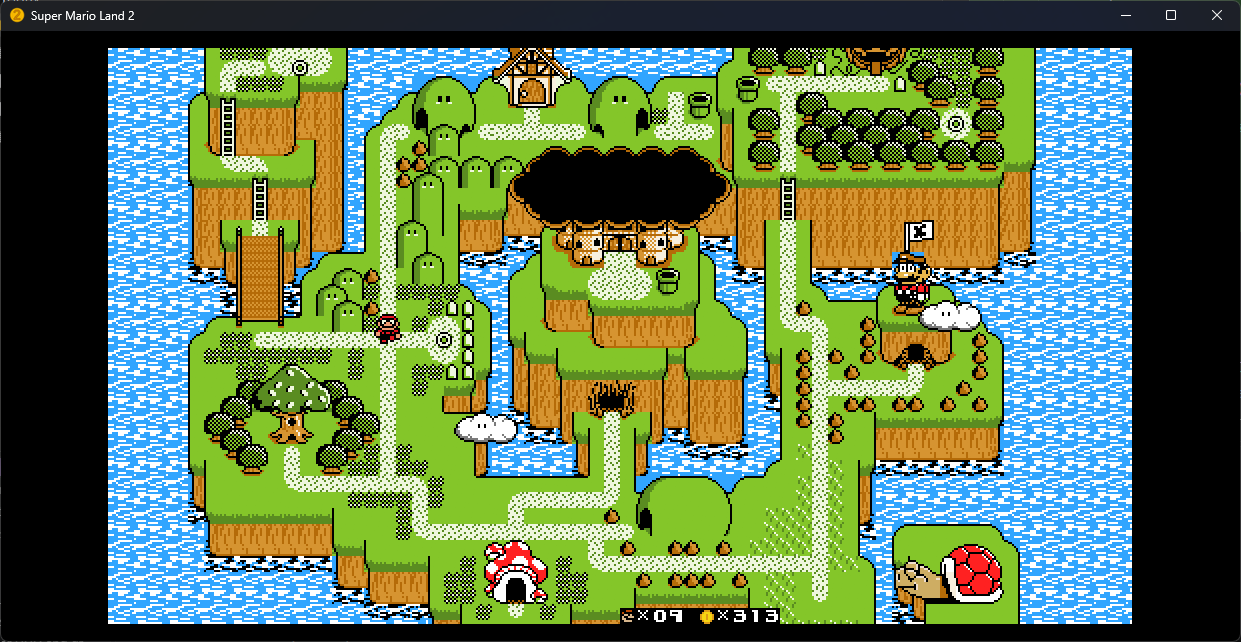
- Widescreen: 16:9, 21:9, or your window's aspect ratio.
- Camera zoom-out presets up to 200%.
- Optional frame interpolation for high refresh rate displays.
- SML2DX graphics and colors, with Mario or Luigi.
- Game Boy, Pocket, Game Boy Color, and Super Game Boy display palettes when not in DX mode.
Accuracy
This is a native port, not an emulator, and it does not aim to be perfectly emulator accurate. Gameplay logic follows the original game's code, but expect small differences from real hardware in timing and edge cases.
Widescreen and Camera zoom show more of each level than the Game Boy screen did. Enemies off the original screen edge become active sooner, so some enemy behavior and encounters will change. For the closest match to the original game, set Widescreen to Off and Camera zoom to 100%.
Getting started
Release builds target Windows x64, Linux x86_64, and macOS Apple Silicon. Each is a single executable.
- Download your platform's executable from Releases, or build locally. See Getting started for Linux/macOS first-run steps.
- Launch it and use Settings → Game → Import ROM… to select your original Super Mario Land 2 UE v1.0 ROM, then choose Play.
ROMs and imported game graphics are not included.
SML2DX
Import an SML2DX v1.8.1 ROM or IPS patch through Settings → Game → Add DX ROM / IPS…, then enable DX Mode. Choose Mario or Luigi in Settings → Mods.
DX palette uploads don't yet follow the original's VBlank job order, so a color change can land a frame off. See DX compatibility.
Controls
| Action | Keyboard | Controller |
|---|---|---|
| Move | Arrow keys | D-pad / left stick |
| Jump | Z / Space | Bottom face button |
| Run / fire | X / Shift | Left or right face button |
| Start / confirm | Enter | Left stick click |
| Select | Backspace | Select / Back |
| Pause menu / resume | Escape | Start |
| Fullscreen | F11 | Settings menu |
| Cycle display palettes | F4 | Settings menu |
Change bindings in Settings → Controls. See the desktop guide for setup help and save locations.