sms-pc-port
sms-pc-port is a native PC port of Super Mario Sunshine for Windows and Linux that offers up to 8x resolution and an HD texture pack.
- Type: PC port
- Game: Super Mario Sunshine
- Runs on Windows and Linux
- By TekRantGaming
- Latest release v1.3.0, 2026-10-05
- Source: https://github.com/TekRantGaming/sms-pc-port
- Website: https://github.com/TekRantGaming/sms-pc-port/releases/latest
README
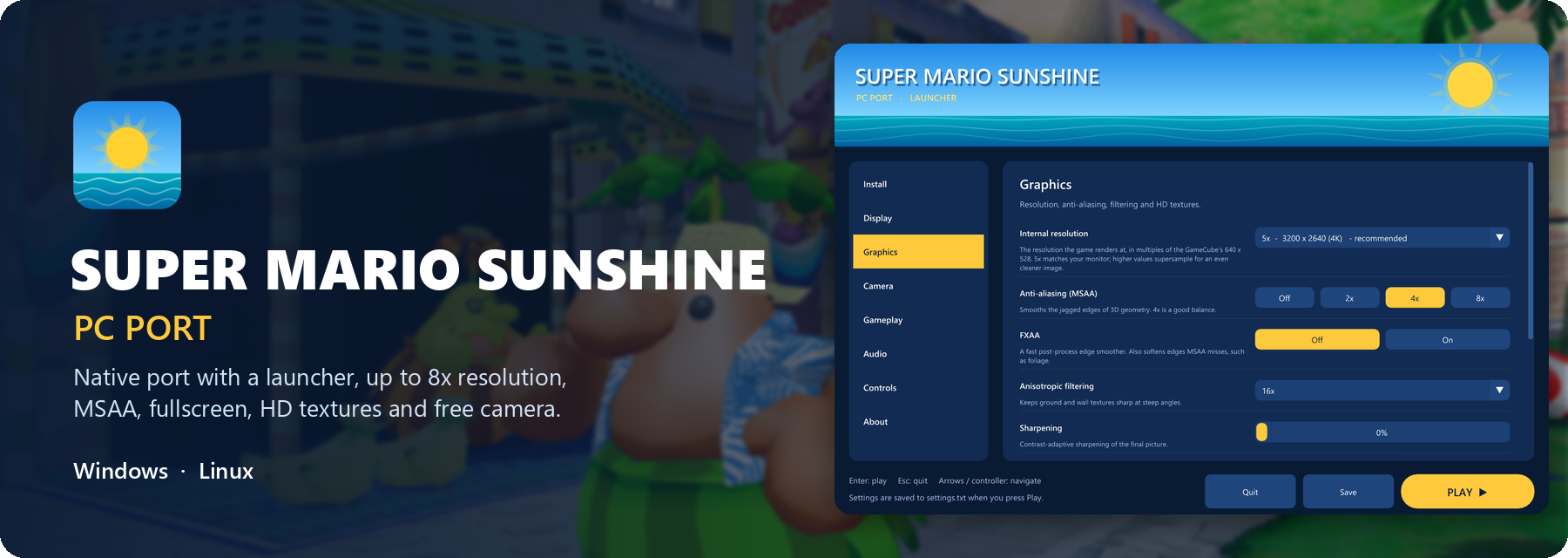




A native PC port of Super Mario Sunshine, with the launcher and options of a modern PC release.


Built from the matching decompilation. No game data included: bring your own disc image of Super Mario Sunshine (North America, GMSE01, revision 0).
Highlights
|
Up to 8x resolution |
Real anti-aliasing |
HD textures in one click |
|
Every display mode |
Modern camera |
Online co-op new |
|
60 fps |
Rebinding and controllers |
One-step install |
The launcher
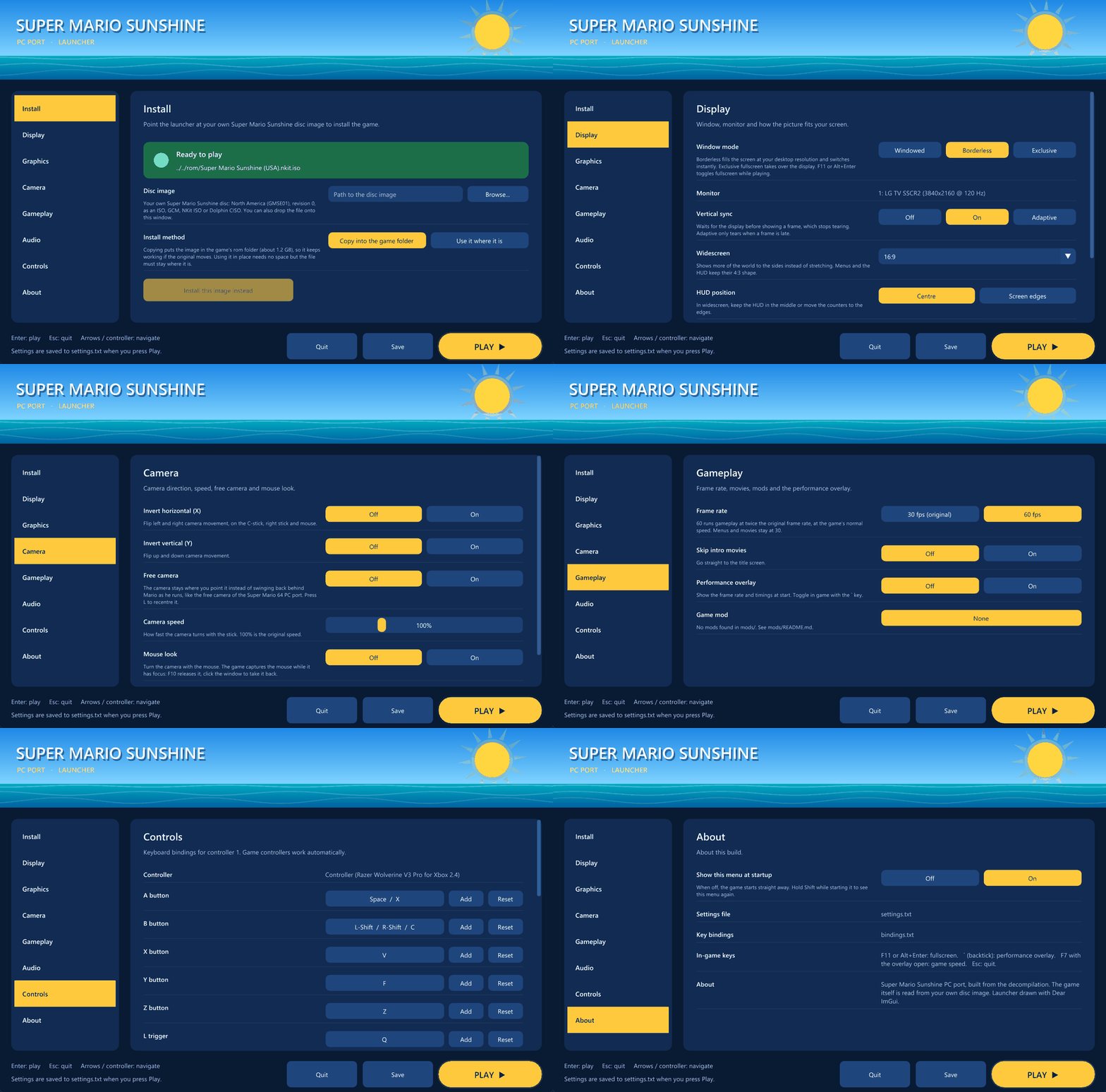
Everything is set up before the game starts, in a launcher that works with the mouse, the keyboard or a controller. Settings are saved to plain-text settings.txt and bindings.txt files, so they can also be edited by hand.
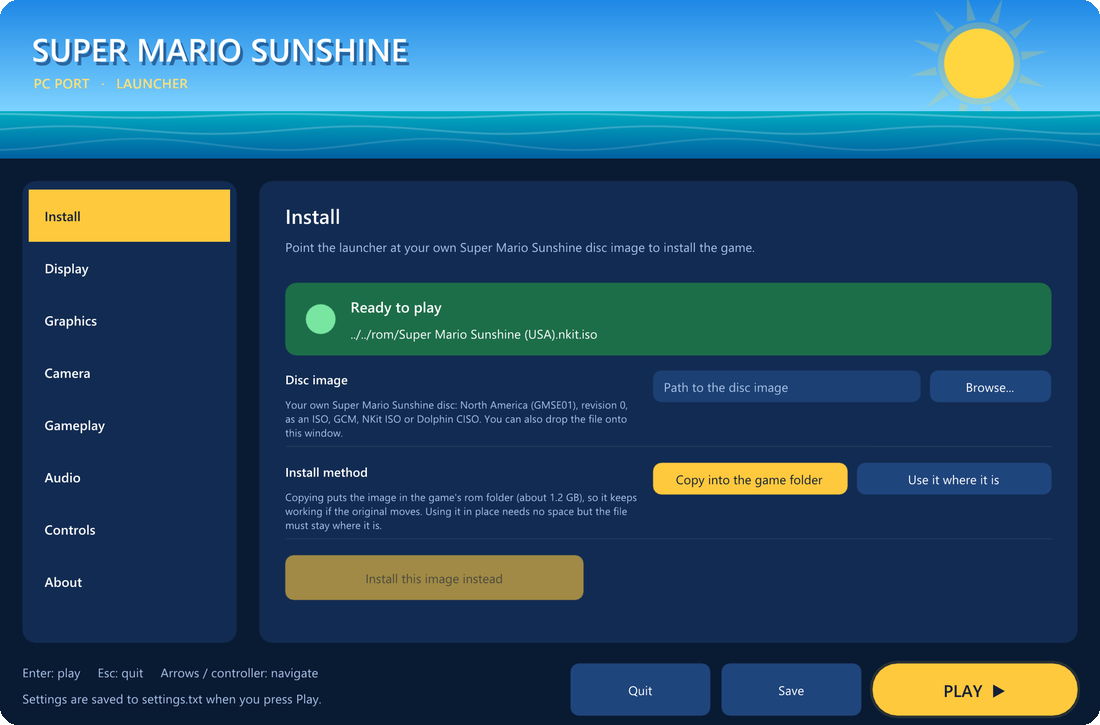 |
InstallPoint the launcher at your disc image with Browse, or drag the file onto the window.
|
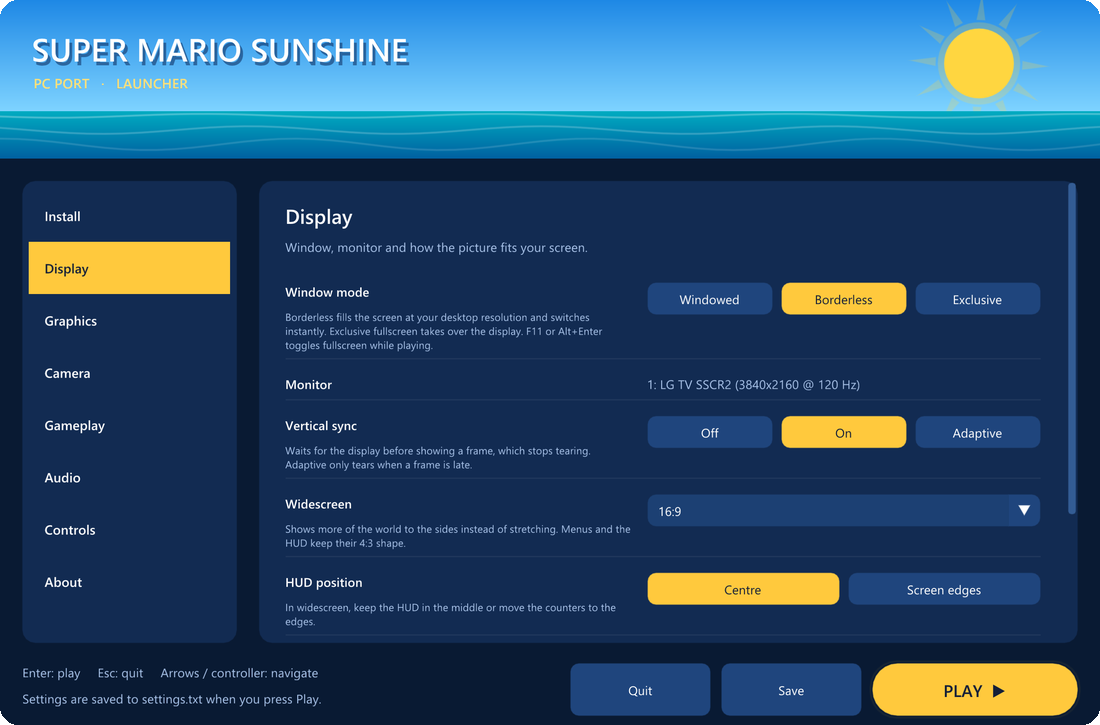
Display
|  |
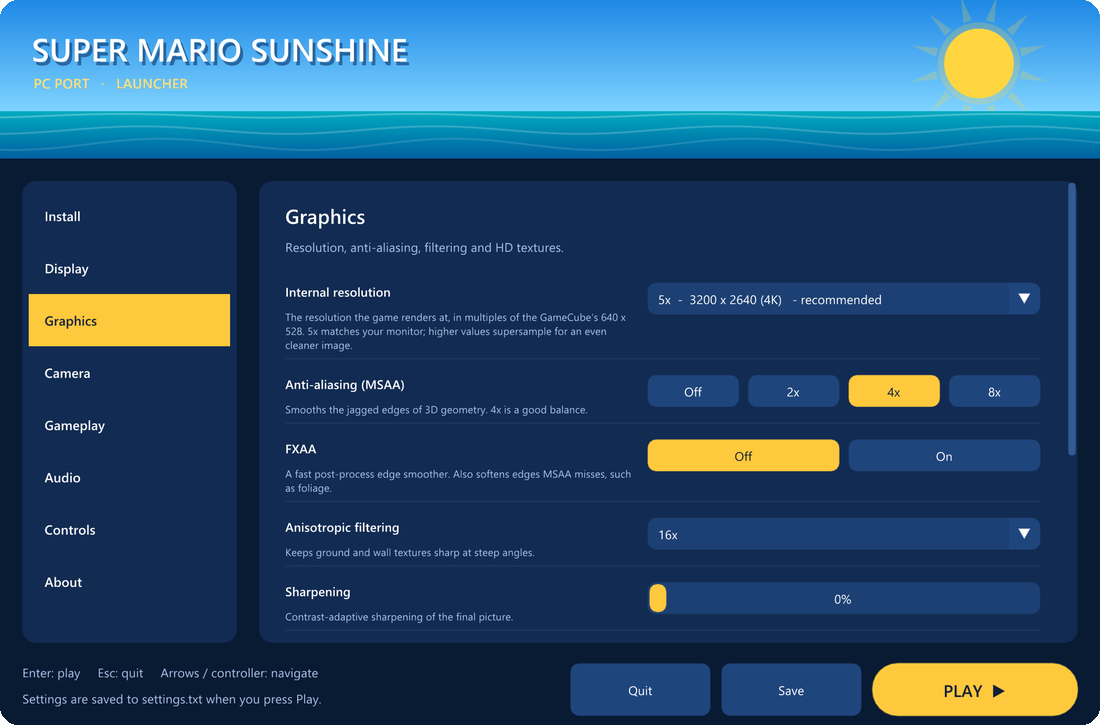 |
Graphics
|
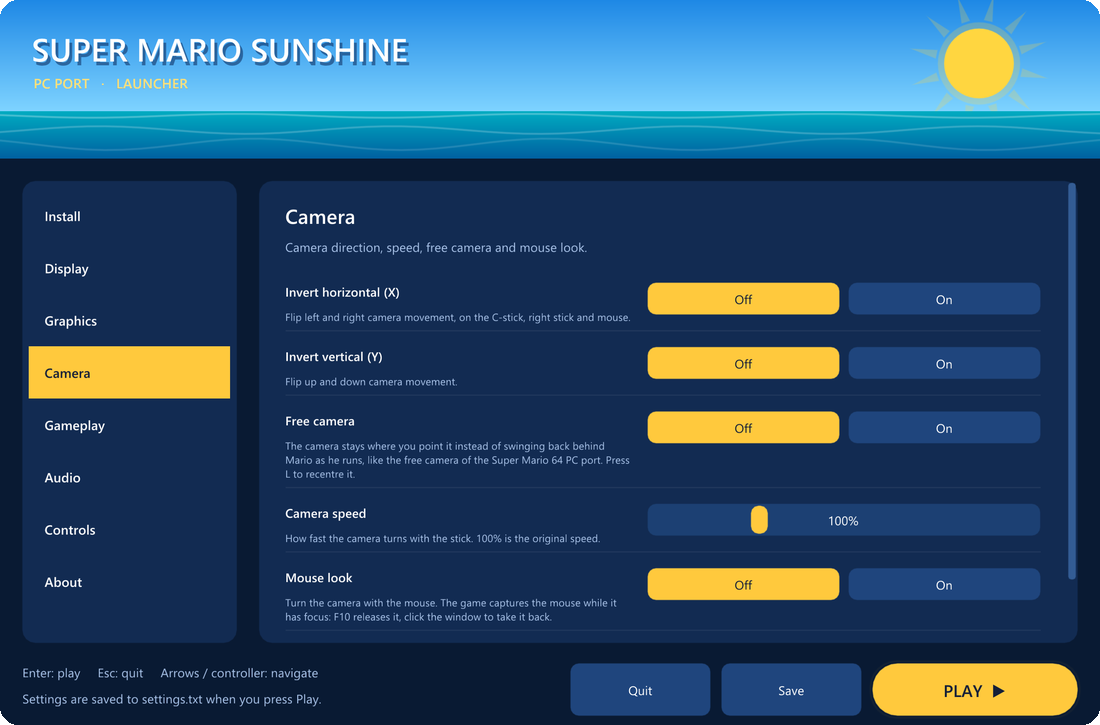
Camera
|  |
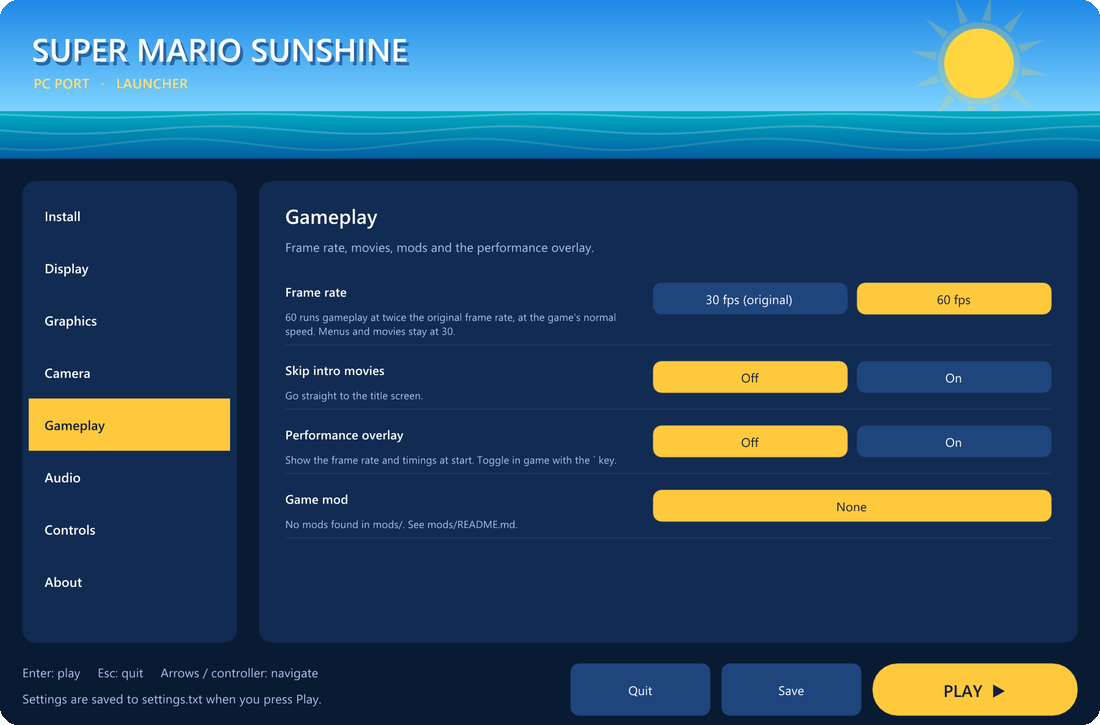 |
Gameplay and audio
|
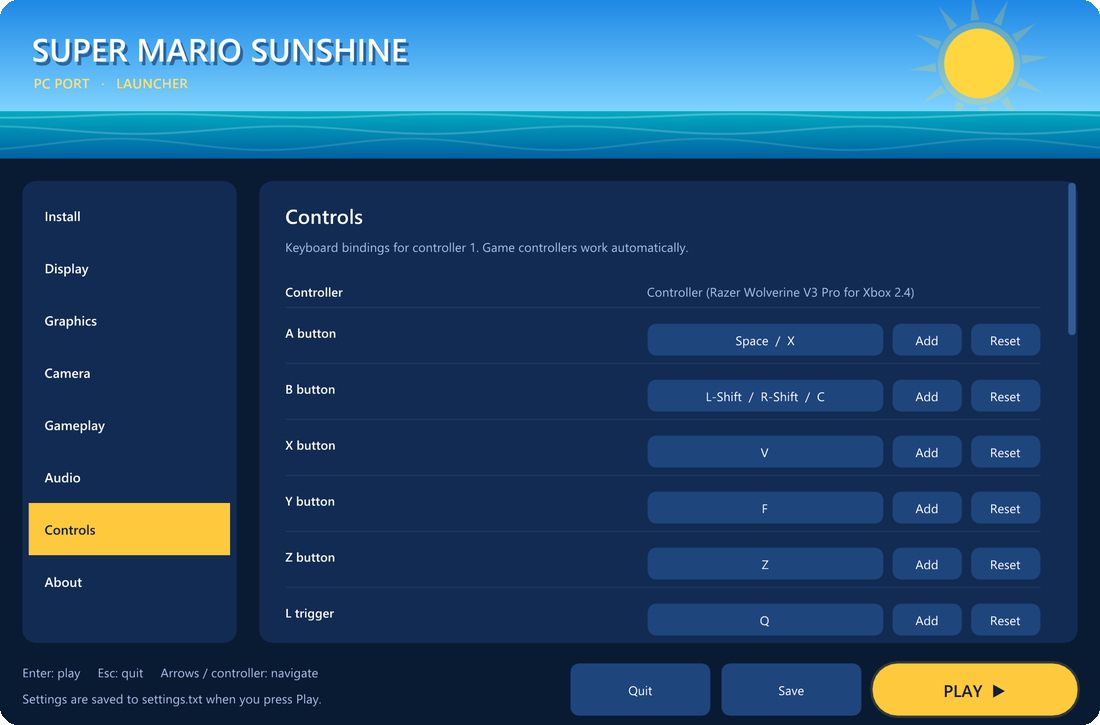
Controls
About
|  |
Play together online
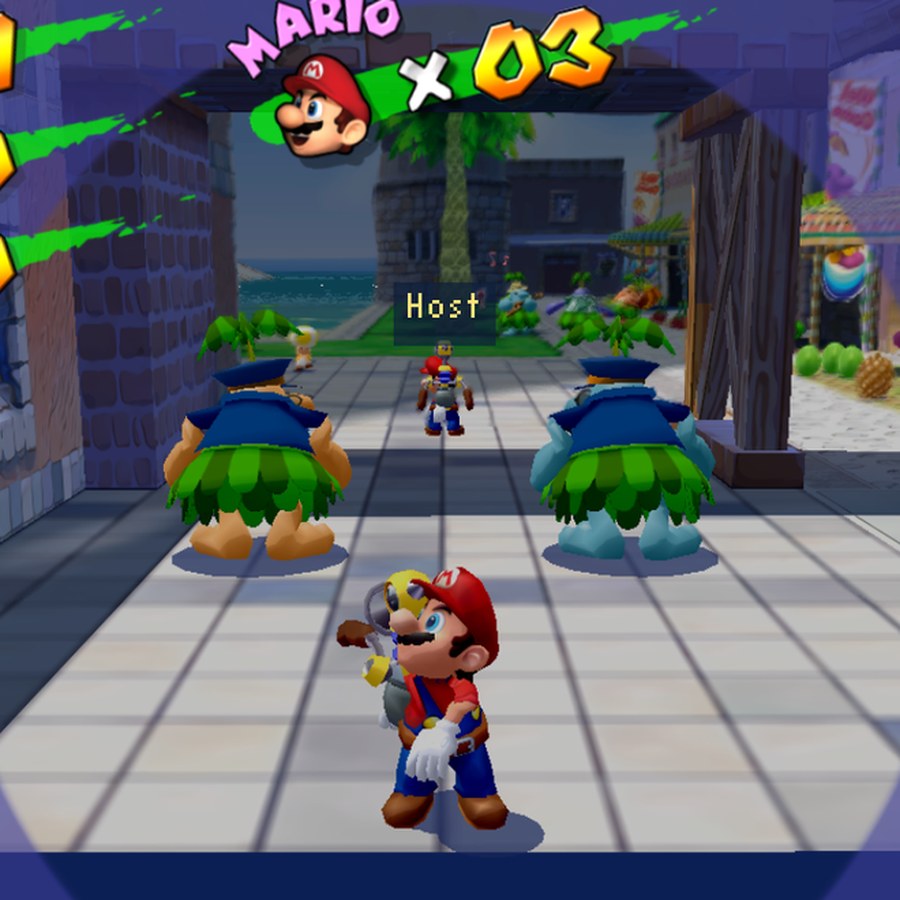 |
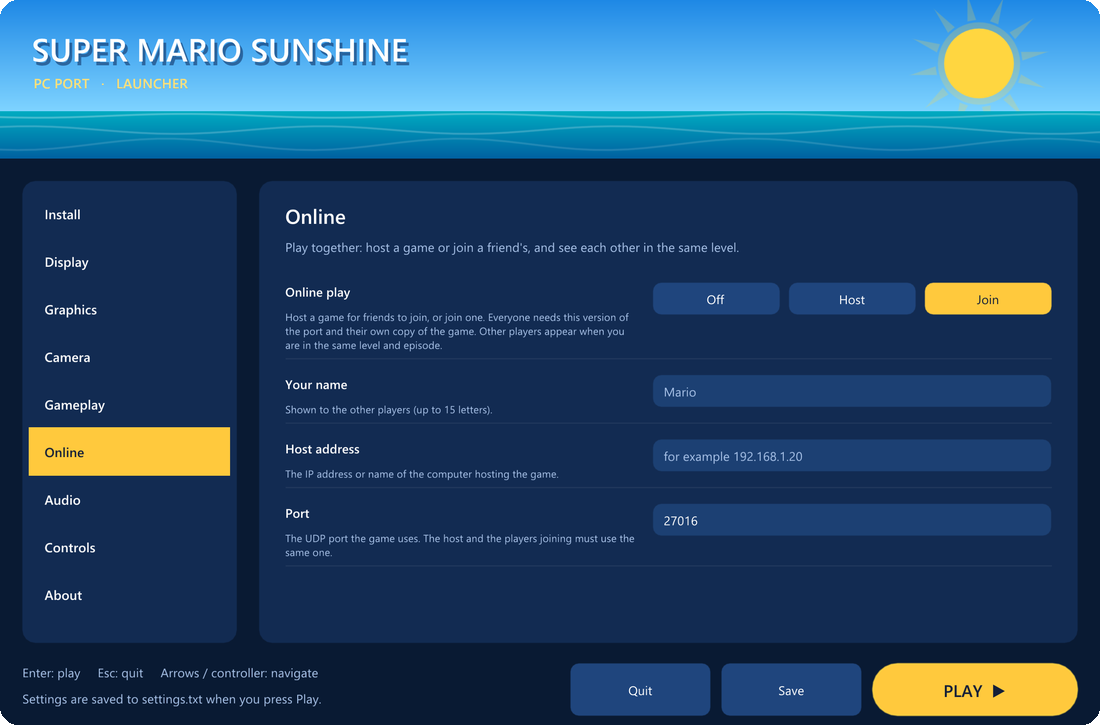
On the Online page, one player chooses Host and the others choose Join and enter the host's address. Everyone presses Play.
Each player plays their own game: levels, enemies and Shine Sprites are not shared yet. This is the first stage of online play. Shared progress is next. |
HD textures in one click
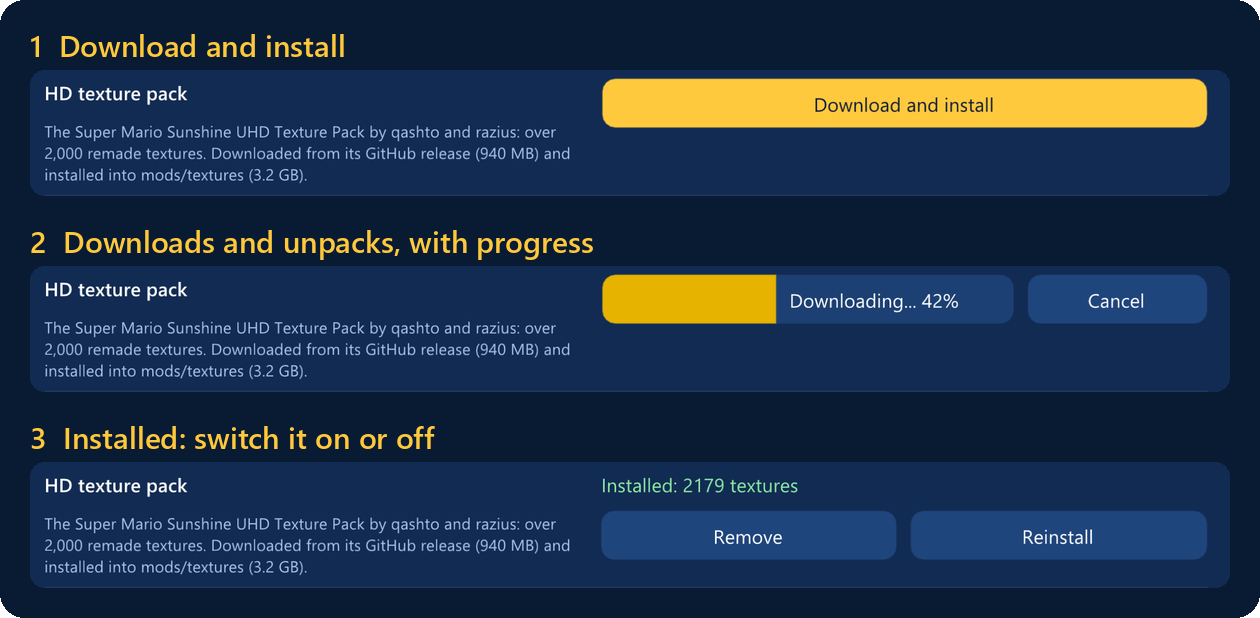
The Super Mario Sunshine UHD Texture Pack by qashto and razius is downloaded from its own GitHub release and installed for you, with progress, resume and Cancel. Nothing else needs installing. Any texture pack made for Dolphin also works when placed in mods/textures/.
In game
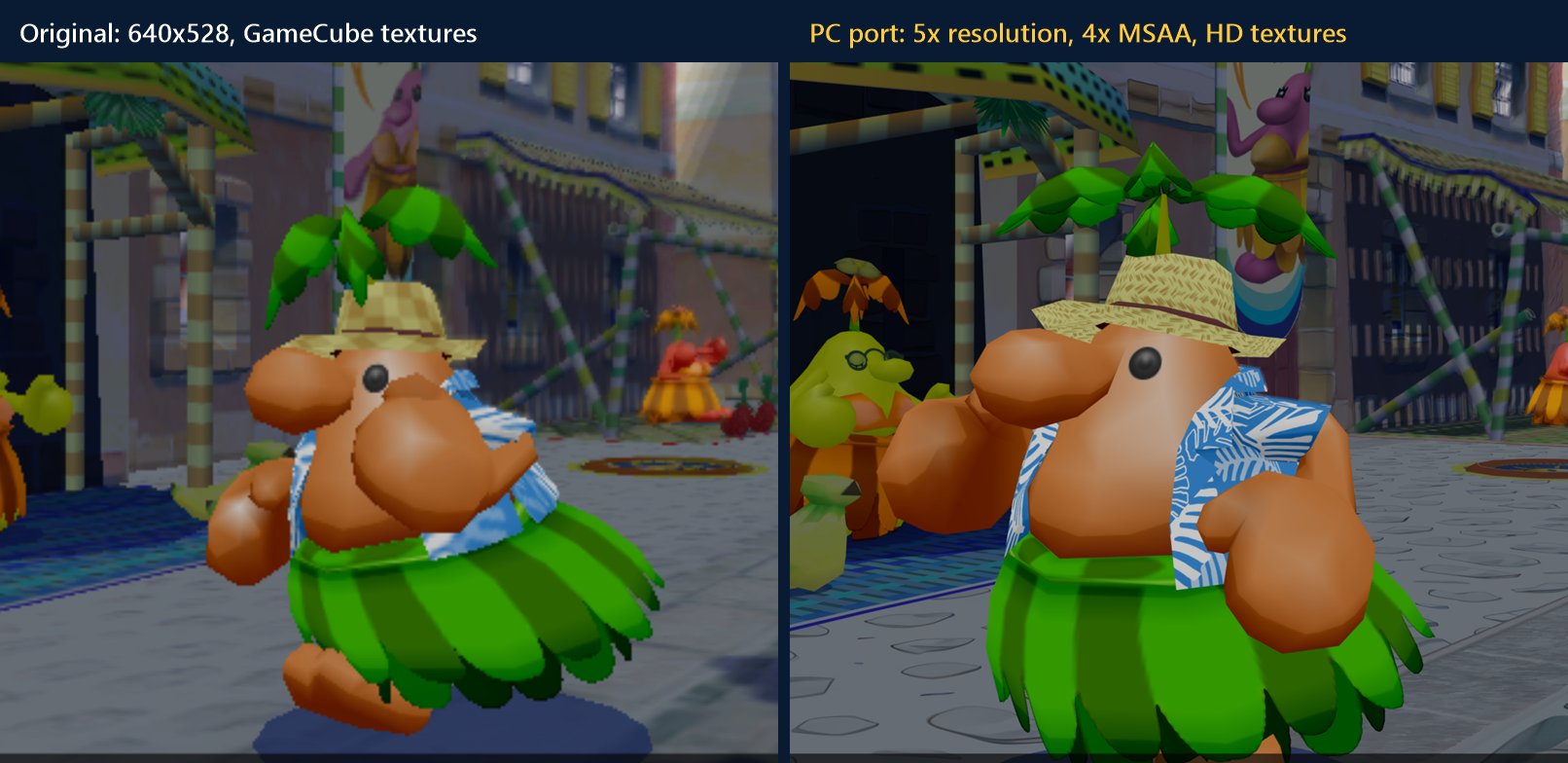
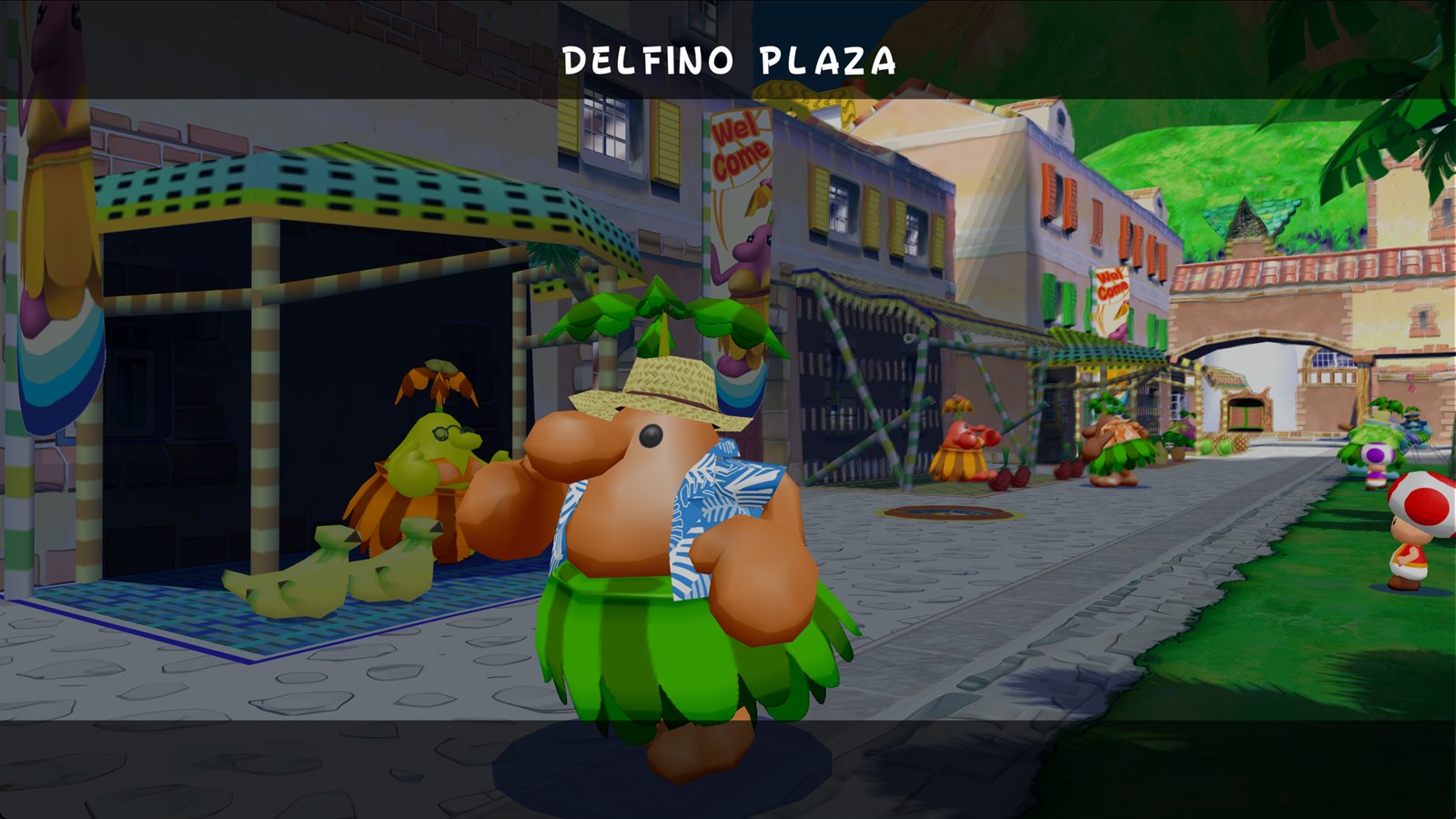
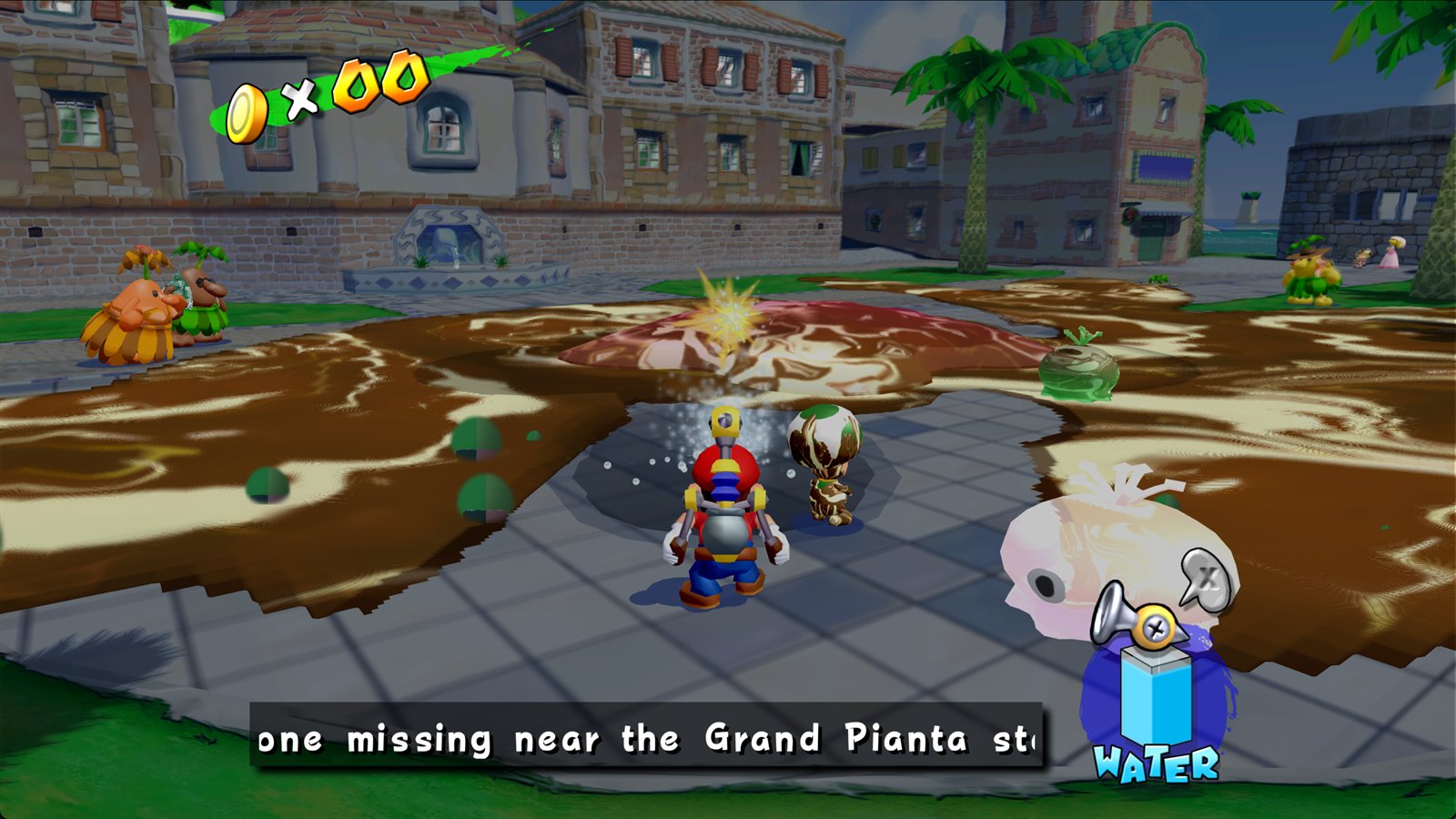
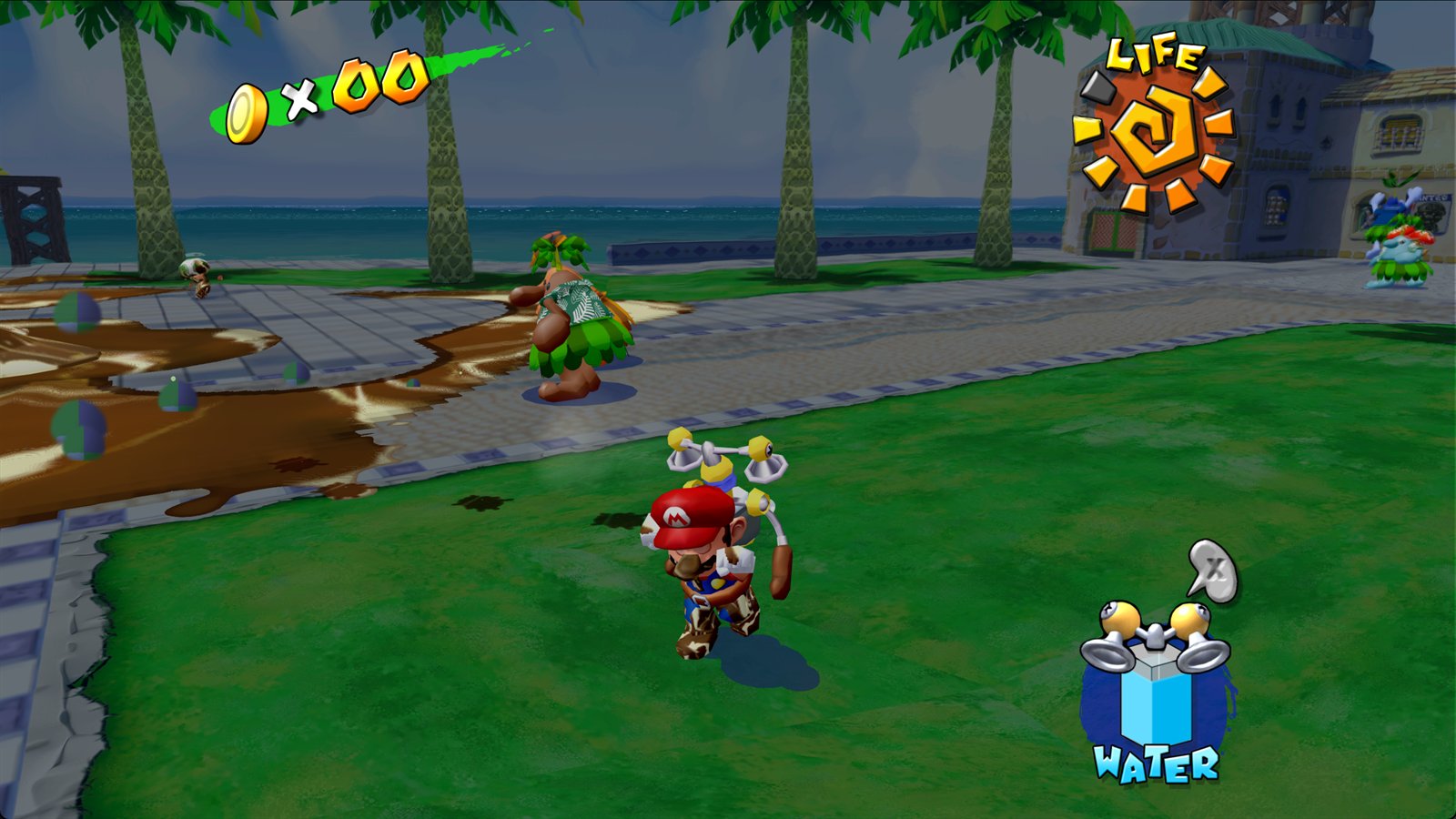
The game's own demo in Delfino Plaza: the original 640 x 528 picture (left) and the PC port at 5x resolution with 4x MSAA and HD textures (right).
 |  |
GameCube vs PC port
| GameCube | PC port | |
|---|---|---|
| Resolution | 640 x 528 | up to 5120 x 4224 (8x) |
| Frame rate in gameplay | 30 fps | 30 or 60 fps |
| Aspect ratio | 4:3 | 4:3 to 32:9 |
| Anti-aliasing | none | MSAA 2x/4x/8x, FXAA |
| Texture filtering | bilinear | up to 16x anisotropic |
| Textures | original | original or the UHD pack |
| Cutscenes | 640 x 448 | original or 3x AI-enhanced (1920 x 960) |
| Display modes | TV | windowed, borderless, exclusive fullscreen |
| Camera | C-stick | inverted axes, free camera, speed, mouse look |
| Controls | GameCube controller | keyboard (rebindable), any SDL controller |
| Multiplayer | single player | online co-op: see up to 7 friends in your world |
Hotkeys
| Key | Action |
|---|---|
| F11 or Alt+Enter | toggle fullscreen |
| F10 | release or recapture the mouse (mouse look) |
| ` | performance overlay |
| F7 (overlay open) | game speed x1 / x2 / x4 / x10 |
| Esc | quit |
Default keyboard controls: move with WASD or the arrow keys, A is Space, B is Shift, X is V, Y is F, Z is Z, L/R are Q/E, Start is Enter, and the C-stick is I/J/K/L. All of them can be changed on the Controls page.
Getting started
- Download the latest release.
- Windows:
SMS-PC-Port-*-windows-x64.zip. Unzip it anywhere and runsms.exe. - Linux:
SMS-PC-Port-*-linux-x86_64.AppImage. Make it executable (chmod +x) and run it.
- Windows:
- On the launcher's Install page, select your disc image and press Install.
- Optionally install the HD texture pack on the Graphics page, and choose your settings.
- Press Play.
Requirements: Windows 10 or 11 (64-bit), or 64-bit Linux, and a GPU with OpenGL 3.3. Higher internal resolutions and MSAA need a more capable GPU. An RTX 4070 Ti holds 60 fps at 5x with 4x MSAA.
Saves go to %APPDATA%\sms-port\card-a on Windows and ~/.local/share/sms-port/card-a on Linux. The Linux AppImage keeps its settings, installed disc image and mods in ~/.local/share/sms-port.
Credits
- The port and the decompilation it builds on: chasem-dev/sms-pc-port and chasem-dev/sms-english, and everyone who contributed to them.
- Super Mario Sunshine UHD Texture Pack by qashto and razius.
- Dear ImGui (MIT) draws the launcher.
Super Mario Sunshine is © Nintendo. This project is not affiliated with or endorsed by Nintendo, contains no game data, and is meant to be played with a copy of the game you own.
Building from source
Decompilation progress
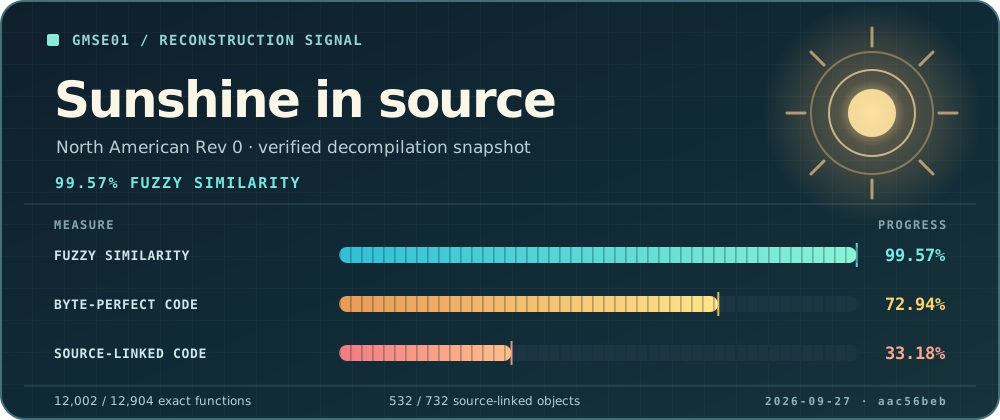
This card shows the GMSE01 decompilation snapshot recorded by the source revision pinned in this port. Fuzzy similarity measures approximate code similarity; the other two tracks show byte-perfect code and code linked from matching source.
Supported systems
| System | Word size | Status | Output |
|---|---|---|---|
| Linux (x86) | 32-bit (default) | plays | build/linux-32/sms |
| Linux (x86-64) | 64-bit (SMS_ARCH=64) | plays; still being tested stage by stage (docs/64-BIT.md) | build/linux-64/sms |
| macOS (Intel, or Apple Silicon under Rosetta 2) | 64-bit | plays | build/macos-64/sms |
| Windows (MSYS2 MINGW64) | 64-bit | plays | build/windows-64/sms.exe |
The game code keeps pointers in 4-byte fields, so it was written for a 32-bit machine. The 64-bit builds keep every address the game sees below 4 GiB; see docs/64-BIT.md.
Quick start
-
Get the source, including the decompilation submodule:
git clone --recursive https://github.com/TekRantGaming/sms-pc-port.git cd sms-pc-port -
Install the prerequisites for your system: Linux, macOS, Windows.
-
Put your disc image in
rom/: one.iso,.gcmor Dolphin.cisoof GMSE01 Rev 0. -
Build and play:
./build.sh
./run.sh
On Windows, run these in the MSYS2 MINGW64 shell, or run
.\build.cmdand.\run.cmdfrom PowerShell.
The first build compiles about 600 game files and takes a while; later builds only rebuild what changed.
Because the image is in rom/, ./build.sh also makes a standalone copy with the game's files inside (sms-standalone, or SMS.app on macOS) that runs without the image.
See BUILD.md.
You can also keep the image elsewhere and pass it: ./run.sh "/path/to/Super Mario Sunshine (US).iso".
Build and run
The same two scripts work on every system:
| Command | What it does |
|---|---|
./build.sh [IMAGE] | builds build/<os>-<arch>/sms; with an image (argument, SMS_DISC_IMAGE, or the one in rom/) also the standalone copy |
./run.sh [IMAGE] [--headless] | runs that build: with the image you pass, else the standalone copy, else the image in rom/ |
./clean.sh [--all] [--dry-run] | deletes the build output (every build/<os>-<arch>/); never deletes your disc image, and keeps the downloaded SDL2; --all deletes all of build/ |
SMS_ARCH=64 ./build.sh | chooses the word size (Linux: 32 default or 64; macOS: 64 only; Windows: 64 default (32 legacy with MINGW32)) |
JOBS=2 ./build.sh | limits parallel compiler jobs (default: all cores) |
./build.sh --help, ./run.sh --help and ./clean.sh --help print the details.
When both a 32-bit and a 64-bit build exist, ./run.sh runs the 32-bit one unless SMS_ARCH=64 is set.
Settings reference: every option in settings.txt and its environment variable
Options
Options can be kept in settings.txt (resolution = 2, texture_packs = on, ...), or set as environment variables before the command, for example SMS_SKIP_MOVIES=1 ./run.sh; an environment variable wins over the file:
| Option | Effect |
|---|---|
SMS_SKIP_MOVIES=1 | skip the intro and opening movies |
SMS_AUDIO=0 | no sound |
SMS_SAVE_DIR=dir | memory card folder |
SMS_BINDINGS=file | key bindings file (default bindings.txt in this folder) |
SMS_DISC_IMAGE=file | disc image to use when none is passed |
--headless (after the image) or SMS_HEADLESS=1 | no window, for testing (Linux only) |
SMS_OVERLAY=1 | open the debug overlay at start |
SMS_GX_SCALE=n | render at n times the GameCube's resolution |
SMS_WIDESCREEN=16:9 | widescreen (also 21:9, 16:10): a wider view, with the HUD and menus kept 4:3 in the middle |
SMS_FRAME_RATE=60 | gameplay at 60 frames per second (the game's own timing, not sped up); logos, menus and movies stay at 30 |
SMS_WIDESCREEN_HUD=edges | with widescreen, move the gameplay HUD's counters to the left edge and the water gauge to the right one |
Launcher and PC options
Before the game starts, a launcher window offers every option below (and key rebinding) in Install, Display, Graphics, Camera, Gameplay, Audio and Controls pages, then writes them to settings.txt and bindings.txt when you press Play.
It works with the mouse, the keyboard or a controller.
Its Install page takes your disc image (Browse, or drop the file on the window), checks that it is GMSE01 revision 0, and copies it into rom/ beside settings.txt (or uses it where it is), recording it as disc_image; started without a disc argument, the game also finds the one image in that rom/ folder by itself.
launcher = off in settings.txt (or --no-launcher, or SMS_LAUNCHER=0) starts the game directly; hold Shift while starting, or pass --launcher, to show it anyway.
It runs as a separate process so its window and GPU driver leave the game's low address space alone.
settings.txt | Variable | Effect |
|---|---|---|
window_mode = borderless | SMS_WINDOW_MODE | windowed, borderless (fullscreen at desktop resolution) or fullscreen (exclusive); F11 or Alt+Enter toggles while playing |
display = 1 | SMS_DISPLAY | the monitor to open on (0 is the primary one) |
fullscreen_mode = 2560x1440@144 | SMS_FULLSCREEN_MODE | the display mode for exclusive fullscreen (desktop by default) |
vsync = adaptive | SMS_VSYNC | on, off or adaptive (tears only when a frame is late) |
msaa = 4 | SMS_MSAA | multisample anti-aliasing: 2, 4 or 8 samples |
fxaa = on | SMS_FXAA | FXAA post-process anti-aliasing |
anisotropic = 16 | SMS_ANISO | anisotropic texture filtering |
sharpen = 30 | SMS_SHARPEN | contrast-adaptive sharpening, 0 to 100 |
brightness = 1.2 | SMS_GAMMA | brightness curve (1.0 is the original) |
aspect = stretch | SMS_ASPECT | keep (letterboxed), stretch or integer (whole multiples of 640x528) |
present_filter = sharp | SMS_PRESENT_FILTER | bilinear (area-averaged when the internal resolution exceeds the window, so it supersamples), sharp or nearest |
volume = 70 | SMS_VOLUME | master volume, 0 to 100 |
camera_invert_x = on | SMS_CAMERA_INVERT_X | invert the camera's horizontal control (C-stick, right stick, camera keys and mouse) |
camera_invert_y = on | SMS_CAMERA_INVERT_Y | invert the camera's vertical control |
free_camera = on | SMS_FREE_CAMERA | the normal camera stays where you point it instead of swinging back behind Mario; L recentres it |
camera_speed = 150 | SMS_CAMERA_SPEED | manual camera rotation speed in percent (100 is the original) |
mouse_camera = on | SMS_MOUSE_CAMERA | mouse look: the window captures the mouse while focused; F10 releases it, a click takes it back |
mouse_sensitivity = 150 | SMS_MOUSE_SENSITIVITY | mouse look speed in percent |
net_mode = host | SMS_NET_MODE | online co-op: off, host or join |
net_address = 192.168.1.20 | SMS_NET_ADDRESS | the host to join |
net_port = 27016 | SMS_NET_PORT | the UDP port (the same for everyone) |
net_name = Luigi | SMS_NET_NAME | your name over your Mario |
Releases
packaging/package.sh turns a build into a release package without game data: a zip of sms.exe and its DLLs on Windows (MSYS2 MINGW64), and a 64-bit AppImage on Linux (after SMS_ARCH=64 ./build.sh), which keeps its settings, installed disc image and mods in ~/.local/share/sms-port.
The workflow in .github/workflows/release.yml builds both on every push and publishes them as a GitHub release when a v* tag is pushed.
Optional mods, such as HD texture packs, go in mods/; python3 tools/mods/get.py textures downloads and installs the UHD texture pack there.
Saves go to a memory card in slot A, kept as files in ~/.local/share/sms-port/card-a on Linux and macOS ($XDG_DATA_HOME/sms-port/card-a if that is set) and in %APPDATA%\sms-port\card-a on Windows.
Every other switch (debugging, tracing, graphics) is listed in docs/DEVELOPMENT.md.