Project ReLink
Project ReLink is a native Windows port of The Legend of Zelda: Ocarina of Time that translates the game's code to PC code without an emulator.
- Type: PC port
- Game: The Legend of Zelda: Ocarina of Time
- Runs on Windows
- By pixl27
- Latest release v0.7.8, 2026-11-16
- Source: https://github.com/pixl27/ProjectReLink
README
Project ReLink

Zelda OOT Remake Recomp. An unofficial static recompilation of The Legend of Zelda: Ocarina of Time (the Switch 2 remake) into a native Windows game: the game's code is translated to PC code and compiled on your machine, with no emulator.
Discord: join the Project ReLink server to ask questions, get help and follow new
versions. Bugs are still best reported as issues with relink_log.txt
attached, so they don't get lost.
No game files are in this repository. ReLink builds the game on your PC from your own copy.
The game version you need
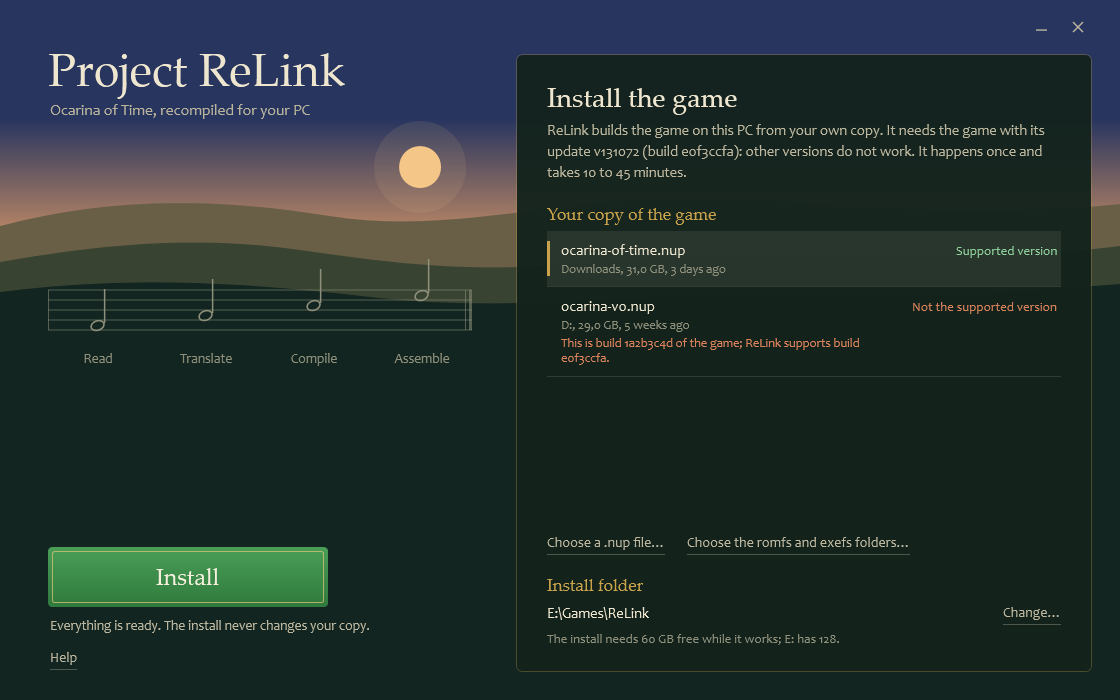
ReLink works with one version of the game: the Switch 2 remake with its update installed.
| Program | 0400486024DEC000 |
| Update | v131072 |
| Build | e0f3ccfa |
Other versions do not work: the launcher checks your copy and says so before it installs anything. Your copy is either a
.nup file, or the game's romfs and exefs folders.
Install and play
- Download
ReLink-Setup.exefrom the latest release. - Run it. It downloads ReLink and its tools (about 310 MB), checks them and opens the launcher. Nothing else to install: ReLink brings its own compiler and Python.
- Pick your copy of the game. The launcher looks for
.nupfiles in Downloads, Desktop and Documents; you can also choose one, drop it on the window, or give theromfsandexefsfolders. - Press Install. It takes 10 to 45 minutes depending on your CPU; you can keep using the PC.
- Press Play. The desktop and Start menu shortcuts open the launcher from then on.
With RecompLauncher. Each release also has ProjectReLink-<version>-Windows-x64.zip, the same tools in one file, with a
recomplauncher.json that lets RecompLauncher install ReLink, ask for your copy (the same
version as above), build the game in the same way and start it. Its settings page writes the game's own
relink_options.ini; the frame rate goes in relink_env.txt beside it.
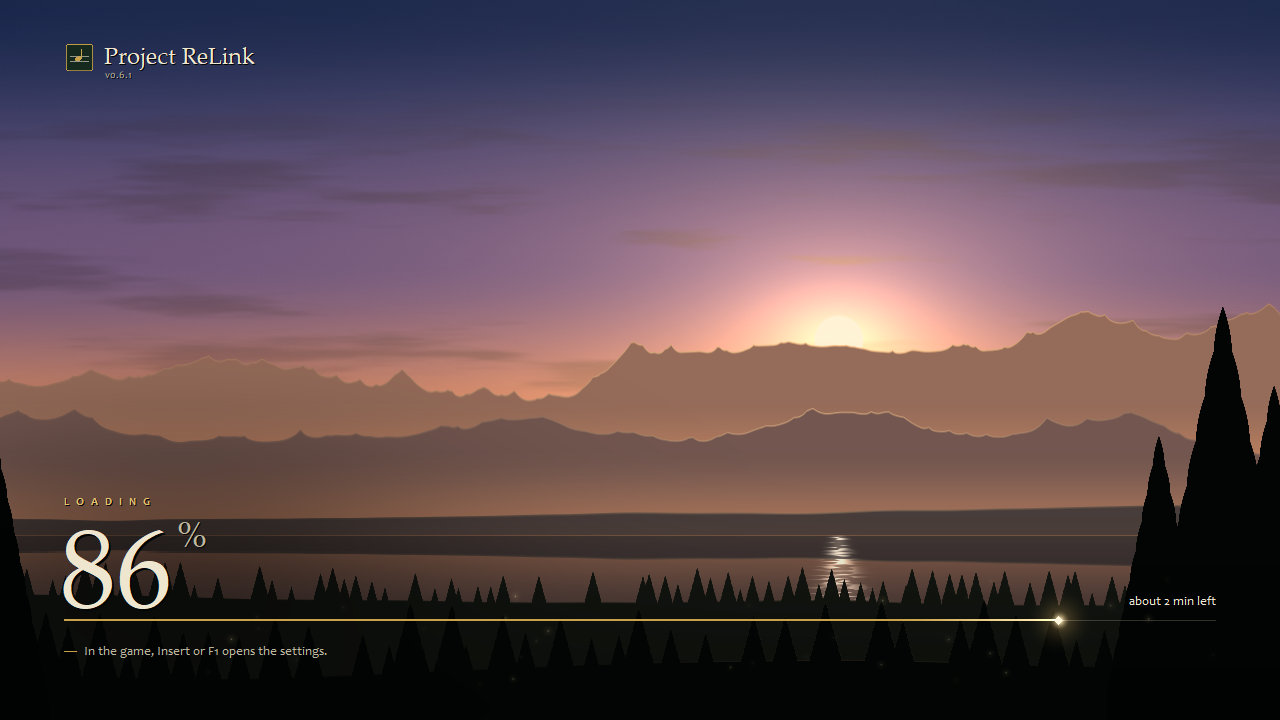
The first start is long, once (about 16 minutes on our PC): the game prepares its shaders, builds its graphics pipelines
for your driver's cache and makes the compute pipelines play is known to use, with a progress screen. It does that part
again after a graphics driver update, so that the first visit of a place does not stutter while the driver compiles, and
after an update of ReLink that changes the renderer's shader code or state (0.6.3 is one). Since 0.7.6 every PC starts the
same way, whatever its RAM. A PC that ran an earlier version with 20 GB of RAM or more has a pipeline cache file in the game
folder, mkw_vk_pipelines.bin (800 MB and more), that nothing reads any more: since 0.7.8 the game deletes it at its first
start, unless RX_VK_LEAN_PIPELINES=0 in relink_env.txt brings back the older start, which uses it.
What your PC needs
- 64-bit Windows 10 or 11, and a CPU with AVX2.
- A graphics card with Vulkan 1.3 and mesh shaders, with an up-to-date driver: NVIDIA GeForce RTX 20 series or newer, AMD Radeon RX 6000 series or newer, Intel Arc. We only tested on NVIDIA. Since 0.7.9 a card without mesh shaders (GeForce GTX 10 series) gets a picture too, as an experiment: about half the frame rate, and some large rocks missing.
- 8 GB of video memory recommended, 16 GB of RAM or more.
- About 60 GB free while it installs, and an internet connection for the download.
Updating
The launcher says when a new release is out. Update downloads only what changed and builds the game again in the same
folder, from the game files the folder keeps: your .nup is not needed again. Saves (user), settings and mods are kept.
Where the files go
- The game: the folder you choose (
Games\ReLinkin your user folder by default). Your copy is never changed. - ReLink itself:
%LOCALAPPDATA%\ReLink. The build files (about 4 GB) are deleted once the game is ready. - To uninstall: delete the game folder,
%LOCALAPPDATA%\ReLinkand the shortcuts.
Settings
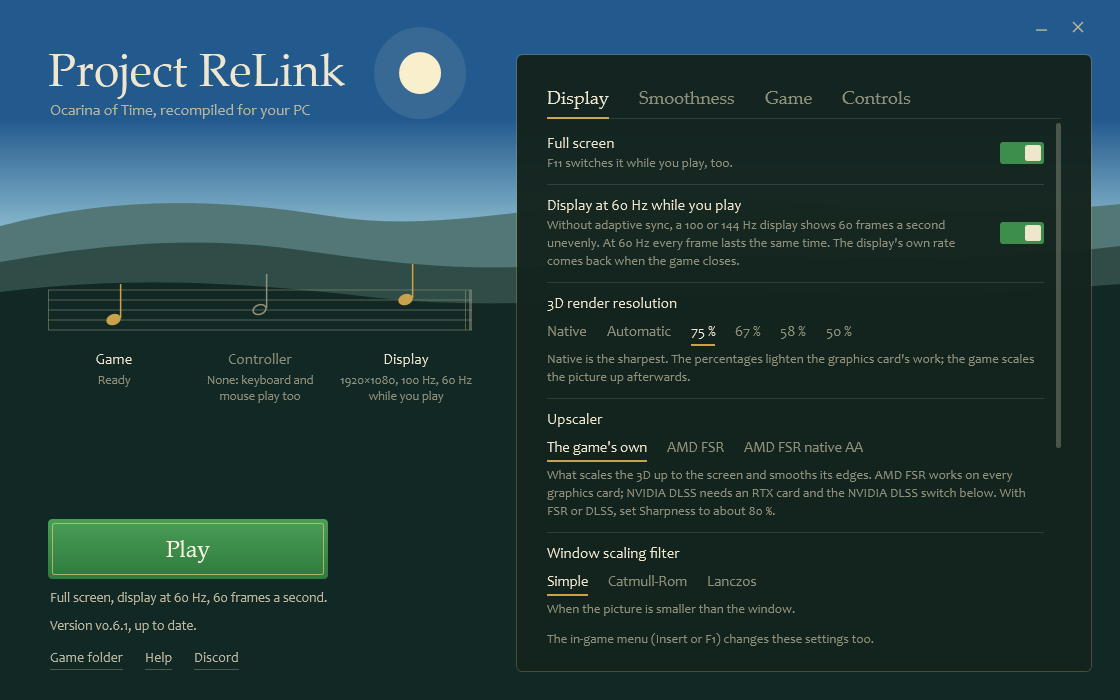
The launcher sets the display (full screen, 3D render resolution, upscaling, sharpness, ultrawide), the smoothness (60
frames a second or unlocked, frame generation), the game's language and the controls. It can put the display at 60 Hz while
you play, so that every frame lasts the same time on a 100 or 144 Hz display, and puts the display's own rate back
afterwards. In the game, Insert or F1 opens the same menu, F11 switches full screen, and F12 saves a
screenshot: the game's picture at its output resolution, without the menu or the FPS counter, as a PNG in the game folder's
screenshots folder (a line over the game says where). These three keys can be changed in the menu's Gameplay tab
(Menu key, Screenshot key, Fullscreen key: F1 to F12, Insert, Pause or Scroll Lock).
Upscaler (since 0.7): what scales the 3D up to the screen. The game's own network by default; AMD FSR 3.1 on any graphics card (AMD's library comes with ReLink); or NVIDIA DLSS / DLAA on an RTX card, after turning on NVIDIA DLSS on the launcher's Display page: that builds the game again with NVIDIA's DLSS SDK, downloaded from NVIDIA under NVIDIA's license. With FSR or DLSS, set Sharpness to about 80 %. The frame rates below are measured without them.
The launcher is in English; French is one click away on its Game page. An Xbox controller or any XInput controller works, and so do keyboard and mouse (the keys are listed on the Controls page). Since 0.6.2 the install also brings SDL, which the game uses for the other controllers (Switch Pro, DualSense, DualShock 4): 0.6.1 shipped without it and they did nothing in the game. We have none of them here, so that part is not tested by us.
The mouse turns the camera after a click in the game's window (Escape frees it). The Insert menu's Mouse camera row chooses how: as the right stick, or "Native", one to one as in a PC game. If the game has no sound, the same menu's Audio output row (Gameplay) can be set to Stereo; it applies after a restart. The Volume row just above it sets the game's whole sound, music, effects and voices, from 0% (muted) to 100%, heard at once and kept in relink_options.ini.
Item wheel (Gameplay, off by default): holding R or L shows the item row as a wheel, Twilight Princess style. Point at an
item with either stick (or the mouse) and let go: it is on ZR at once. The items are on pages of 8 slots, one set for child
Link and one for adult Link; Left and Right (or the mouse wheel) turn the page, Y takes an item up to put it in another slot,
B puts it back. The pages are kept in wheel_layout.txt beside relink_options.ini. The wheel shows the game's own icons,
names (in the game's language) and sounds, which every build takes from your game files into the wheel folder.
Cycle items (Gameplay, off by default): a tap of R or L changes the item on ZR without opening the row: Last used
swaps with the item that was on ZR before, whatever it is; Basic puts the next or the previous arrow, bottle or spell on
ZR; +Bombs the bombs too; +Tools the hookshot, hammer, slingshot and boomerang too. Holding R or L still opens the row
(or the wheel), a quarter of a second later than without it.
HOS_ITEM_WHEEL=0 or 1 and HOS_CYCLE_ITEMS=0 to 4 in relink_env.txt stand
in for the two rows.
30, smooth (launcher, Smoothness tab, Frames per second): for PCs that do not hold 60. Every frame stays on screen for
the same number of refreshes (2 on a 60 or 120 Hz display), with vsync, and the game waits for the display before it starts
the next frame, so the 30 frames are even instead of swinging between 16 and 50 ms. Game time follows the clock. On a 144 Hz
display each frame is held 5 refreshes (28.8 fps). HOS_FPS_CAP=<20-59> in relink_env.txt sets another cap the same way.
Field of view (Insert menu, Graphics, 70 to 150 %): the camera's angle in percent of the game's own; the culling follows
it. HOS_FOV=<percent> in relink_env.txt stands in for the row.
Left / Right stick dead zone (Insert menu, Controls, 0 to 50 %, 24 by default, as before): raise it if Link walks or the
camera turns on its own (stick drift). The dead zone is round now (a diagonal push near the centre is no longer cut on one
axis) and what is past it starts just past the game's own dead zone. HOS_STICK_DEADZONE_L / _R=<percent> stand in for
the rows.
ReShade and RenoDX: ReLink renders through Vulkan, so ReShade must be installed with its Vulkan API and add-on support for
relink-game.exe (in the game folder's bin). When ReShade's layer is loaded the game keeps its presents on the graphics queue
and makes the swapchain's images drawable, which ReShade's effects and RenoDX's HDR output need (RX_VK_RESHADE=1 forces this,
0 turns it off). A RenoDX mod for this game still has to be written for its shaders: ReLink only removes what stopped
ReShade from drawing.
HDR (Insert menu, Graphics, applies after a restart): the game draws its own HDR picture, as it does on an HDR TV,
and ReLink shows it in HDR10. It needs Windows' HDR on for that display (Settings, System, Display, Use HDR); otherwise the
picture stays SDR. The game is told the display's peak brightness as Windows reports it; the interface and menus are at the
paper white, 203 nits by default (hdr_paper_white=<80 to 500> in relink_options.ini). Leave this row off when a RenoDX
mod does the HDR.
Travel (on the Cheats page: HOS_OOT_CHEATS=1 in relink_env.txt shows the Gameplay tab's Cheats row, and
Travel is that page's last row): a page of 190 places to go to, villages, dungeons' entrances, shops, warp points and story spots,
grouped by area, for Link's age (Tab or X shows the other age's: going there makes Link that age). Once you have opened the
page, each place gets a picture taken from your own game the first time Link stays there a few seconds with the menu closed
(in teleport_pictures in the game folder); Y or Backspace on the page takes a place's picture
again at the next stay there. Link arrives through the game's own map change, as when he walks in. The places' positions
and arrival events come from your game files at every build (teleport_places.bin, nx2/teleport_places.py).
Button prompts (Controls, Nintendo by default): the buttons the game's prompts show, Nintendo's, Xbox's (A, B, X, Y, LB,
RB, LT, RT, Menu, View) or PlayStation's (cross, circle, square, triangle, L1, R1, L2, R2, Options, Create). Each prompt
shows the button that presses it, so the letters follow the Layout preset and your own bindings: with the Nintendo
preset, the Switch's A is the right-hand button and shows Xbox's B. The labels are ReLink's own drawings, which every build
adds to a copy of your game's button font in the prompts folder. The three faded letters around the HUD's action
button, which are pictures and not letters of the font, follow too: the renderer puts ReLink's own labels in their place
(prompts\keytex.bin, made by every build), and so do the ocarina's note buttons (A, B, X, Y, L and R, pictures as well:
prompts\ocarina.bin, made by every build from your game's own six, with the Switch's letter taken out and ReLink's label
drawn in its place). It applies the next time the game starts. The font has one colour, so the prompts are not coloured.
A mod that replaces the button font wins over this row, and the faded letters and the ocarina's notes then stay the
Switch's too.
HOS_BUTTON_PROMPTS=0, xbox or playstation in relink_env.txt stands in for it.
Measured frame rates
On our PC: Ryzen 5 5500, GeForce RTX 3060 Ti (8 GB), 16 GB of RAM, Windows 11.
No DLSS, no frame generation. Every number here counts frames the game really rendered: no AI upscaler and no generated frames were on. The game was capped at 60 frames a second; version 0.6.1, built by the release's own tools as on a player's PC. "Native" is the game's 3D render resolution at 100 %; at 75 % the game's own plain scaling fills the window. Each figure is one run of about 50 seconds with child Link, from his arrival in the place and through a walk, so it includes the loading stall of the arrival.
| Place | Native (100 %) | 75 % |
|---|---|---|
| Hyrule Field | 59.6 | 59.9 |
| Kakariko Village | 59.0 | 59.0 |
| Hyrule Castle | 58.2 | 59.2 |
| Lost Woods | 58.5 | 59.6 |
| Sacred Forest Meadow | 60.0 | 60.0 |
| Lake Hylia | 58.0 | 58.7 |
| Zora's Fountain | 56.7 | 58.4 |
| Market | 54.0 | 55.6 |
| Inside the Deku Tree | 59.8 | 59.9 |
| Dodongo's Cavern | 60.0 | 59.9 |
| Inside Jabu-Jabu's Belly | 59.9 | 59.9 |
| Bottom of the Well | 60.0 | 60.0 |
At native resolution the heaviest views of Kokiri Forest's village run at 55 to 56. With adult Link at 75 %, standing, an earlier development build of this version gave 60 in Kakariko Village, the Fire Temple and Gerudo's Fortress and 58.0 in the Water Temple; those four were not measured again on the release's build.
Version 0.6.2 translates the game with a play profile made in 30 places, child and adult Link, temples included (0.6.1's came from 10, child only). The table above was not measured again with it. With the frame rate unlocked, at 75 %, in the ten of these places whose walk has no loading screen, it gave about 3 % more frames while Link walks (four runs against six of 0.6.1, the two versions run in turn: 69.0 to 71.1 against 66.1 to 69.1 as a geometric mean), most of it in the dungeons (Inside the Deku Tree +11 %, Jabu-Jabu +5 to +8 %), and no difference we could establish with Link standing.
Version 0.6.3 gives the game's occlusion test its real answers. The game draws a box for each object in a depth-only
pass, asks the graphics card how many of its pixels passed, and leaves out of its next frames the objects that got none.
Until now every question was answered "visible", so nothing was ever left out. With the frame rate unlocked, at 75 %,
Link standing where he arrives, the same build run with the answers off and then on: Market 54.6 to 61.4 (+12.5 %), Lost
Woods 61.9 to 67.0 (+8.2 %), Kokiri Forest 76.1 to 79.4 (+4.4 %), and the most draws in a frame went from 2,931 to 2,494.
Two earlier pairs of runs gave the Market +12.3 % and +28.8 %, Lost Woods +7.0 %, Kokiri Forest +3.3 % and Hyrule Castle
no change. Kakariko Village gave +2.6 % and +13.8 %: that place varies by several frames from one run to the next, so
neither figure says much. The table above was not measured again. The pictures were compared standing in four places, and
turning and walking in the Market and inside the Deku Tree: nothing was missing. An object that appears one frame late
was not looked for frame by frame; RX_VK_OCC_QUERIES=0 in relink_env.txt beside the game turns the real answers off.
Version 0.6.5 targets the stutter while the camera turns. Turning brings new things into view and lets others go, and the renderer let go of each texture's image on its render thread, as it presented: on NVIDIA's Windows driver that is a call into the system of a millisecond or more, and it was the largest thing the long frames did more of than the others. It is now done on a thread of its own. Camera turned left, right and left for 20 s in the Market, 60 fps cap, 75 %: frames over 25 ms went from 71 and 81 (two runs of 0.6.4) to 67, 50 and 66 (three runs of 0.6.5), the 99th percentile from 36-39 ms to 34-35 ms, the longest frame from 63-70 ms to 53-66 ms. Hyrule Field and Kokiri Forest had few long frames before and still do. It does not remove the longer stalls of a first visit, while the game loads an area and its shaders are read from disk.
Version 0.6.6 goes on with it. A shader drawn for the first time in a session is read from the shader cache by background
threads, several at once, instead of on the thread that draws the frame (then on a PC with less than 20 GB of RAM, and on
every PC since 0.7.6, that is every scene shader), and the rest of the driver's cleanup (texture views, images the video-memory reshuffle moved, freed
buffers) left the render thread too. The same build with these changes off (RX_VK_REAP=0, RX_VK_ASYNC_LOAD=0) and on,
the Market twice per run, three runs per side taken in turn: frames over 25 ms while the camera turns 59.5 on average
against 47.0, the 99th percentile 38.1 ms against 32.6 (lower in all six pairs), the time lost in long frames at the
first arrival 1,915 ms against 1,590. Against 0.6.5 itself, the background reads alone measured about 10 % less time lost
at arrivals. The shaders are prepared again at the first start after this update, once.
Not reached or not measured yet: a steady 60 everywhere (the Market stays below, and so do a few places at native resolution), boss fights, sessions longer than half an hour, and AMD and Intel cards.
Black cliffs, blurry rocks, missing models, a slow adult Link: check your dump
Some dumps hold damaged texture files: their first kilobytes are zeros, as the dumper read them. Which files, and how many, differs from one dump to another (ours has 3 of 20,667). The game cannot read such a file, and what it does then depends on what the file was:
- a piece of an area's baked lighting (
RBake_Scene_...): everything it lights is drawn black (a whole cliff side); - a texture of a model: the model never finishes loading. Rocks and walls are missing and the smooth, blurry ground under them shows instead; and the game loads the model again and again for ever, which keeps more than one CPU core busy (the fairy fountains as an adult: frames lost everywhere).
Every install and update checks the dump and writes a small mod, mods\00-dump-repair in the game folder, that stands in
for the damaged files (since 0.7.2 for two files it knew by name; since 0.7.9 for every damaged texture it finds). A
stand-in is an intact relative of the same kind and size from your own files, under the damaged file's name: the same
piece of lighting of the other age (child for adult), or the nearest texture of the same family. It is a relative, not
the real texture: lighting from the other age can be a little off, and a piece whose relative has another layout stays
partly dark. mods\00-dump-repair\README.txt lists what was damaged, what stands in for it, and what has no stand-in.
Only a new dump of the game brings the real files back.
Two tools in this repository do it by hand, from your own files (nothing of the game is in them):
python -I tools/dump_check.py "C:\Games\ReLink\romfs\Tex"
python -I tools/dump_repair.py "C:\Games\ReLink\romfs" "C:\Games\ReLink\mods\00-dump-repair"
The first counts the damaged files; the second writes the mod, and needs no rebuild: the game reads mods when it starts.
They need the zstandard package, which ReLink's own Python has
(%LOCALAPPDATA%\ReLink\versions\<version>\ReLink\tools\python\python.exe).
Mods
RomFS mods go in mods\<name>\romfs\... in the game folder, with the same paths as the game's. The log
(relink_log.txt) names each mod it reads. A mod may sit deeper, as emulators keep them (mods\contents\<title id>\<name>),
a folder whose name starts with - or _ is off, and when two mods have the same file the one whose path sorts last wins
(name them 01-..., 02-...).
Patches of the game's code go in mods\<name>\exefs\, in the two formats