TimeGateClassicReborn
TimeGateClassicReborn is a PC port of Time Gate: Knight's Chase that fixes issues and adds options like custom backgrounds and multiple languages.
- Type: PC port
- Game: Time Gate: Knight's Chase
- Runs on Windows, Linux, macOS and Android
- By nayo186
- Latest release v1.0.2, 2026-11-22
- Source: https://github.com/nayo186/TimeGateClassicReborn
README
Time Gate: Classic Reborn
Play Time Gate: Knight's Chase (Infogrames, 1996) on modern PCs, with its original graphics and a set of careful fixes and options.
⬇ Download the latest version for Windows, Linux, macOS or Android (both experimental): unpack it, run Launcher.exe (Launcher on Linux and macOS) and choose your GOG copy of the game; on Android, install the app and import the game (see On Android). Nothing else to install.
Time Gate: Knight's Chase is playable from start to end. If something behaves differently from the original, please report it: it helps a lot.
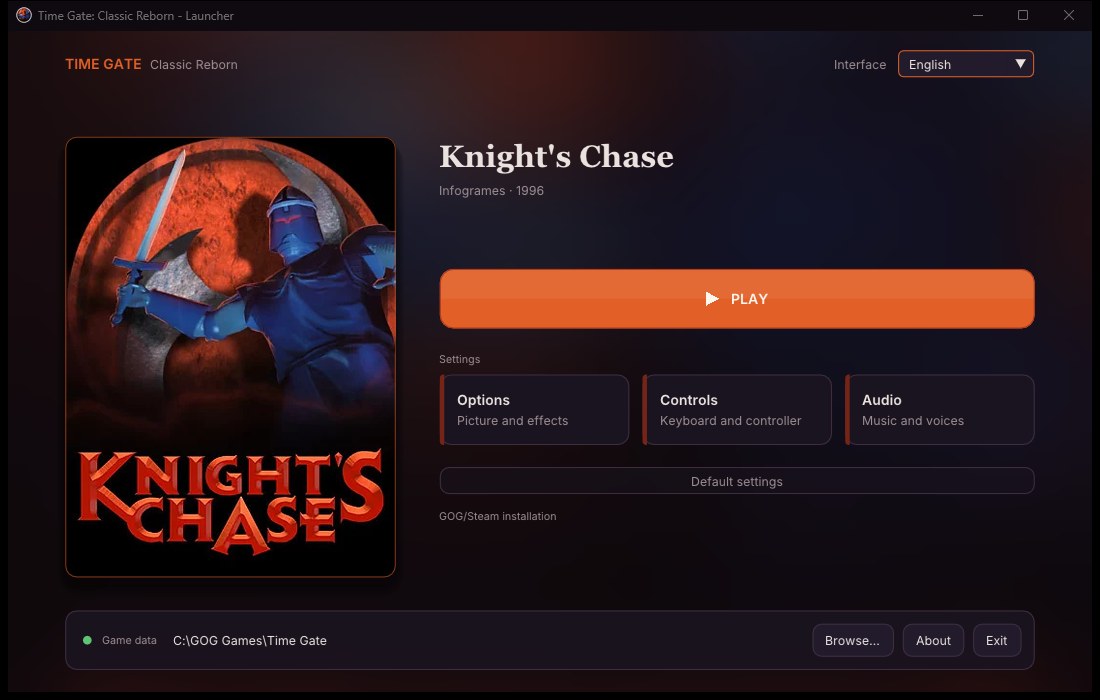
The launcher
Time Gate: Classic Reborn is a C++17 source port of the Infogrames engine of Alone in the Dark and Time Gate. It shares its engine with Alone in the Dark: Classic Reborn, built on FITD (Free in the Dark) by yaz0r. Every part of Time Gate that differs from the Alone in the Dark games was compared with the original DOS executable, TIMEGATE.EXE, and made to work as it does.
The game data is not included. You need your own copy of Time Gate: Knight's Chase (the GOG edition, or the original CD). Nothing of the original game is in this repository.
Trailer
How it was made
The engine comes from FITD, which reverse engineered the DOS engine of Alone in the Dark into readable C++. Time Gate was made with a later version of that engine, so most of it is shared; what Time Gate does differently (textured models and their lighting, its masks, music, sound channels, videos, menus, saves, script orders...) was studied in its own executable and written here. The game's logic (doors, enemies, items, events) is not in the executable: it lives in the scripts of the game's LISTLIFE.PAK, which the engine interprets as the original did. docs/TIMEGATE_EXE.md keeps what is known of the executable, and docs/baseline/BUGS.md every fix with its cause (the Time Gate ones have the letter G).
Requirements
To play
- Windows 10 or 11, 64-bit, and a graphics card with DirectX 11.
- Or Linux, 64-bit (x86-64): Ubuntu 22.04, Linux Mint 21, Debian 12, Fedora 37 or newer, or any other distribution of the same age, with a graphics card that supports Vulkan or OpenGL.
- Or macOS 11 or newer, Apple Silicon or Intel (experimental).
- Or Android 7 or newer on a 64-bit phone or tablet (experimental).
- Your own copy of Time Gate: Knight's Chase: the GOG edition (English, Spanish, German or Italian), or the French CD (Time Gate : Le Secret du Templier) with its files copied to a folder (see Getting started).
- Nothing else to install: no .NET, no Visual C++ Redistributable, no DirectX setup, no Linux packages. Unpack and run the launcher.
To build the project: see Building.
What it adds
- Fixes to how the game looked and behaved in its source port: drawing order, masks, palettes, collisions, sounds, script orders and more (see
docs/baseline/BUGS.md, letter G). - Launcher with the cover of the game, Play, and windows for the options, the controls and the audio. The menus are in English, French, German, Italian and Spanish.
- The game in five languages: English, Spanish, German and Italian (GOG) and French (the original CD). With one edition installed, the others can be added as language folders (see Languages).
- Screen options: resolution, aspect ratio, integer scaling, fullscreen, frame limit, VSync, graphics engine, and optional effects (edge smoothing, bloom, film grain, scanlines, ambient occlusion, sharper text) (see Options).
- Custom backgrounds: export every background, full-screen picture, mask and video of the game, enlarge or repaint them, and the game uses yours (see Modding).
- Music: the game's MIDI music played with a General MIDI soundfont; the one that comes with the game, or any other you add (see Music).
- Controls: keyboard and game controller (Xbox, PlayStation, Nintendo Switch Pro and most other USB or Bluetooth controllers), every action can be changed, with a picture of the controller.
- Separate volumes for music and for voices and effects.
- Saves in the format of the GOG edition: saves made in the GOG game load here, and the other way round.
- Game file check: the launcher checks the files of your game folder against the editions we know and warns if one is missing or different.
Getting started
- Get a release (or build the project, see Building).
- Run
Launcher.exe(next toTatou.exe). On Linux and macOS:Launcher(next toTatou). - Press Browse and choose your game folder:
- the GOG installation of Time Gate (the folder with
goggame-1365065972.info). Nothing is extracted or written there; - or a copy of the game files (a folder with
PURSUIT.PAKand the other.PAKfiles, with the videos in itscd/TIMEGATEfolder, as GOG installs them). For the French CD, copy the files of itsTIMEGATEfolder into a folder and its.MUXvideos intocd/TIMEGATEinside it.
- the GOG installation of Time Gate (the folder with
- Press Play.
In the game, Esc opens the menu of coins, as in the original: new game, save, load, sound, volume, introduction, difficulty and quit.
- Sound chooses the soundfont of the music (see Music); in the original it set up the sound card.
- Difficulty is the tarot of the original: three cards, three levels.
Updates. When it opens, the launcher asks GitHub for the latest release of this project and, if there is a newer one, offers to install it; the Update button appears when there is one. Installing replaces only the programs and the documents next to them: UserData (options, saves) and launcher.cfg are never touched. The launcher connects to the internet only for this, and the game never does.
On Linux
- Unpack the
.tar.gzanywhere in your home folder (most file managers open it with a double click, ortar -xzf TimeGateClassicReborn-<version>-linux-x64.tar.gz). - Run
Launcherfrom that folder (double click, or./Launcherin a terminal). - Browse to the game installed for Windows: with Heroic, Lutris or Wine, the game's folder inside the Wine prefix (the one with
PURSUIT.PAK); or a copy of the game files, as on Windows. Folders whose name starts with a dot are hidden: press Ctrl+H in the folder picker to show them, or type the path.
The game runs natively, without Wine: it is only needed to install the game files. Updates from the launcher need curl (installed on almost every distribution).
On macOS (experimental)
It is built for every Mac with macOS 11 or newer, Apple Silicon and Intel, from the same code as Windows and Linux. Reports from Mac players are very welcome.
- Unpack
TimeGateClassicReborn-<version>-macos.tar.gz(a double click in Finder) into a folder of your own, for example in Documents (not in Downloads). - The first time, macOS stops it, because it is not signed with a paid Apple developer account. Open Terminal, type
xattr -dr com.apple.quarantine(with a space at the end), drag the unpacked folder onto the Terminal window and press Return. This is needed once. - Double click
Launcher(it opens with a Terminal window next to it; leave it open while you play). - The game files. The simplest on a Mac is to copy them into
UserData/TimeGate/GAME(see Folders), from your GOG installation on a Windows PC. The launcher finds them by itself. You can also press Browse and choose the folder where they are.
On Android (experimental)
The Android version is new and experimental. It is the same game as on the PC, with the launcher inside the app and on-screen controls; it is its own app, Time Gate: Classic Reborn, beside Alone in the Dark: Classic Reborn if you have it. It needs Android 7 or newer on a 64-bit phone or tablet, and draws with Vulkan (or OpenGL ES 3.0 where Vulkan does not start). Reports from Android players are very welcome (see Reporting a problem).
- Install the app. On the phone, download
TimeGateClassicReborn-<version>-android.apkfrom the latest release and open it. The first time, Android asks to allow your browser (or file manager) to install apps: allow it. It is not on Google Play, so Play Protect may warn about an unknown app: choose to install anyway. - Bring the game to the phone. Copy your game folder from the PC to the phone, for example with a USB cable into Download: the GOG installation of Time Gate (the folder with
PURSUIT.PAKandcd), or theUserData\TimeGatefolder of Classic Reborn on your PC (with itsGAME,LanguagesandSaves). Put the other languages you own inside itsLanguagesfolder, each in its own folder, as on the PC (see Languages). - Import it. In the launcher press Import..., go into that folder and press Use this folder, then Allow. The app copies the game (about 400 MB), its videos, languages, saves and soundfonts, showing its progress. When it says the game is imported, the copy in Download can be deleted. A language folder (or a folder of them) can also be imported later on its own.
- Choose the language and press Play. The music's soundfont comes inside the app.
Why import? Android keeps each app's files to itself: the game lives in the app's own folder (Android/data/com.classicreborn.timegate/files, with UserData inside, as on the PC), and other apps cannot copy into it. Uninstalling the app deletes that folder, game and saves included.
On-screen controls. A semi-transparent controller over the game: the D-pad is the tank control, the stick (where you put your thumb on the left half) walks where you push it, and A, B, Start, Back and RT do what they do on a controller (see Controls). They hide when a controller or a keyboard is used, and come back with a touch. In Controls, the Controller tab is a list on the phone: tap a button to remove it, or + Add. The menus work with the finger.
Updates. As on the PC, the launcher offers a newer version when there is one: Android asks you to update the app; accept. Your game, saves and options are kept.
Languages
GOG sells Time Gate one language at a time: English, Spanish, German or Italian. The original French CD (Time Gate : Le Secret du Templier) is a slightly older version of the game. Any of them works as it is: choose its folder in the launcher.
Other languages. With one edition installed, you can play in another language you own by adding its files to a language folder: UserData\TimeGate\Languages\<language>, where <language> is English, French, German, Italian or Spanish. Put there the files of that edition that differ from yours (the rest is read from your installation, which is never changed):
- always
FRANCAIS.PAK(the texts; it has this name in every language),SAMPLES.PAK(the voices) andLISTLIFE.PAK(the scripts, which call the voices and texts by number); - the other files of that edition that differ:
ITD_RESS.PAK(the letters, with the accents of Spanish, Italian and French),DEFINES.ITD,VARS.ITD,PRIORITY.ITD,TEST.WAV, and the videos with voices (cd/TIMEGATE/AN*.MUX); the French CD also changesLISTANIM.PAK,OBJETS.ITD,CAMSAL09.PAK,CAMSAL15.PAK,MK050800.PAKand addsLM*.GRDfiles. Copying every.PAK,.ITDand.MUXfile of the other edition also works.
The launcher then offers that language in Game language. A folder without its texts, voices or scripts is not offered (launcher.log says what it lacks).
Or one file. Instead of the folder, a language can be a single <language>.language file in UserData\TimeGate\Languages (for example Spanish.language): a language pack, with the same files inside and much smaller. Most dubbed videos have the same pictures in every language and only their voice changes, so a pack keeps only that voice (as an .ogg) and the game shows your installation's video with it; a video whose pictures change (the intro's credits) goes in whole. A folder with the same name comes first. How to make one is in the modding guide.
The language of the menus (launcher and F1) is chosen apart, with Interface at the top right of the launcher.
Music
Time Gate's music is MIDI: notes that a synthesizer plays. The game comes with TimGM6mb, a small General MIDI soundfont (a set of recorded instruments). For richer music, add any General MIDI soundfont (.sf2) to UserData\TimeGate\SoundFonts, for example:
- GeneralUser GS by S. Christian Collins: https://schristiancollins.com/generaluser.php
- FluidR3_GM by Frank Wen (included in many Linux distributions as
fluid-soundfont-gm)
Then open the menu with Esc, choose the Sound coin and pick it from the list: the music changes at once, and the choice is kept.
Controls
Every action can be changed in Controls (in the launcher, or in the game with F1). The Controller tab shows a picture of the controller with each button and what it does; the names change with a PlayStation or Switch controller.
| Action | Keyboard | Controller |
|---|---|---|
| Move | Arrows or W A S D | D-pad or left stick |
| Run | Left Shift | Right trigger |
| Action (use, fight, take) | Space | A |
| Confirm / inventory | Enter | Start |
| Cancel / menu of coins | Esc | B |
| Options window (F1) | F1 or Home | Back |
| Fullscreen | F11 or Alt+Enter | — |
Options
The launcher (its Options, Controls and Audio cards) and the in-game F1 window share the same settings, saved in aitd_remaster.cfg:
| Option | What it does |
|---|---|
| Frames per second, VSync | Smoothness; the game speed never depends on them |
| Aspect ratio, resolution, fullscreen | How the 4:3 scene is shown |
| Graphics engine | How the picture is drawn: Direct3D 11 or Vulkan on Windows, Vulkan or OpenGL ES on Android (Linux and macOS have one). Applies the next time the game starts; try the other one if the picture looks wrong |
| Integer scaling | Every pixel of the game the same size, with black borders around (like pixel-perfect scaling in DOSBox): Size: Automatic, the largest that fits, or a size of your choice; 3D resolution: how sharp the 3D models are, down to the original 320 × 200. Off by default; while it is on, Resolution is not used |
| Edge smoothing | FXAA on the 3D models |
| Bloom | A soft glow from the bright parts of the painted backgrounds |
| Film grain | A light grain over the picture |
| Scanlines | Thin dark lines over the picture, like an old CRT screen; under it, their intensity from 1 (soft) to 4 (strong) |
| SSAO | Soft shadows where surfaces meet |
| Enhanced text | The game's letters redrawn sharp at screen resolution |
| Custom backgrounds | Uses your pictures instead of the originals (see Modding) |
| Audio | Music volume, voices and effects volume |
| Controls | The inputs of every action, modern left stick, controller vibration |
Folders
Nothing is ever written to the game folder. Everything the game writes goes to UserData, next to the programs:
UserData/
├── aitd_remaster.cfg      options
└── TimeGate/
    ├── Saves/             saves (SAVE0.ITD ... SAVE7.ITD, as GOG names them)
    ├── tatou.log          log of the last session (tatou.prev.log: the one before)
    ├── crash_log.txt      written if the game closes by itself
    ├── SoundFonts/        your soundfonts (see Music)
    ├── Languages/         other languages, one folder or one .language file each (see Languages)
    ├── Backgrounds/       your backgrounds, full-screen pictures and videos (see Modding)
    ├── Masks/             your masks (see Modding)
    ├── Exports/           what F1 exports: the game's own pictures, to use as a base
    └── GAME/              the game itself, if you keep it here
launcher.cfg and launcher.log, next to the launcher, keep the launcher's own settings.
Everything in one folder (portable). The game can also live inside UserData\TimeGate\GAME: copy your GOG installation there. With UserData and the programs in one folder, everything can be moved or copied to another computer or drive.
Modding
The game's pictures can be replaced by your own, without changing any game file: everything goes into UserData\TimeGate, and removing your files brings back the originals.
- Backgrounds: the painted scene of every camera, and the second picture some cameras show later in the game (the museum without the alarm beams, for example).
- Full-screen pictures: the menu of coins, the save wall, the inventory's stained glass, the tarot of the difficulty and the other screens.
- Masks: the parts of a background that pass in front of the characters, for when your picture moves or redraws them.
- Videos: every video of the game, picture by picture, and its sound.
- Music: any General MIDI soundfont (see Music).
In short: switch on Custom backgrounds in F1, export the game's own pictures with F1's Export backgrounds, Export masks and Export sequences (they go to UserData\TimeGate\Exports), enlarge or repaint them, and save them with the same name in Backgrounds or Masks. The game shows them at once, no restart needed.
All the details (names, sizes, masks, videos and how to share a mod) are in the modding guide.
Reporting a problem
Found a bug? Please open an issue and tell us:
- what happened and what you were doing (where in the game, if you can);
- on which system: Windows, Linux (and which distribution) or macOS (and your Mac's model);
- your edition of the game (GOG and its language, or the French CD) and the language you play in.
It helps a lot to attach these files: drag them into the issue's text box. Close the game first, so the logs are complete:
- The logs, in
UserData\TimeGate, next toLauncher.exe:tatou.log(the last session),tatou.prev.log(the one before: if you opened the game again after the problem, the problem is in this one),crash_log.txtif the game closed by itself, andlauncher.log, next toLauncher.exe, if the problem is in the launcher. On Android they are inAndroid/data/com.classicreborn.timegate/files/UserData/TimeGate(andlauncher.loginfiles): connect the phone to a PC with a USB cable to copy them. - A save made just before the problem, if you can:
UserData\TimeGate\Saves\SAVEn.ITD. GitHub does not accept.ITDfiles, so put the save in a.zipfirst. - A video or a screenshot, if it is something you see; and if you can, one of the same place in the GOG game, to compare.
The logs only name the game's folders and what the game did; they may show your user name inside a folder path (C:\Users\<name>\...). Nothing else from your PC is in them.
Building
From the folder of the repository, on Windows with Visual Studio 2022 (the free Community edition, with the Desktop development with C++ workload):
cmake -G "Visual Studio 17 2022" -A x64 -S TatouSource -B TatouSource\build\timegate -DCLASSIC_REBORN_EDITION=timegate