Ultima III: Exodus
Ultima III: Exodus is a modernized port of the original game for PC and mobile with historic and modern play options.
- Type: PC port
- Game: Ultima III: Exodus
- Runs on Windows, Linux, macOS and Android
- By synthwave-pixel
- Latest release v1.0.65, 2026-10-24
- Source: https://github.com/synthwave-pixel/ultima3
- Website: https://synthwave-pixel.github.io/ultima3
README
Ultima III: Exodus
A modernized port of the original game. Both historic and modern play, for the browser, Windows, macOS, Linux, Android and the Steam Deck.
Play it: https://synthwave-pixel.github.io/ultima3/
Background: I played Ultima III on both my Apple //c and my Nintendo, and then Ultima V on my Apple //gs. Later I rediscovered the game via the LairWare macOS port.
I am pleased to offer an updated version of the title with quite a few changes:
- Rebuilt in TypeScript. Runs in the browser, installs as an offline PWA, and ships as macOS, Windows, Linux and Android builds.
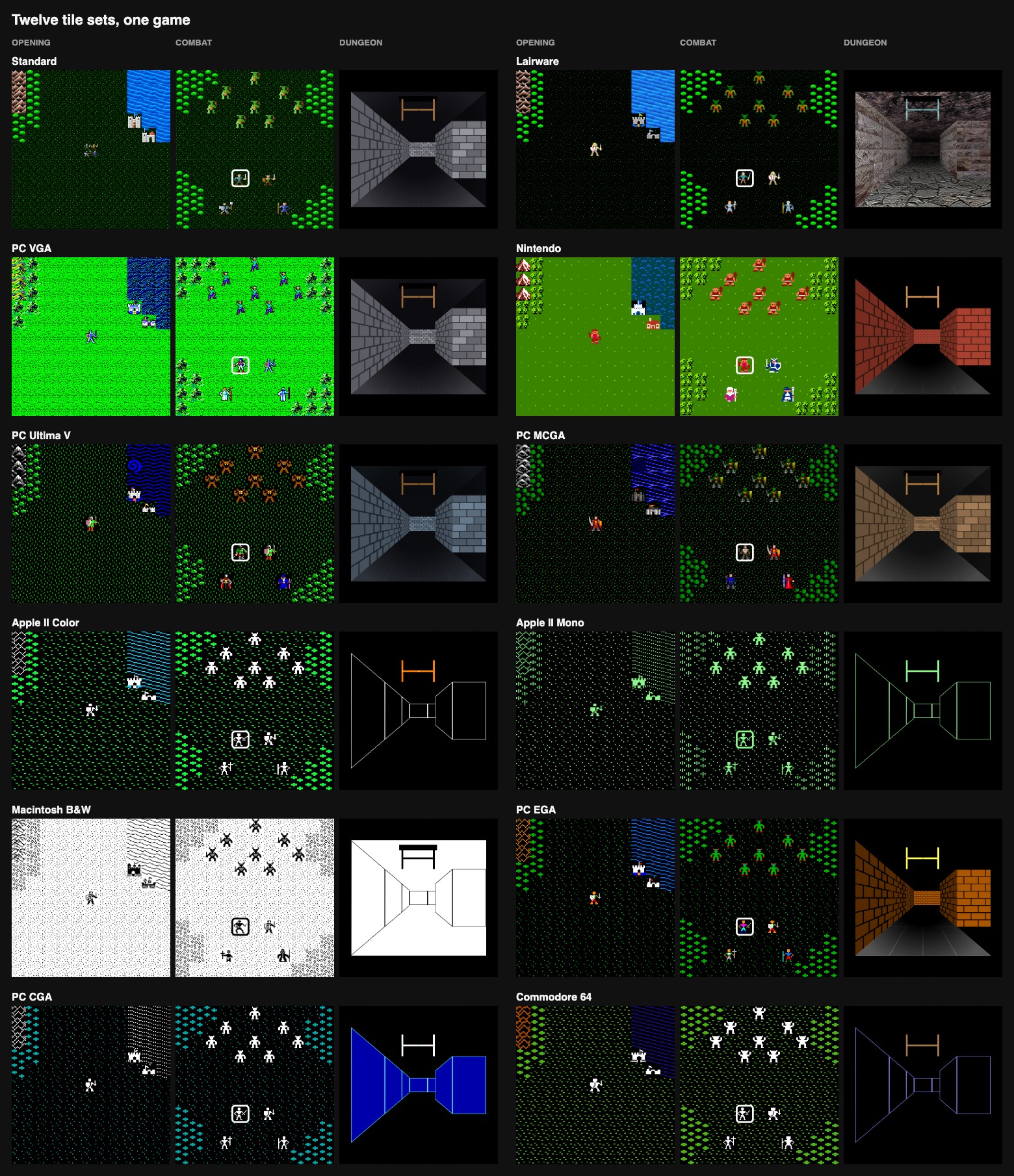
- Still offers an experience very close to the original if you choose, building on the LairWare baseline with its full set of period tile sets: Apple II in color and mono, Commodore 64, NES, the PC's CGA, EGA, MCGA and VGA, the Ultima V look and the Macintosh black on white.
- Includes an updated Standard experience: controller play, new art and sound, and tweakable settings.
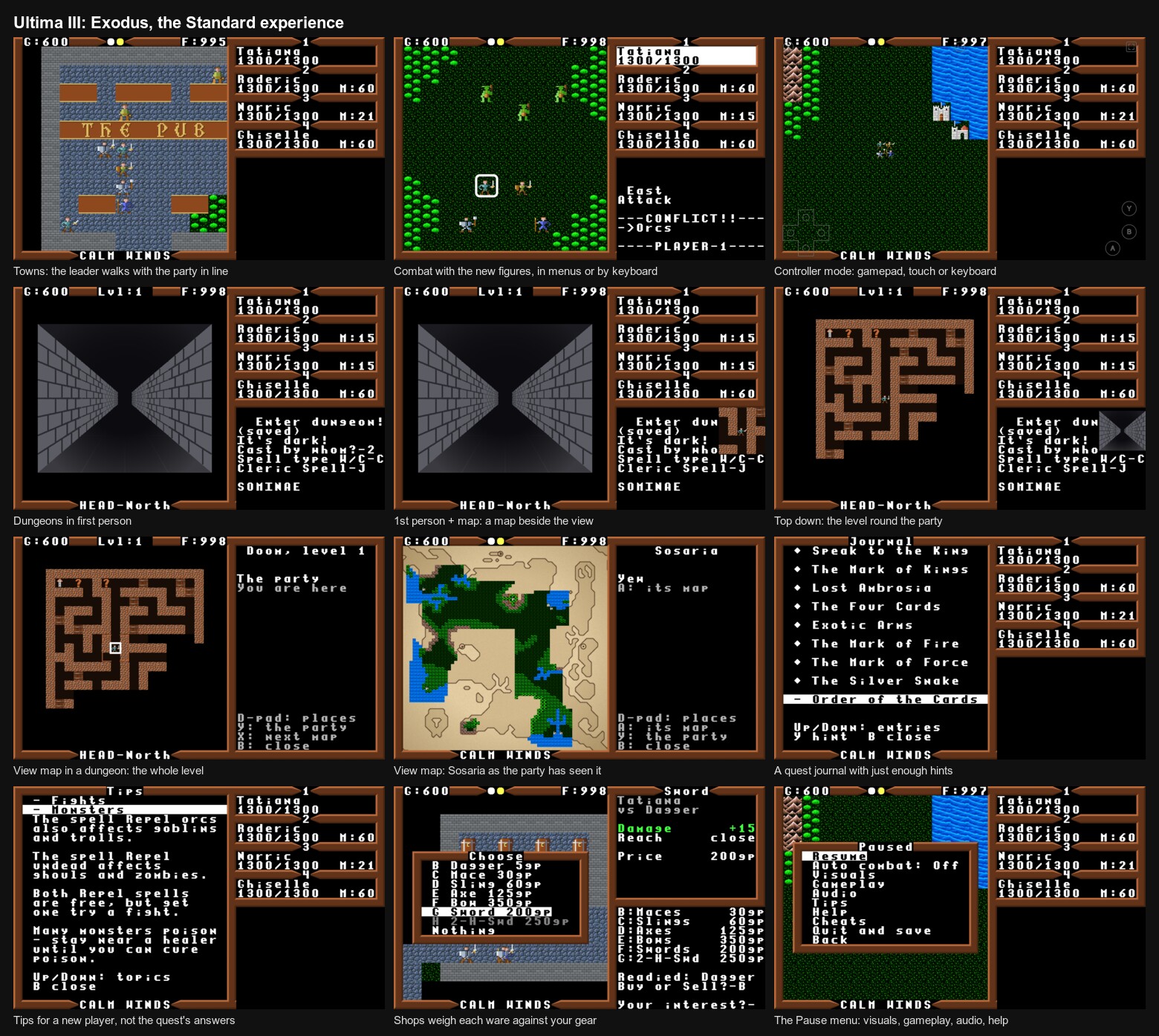
The following were design principles for the updated Standard experience:
- No changes to the core data files - it's Ultima III.
- Changes are all made with the spirit and look of the original, with just enough updates to allow a new player to enjoy the game completely offline and have a great time.
The game starts in the new Controller mode, inspired by the NES version, which most modern players will prefer. In Controller mode the whole game is played using simple, in-game controls and menus.
This controller user experience works as well with a keyboard as with a gamepad or a touch screen, and is far more accessible on a desktop than typing letters. Menus put the common actions at the top, and a few shortcuts (cast the right heal, open a chest safely, light a dungeon) make combat and exploration more fun - it's still grindy, but now the grind is fun. Everything is designed to look like it could have been in the original, while still bringing a more modern UX design to the table.
A map fills in as the party explores, and a quest journal gives just enough in-game hints that most players should be able to finish the game without an external guide. There are options that ease the difficulty a little. The party shares one inventory for unequipped gear. And many, many other subtle improvements.
All of it is configurable in the game's Pause menu. If you want the original gameplay, it is all still there: classic difficulty, keyboard commands, the original skins. Not a single data file from the original LairWare build has been touched.
Ultima III is by Richard Garriott and Origin Systems (1983). The Macintosh port is by Leon McNeill of LairWare, whose original README is at the bottom of this page.
Installation
-
Browser: https://synthwave-pixel.github.io/ultima3/. Nothing to install. Chrome, Edge and Android offer to add it as an app, and it works offline after the first visit.
-
Steam Deck: the game installs as a Flatpak from Desktop Mode, in a few minutes, and then lives in your Game Mode library.
- Switch to Desktop Mode: press the Steam button, choose Power, then Switch to Desktop.
- If the Deck has never had a password, give it one: open Konsole and
run
passwd, choosing any password you like. Discover needs it once, when it registers the game's repository, and it is also whatsudoasks for; nothing else changes. - Open this page in a browser there (if the Deck has none yet, Discover, its app store, installs Firefox) and tap install Ultima III. The browser saves a small file; open it from the browser's downloads and Discover shows Ultima III with an Install button, and asks for the password that first time. Install once: later updates arrive in Discover with every other Flatpak's, with no prompt.
- Open Steam, still in Desktop Mode. Click Add a Game at the bottom left, then Add a Non-Steam Game, tick Ultima III in the list, and click Add Selected Programs.
- Return to Game Mode with the icon on the desktop, or restart. The game is in your library under Non-Steam. If the controls do not respond, open the shortcut's controller settings and pick a Gamepad template. The first time you play it from there, the game puts the box art in Steam's library (the cover, the banner and the logo), which shows once Steam has restarted; artwork you set yourself is never replaced.
The same link works on any Linux desktop with Flatpak, and the terminal line at the bottom of this page installs per user with no password at all.
-
Windows and macOS: the installers on the Releases page, a Windows installer or portable
.exeand an Apple Silicon.dmg(macOS 13 or later). They are unsigned; see the Desktop app section below for the one-time step each system asks for. -
Android: the APK on the Releases page, or Obtainium to keep it updated; see Android handhelds below.
-
Linux without Flatpak: the
AppImageon the Releases page.
Playing
The game runs in any current browser. Chrome, Edge and Android offer to install it from the address bar or the browser menu; on iOS use Share, then Add to Home Screen. After the first visit it runs without a network. Updates download in the background, and the title menu then offers "Update: restart".
The game saves itself at every town, castle and dungeon door and at Quit, in the browser's local storage, and resumes on the next visit; the maps and the journal are saved with it. The title menu's Export game copies the saved game as text to the clipboard or a file, and Import game reads it back, which is how a game moves between devices. The showcase saves are games ready at some of Sosaria's sights, from the opening to the castle of Exodus, to import and try (importing one replaces the game in progress, so export yours first).
Back up your saved game. Browsers can clear a site's storage on their own: Safari and every other iOS browser delete it after seven days without a visit, and any browser may drop it under storage pressure, when site data is cleared, or at the end of a private window. Play often, and export the game now and then so a copy is on the clipboard or in a file. On iOS, add the game to the Home Screen, which keeps its storage; in a browser tab the game warns of this once a day. If a browser cannot keep a save at all, copy and paste alone is enough to carry a game through.
Desktop app, and the Steam Deck
The same game is packaged as a desktop app with Electron, for players who
want a plain window, an icon in the dock, or a Steam shortcut. Builds for
Windows, macOS and Linux are on the
Releases page. The
desktop app keeps its saved game in its own storage, separate from the
browser's; Export and Import move a game between them. It opens full
screen unless you last left it a window; F11 or Alt+Enter (or macOS's
green button) switches. Its title menu has
a Quit, for a full screen or Steam's Game Mode where the window has no
close button, and only one copy runs at a time: launching it again brings
the open one forward, so two copies never write over each other's save.
When a newer release is out, the title menu says so, "Update (x.y.z)", and
choosing it opens the release's page to download it; the Flatpak is kept
up to date by Discover or flatpak update instead, and nothing is offered
under Steam's Game Mode, where a browser would open over the game.
-
Windows: an installer and a portable
.exe. Both are unsigned, so SmartScreen asks once; choose More info, then Run anyway. -
macOS: an Apple Silicon
.dmg, for macOS 13 (Ventura) or later (Intel Macs: use the web version). Signed by no Apple developer, so the first launch is refused. Try to open the app once, then open System Settings, choose Privacy & Security, scroll down to Security and click Open Anyway beside Ultima III; it opens normally from then on. Or, in Terminal, once:xattr -dr com.apple.quarantine "/Applications/Ultima III.app". If macOS later asks to let Ultima III use the microphone (it can when the sound plays through a USB microphone or a headset), choose Don't Allow: the game never uses it, and the sound plays on.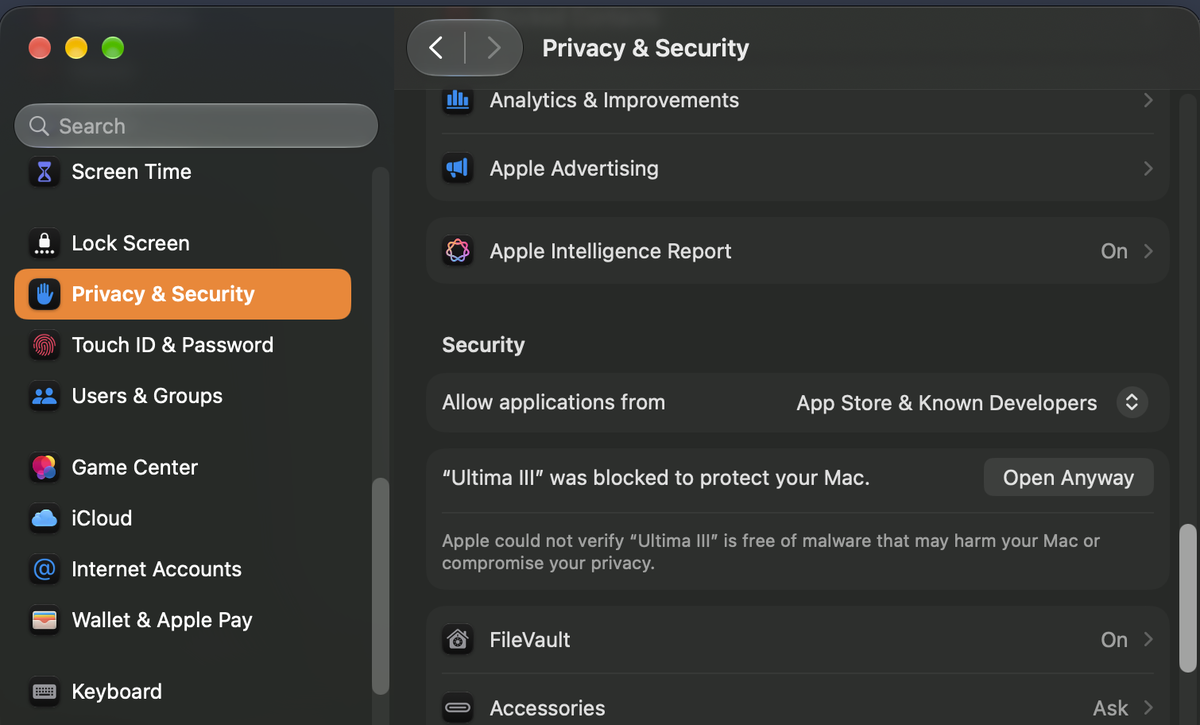
-
Linux and SteamOS: the Flatpak repository, installed as under Installation above, is the way on a Steam Deck and on any Linux with Flatpak: one click or one line, and updates arrive with every other Flatpak's. Add the game to Steam from the Non-Steam Game list, and in the shortcut's controller settings pick a Gamepad template. The app sees the controller as a gamepad and switches to controller mode on the first press, and starts full screen when Steam launches it. In Game Mode it also turns off GPU acceleration and the browser sandbox, which have hung other Electron apps under gamescope. The
.flatpakbundle on the Releases page is the same build for an offline install (flatpak install --user <file>, which then never updates), and theAppImagesuits a Linux without Flatpak: make it executable and run it.
Android handhelds
For Android handhelds like the AYN Odin or the Retroid Pocket, and for
phones and tablets, the same workflow also builds an APK
(Ultima-III-<version>-android.apk), published in the same release as
the desktop installers. Copy it to the device and open it; Android asks
once to allow installs from that source. Or let
Obtainium install it and keep it
updated from the releases: tap the badge on the device, or add
https://github.com/synthwave-pixel/ultima3 in Obtainium by hand.

The app runs full screen in landscape, the Back button opens the Pause menu as Escape does, the title menu ends with Quit to close the app, and built-in controls that Android reports as a gamepad switch the game to controller mode on the first press. When a newer release is out, the title menu offers "Update (x.y.z)", which opens its page (Obtainium, where it installed the app, finds it too). The APK is signed with a key kept in the repository, so a new build installs over the old one and keeps the saved game. iOS has no such build on purpose: install the web version from Safari's Share menu with Add to Home Screen instead.
Controller mode
The default; a gamepad button press also switches back to it from keyboard mode. A tap on a touch screen shows a virtual controller, sized to an NES pad on any screen. Holding a direction, on a gamepad or the virtual pad, keeps walking as a held key does.
D-pad   move, or move the cursor in a menu
A       open the command menu; choose
B       cancel, or pass a turn (so the menu has no Pass)
X       ztats
Y       look; attack in combat; ignite a torch in dungeons
View    open the Pause menu, which stops the game
Menu    the same; either system button pauses
On a keyboard the stand-ins are WASD or the arrows for the d-pad, Enter or Z for A, X or B for B, C for X, V or Y for Y, and Escape pauses. On a touch screen the pause button is at the top of the virtual pad.
Keyboard mode
For the original feel, chosen under Pause > Gameplay when the menu is opened with a key press. The Apple II commands, one letter each:
Arrows       walk; move in combat      Space   pass a turn
Escape       pause menu                J       journal
#            the map

A attack     B board      C cast      E enter     F fire
G get chest  I ignite     L look      M modify    N negate
O other      P peer gem   Q quit/save R ready     S steal
T transact   U unlock     V volume    W wear      X exit craft
Y yell       Z ztats

Combat:   arrows move (into a monster attacks), A attack in a
          direction, C N R Z (auto combat is in the Pause menu;
          while it plays, B or Escape takes the fight back)
Dungeons: up/down advance or retreat, left/right turn, I K D
          ignite, klimb, descend, L change view (first person,
          with a map, top down)
Shortcuts: ! cast the heal the party needs, @ safe chest, $ light
A "whom" prompt takes a member number, or Up and Down through the stats boxes and Enter. The same controls are in the game under Pause > Help.
The Pause menu
A controller's system buttons (View and Menu, either side of the maker's logo), Escape, or the pause button on the virtual pad stop the game where it stands: the idle timer, a combat turn's timer and the music all hold until Resume. A window that loses focus pauses itself and opens the same menu, which stays up until you close it, so nothing runs on while you are away.
The menu holds the settings: auto combat, Visuals (the tile set and scanlines), Gameplay (the input mode, poison kills, starvation, balanced XP, the turn timer and Battery saver), Audio (Sound FX, Standard, Lairware or Off, and the FX level, music and the Music level), Tips (how the game works, for a new player, without the quest's answers), Help, Cheats, and Quit and save where the game allows it, on the surface and out of a fight. A new game's first turn points to Tips, once. A level is a dial, Off or 10% to 100%: each step is heard as it turns, the music playing under the paused game until the dial closes. The title screen shows the same settings under Settings, all but Cheats, which want a game going. The input mode is offered only when the menu was opened with a key press: keyboard mode wants a keyboard, and choosing it with a thumb or a gamepad used to leave a player pressing buttons the letter commands ignore. Every setting is remembered by the browser. A new game asks "Choose Thine Adventure!": Modern (recommended), Classic (hardcore, the Apple II's rules) or Story (relaxed), each a preset of the difficulty settings that can be changed afterwards.
What changed
Changes to all modes
These apply whatever tile set and sound set are chosen.
Controller mode
- The command menu lists what the surroundings call for first: Enter on a town, Board on a horse, Get on a chest, Attack beside a monster. Commands that make no sense where you stand are left out, and ones with nothing on hand (no gem, no torch, no caster alive) are grayed. What a button does is not in it: B passes, and the system buttons open the Pause menu, which holds the settings, auto combat, and Quit and save.
- In combat, a ranged weapon in hand puts "Attack (Bow)" first and a caster gets "Cast (spell)" with their last spell ready. Walking into a foe attacks it.
- The party panel shows what the menu's bar is on, after the Ultima V port: on Ztats each member's experience toward the next level, on Ready weapon the weapon in hand, on Wear armour the armour worn. In a shop's Buy list and in Ready's and Wear's lists a card over the panel weighs the item for the member against what they have, green where it is better and red where it is worse; in the spell lists, the spell's card gives its book name, its cost against the caster's mana and what it does.
- Shortcuts cast at once, with no prompts, choosing the caster with the most mana: "Cast (Heal)" or "Cast (Great heal)" leads the menu when someone is hurt; "Cast (Safe chest)" sits under Get chest on a chest; "Cast (Long light)" or "Cast (Light)" sits under Ignite torch in a dark dungeon, the strongest light spell anyone can cast.
- Menus replace typed numbers on the title and party screens: the roster is a pick list, the party a list in marching order, attributes a screen where left and right spend the points, and a random name is offered. "Who?" prompts move a pair of arrows through the stats boxes, starting on the member the command most likely wants: the nimblest for a chest or a theft, the most hurt for a heal, the poisoned, dead or ashes for a cure, resurrection or recall, the caster with the most mana for Cast, and someone without the mark who can bear its burn for a rod.
- A virtual controller on touch screens, a gamepad through the Gamepad API, and an on-screen keyboard for names.
Journal, map and hints
- A quest journal, which the Apple II never had, after the Ultima V port's. The main quest lists the steps to Exodus: speak to the king, the Marks of Kings, Fire and Force, the four cards, exotic arms, the silver snake, the order of the cards, Exodus. After the king they may be taken in any order, so each is shown once something has told of it, and opens to every clue heard about it, as it was spoken - townsfolk, pub rumours and the oracle's verses alike. Beside it are the places: Lord British's castle and the ten towns, with how many of each one's clues have been heard (the towns on isles, and Dawn, a mystery until found or told of); the pubs' nine rumours and the oracle's rhyme, each in order as heard; the seven dungeons, a mystery until found or told of, with what each holds for the quest found; and Ambrosia's four shrines and their cards. Then the equipment to go and get: a guild's supplies, the magic weapons and armour, a ship, and the moongates come out of; and the words Other answers to. A card over the party panel says where the highlighted line stands, and H (Y on a controller) prints a hint written for this port. "Journal updated" prints when something real changes.
- Words for Other are learnt by hearing them said. On a controller, Other offers only the words learnt; a keyboard may type any word, as on the Apple II.
- View map (# on a keyboard, or the command menu) shows what the party has seen, filled in square by square as it goes, after the Ultima V port's map: Sosaria, Ambrosia and each town and castle whole on the screen in the tile set's own tiles, and in a dungeon its level's auto-map. Sosaria's unexplored land and sea are a chart of its coasts in ink on paper; elsewhere the unexplored is dark. Places are marked once seen and named once the party has been inside ("Towne?" till then); the towns and Lord British's castle are marked from the start, as the box's map had them, inked on the chart as "Undiscovered" until seen. The d-pad steps between them, A opens the map of a town or castle the party has been in, Y comes back to the party and X turns to the next map. Every moongate the party has come out of is marked with the moon that opens it, so the gate table writes itself one trip at a time. What is on it is what the party has had in its line of sight: whatever forest, mountains or walls hide stays unknown. It replaces the cloth map from the box. The maps go with the saved game. Forming a new party keeps them, so members can come and go in one adventur