mahoyo-steam-android-port
An unofficial Android port of Mahoyo (WITCH ON THE HOLY NIGHT) Steam edition.
- Type: PC port
- Game: WITCH ON THE HOLY NIGHT
- Runs on Windows and Android
- By david419kr
- Latest release v0.6.13, 2026-10-31
- Source: https://github.com/david419kr/mahoyo-steam-android-port
README
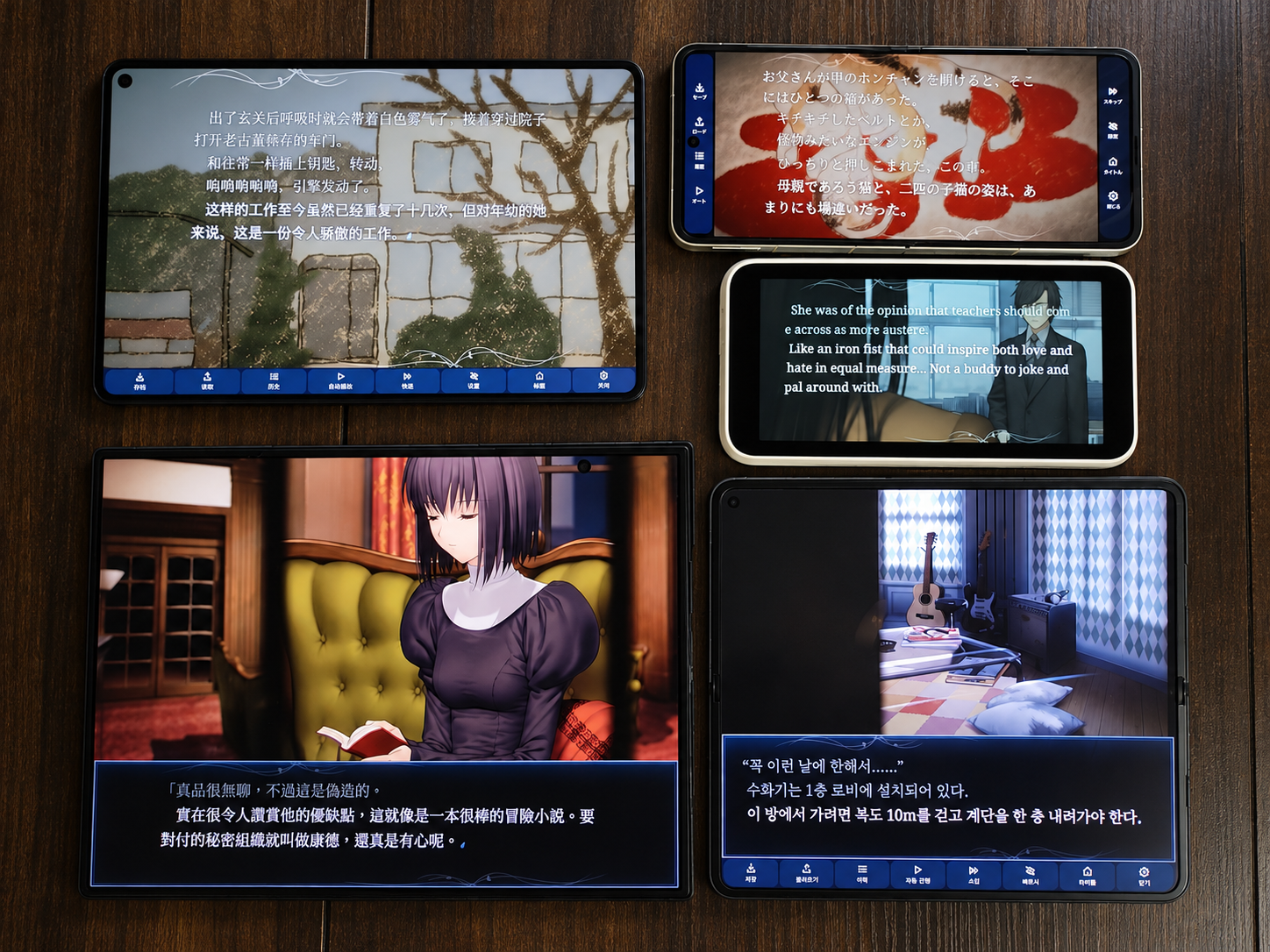
WITCH ON THE HOLY NIGHT — Unofficial Android Port
A native Android port designed for phones, tablets and foldables across different screen sizes and aspect ratios. Install your Steam copy directly on your phone, then play completely offline. No PC is required.
This repository and the distributed APK contain none of the original game's image, audio, video, or dialogue data. Game data is downloaded directly through the Steam account of a user who has legitimately purchased the game.
What you need
- A Steam account that owns WITCH ON THE HOLY NIGHT.
- A 64-bit ARM Android device running Android 9 or later, with OpenGL ES 3.0.
- Internet access for sign-in and installation, and about 20 GB of free space for a direct Steam installation. The app shows the required space.
Tested performance
- Runs smoothly at 60 FPS on a Snapdragon 7 Gen 1 device with 8 GB of RAM.
- Also confirmed to run on a Dimensity 720 device with 2.5 GB of RAM, but significant frame drops occur on hardware at this level.
These are observations from tested devices, not minimum requirements. Performance may vary by device and scene.
Install from Steam
- Install the APK on your Android device. Allow installation from the app you opened it with if Android asks.
- Open the app and sign in to Steam using Sign in with QR, or your account name and password with Steam Guard approval.
- After ownership verification, choose Download from Steam.
- Wait for downloading and game-data preparation to finish.
- Tap Play.
Once installed, the game works fully offline, with no periodic Steam sign-in. If a download is interrupted, sign in again and choose Download from Steam to resume.
Using Steam Mobile on the same phone?
You can display the login QR on another screen:
- Tap Show QR on another device and open the displayed address in a browser on a PC, tablet or another phone.
- Keep both devices on the same local network: the same Wi-Fi, or a wired connection to the same router.
- On your phone, tap Open Steam authenticator, scan the QR on the other screen and approve the sign-in.
The QR refreshes automatically. The ? button next to QR sharing explains the steps in the app.
Controls
| Gesture | Action |
|---|---|
| Tap | Advance text |
| Two-finger tap | Show or hide the menu |
| Swipe down | History |
| Swipe up | Settings |
| Swipe right | Save |
| Swipe left | Load |
| Hold for one second | Skip until you release |
Swipe in the opposite direction to close a menu. If dialogue or a menu can scroll, reach the scroll edge before swiping farther. You can reverse a menu-opening swipe to cancel it.
In Settings → Display, choose the original 16:9 view (fit the complete image) or an adaptive layout (fill and crop), and full-screen or bottom-panel dialogue. Automatic dialogue layout adapts to the available screen space. Text size and margins are adjustable.
In History, use the rewind button and confirm to return to that dialogue scene. History stored in existing saves is supported too. Save files are not overwritten. Restoration may take a moment; if the destination cannot be verified, your current progress is kept.
Updates and save backups
Update checks are enabled by default and run once at launch. Offline checks are silently skipped. You can skip one version or turn notifications off, and use Settings → Game to check manually or reset those preferences. Updates come from GitHub releases; the app verifies the APK package and signing certificate before opening Android’s installation confirmation.
Use Export ZIP and Import ZIP in the Save/Load header to back up manual slots, thumbnails and shared progress. Import uses empty slots first and shows the exact slots to be overwritten if there is not enough room. Image, clear and achievement unlocks are merged; existing settings and navigation state are preserved. Export a ZIP before uninstalling or clearing app storage. Hold an occupied slot to delete only that save and its thumbnail; two irreversible-deletion confirmations are required. Shared progress is kept.
Saves are kept on this device. Uninstalling the app or clearing its storage removes its installed data and saves.
This is an unofficial project, not affiliated with the game’s publisher or Valve. Game files are downloaded using your own Steam account.
License
Original project source code is MIT licensed. Third-party components retain their own licenses. Game content, translations and the demonstration screenshot are not covered by the project license.