WWE SmackDown vs. Raw 2011 - PC Port
WWE SmackDown vs. Raw 2011 - PC Port is a Windows port of WWE SmackDown vs. Raw 2011 for Xbox 360 that adds sharp resolutions, ultrawide support, and custom entrance music.
- Type: PC port
- Game: WWE SmackDown vs. Raw 2011
- Runs on Windows and Android
- By KaikoClanworth1
- Latest release v2.0.6, 2026-10-08
- Source: https://github.com/KaikoClanworth1/wwe-svr2011-pc
README
WWE SmackDown vs. Raw 2011 — PC Port
This is a native Windows port of the 2010 Xbox 360 game WWE SmackDown vs. Raw 2011. It isn't an emulator. The game's code is statically recompiled to C++ with the ReXGlue SDK and built into an ordinary Windows program. It runs on the SDK's Xenia-derived runtime, draws with Direct3D 12, plays sound through XAudio2 and reads controllers through XInput.
It also adds:
- Sharp resolutions: 720p (the console's), 900p, 1080p, 1440p and 4K, with anti-aliasing, VSync and a steady 60 fps, even in the heaviest entrances.
- Any screen shape: on ultrawide monitors, the Steam Deck and foldable phones, matches and entrances fill the whole screen, with more of the arena in view and nothing stretched. Menus keep the original 16:9 picture.
- A launcher that installs the game from your disc image, keeps it up to date, and manages settings, saves, DLC, logos and movies.
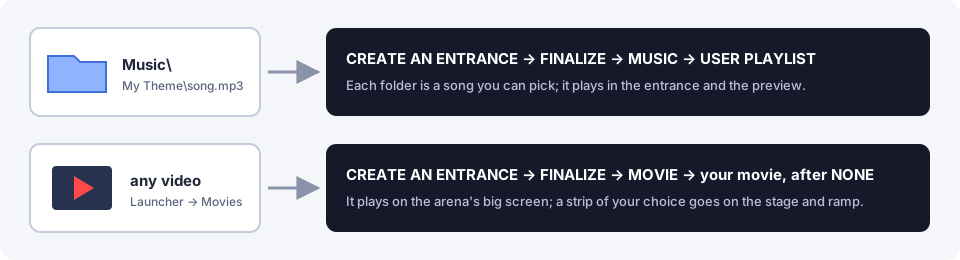
- Your own entrance music: Create An Entrance → Music → USER PLAYLIST plays songs from a folder on your PC, as the Xbox 360 did from its hard drive.
- Your own entrance movies: turn any video into a titantron movie in the launcher and pick it in Create An Entrance.
- Up to 10 HD logos on a created superstar, instead of the game's limit of 2.
- Paint Tool import and export: put any image into the game's Paint Tool, or save its logos as PNGs.
- Type on your PC keyboard wherever the game shows its on-screen keyboard: superstar names, Story Designer text and more.
- Saves as plain files that you can back up, copy and share.
- Five languages: English, French, German, Spanish and Italian (the game's own text), chosen in the launcher or in game.
- Android: the full game on phones and tablets, with on-screen touch controls you can rearrange, or a controller.
- Discord: shows what you're playing (menus, entrances, a match) on your Discord profile.
- An experimental Vulkan renderer: the native renderer on Vulkan as well as Direct3D 12 (Settings → Renderer → Native Vulkan (EXPERIMENTAL)), the groundwork for Linux and Android.
[!IMPORTANT] This repository has no game in it. It holds no disc image, XEX, game data, movies, music or recompiled game code. You need your own copy of the Xbox 360 game. Make a disc image of it (
.iso), then point the launcher at that image.
[!NOTE] This port was made with Claude Code, Anthropic's AI coding assistant. Claude Code wrote most of the port's code, tools and docs, working with the project's human author, who directed, tested and played it. See Contributors.
Screenshots
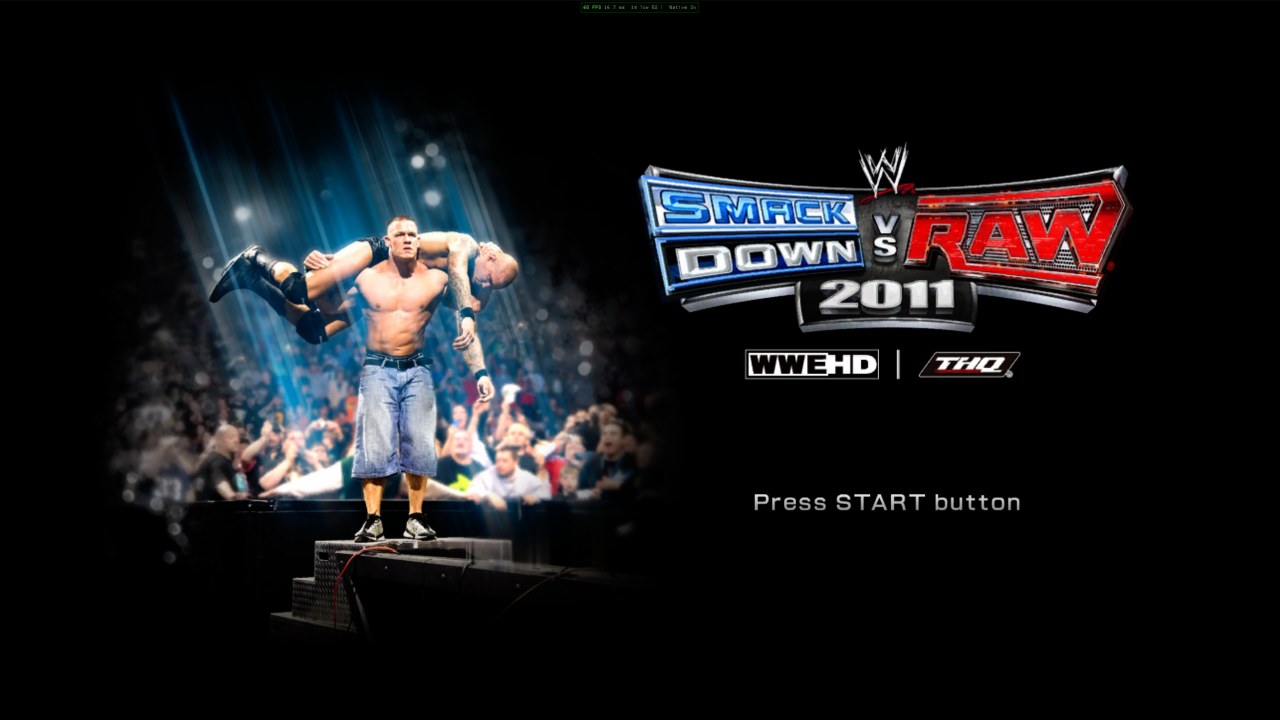 Title screen | 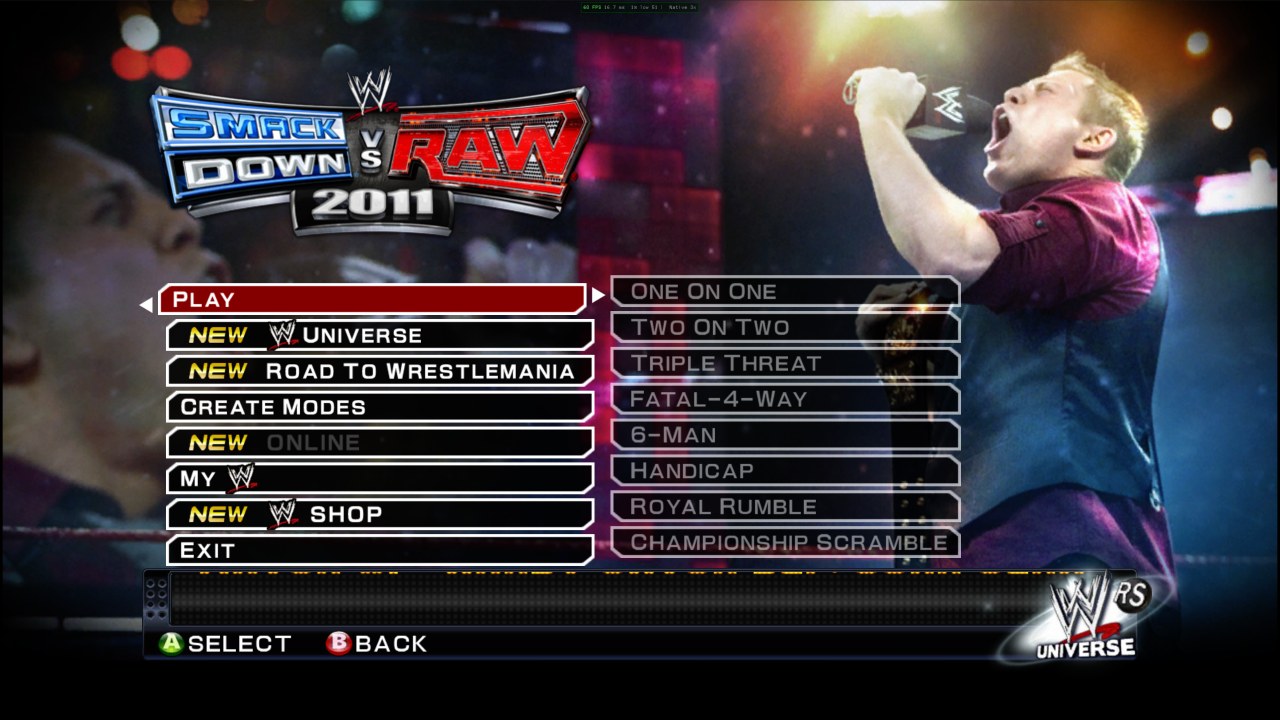 Main menu, with the port's EXIT entry |
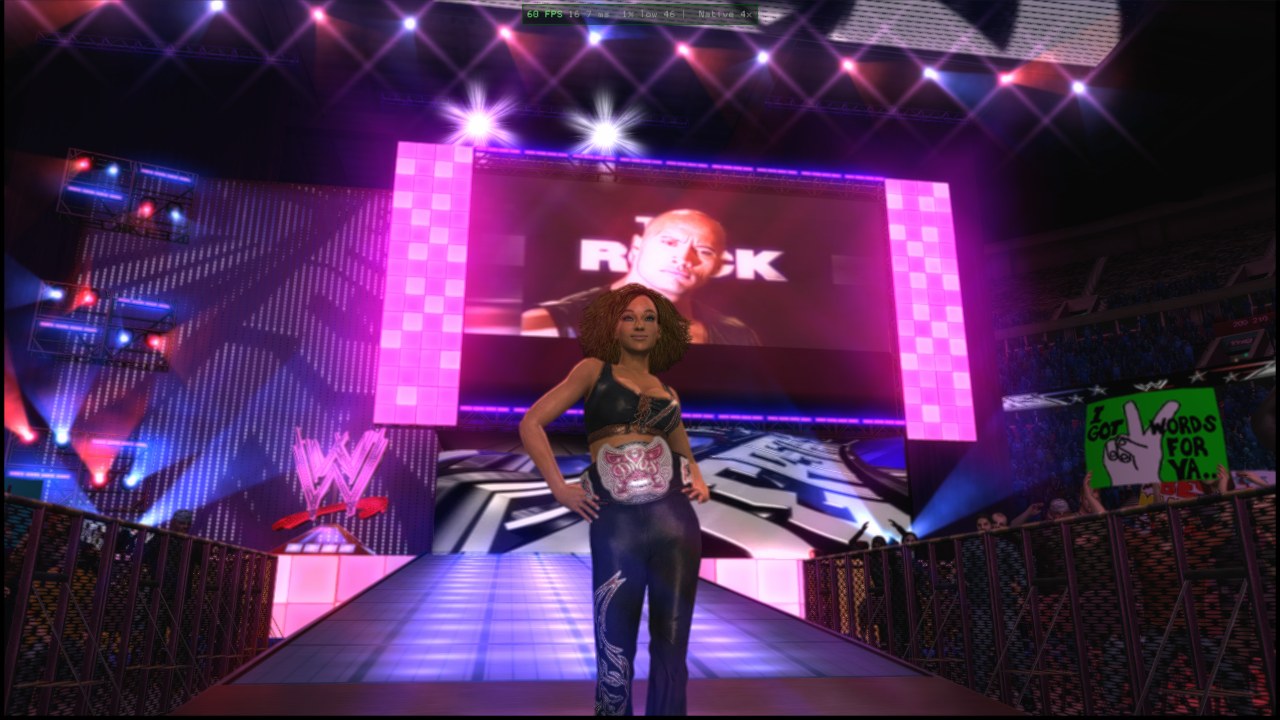 Your own entrance movie on the big screen | 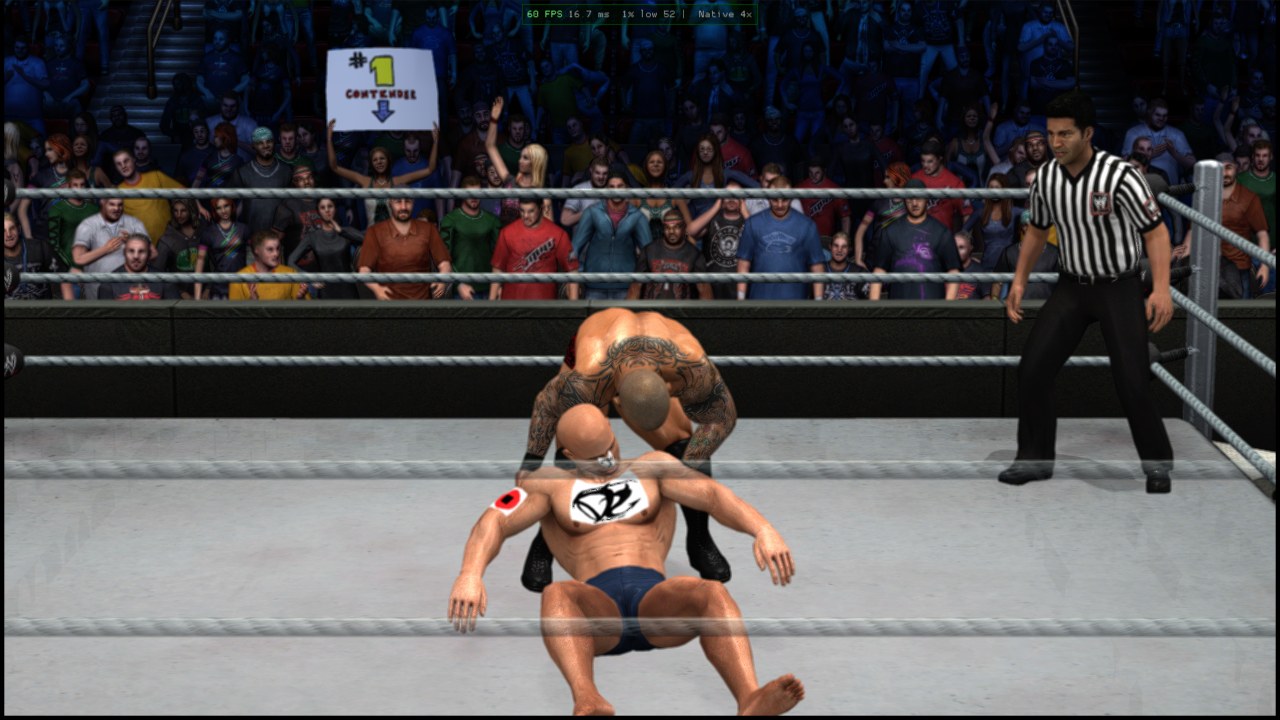 A created superstar wearing four HD logos, in a match |
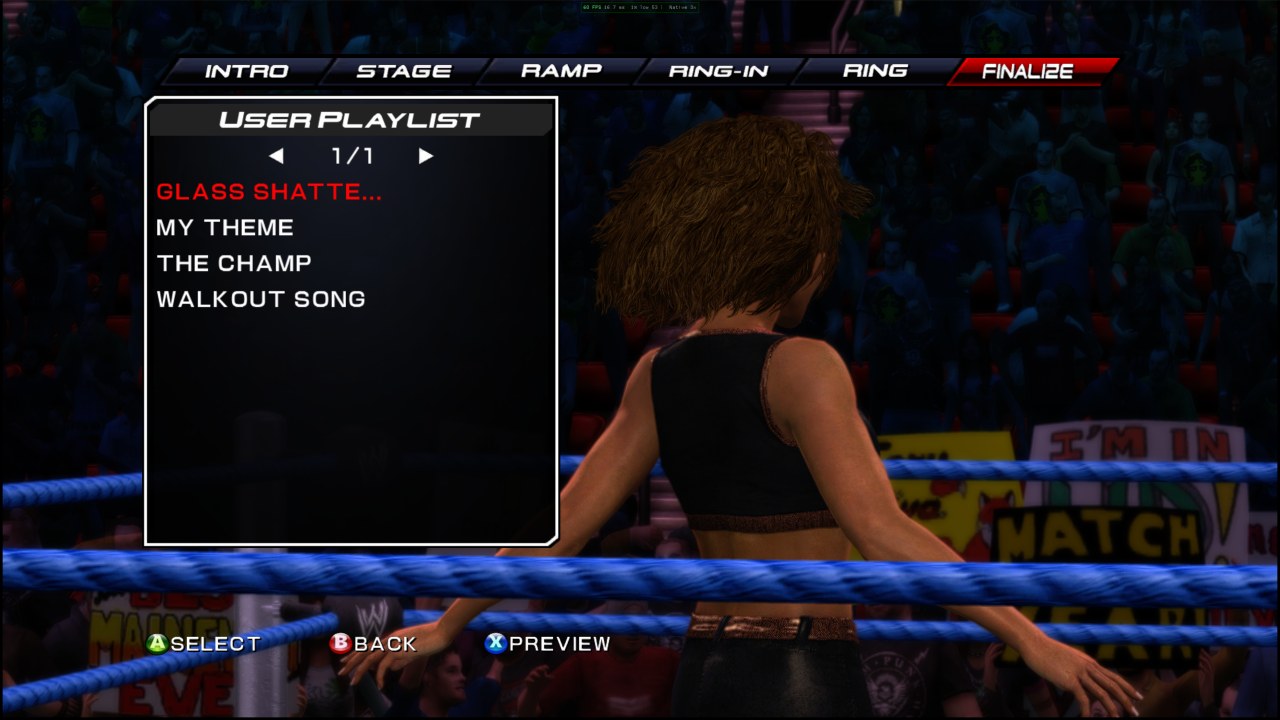 USER PLAYLIST: songs from your Music folder | 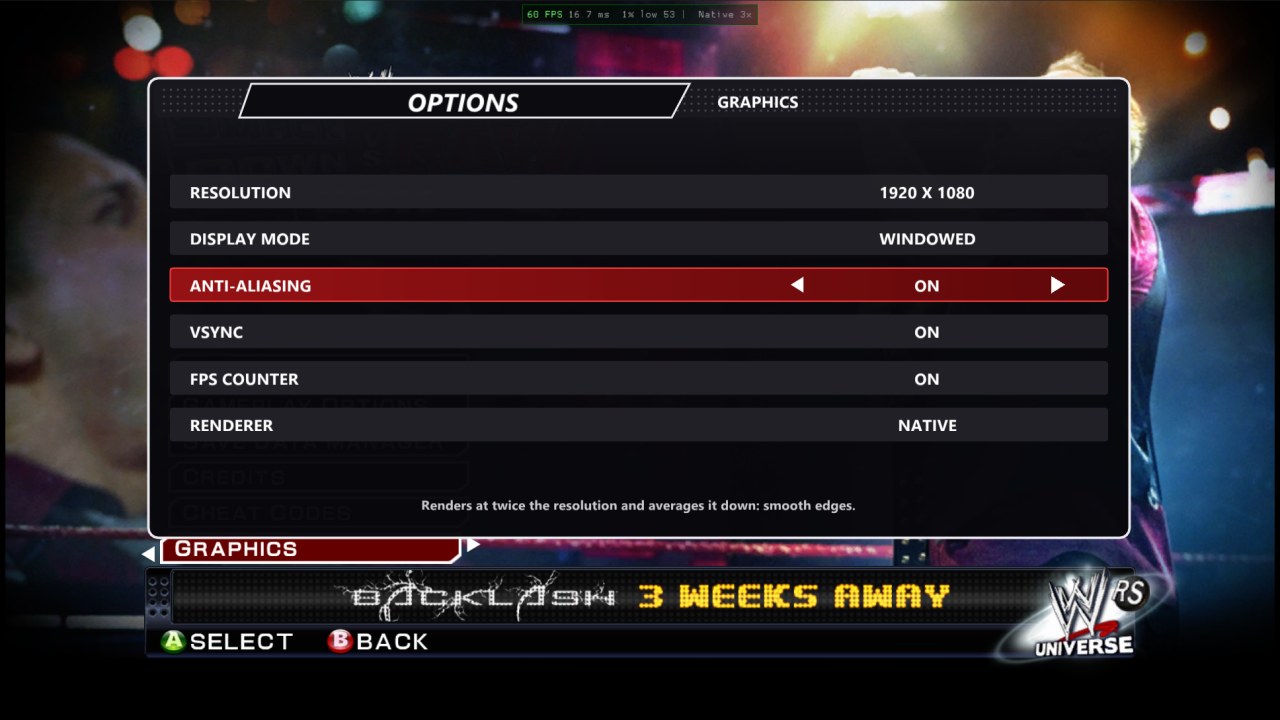 Graphics options in My WWE → Options |
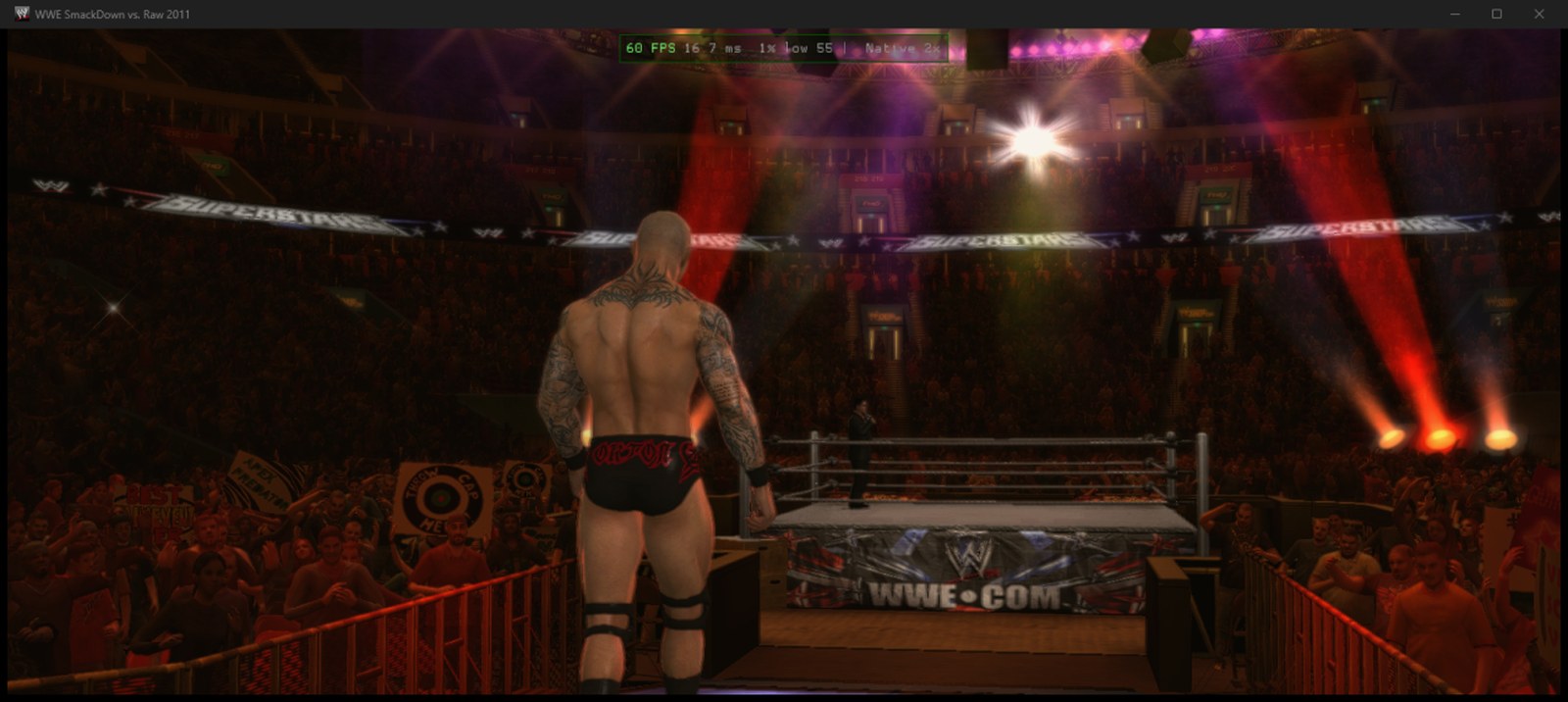 Ultrawide: an entrance filling a 21:9 screen | 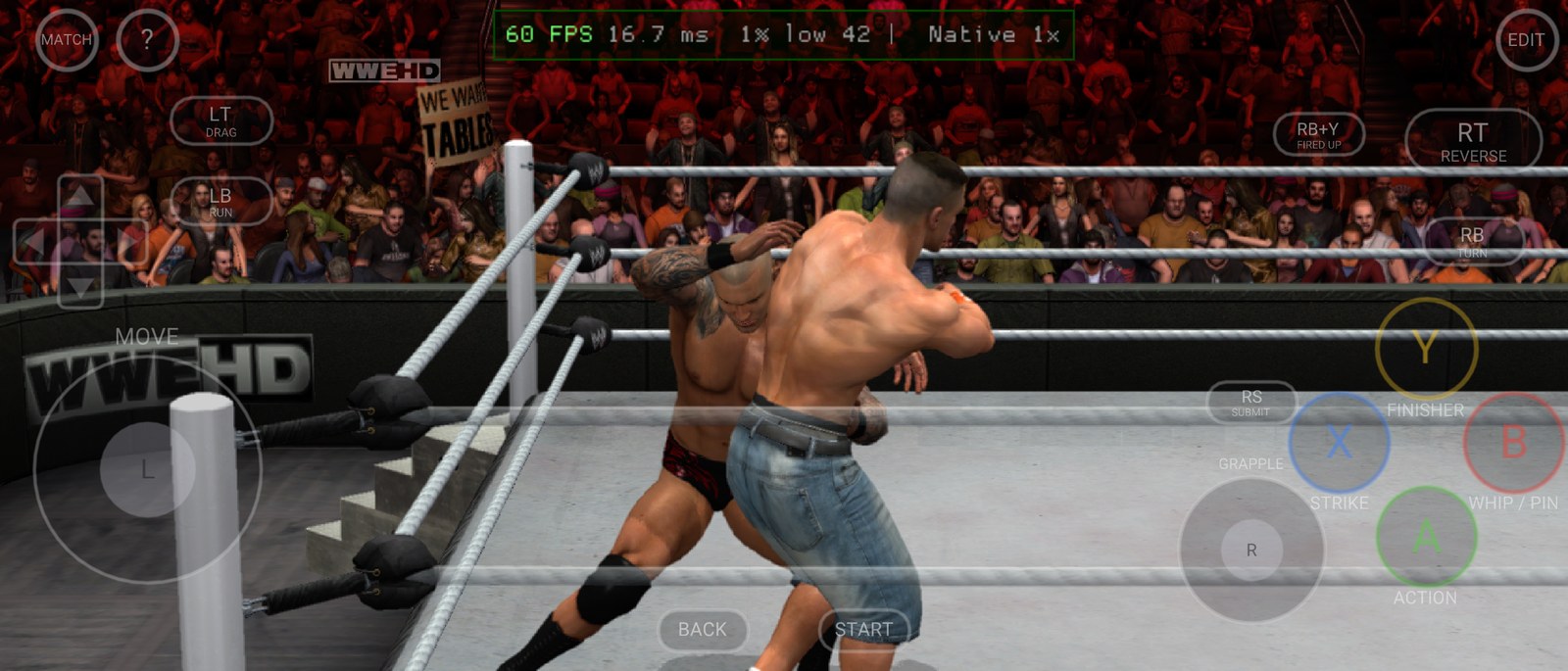 Android: a match on a phone, with the on-screen controls |
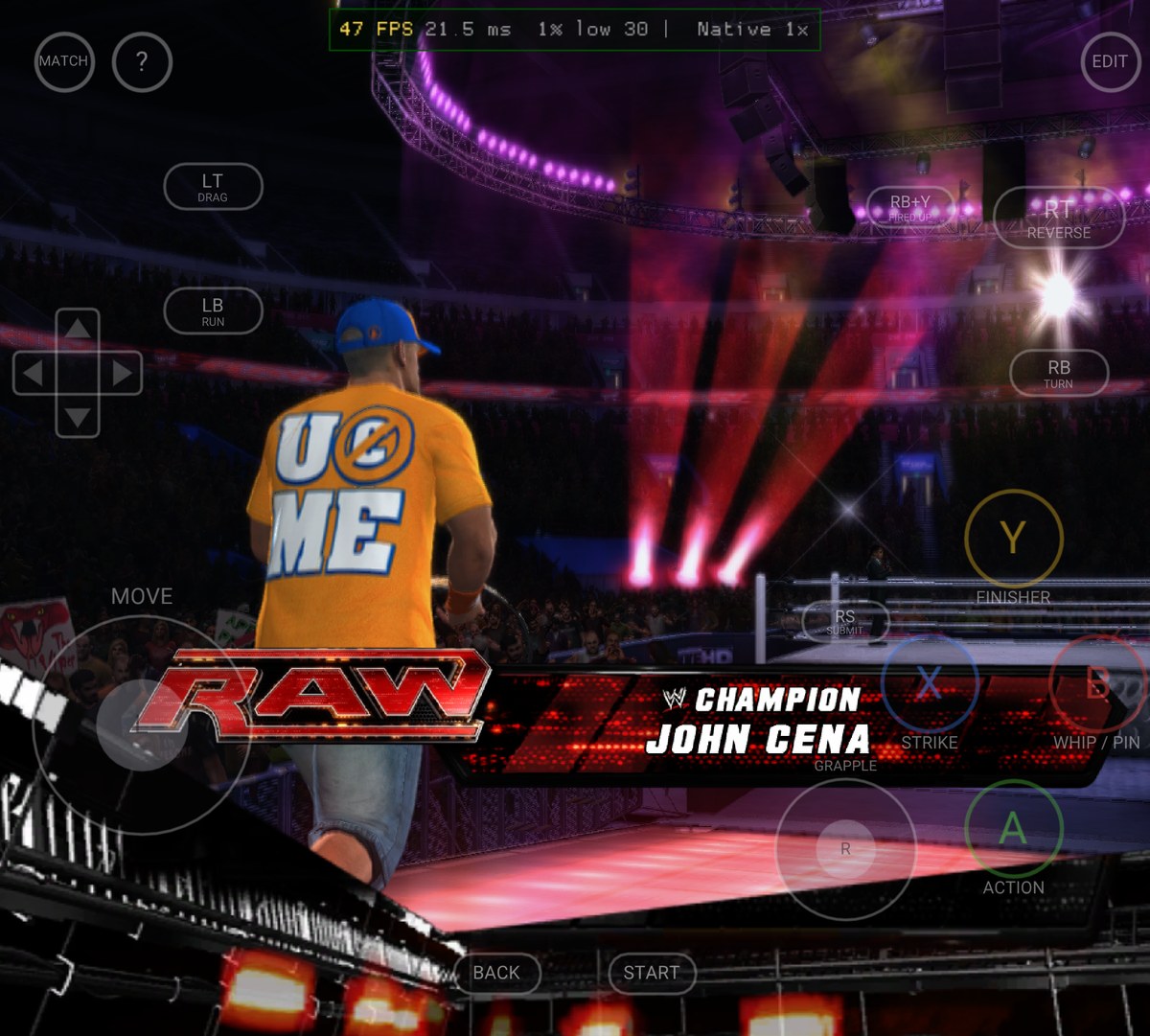 Foldables: the near-square inner screen, filled | 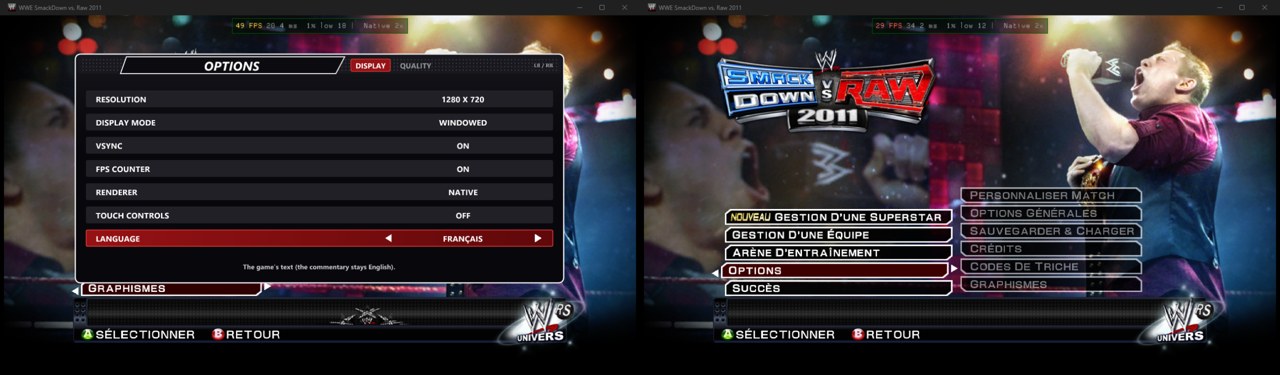 Languages: the game in French |
Contents
- Screenshots
- What you need
- Install and play
- Controls
- Updates
- Steam Deck and Linux (Proton)
- Android
- Settings
- Features
- Building from source
- Troubleshooting
- Contributors
- Legal and credits
What you need
| 💿 The game | A disc image of your own WWE SmackDown vs. Raw 2011 Xbox 360 disc, as an .iso. The PS3, Wii, PS2 and PSP versions won't work. |
| 🖥️ PC | Windows 10 or 11 (64-bit). A graphics card with Direct3D 12. A CPU from about 2009 or later (SSE4.2). It also runs on a Steam Deck (55–60 fps) and Linux PCs through Proton: see Steam Deck and Linux. |
| 💾 Disk space | About 6 GB: 5.3 GB for the game, plus room for saves and caches. |
| 🎮 Controller | An Xbox controller (Xbox 360, Xbox One or Series). Other gamepads work through SDL. |
Install and play
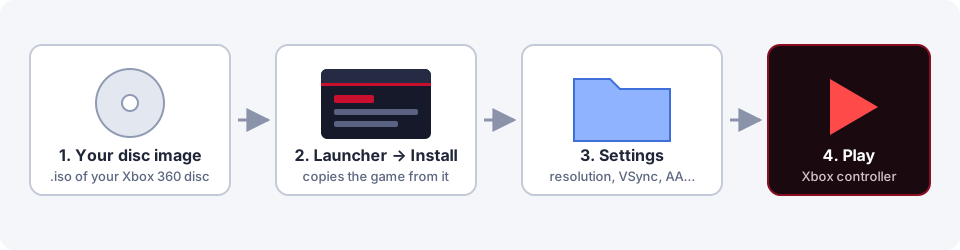
- Download the latest zip from Releases and unzip it anywhere. It holds the launcher and the game program, with no game data.
- Make a disc image of your Xbox 360 game disc, as an
.iso. - Open
SvR2011 Launcher.exeand go to the Install tab:- Under Your disc image, choose your
.iso. - Under Install to, choose an empty folder.
- Click Install. The launcher only reads the image and never changes it. It copies the game out (about 5.3 GB) and puts the PC program beside it. If you stop it, click Install again later and it carries on where it left off.
- Under Your disc image, choose your
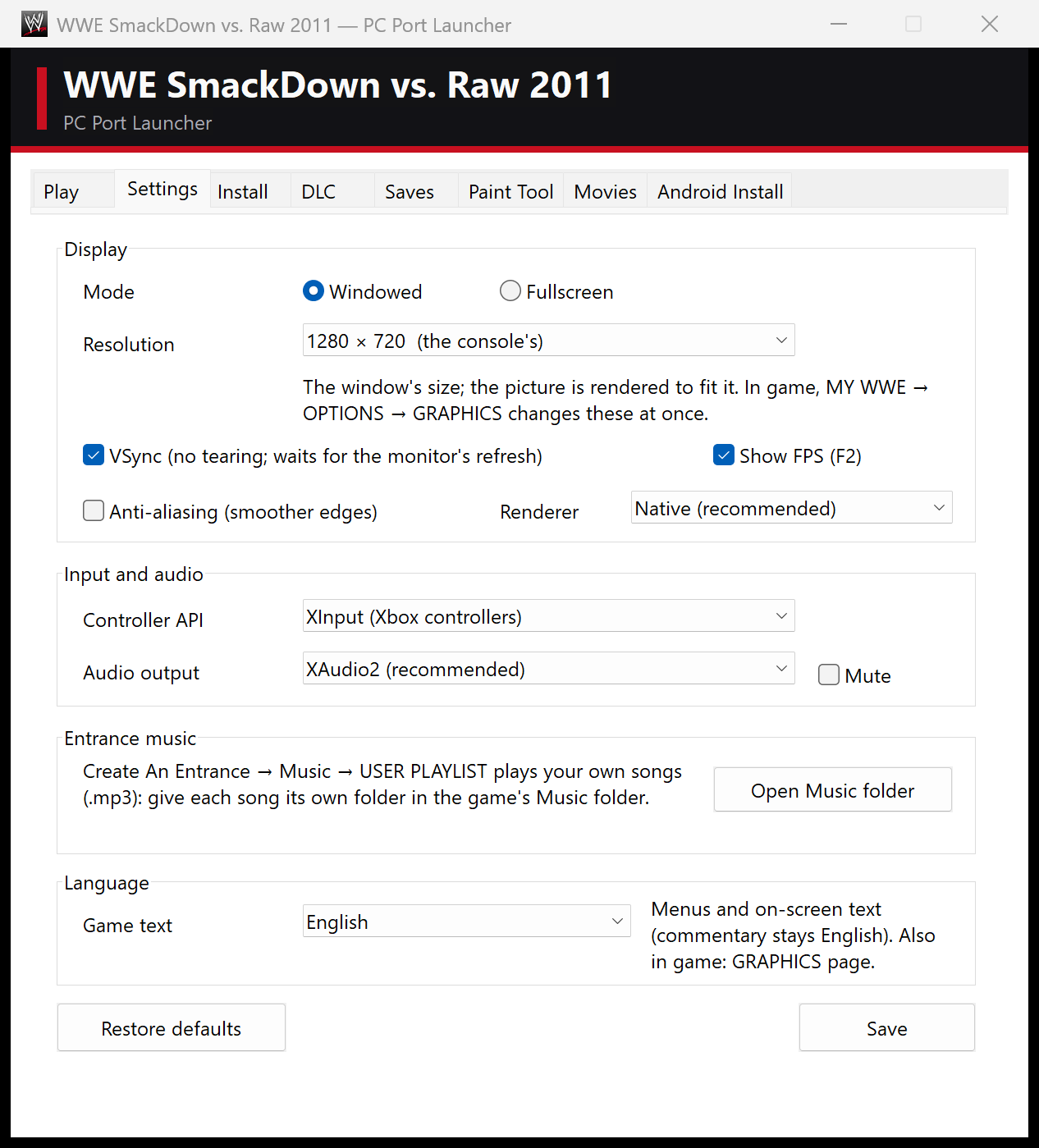
- Settings tab: pick windowed or fullscreen, the resolution, VSync and so on.
- Play tab: press Play.
Your saves go to Saves\ inside the game folder.
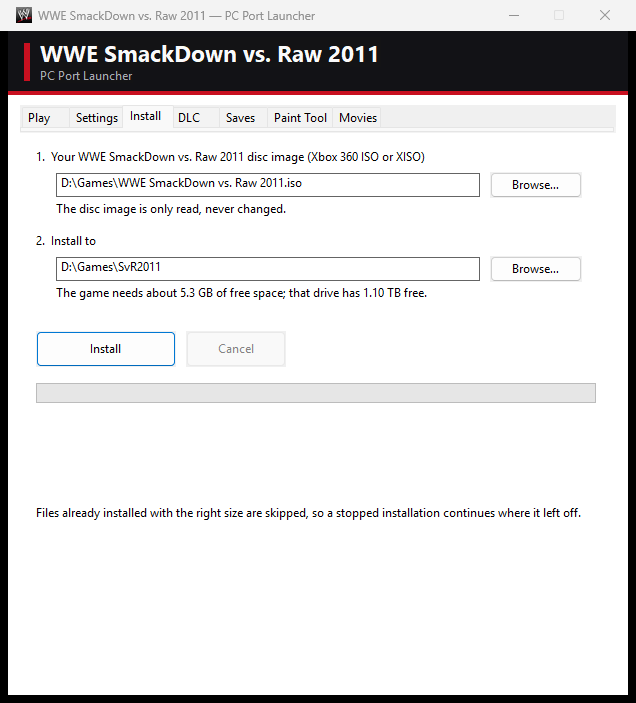 Install: choose your disc image and a folder | 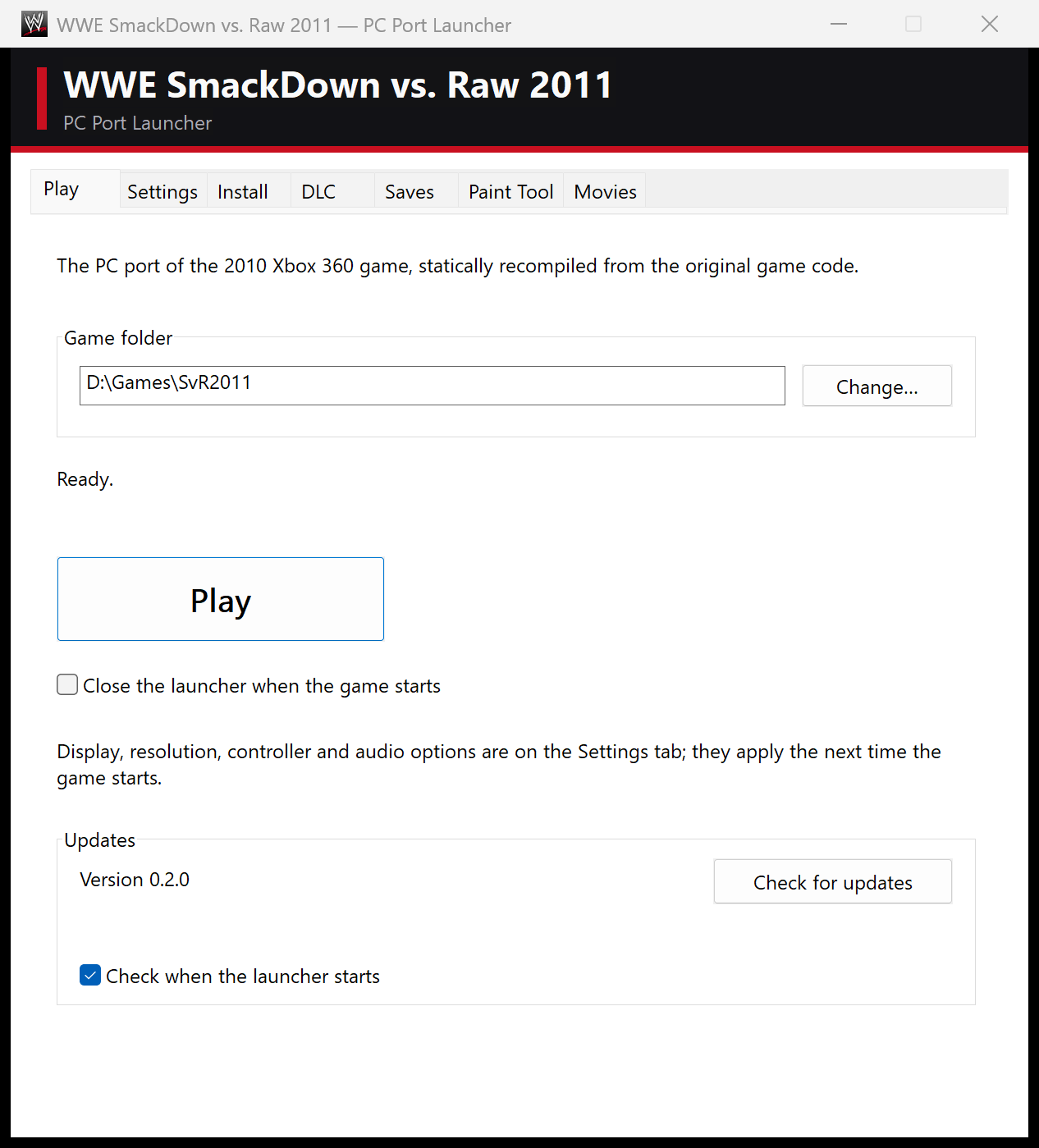 Play |
flowchart LR
    A[Your Xbox 360 disc] -->|you rip it| B[game.iso]
    B -->|Launcher: Install| C[Game folder]
    C --> D[svr2011.exe]
    E[Music and Custom Movies] -->|your entrances| D
    F[svr2011.toml] -->|Launcher: Settings| D
Updates
From version 0.2.0 the launcher updates itself. When it starts, it checks this repository's releases. If there's a newer one, it asks, downloads it, replaces the program files and restarts. Your saves, settings, music and movies are kept. The Updates box on the Play tab shows your version, has a Check for updates button, and can turn the check at start off.
Coming from v0.1.0: that version has no updater. Download v0.2.0 once, unzip it, open its launcher, and click Install into your game folder. Files already there are skipped.
Steam Deck and Linux (Proton)
The port is a Windows program. On a Steam Deck or a Linux PC it runs through Proton, Steam's compatibility layer, with the native renderer at 55–60 fps on a Steam Deck. Linux PCs other than the Deck haven't been tested yet. If something goes wrong, please report it with the newest file from the game folder's logs folder.
Set up (Desktop Mode):
- Download the latest zip from Releases and unzip it, for example into
~/Games/SvR2011-PC. Copy your.isoonto the Deck or its SD card. - In Steam: Games → Add a Non-Steam Game to My Library → Browse. Set the file type to All Files and choose
SvR2011 Launcher.exe. - In that entry's Properties → Compatibility, tick Force the use of a specific Steam Play compatibility tool and pick Proton Experimental (or the newest Proton).
- Start it from Steam and use the Install tab as on Windows. In the file dialogs your Linux files are on drive Z:, for example
Z:\home\deck\Games.
Play in Game Mode: add the game folder's svr2011.exe as another non-Steam game and force Proton on it the same way. It starts straight into the game with the Deck's controls, and is fullscreen by default on a Deck. You can also keep using the launcher entry and press Play (use the trackpad or touchscreen).
Tips:
- Typing names: press Steam + X for the Deck's keyboard. It types into the game's on-screen keyboard.
- Entrance music: MP3 is the safest format under Proton.
- Custom movies: the launcher's movie maker may not read every video format under Proton. If a video won't convert, convert it on a Windows PC, or try an H.264
.mp4. - Something draws wrong: in the launcher's Settings, set Renderer to Emulated and compare.
- Updates: launchers before v0.3.0 can't unpack updates under Proton (they used Windows'
tar.exe, which Proton lacks) and stop with "Could not unpack the update". Update once by hand: download the latest zip, unzip it over your launcher's folder (or unzip it anywhere, run its launcher and click Install into your game folder). From v0.3.0 on, updates work under Proton too. - DLC: under Proton the launcher can unpack
.zipDLC archives but not.raror.7z. Unpack those first, or add the unpacked folder.
Android
The game runs on Android phones and tablets with a 64-bit ARM chip and Vulkan, such as a recent Snapdragon. On a Galaxy Z Fold 7 it holds 60 fps, on both its screens. You need about 7 GB free on the phone. Play with a controller or the on-screen touch controls.
All you need is the APK. Download SvR2011-Android-v<version>.apk from the latest release, open it on the phone to install it (allow installs from your browser or file manager if asked), and start it. Its Install tab installs the game from your own Xbox 360 disc image (ISO) on the phone. The app updates itself from new releases.
If the game is already installed on your PC, the launcher's Android Install tab can put it on the phone instead:
-
Option 1: install over USB.
- On the phone, open Settings → About phone (on Samsung, also → Software information) and tap Build number 7 times, until it says developer mode is on.
- Open Settings → Developer options and turn on USB debugging.
- Connect the phone with a USB data cable and unlock it. When it asks Allow USB debugging?, tick Always allow from this computer and tap Allow.
- Click Install to phone. The first time, the launcher downloads adb, Google's Android tool (about 7 MB).
The game goes into the phone's
games/WWE SmackDown vs. Raw 2011folder and starts. Run it again after a launcher update: it copies only what changed and keeps the phone's saves. -
Option 2: a package to copy yourself. Create APK Package makes a folder with
SvR2011.apk,SvR2011-Game.zipand instructions. Copy both files to the phone's Download folder and open the APK to install it. On first start the app installs the game from the zip; you can delete the zip afterwards.
Touch controls: the menus get a simple pad (D-pad, A/B/X/Y, bumpers, triggers, Start/Back). Matches get a move stick, a grapple stick, the face buttons labelled with what they do (strike, action, whip/pin, finisher), reversal, run, drag, submission and taunts, plus a ? button with the full match controls. They switch by themselves when a match starts, or with the button at the top left. EDIT (top right) lets you drag, resize, hide or remap any control and set their opacity. The controls hide as soon as a controller is connected and come back for a while when you touch the screen. MY WWE → Options → Graphics → Touch controls turns them off.
Graphics drivers (Adreno): the app's Settings → Graphics driver takes driver packages such as Mesa Turnip or Qualcomm's (the zips other emulators use, or a driver's .so). Driver variables are set before the driver loads; on HyperOS 3 phones with graphical glitches, pick a Turnip driver and tap Add the HyperOS 3 fix (FD_DEV_FEATURES=enable_tp_ubwc_flag_hint=1). A driver that doesn't start falls back to the phone's own.
Adreno 710 / 720 / 722 (e.g. Snapdragon 7s Gen 2 / 7 Gen 3 phones and tablets): the app comes with two Mesa Turnip drivers that players found run the game well. The launcher offers the recommended one (v4.1) the first time, or pick it in Settings → Graphics driver. These GPUs' own drivers are often too old for the Native renderer.
Mali GPUs 🧪 (alpha): not supported yet. Settings → Mali GPU (alpha) lets the game try. If you do, please send a problem report (Report a problem) whether it works or not.
On the phone, the game renders at the Xbox 360's 720p with shadows and effects at their original size. MY WWE → Options → Graphics → Quality raises them, and anti-aliasing can be turned on there.
Controls
Play with an Xbox controller. The layout is exactly as on the Xbox 360.
While playing:
| Key | What it does |
|---|---|
F2 | Shows or hides the FPS counter. |
F3 | Performance overlay. |
F4 | The runtime's settings overlay. |
` | Console and log. |
Typing: whenever the game's on-screen keyboard is open (superstar names, Story Designer, and so on), you can type on your PC keyboard as well as use the controller. Backspace deletes, ← → move the cursor, Enter confirms and Esc cancels.
The game's main menu has an EXIT entry at the bottom.
Settings
You can change these in the launcher's Settings tab. Resolution, Display mode, Anti-aliasing, VSync, FPS counter and Renderer are also in the game itself, under My WWE → Options → Graphics. Everything is saved in svr2011.toml beside the exe.
The in-game Graphics page has two tabs (LB / RB). Display holds the settings above. Quality trades looks for speed; its changes apply at once:
| Quality setting | What it does |
|---|---|
| Render resolution | The most the game renders at. Auto (default) fills your screen. 720p (Xbox 360), 1440p and 2160p cap it; lower is faster on weaker GPUs. |
| Anti-aliasing | As in the launcher. |
| Textures | High (default): as the game has them. Medium / Low: big textures use the game's own half / quarter-size versions, a quarter / a sixteenth of the memory and upload work, for weak phones and PCs. Menus, fonts and pictures stay sharp. Also in both launchers' Settings. |
| Shadows & effects | High: shadows, reflections and glow at the render resolution. Normal: at the Xbox 360's size, much less GPU work at high resolutions. |
| Entrance frame rate | 60 fps (default), or 30 fps as on the Xbox 360: entrances and cutscenes then need half the work. |
| Wide screens | Full width (default): on screens wider or narrower than 16:9, matches and entrances fill the screen with a wider (or taller) view; the HUD and menus stay 16:9. 16:9 keeps the original picture with bars. |
| Setting | What it does |
|---|---|
| Windowed / Fullscreen | Fullscreen is borderless. |
| Resolution | 1280×720 is the console's own output and the default. 1600×900, 1920×1080, 2560×1440 and 3840×2160 render the game at a higher internal resolution. |
| VSync | Waits for the monitor's refresh, so the picture doesn't tear. On by default. |
| Anti-aliasing | Renders at twice the resolution and averages it down, for smoother edges. It costs GPU time. |
| Renderer | Native (recommended) draws the game's Direct3D calls directly. Emulated emulates the Xbox 360's graphics chip, as Xenia does. Try it if something looks wrong, and please report it. Native Vulkan (EXPERIMENTAL) is the native renderer on Vulkan instead of Direct3D 12 (the groundwork for Linux and Android); it needs a Vulkan 1.2 GPU and falls back to emulated drawing if it can't start. |
| Show FPS | The frame-rate counter at the top of the window (F2 in game). |
| Language | The game's text: English, French, German, Spanish or Italian. It applies the next time the game starts; the commentary is always English. Also in game (Display tab). |
| Controller API | XInput for Xbox controllers, or SDL for other gamepads. |
| Audio output | XAudio2 (recommended; 5.1 on surround setups, stereo otherwise) or SDL. Mute silences the game. |
Features
Entrance music from your PC
On the Xbox 360, Create An Entrance → Finalize → Music → USER PLAYLIST played songs from the console's hard drive. On PC, it plays them from the Music folder in the game folder. The launcher's Settings → Open Music folder button opens it.
Music\
  My Theme\
    song.mp3        listed as MY THEME
  The Champ\
    entrance.m4a    listed as THE CHAMP
  Walkout.mp3       a song put straight in Music is listed by its file name
- Give each song its own folder. The folder's name is what the game lists.
.mp3,.wma,.m4a,.aac,.wavand.flacall work.- The entrance remembers the song by name, so don't rename a folder that an entrance uses.
- The song plays in the entrance and in the preview (X). The game's own music lowers while it plays, as on the console.
Custom entrance movies
The launcher's Movies tab turns any video Windows can play (.mp4, .mov, .wmv, …) into an entrance movie for the arena's big screen.
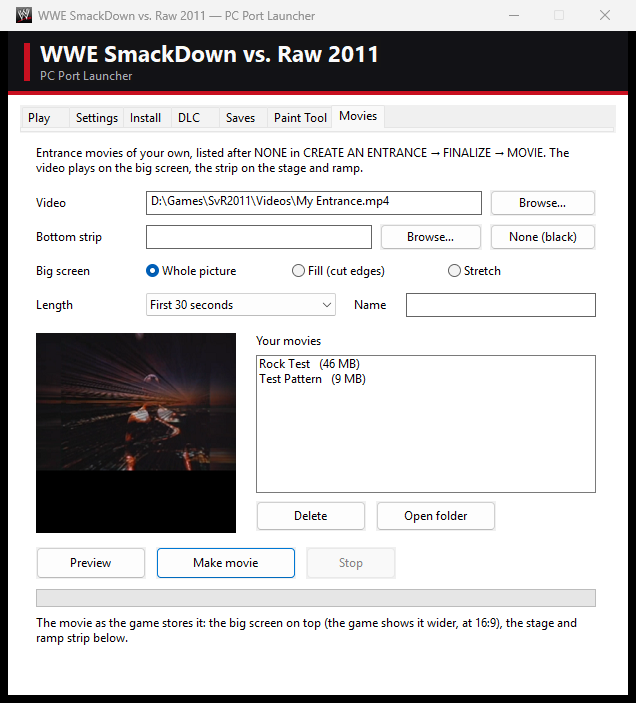
- Under Video, choose your video. A frame from it shows in the preview. You can also choose a movie you made before (a
.bikinCustom Movies) to make it again, for example with Fill the screen. - Under Bottom strip, choose what the stage and ramp screens show: a picture or a video (Browse…), Superstar… to reuse a superstar's animated strip from the game's own movie (DLC superstars included), or None (black).
- Choose how the video fits the big screen: Fill the screen (the default: the video covers the whole screen, cutting off a little at the edges if its shape differs), **W